Media Slider
approvedby amatya-aditya
A media slider for images, gifs, audios, videos, and PDFs.
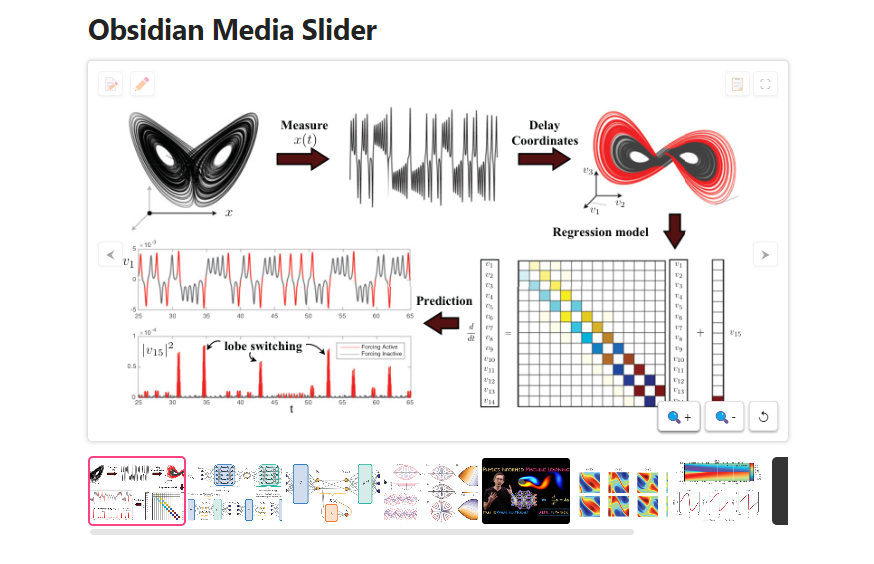
Media Slider
A container to group the similar images and other medias to reduce the vertical space in note







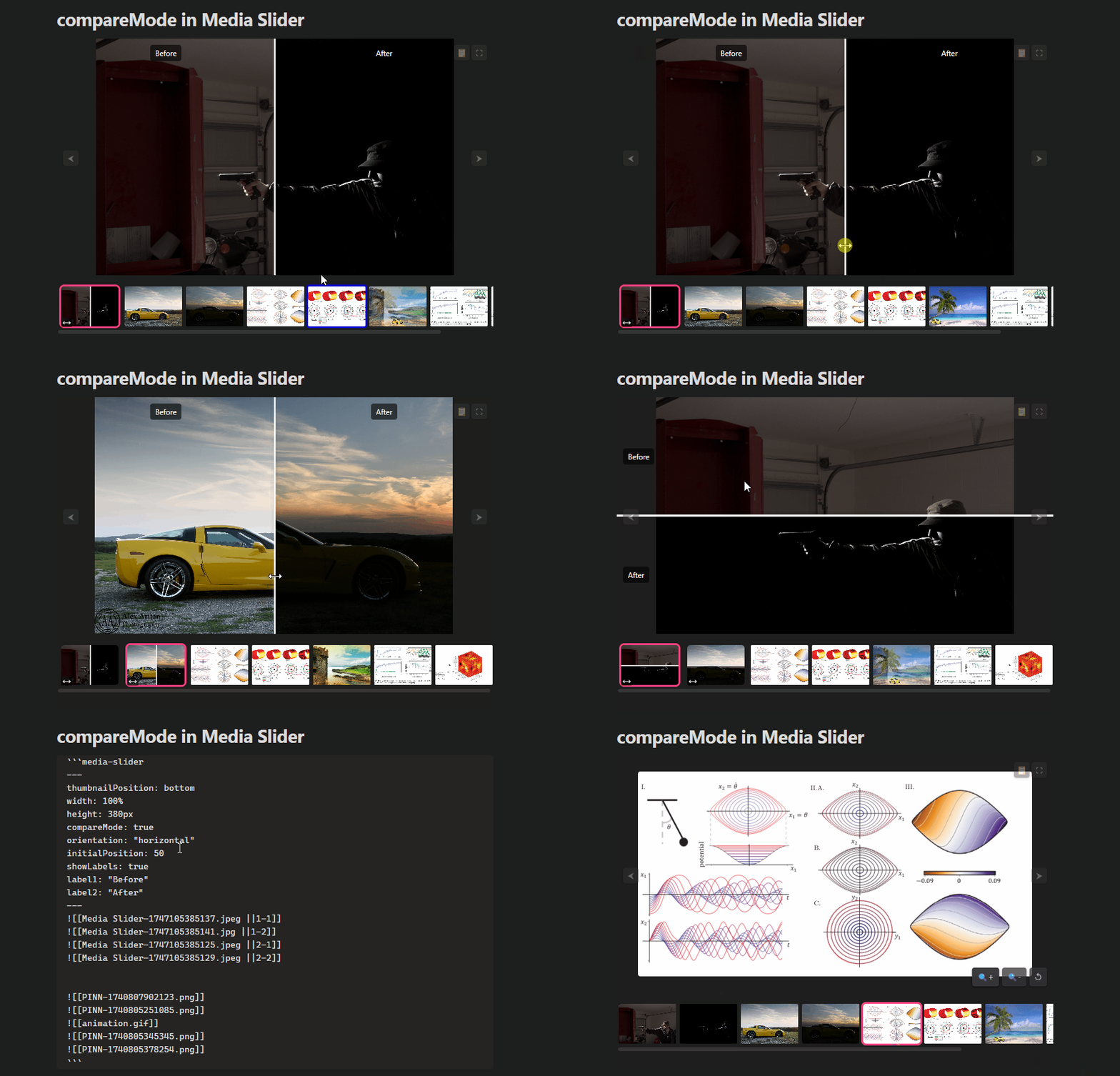
CompareMode
📌 Key Features:

🎥 Multiple Media Support: Images, videos (including YouTube), audio files, PDFs, Markdown files
💕 compareMode: Compare Before and After Images
🔍 Zoom & Pan: Explore media closely with built-in zoom and pan functionality.
🎬 Transition Effects: Fade, slide, zoom, flip, rotate, blur, squeeze, and more.
🖼️ Thumbnail Carousel: Quickly navigate slides with customizable thumbnail positioning.
✨ Enhanced View:
        🔳 Fullscreen Mode
        📋 Quick Copy Markdown Image Link
📝 Interactive Notes: Write and persistently save notes specific to each slide.
✏️ Drawing Annotations: Annotate directly onto images with drawing tools.
🌊 Audio/Video Visualizer: Dynamic waveform visualization for media playback.
▶️ Automatic Slideshow: Customizable autoplay with adjustable slideshow speed.
🔧 Customizable Compression: Optimize media quality and performance.

🎉 Enhance your Obsidian notes with seamless, interactive media experiences!

Happy sliding! 🚀
Installation
The plugin is available through Obsidian as a community plugin.
Manual installation
- Download the latest release files (manifest.json, styles.css, main.js) from the Releases page.
- Create a folder named "media-slider" in the Obsidian plugins folder (.obsidian/plugins).
- Copy the files from step 1 into the new folder.
- Enable the plugin in the Obsidian settings under the "Community plugins" section. You might have to restart Obsidian to see the plugin.
Usuage
📸 Basic Image Slider
```media-slider
![[image1.png]]
![[image2.png]]
![[image3.png]]
```
🎥 Mixed Media Support
```media-slider
![[image1.png]]
![[video1.mp4]]
![[audio1.mp3]]

```
Supports images, videos, audio, and external URLs.
🏷️ Captions
```media-slider
![[image1.png|A beautiful sunrise]]
![[image2.png|A calm lake]]
```
Add captions to your images using the |caption syntax.
🆚 Compare Mode (Simple)
```media-slider
---
compareMode: true
---
![[before.png||1-1]]
![[after.png||1-2]]
```
Compare two images side by side.
🆚 Compare Mode (Custom Options)
```media-slider
---
compareMode: true
orientation: "horizontal"
initialPosition: 50
showLabels: true
label1: "Before"
label2: "After"
---
![[before.png||1-1]]
![[after.png||1-2]]
![[before2.png||2-1]]
![[after2.png||2-2]]
```
Customize compare mode orientation, labels, and divider position.
📂 Folder Support
```media-slider
---
fileTypes:
  - "jpg"
  - "png"
  - "mp4"

recursive: true
# false → scan exact folder
# true → scans subfolders as well
---
[[folder/subfolder/]]
```
Automatically include all supported media from a folder.
🖼️ Thumbnail Carousel
```media-slider
---
carouselShowThumbnails: true
thumbnailPosition: bottom #right,left, top
---
![[image1.png]]
![[image2.png]]
![[image3.png]]
```
Enable and position the thumbnail carousel.
✨ Transition Effects
```media-slider
---
transitionEffect: slide
transitionDuration: 500
---
![[image1.png]]
![[image2.png]]
```
Choose from fade, slide, zoom, flip, etc.
🔍 Zoom & Pan
```media-slider
---
enhancedView: true
---
![[image1.png]]
```
Enable zoom and pan controls for images.
📝 Interactive Notes
```media-slider
---
interactiveNotes: true
---
![[image1.png]]
![[image2.png]]
```
Add and save notes for each slide.
✏️ Drawing Annotations
Enable in plugin settings. When enabled, a drawing button appears on images for annotation.
🛠️ Full YAML Example
For advanced users, you can combine multiple options:
```media-slider
---
sliderId: my-slider
carouselShowThumbnails: true
thumbnailPosition: bottom
captionMode: overlay
autoplay: false
slideshowSpeed: 0
width: 100%
height: 300px
transitionEffect: fade
transitionDuration: 500
enhancedView: true
interactiveNotes: true
compression: 0.8
fileTypes:
  - "jpg"
  - "png"
  - "mp4"
recursive: true
compareMode: true
  orientation: "vertical"
  initialPosition: 50
  showLabels: true
  label1: "Before"
  label2: "After"
---
![[image1.png]]
![[video1.mp4]]
![[audio1.mp3]]
![[compare1.png||1-1]]
![[compare2.png||1-2]]
```
Tip:
For each feature, you can combine options as needed. See the full YAML example for how to mix and match.
YAML Metadata Options
Inside the YAML block at the top of your media-slider code block, you can customize various options:
-
sliderId:
A unique identifier for the slider. If not set, a default ID is generated. -
carouselShowThumbnails:
trueorfalseto show thumbnails below (or beside) the slider. -
thumbnailPosition:
Choose fromtop,bottom,left, orright. -
captionMode:
Set tooverlay(caption appears on top of the media) orbelow(caption appears in a separate container). -
autoplay:
Enable automatic playback of the slideshow (trueorfalse). -
slideshowSpeed:
Time (in seconds) between slides during autoplay. -
width & height:
Specify the dimensions of your slider (e.g.,"100%"or"300px"). -
transitionEffect:
Select the transition effect (see Transition Effects below). -
transitionDuration:
Duration (in milliseconds) of the transition effect. -
enhancedView:
Iftrue, displays additional buttons for fullscreen mode and a copy button that copies the Markdown image link. -
interactiveNotes:
Enables an interactive notes panel for each media slide.
Supported Media Formats
The plugin supports a variety of file types:
- Images: PNG, JPG, JPEG, GIF, etc
- Videos: MP4, WebM, etc
- Audio: MP3, OGG, WAV
- PDFs: Displayed in an iframe
- Markdown Files: Rendered within the slider
If a file type isn’t directly supported, a simple link will be provided.
Transition Effects
You can choose from multiple transition effects to create smooth and appealing animations between slides. Set the transitionEffect option in your YAML block to one of the following:
-
fade:
Fades out the current slide before fading in the next. -
slide:
Slides the current image out and the next one in from the side. -
zoom:
Zooms out the current slide and then zooms in the next. -
slide-up:
Moves the slide upward out of view, with the next slide coming up from below. -
slide-down:
Moves the slide downward out of view, with the next slide coming from above. -
flip:
Flips the slide horizontally during transition. -
flip-vertical:
Flips the slide vertically. -
rotate:
Rotates the slide slightly before showing the next slide. -
blur:
Blurs the current slide during transition. -
squeeze:
Applies a horizontal squeeze (scaleX) effect.
Tip: Adjust the transitionDuration to control how fast or slow these effects occur.
Enhanced View
When enhancedView is enabled, you get two extra features:
-
Fullscreen Button:
Click the ⛶ button to toggle fullscreen mode for a more immersive viewing experience. -
Copy Button:
Click the 📋 button to copy the Markdown image link (formatted like![[image-link]]) to your clipboard. This is useful for easily referencing media in your notes.
Interactive Notes
If you enable interactiveNotes in your YAML metadata, a notes button (📝) will appear on the slider. Clicking it will display a text area where you can add or edit notes specific to the current slide. These notes are saved persistently and will appear again when you return to that slide.
Drawing Annotations
If you enable drawing annotations in the global plugin settings, a drawing button (✏️) will appear. Here’s how it works:
-
Start Drawing:
Click the ✏️ button to enter drawing mode. You can annotate directly on the current image. -
Save Drawing:
Once done, click the button (which will change to a 💾 icon) to save your annotation. -
Clear Drawing:
A trash icon (🗑️) will appear if an annotation exists. Click it to remove the annotation.
Visualizer for Audio/Video
For media files that support audio or video, you can enable a wave-like visualizer:
-
Enable Visualizer:
In the global settings, toggle Enable Visualizer totrue. -
Customization:
You can set thevisualizerColor(any valid CSS color) andvisualizerHeight(e.g.,"50px") from the plugin settings.
This feature creates a dynamic visualization (like an audio waveform) over the media during playback.
Thumbnails and Navigation
-
Thumbnails:
When enabled viacarouselShowThumbnails, small preview images (or placeholders for non-image media) are displayed either below, above, or beside the slider based on thethumbnailPositionoption. Click a thumbnail to jump to that slide. -
Navigation Buttons:
Large arrows (⮜ and ⮞) are displayed on either side of the slider to move to the previous or next slide. -
Keyboard and Touch Controls:
You can navigate slides using the left/right arrow keys, mouse wheel, or touch gestures on mobile devices.
Automatic Slideshow
If you set the slideshowSpeed option to a value greater than 0, the slider will automatically advance to the next slide after the specified number of seconds. This is ideal for presentations or unattended displays.
The Media Slider Plugin is designed to be both flexible and easy to use. By adjusting the YAML metadata in your code blocks and tweaking global settings, you can create a rich, interactive media display experience in Obsidian. Enjoy showcasing your media with smooth transitions, interactive notes, drawing annotations, and more!
Happy sliding!
Roadmap
- Support pasting image directly in codeblock without opening it
- Render YouTube Videos as media-slider element
- Customization of compression ratio
- Support Zoom and Pan
- CompareMode - Comparing after and before images
- Folder Support in Codeblock - Linking all images in a folder to the slider
- Writing Caption directly from UI
Support
If you encounter any issues or have suggestions, Create an issue on GitHub
Support the development:

For plugin developers
Search results and similarity scores are powered by semantic analysis of your plugin's README. If your plugin isn't appearing for searches you'd expect, try updating your README to clearly describe your plugin's purpose, features, and use cases.