by Sreenivasan AC
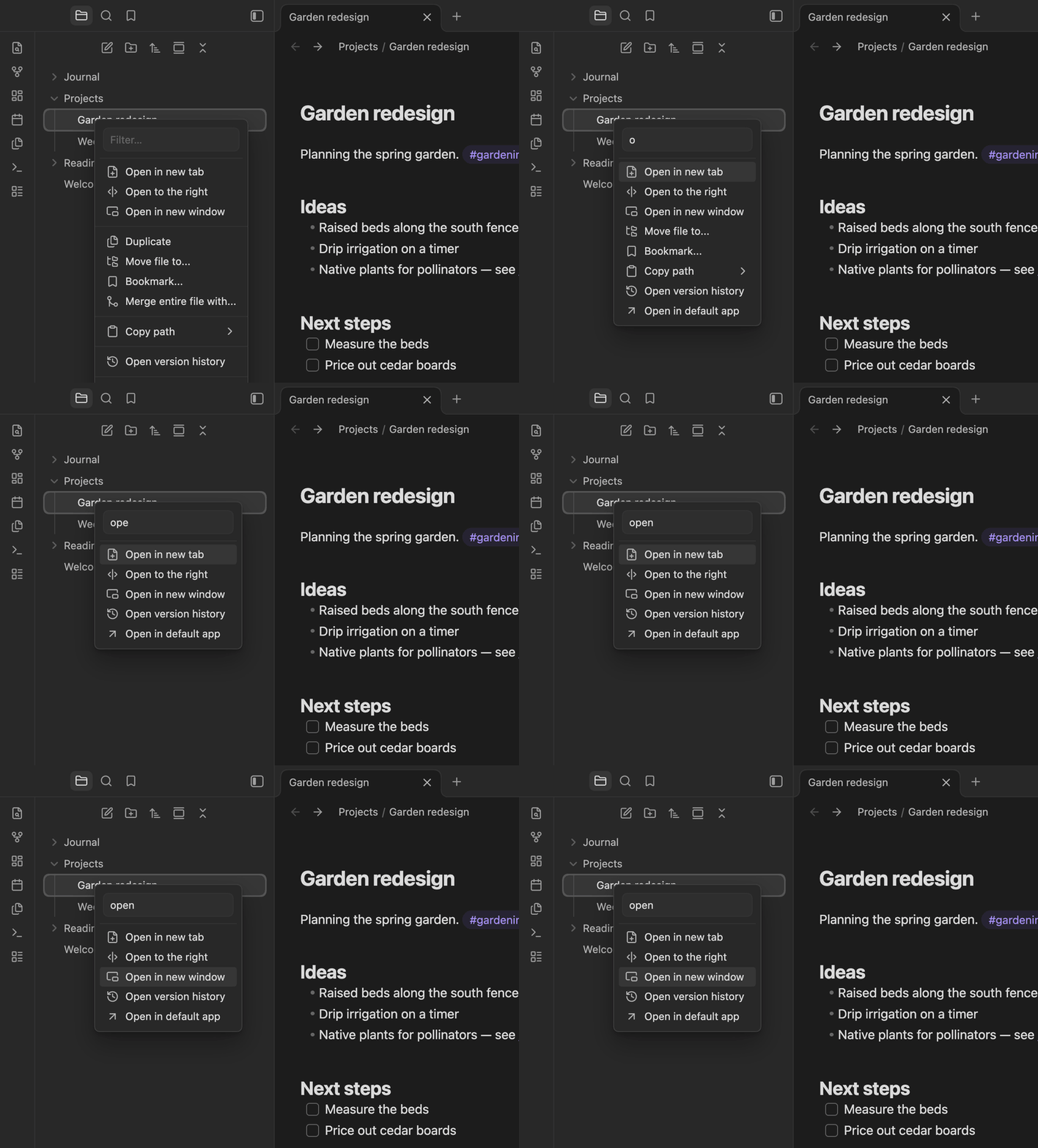
Adds a type-to-filter box to long context menus. Type a few letters to narrow the menu and press Enter to run the highlighted item.
Menu Filter
Long right-click menus are slow to scan. Menu Filter adds a filter box to the top of every long menu in Obsidian, so you can type a few letters instead of reading the whole list.
Right-click a folder, type mov, and the menu narrows to Move folder to…. Press Enter to run it.
How it works
- The filter box appears on any menu with at least 8 items (configurable). It works on menus from the file explorer, the editor, tabs and other plugins.
- The box is focused as soon as the menu opens. Just start typing.
- Matching items stay visible and the first one is highlighted.
- ↑ / ↓ move the highlight, Enter runs it, Esc closes the menu.
- Short menus are left unchanged.
Requirements
- Native menus must be off. With native menus on, the operating system draws the menus, so plugins can't change them. Turn them off in Settings → Appearance → Native menus. On macOS native menus are on by default, and the plugin's settings page warns you when they are.
- Obsidian 1.13 or later.
- Desktop only.
Settings
| Setting | Default | Description |
|---|---|---|
| Minimum menu size | 8 | Menus with fewer items don't get a filter box. |
Installation
Install it from Settings → Community plugins → Browse: search for "Menu Filter", or open its page in the plugin directory.
To install it manually, copy main.js, manifest.json and styles.css from the latest release into <your vault>/.obsidian/plugins/menu-filter/, then enable the plugin.
Development
npm install
npm run dev    # rebuilds main.js on every change
npm run build  # type-check and production build
npm run lint
License
For plugin developers
Search results and similarity scores are powered by semantic analysis of your plugin's README. If your plugin isn't appearing for searches you'd expect, try updating your README to clearly describe your plugin's purpose, features, and use cases.