by jason wan
View Mermaid diagrams on a light canvas with fullscreen zoom, pan, and configurable note scope.
Mermaid Viewer
English · 简体中文
Introduction
Mermaid Viewer makes diagrams easier to read in Obsidian. Open a diagram on a spacious fullscreen canvas, zoom into the details, and move around without losing your place in the note.
A warm, light surface keeps diagrams readable in both light and dark vaults. Text stays stable while zooming, and the original note remains unchanged.
Screenshots
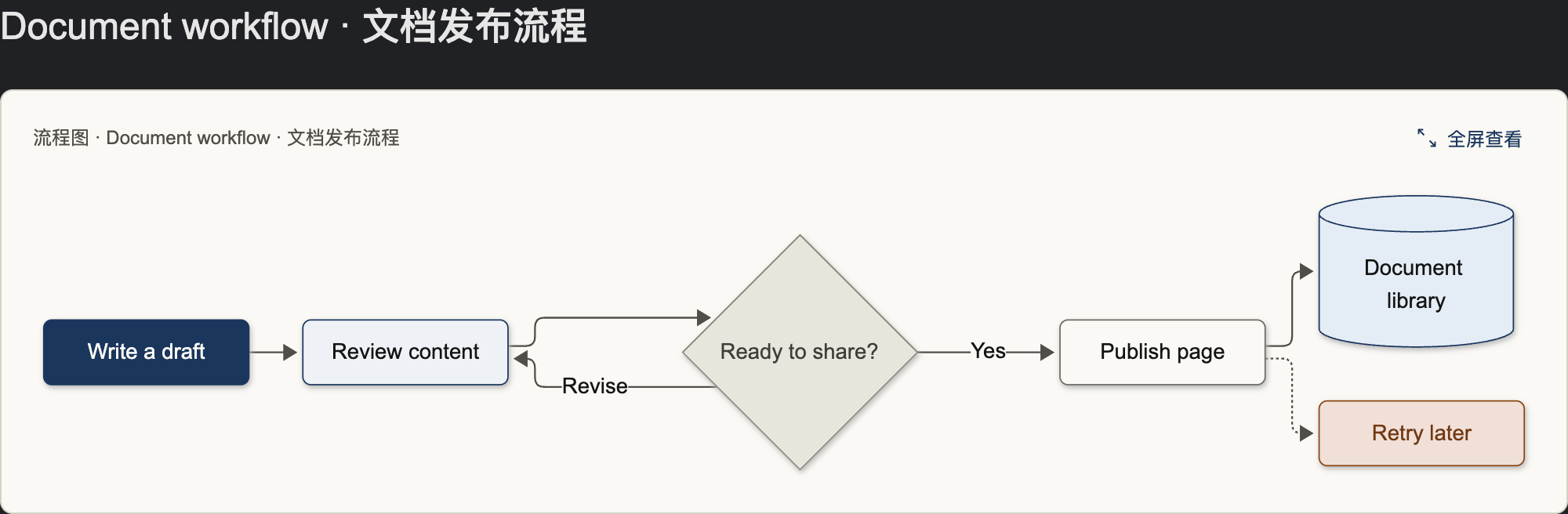
Inline diagrams
A light diagram card with a compact header and a fullscreen action.
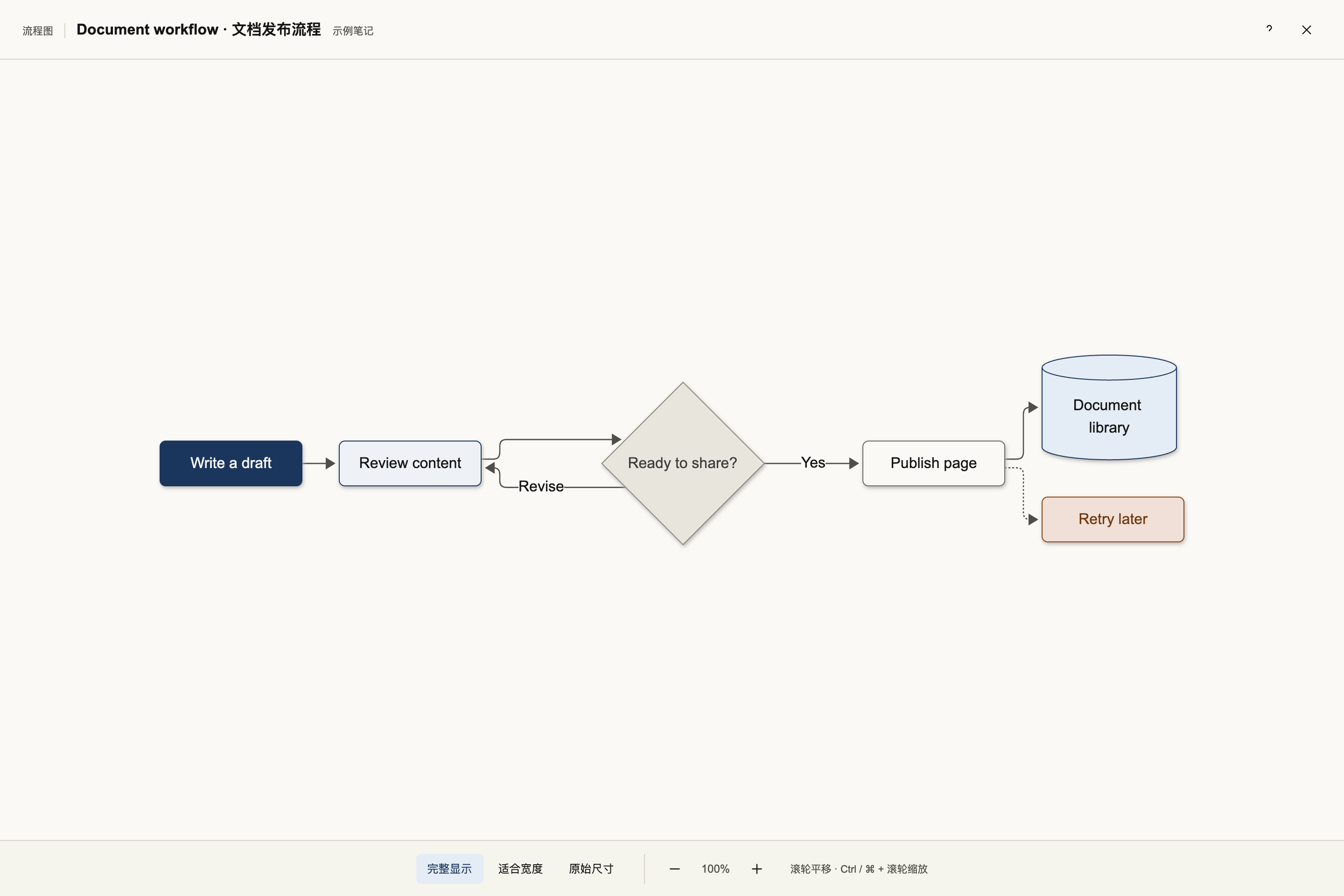
Fullscreen flowcharts
View the whole process, then zoom and pan to inspect individual steps.
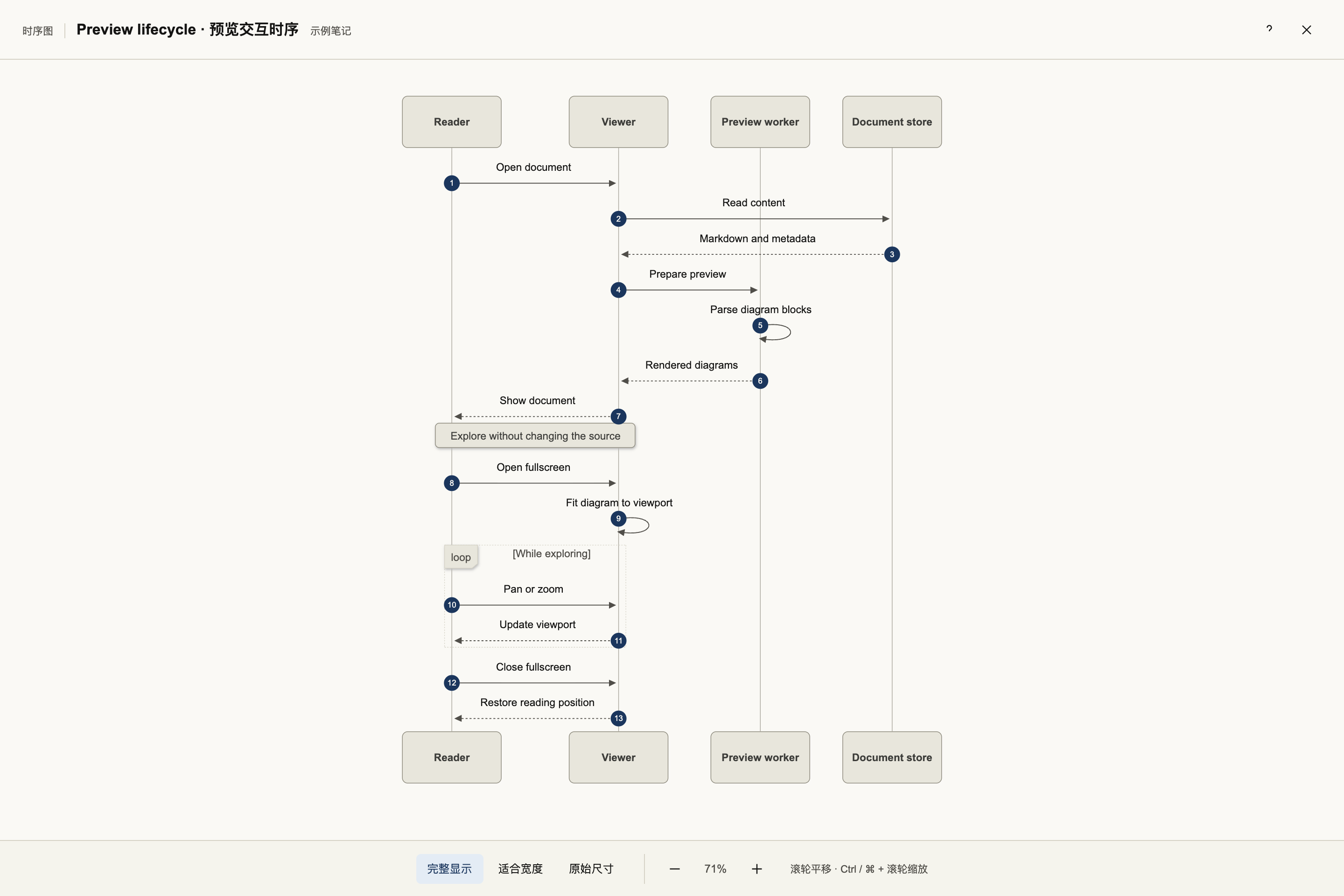
Fullscreen sequence diagrams
Read interactions on a larger canvas, with thin lifelines and controls for fitting the diagram to the available space.
The previews use fictional document workflows and contain no personal notes.
Features
- Fullscreen viewing — give large diagrams more room than the note column allows.
- Stable vector zoom — enlarge details without making labels jump or reflow.
- Flexible navigation — pan with dragging, the wheel or arrow keys; zoom with the wheel modifier, buttons or pinch gestures.
- Three view modes — fit the whole diagram, fit to width, or use the original size.
- Consistent light canvas — keep diagrams readable even in a dark vault.
- Clean inline controls — open fullscreen from the header; keep Obsidian's source-edit action in Live Preview.
- Configurable scope — apply to all notes or only notes carrying a chosen CSS class.
- Semantic colors — distinguish important nodes, steps, storage, branches, external systems and errors.
- Local viewing — no network requests, telemetry or changes to note content.
Usage
1. Install and enable
For a manual installation, copy main.js, manifest.json and styles.css from the plugin package into:
<your-vault>/.obsidian/plugins/mermaid-viewer/
Reload Obsidian, then enable Mermaid Viewer in Settings → Community plugins.
2. Open a diagram
Add a Mermaid code block to a note. For example:
```mermaid
flowchart LR
  draft[Write a draft]:::focus --> review[Review content]:::step
  review --> library[(Document library)]:::store
```
Render the note in Reading view or Live Preview, then click 全屏查看 in the diagram header. You can also use the Mermaid Viewer: 全屏查看当前笔记的 Mermaid 图 command from Obsidian's command palette.
The interface currently uses Chinese labels. The main view buttons are 完整显示 (Fit all), 适合宽度 (Fit width), and 原始尺寸 (Original size).
3. Navigate
| Action | Result |
|---|---|
| Wheel, drag, arrow keys | Pan |
| Shift + wheel | Pan horizontally |
| Ctrl / ⌘ + wheel | Zoom around the pointer |
| Pinch gesture | Zoom around the gesture |
| Double-click / Shift + double-click | Zoom in / out |
+ / − | Zoom around the center |
F / 0 | Fit the whole diagram |
W | Fit to width |
1 | Original size |
Esc | Close help first, then the viewer |
Use 适合宽度 for a long diagram, then scroll vertically to read it. Open 操作说明 in the top-right corner for controls and the color legend.
4. Choose which notes to include
Open Settings → Mermaid Viewer → 图表应用范围.
- Leave the field empty to include all notes.
- Enter one class name, such as
mermaid-notes, to include only notes with that class. Omit the leading dot.
Add the corresponding property at the top of each selected note:
---
cssclasses:
  - mermaid-notes
---
The scope updates when you leave the setting field. Disabling the plugin removes the controls and styles it added.
5. Add semantic colors
In flowcharts, append :::className to a node, as shown in the example above:
| Class | Meaning |
|---|---|
focus | Important node |
step | Processing step |
store | Data storage |
branch | Branch or supporting node |
ext | External system |
err | Error or exception |
Nodes without a recognized class use neutral colors. Flowcharts and sequence diagrams have the broadest support; styling for other diagram types may vary.
For plugin developers
Search results and similarity scores are powered by semantic analysis of your plugin's README. If your plugin isn't appearing for searches you'd expect, try updating your README to clearly describe your plugin's purpose, features, and use cases.