Minidoro
approvedby shaktisampadswain
A minimal Pomodoro timer to help you focus.
★ 25 stars↓ 3,933 downloadsUpdated 8mo agoMIT
Minidoro: A Pomodoro Timer for Obsidian
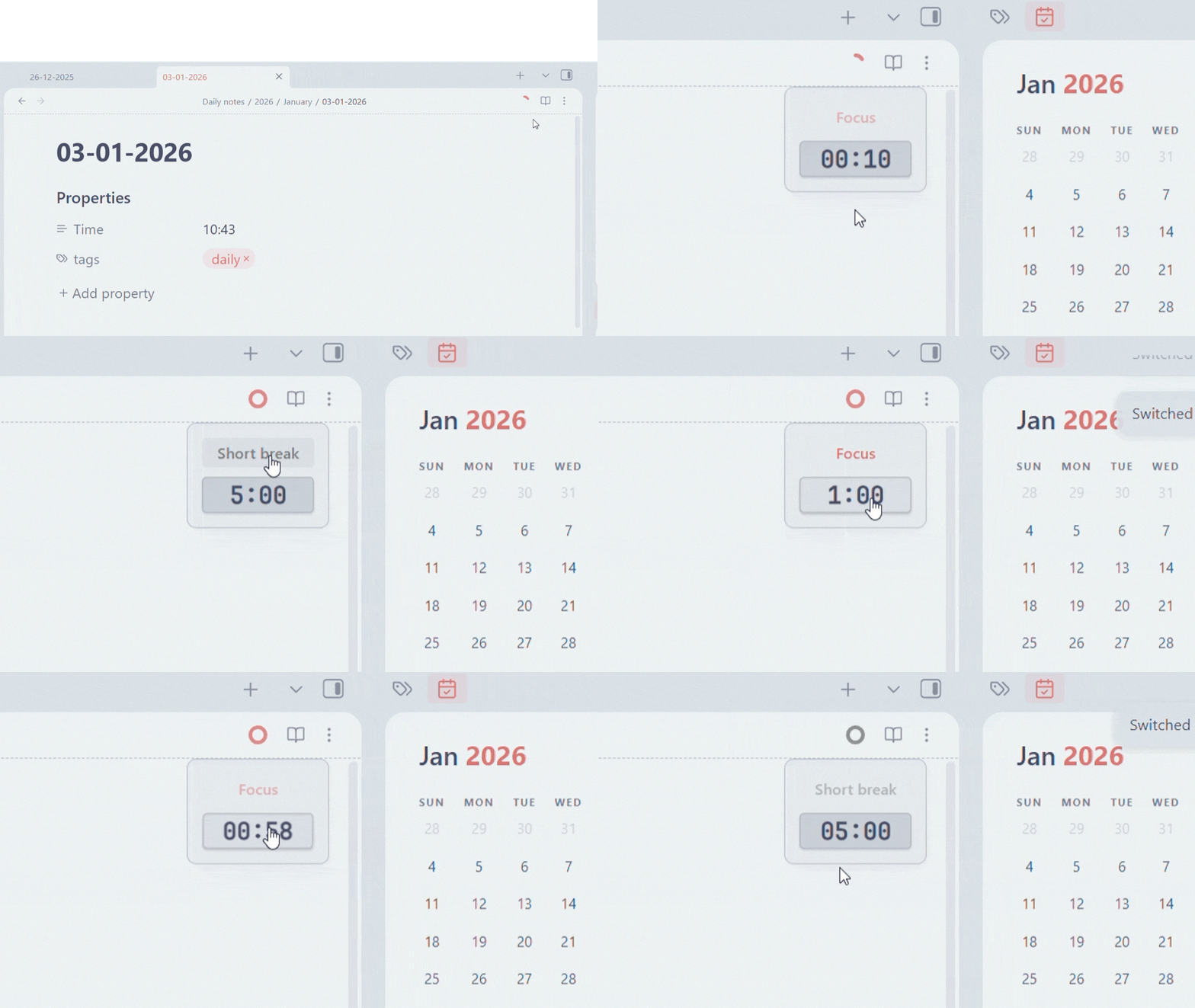
Minidoro is a simple, unobtrusive Pomodoro timer to help you focus. Minidoro integrates directly into your workspace, providing a visual timer in the header and customizable settings to fit your workflow.
Support Me
If you find this plugin helpful, please consider supporting its development.

Screenshots
Features
- Minimalist Design: A clean, circular progress indicator in the header that doesn't clutter your workspace.
- Easy Controls: A hover-activated control panel to start, pause, resume, and reset your timer.
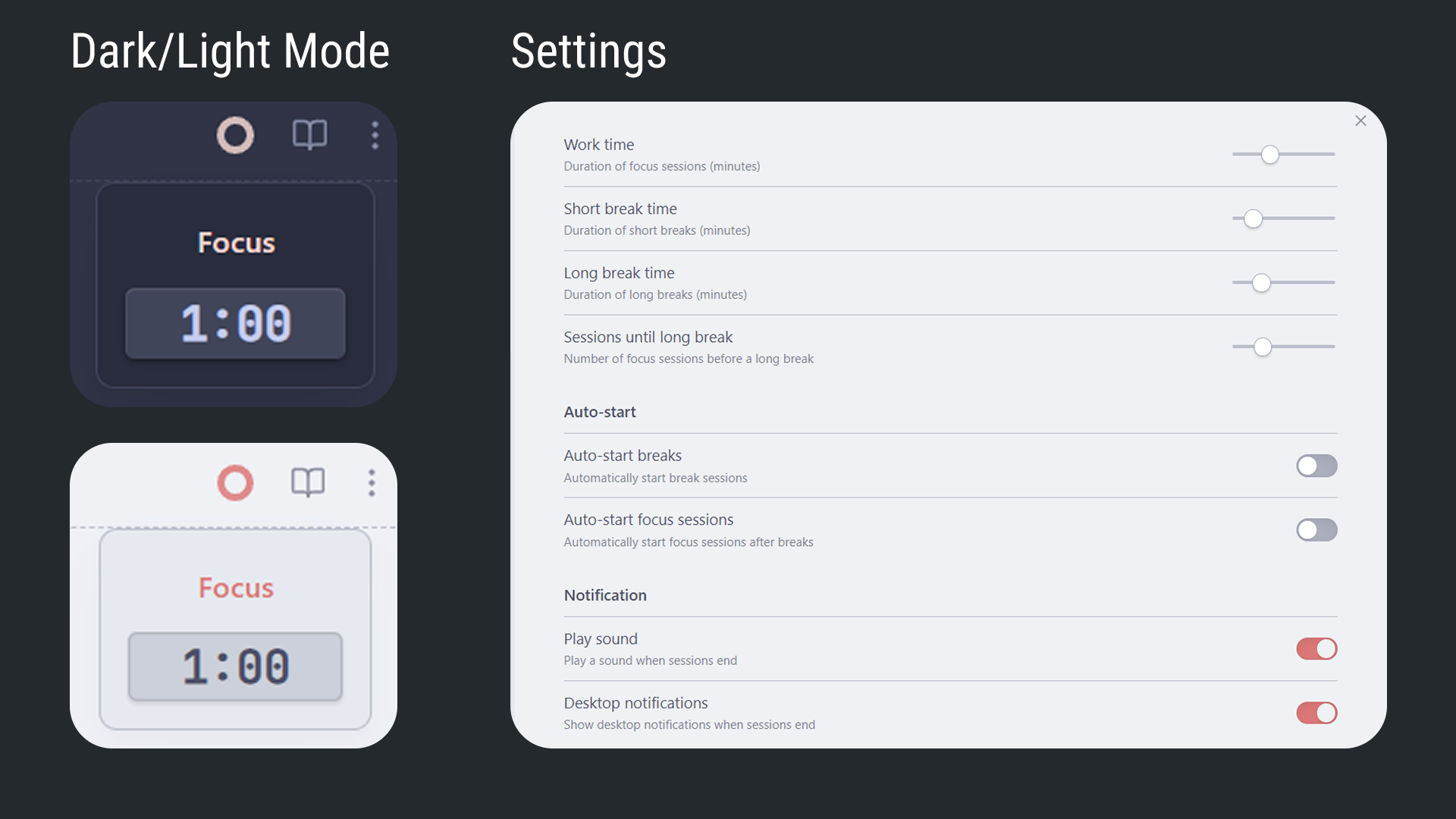
- Customizable Sessions: Set your own durations for work, short breaks, and long breaks.
- Flexible Workflow:
- Manually switch between Work, Short Break, and Long Break modes when the timer is idle.
- Configure the number of work sessions before a long break.
- Automations:
- Optionally auto-start break sessions after a work session completes.
- Optionally auto-start work sessions after a break completes.
- Notifications:
- Receive desktop notifications when a session ends.
- Get an audible sound alert at the end of each session.
- Persistent Pinning: Pin the control panel to keep it visible.
How to Use
- Access the Timer: The Pomodoro timer icon will appear in the header of your active pane.
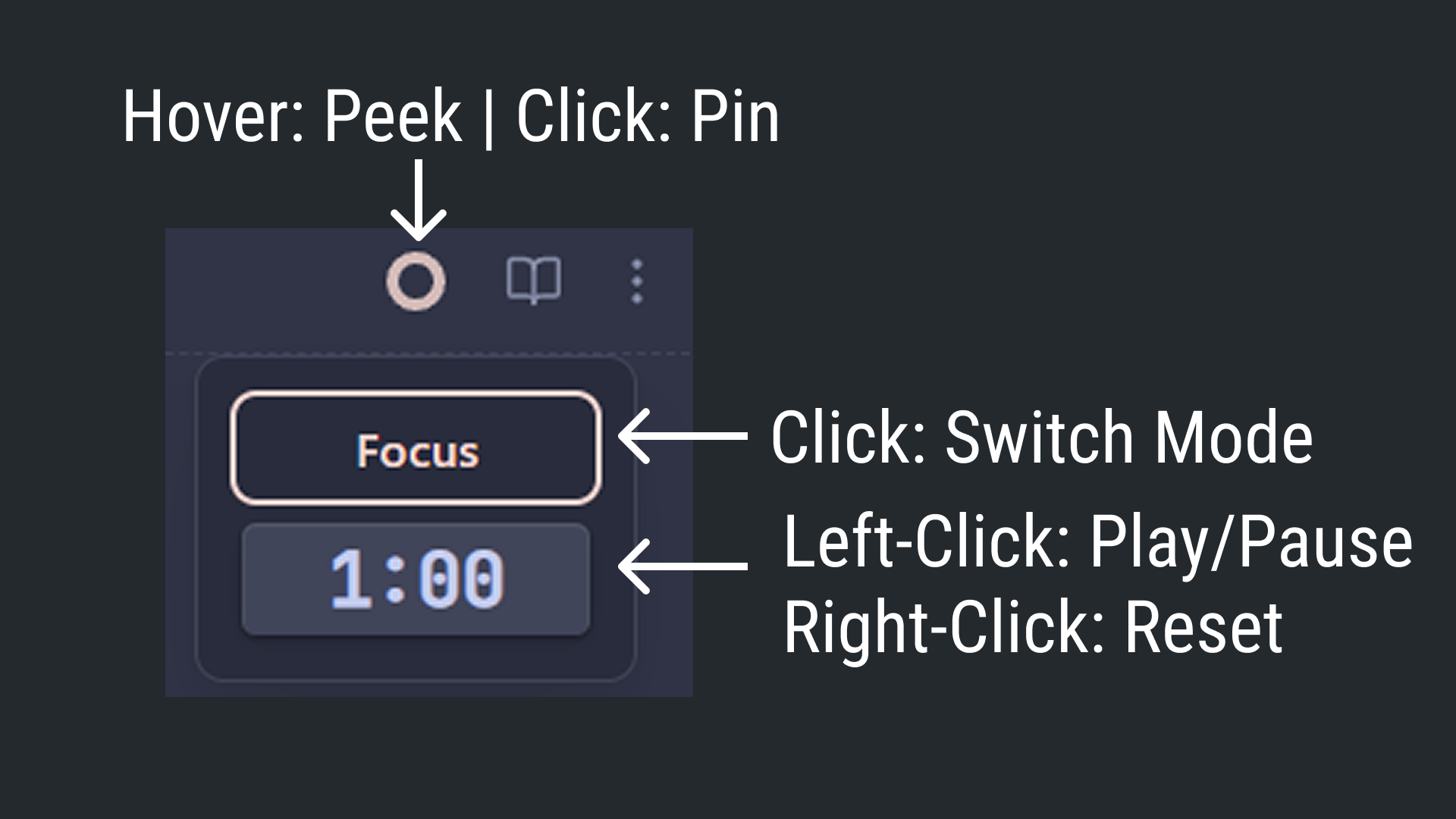
- View Controls: Hover over the timer icon to reveal the control panel.
- Start/Pause/Resume: Left-click the time display to start, pause, or resume the timer.
- Reset: Right-click the time display to reset the current session.
- Switch Modes: When the timer is reset (idle), click the mode name (e.g., "Focus") to cycle through Work, Short Break, and Long Break.
- Pin the Panel: Click the timer icon itself to pin the control panel open. Click it again to unpin.
Installation
- Open Obsidian's Settings.
- Go to the Community plugins tab.
- Make sure "Restricted mode" is off.
- Click Browse to open the community plugins browser.
- Search for "Minidoro" and click Install.
- Once installed, click Enable to activate the plugin.
Configuration
You can customize the timer to your liking in the plugin settings:
- Work time (minutes): Set the duration for your focus sessions.
- Short break time (minutes): Set the duration for short breaks.
- Long break time (minutes): Set the duration for long breaks.
- Sessions until long break: Define how many work sessions to complete before a long break is triggered.
- Auto-start breaks: Toggle whether breaks should start automatically after a work session.
- Auto-start focus sessions: Toggle whether work sessions should start automatically after a break.
- Play sound: Enable or disable the sound notification at the end of a session.
- Desktop notifications: Enable or disable desktop notifications.
License
This plugin is released under the MIT License. See the LICENSE file for more details.
For plugin developers
Search results and similarity scores are powered by semantic analysis of your plugin's README. If your plugin isn't appearing for searches you'd expect, try updating your README to clearly describe your plugin's purpose, features, and use cases.