by hong-iron
Make Live Preview line up with Reading view to the pixel, and edit callouts while they stay rendered.
Mode Parity
Make Live Preview line up with Reading view to the pixel, and edit callouts while they stay rendered.
In stock Obsidian the same note looks different in the two modes: blank lines take a full line in Live Preview but collapse in Reading view, headings and lists sit at different offsets, code blocks grow when you click into them, and a callout turns back into raw > [!tip] text as soon as the cursor enters it. Mode Parity removes those differences.
Before / after
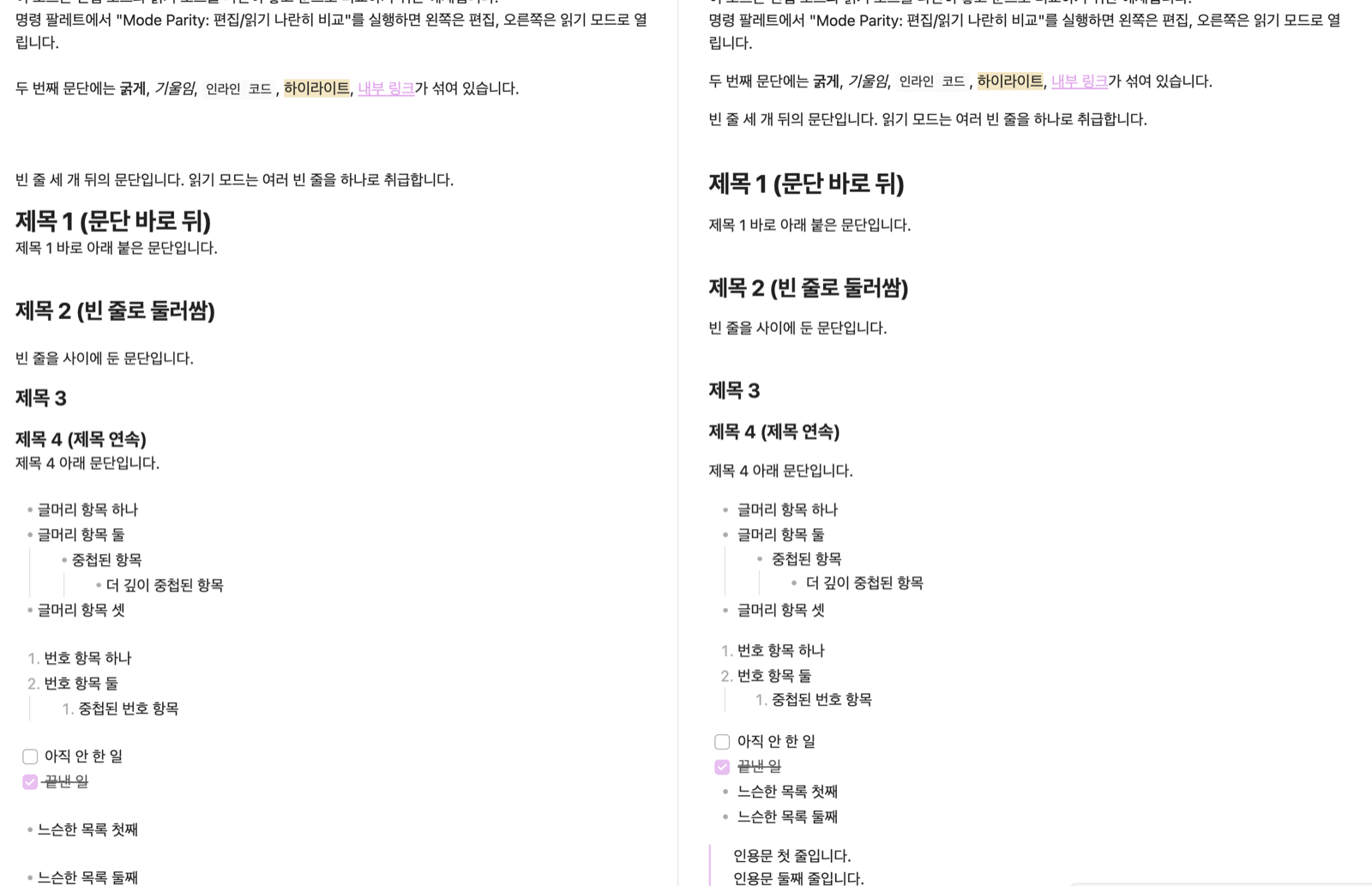
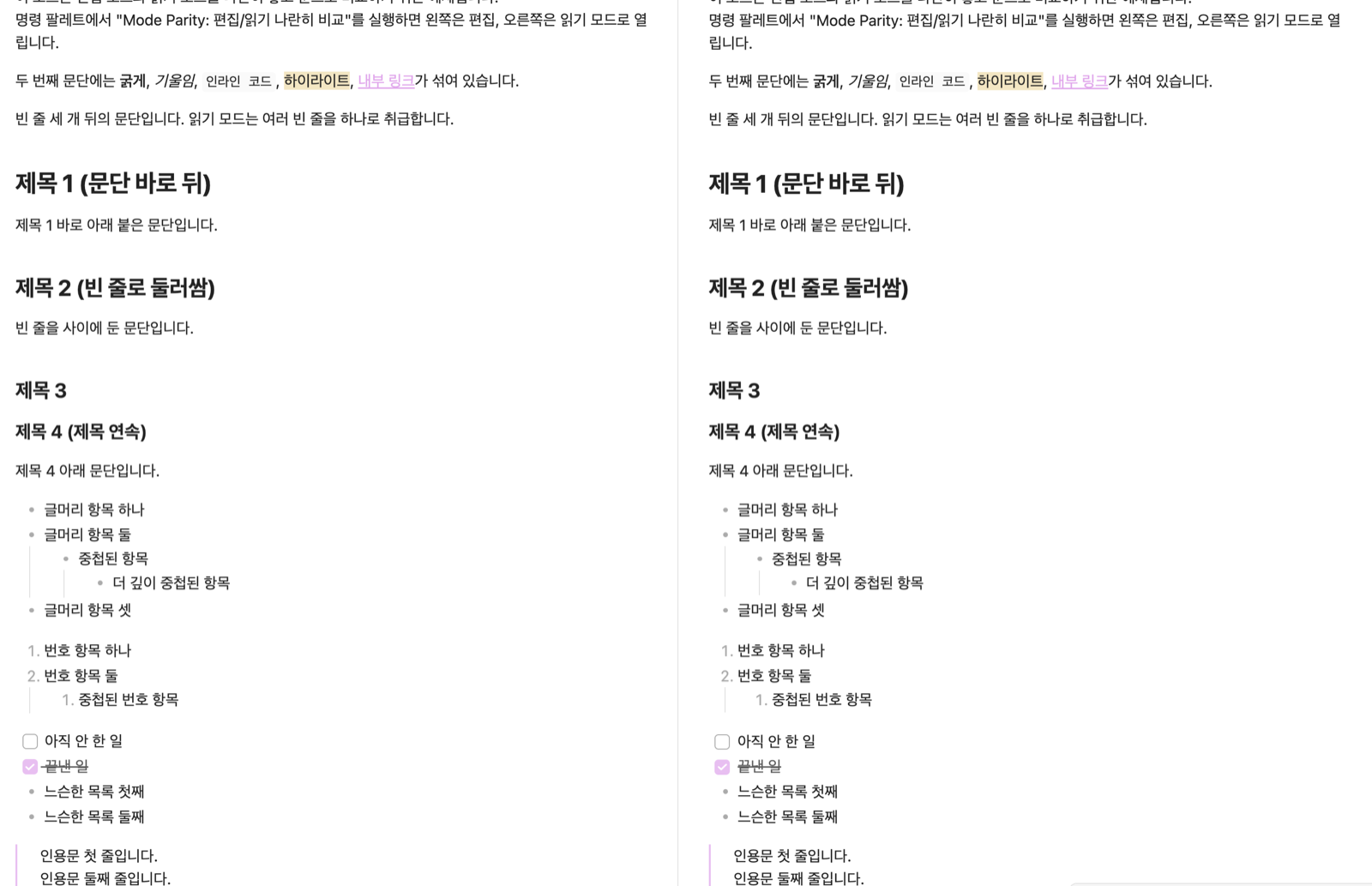
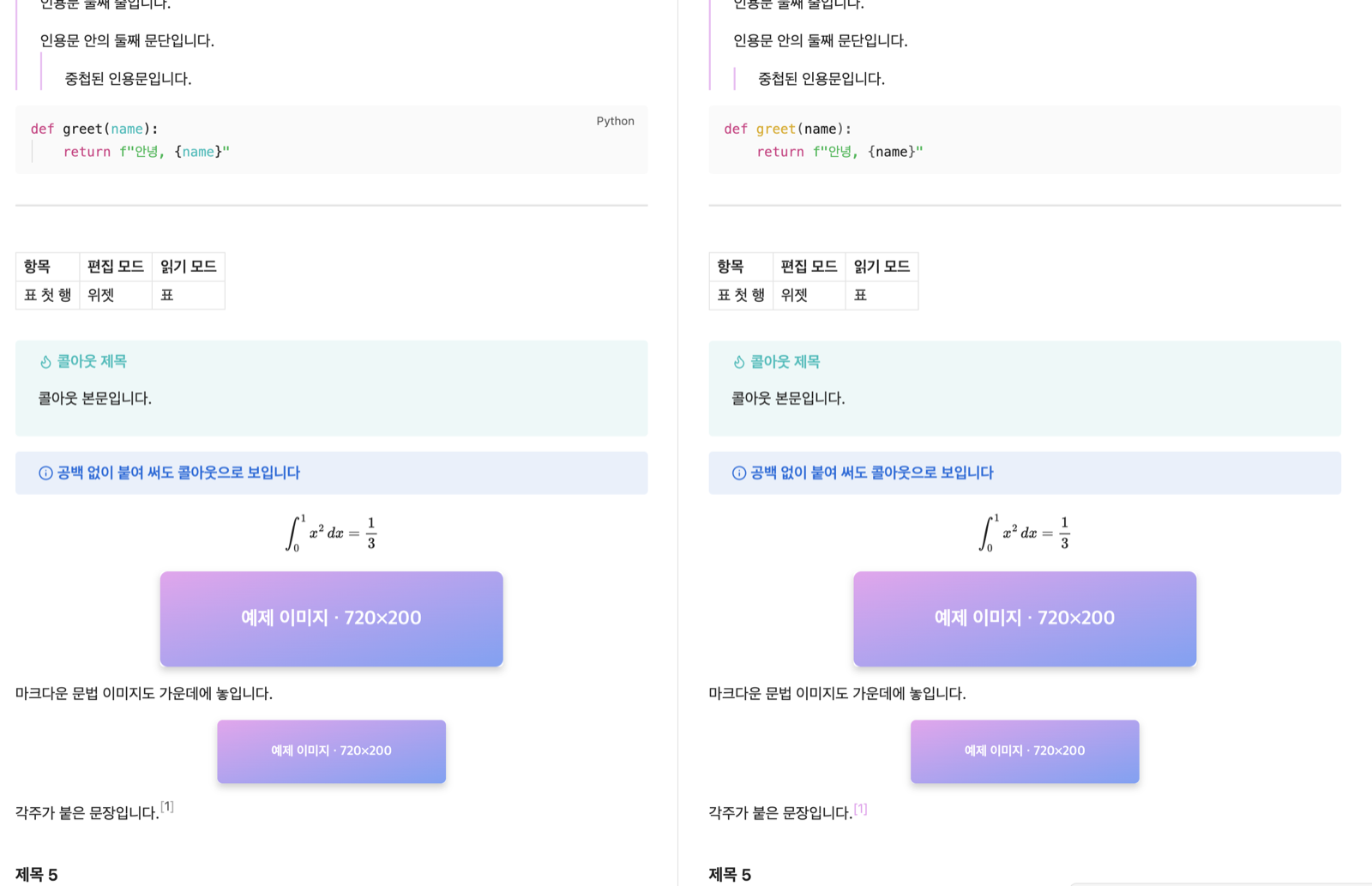
Left: Live Preview. Right: Reading view. Same note, same scroll position.
Without the plugin: blank lines, headings and lists drift apart.
With the plugin: every block starts at the same pixel.
Code, dividers, tables, callouts, math and images line up too:
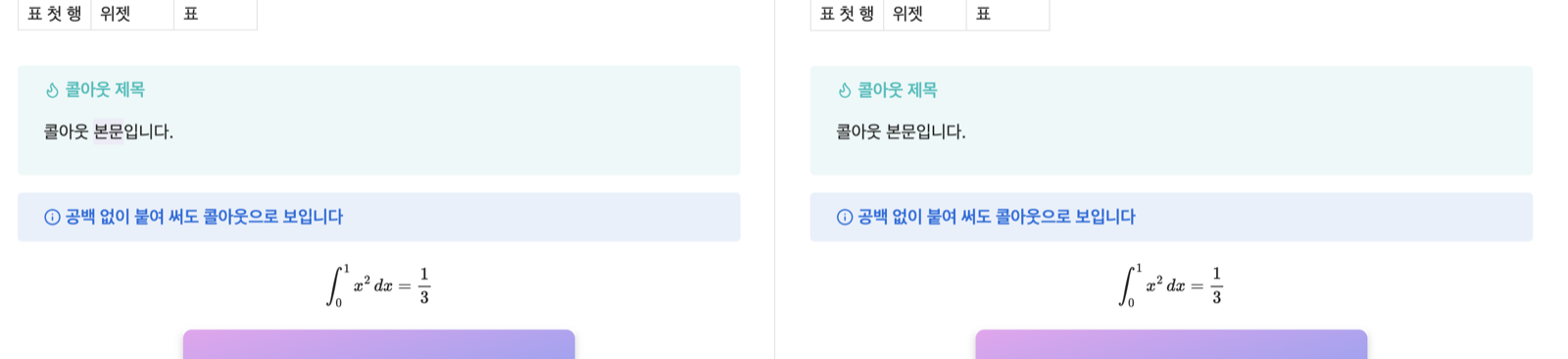
Editing inside a callout (left, the word is selected) keeps it rendered exactly like Reading view (right):
What it does
| Area | Stock Live Preview | With Mode Parity |
|---|---|---|
| Blank lines | Every blank line is a full line tall | The blank line between two blocks uses the Reading-view gap (e.g. paragraph 16px, paragraph → heading 40px). Extra blank lines you add keep a full line of space by default; turn on Collapse extra blank lines to collapse them like Reading view |
| Headings | Only 1rem above | Same top/bottom spacing as Reading view, depending on the previous block |
| Lists | Bullet and text positions differ, loose lists get extra gaps | Bullet center and text start match, nested list padding matches |
| Blockquotes | Different indent, > shown on the active line | Reading-view indent, > hidden |
| Code blocks | Different line height; fences (```) appear and the block grows when you click in | Same line box and baseline; a fence only appears when the cursor is on that fence line |
| Dividers, tables, math | Widget boxes have different heights/padding | Same boxes as Reading view |
| Footnote references | Small [^1] | Superscript [1] like Reading view |
| Images | Stuck to the left inside a shrink-wrapped box | Centered in both views (optional); image-only lines are exactly as tall as the image |
| Callouts | Clicking in shows raw > [!tip] Title | Stays rendered while you edit; the cursor lands on the character you clicked. Click the icon, or press ← at the start of the title, to edit the type |
Callouts without a space (>[!info]Title) | Obsidian treats them as plain quotes | Rendered as callouts in both views (optional). Files are not changed |
| Editing a heading | ## appears and pushes the heading text right | ## hangs in the left margin, the text does not move |
How it works
- Calibration: a hidden Reading-view probe renders sample blocks (paragraph, headings 1–6, lists, quote, callout, code, math, table, divider) in every order with Obsidian's own renderer and measures the real gaps. It re-measures when the theme or a CSS snippet changes, so it follows your theme's Reading view rather than hard-coded numbers.
- Block classification: Markdown lines are grouped into blocks (recursively inside quotes and callouts), and the height of blank lines and the space above blocks are set from the measurements.
- CodeMirror decorations + CSS: line decorations apply the heights and gaps, and the list/quote marker areas are given the Reading-view width (Obsidian's own wrapped-line indentation follows automatically).
Commands
- Toggle on/off (before/after): switch instantly to compare.
- Open editing and reading side by side: opens the current note in Live Preview (left) and Reading view (right) with linked scrolling.
- Measure editing vs reading offsets: measures where the same text lands in both panes and lists the difference per line in pixels.
- Re-measure current theme
Every feature can be turned off individually in the settings.
Verified
On Obsidian 1.15.1 with the default theme, comparing the position of the same text on every line of a test note:
- Without the plugin: up to 168px vertical and 12px horizontal difference
- With the plugin: at most 0.1px vertical and 0.6px horizontal (task checkboxes); images 0px; 0px while editing inside a callout
Known differences
- Syntax highlighting colors differ slightly (CodeMirror in Live Preview vs Prism in Reading view).
- The code block language label is only shown in Live Preview.
- Footnote definitions (
[^1]: …) stay in place in Live Preview; Reading view moves them to the end. - Inline formatting marks (
**etc.) still appear around the cursor, as in stock Obsidian. - Pixel-verified only with the default theme; other themes are calibrated automatically but not verified by hand. Not yet tested on mobile.
- In very narrow panes the hanging
##marks can be clipped.
Installation
Until it is listed in the community directory, install manually: download main.js, manifest.json and styles.css from the latest release into <vault>/.obsidian/plugins/mode-parity/, then enable Mode Parity under Settings → Community plugins.
License
한국어
편집 모드(Live Preview)를 읽기 모드와 같은 픽셀 위치로 맞추고, 콜아웃처럼 커서를 넣으면 원문으로 바뀌던 블록을 렌더링된 모양 그대로 편집하게 해 주는 Obsidian 플러그인입니다.
- 블록 간격: 빈 줄·제목·목록·인용·코드·구분선·표·수식·각주 표시의 위치를 읽기 모드와 같게 맞춥니다. Enter로 추가한 빈 줄은 기본적으로 한 줄씩 공간을 유지하고, 설정의 연속 빈 줄 접기를 켜면 읽기 모드처럼 접힙니다.
- 렌더링된 채로 편집: 콜아웃 안을 클릭하면 클릭한 글자에 바로 커서가 들어가고 모양은 그대로입니다. 아이콘을 누르거나 제목 맨 앞에서 ←를 누르면
[!종류]를 고칠 수 있습니다. 코드 블록은 ``` 줄에 커서를 둘 때만 그 줄이 나타나고, 편집 중인 제목의##는 왼쪽 여백에 표시됩니다. - 이미지 가운데 정렬, 붙여 쓴 콜아웃(
>[!info]제목)도 콜아웃으로 그리기(둘 다 설정에서 끌 수 있음, 파일 내용은 바꾸지 않음) - 측정 기반: 현재 테마의 읽기 모드를 실제로 그려서 간격을 재므로 다른 테마에서도 그 테마 기준으로 맞춥니다.
Obsidian 언어가 한국어면 설정과 명령이 한국어로 표시됩니다. 명령 팔레트에서 편집/읽기 나란히 비교로 두 모드를 나란히 열고, 편집/읽기 위치 차이 측정으로 줄마다 차이(px)를 확인할 수 있습니다.
검증: Obsidian 1.15.1 기본 테마에서 적용 전 세로 최대 168px → 적용 후 0.1px. 기본 테마 외의 테마와 모바일은 아직 직접 확인하지 않았습니다.
For plugin developers
Search results and similarity scores are powered by semantic analysis of your plugin's README. If your plugin isn't appearing for searches you'd expect, try updating your README to clearly describe your plugin's purpose, features, and use cases.