by liyifan
A continuous multi-column workspace for seamless reading and editing.
MultiFolio



MultiFolio: Multicolumn Workspace — a continuous multi-column workspace for seamless reading and editing in Obsidian.
- Dual Pane Mode: current view + next screen, synchronized scrolling
- Triple Pane Mode: previous + current + next screens, full context while editing
- Works in Edit, Preview, and Source modes
🌐 Languages
Folio's interface supports 9 languages, auto-detected from your Obsidian settings:
English | 简体中文 | 繁體中文 | 日本語 | 한국어 | Français | Deutsch | Español | العربية
✨ Features
📖 Dual Pane Mode
- Primary View on the left, Next Screen on the right
- Synchronized scrolling
- Perfect for continuous reading
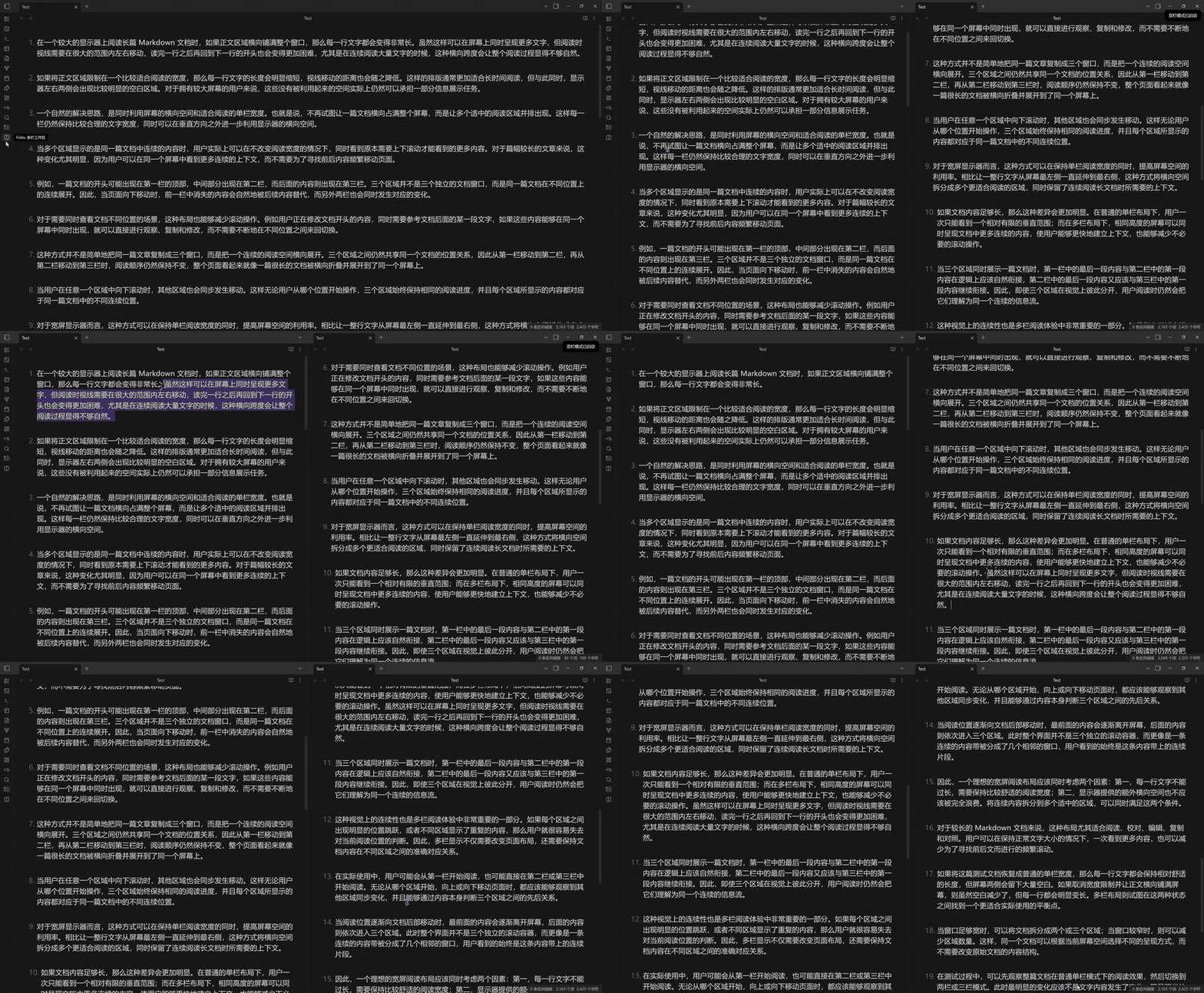
📚 Triple Pane Mode
- Previous Screen on the left, Primary View in the center, Next Screen on the right
- See what comes before and after your current position
- Complete context awareness while editing
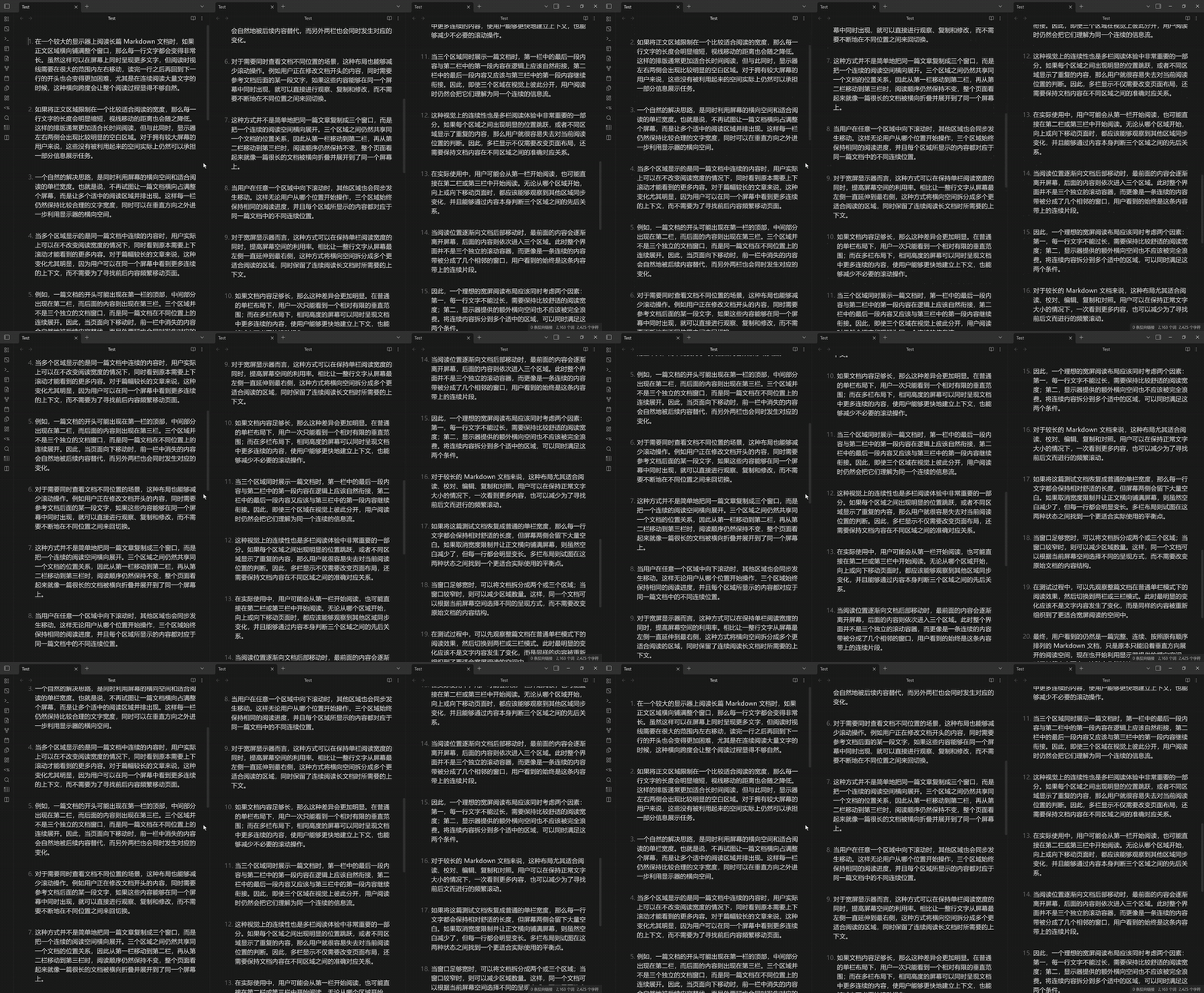
⚡ Smart Synchronization
- Real-time bidirectional scroll sync
- Supports Edit, Preview, and Source modes
- Adjustable overlap between panes (0–10 lines)
- Seamless mode switching
🎮 Easy Controls
- Toolbar icon with mode selection menu
- Quick keyboard shortcuts
- One-click mode switching
- Automatic cleanup when closing panes
📦 Installation
From Obsidian Community Plugins
- Open Settings → Community Plugins
- Search for "MultiFolio"
- Install and Enable
Manual Installation
- Download the latest release from GitHub Releases
- Extract to
.obsidian/plugins/ - Enable in Settings → Community Plugins
🚀 Usage
Toolbar Menu
Click the ◪ icon in the left toolbar to open MultiFolio's mode selection menu:
- Dual Pane Mode — main + right follower
- Triple Pane Mode — left + main + right followers
- Stop — close all follower panes
Commands
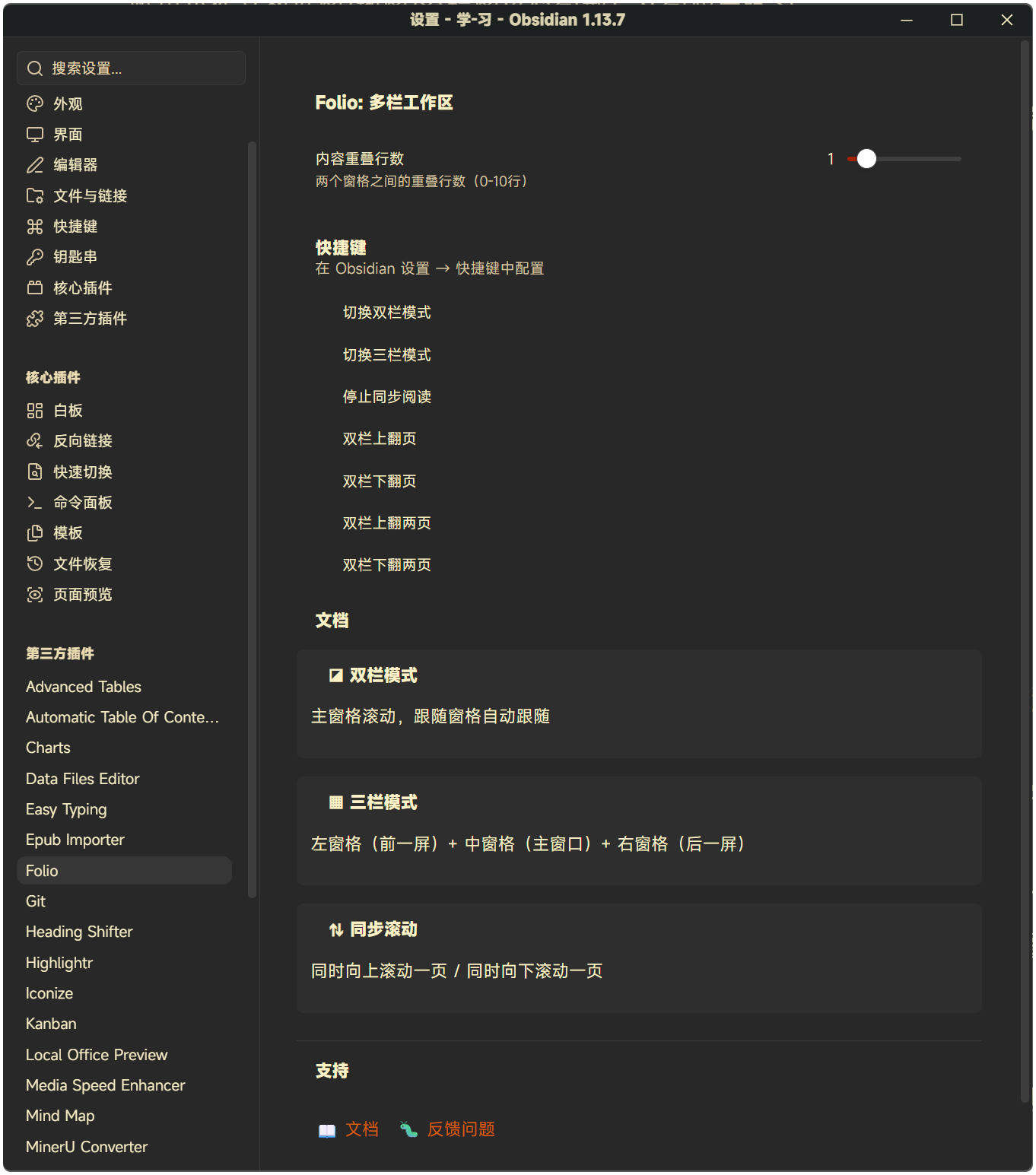
All commands can be found in the Command Palette (Ctrl/Cmd + P):
| Command | Description |
|---|---|
| Toggle Dual Pane Mode | Enable/disable dual pane workspace |
| Toggle Triple Pane Mode | Enable/disable triple pane workspace |
| Stop Synchronized Reading | Close all workspace panes |
| Page Up | Scroll up by one page |
| Page Down | Scroll down by one page |
| Double Page Up | Scroll up by two pages |
| Double Page Down | Scroll down by two pages |
Recommended Hotkeys
- Dual Pane Mode:
Ctrl/Cmd + Shift + D - Triple Pane Mode:
Ctrl/Cmd + Shift + T - Stop synchronized reading:
Ctrl/Cmd + Shift + Q - Page Up:
Ctrl/Cmd + ↑ - Page Down:
Ctrl/Cmd + ↓
⚙️ Settings
Content Overlap
Adjust the number of overlapping lines between panes (0–10 lines):
- 0: No overlap, clean page breaks
- 2–3: Recommended for smooth reading
- 5–10: More context continuity
Language
Interface language is automatically detected from Obsidian settings (English, 简体中文 / 繁體中文, 日本語, 한국어, Français, Deutsch, Español, العربية).
🎯 Use Cases
For Writers
- See previous context while writing
- Preview upcoming sections
- Maintain narrative flow across long documents
For Readers
- Read without page-turning interruptions
- Seamless scrolling experience
- Perfect for novels and long articles
For Translators
- Source text on the left, translation on the right
- Reference the next section while working
For Reviewers
- Compare sections side by side
- Full document context
- Efficient proofreading workflow
🔧 Compatibility
- Obsidian v1.8.7+
- Desktop: Windows, macOS, Linux · Mobile supported (
isDesktopOnly: false) - Supports Edit, Preview, and Source modes
- Works with all Markdown content
🤝 Feedback & Support
- 🐛 Report Issues
- ⭐ Star the repo if you find it useful!
🙏 Credits
This plugin is based on the original Folio plugin by adeyahya. Thanks to the original author for the great idea and implementation.
📜 License
For plugin developers
Search results and similarity scores are powered by semantic analysis of your plugin's README. If your plugin isn't appearing for searches you'd expect, try updating your README to clearly describe your plugin's purpose, features, and use cases.