Horizontal Scroll View
approvedby Daivik Karbhari
Splits a note on H1/ H2/ H3 headings into resizable side-by-side columns. Each column scrolls vertically; the whole view scrolls horizontally. - This plugin has not been manually reviewed by Obsidian staff.
↓ 289 downloadsUpdated 1mo agoMIT
Horizontal Scroll View
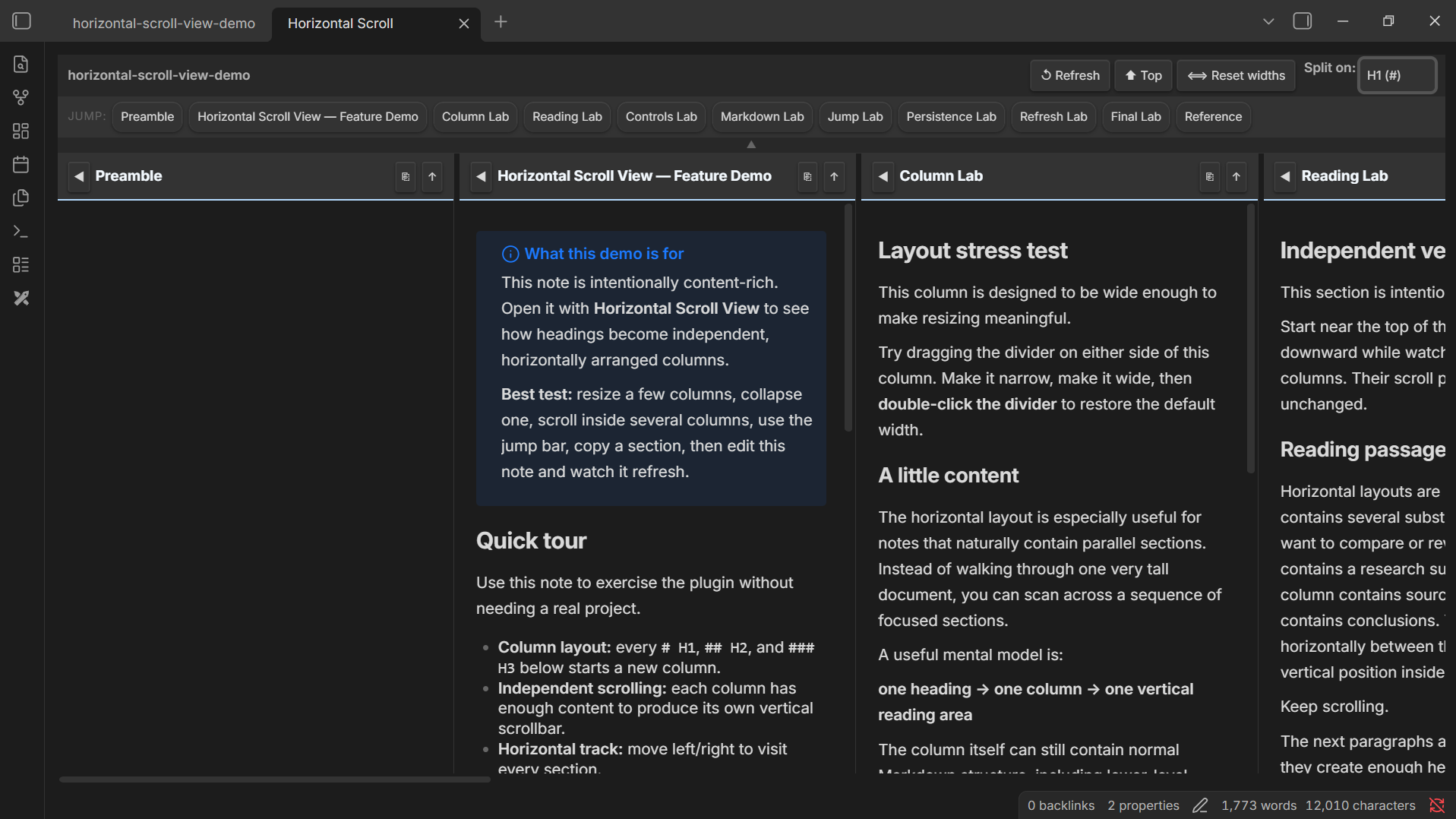
An Obsidian plugin that transforms long notes into a side-by-side column layout — each # H1, ## H2, ### H3 heading becomes its own independently scrollable column. Navigate wide instead of scrolling endlessly down.
Demo
Features
| Feature | Details |
|---|---|
| Column layout | Every # H1/ ## H2/ ### H3 heading splits into a separate column |
| Independent vertical scroll | Each column scrolls on its own |
| Horizontal track | Scroll across all columns in one row |
| Resizable columns | Drag the handle between columns to resize; double-click to reset |
| Width persistence | Column widths are saved per-file and restored on reopen |
| Collapse / expand | Collapse any column to a slim sliver; the heading stays visible rotated |
| Jump bar | One-click chips below the toolbar snap-scroll to any column instantly |
| Copy section | Copy any column's full Markdown (heading + body) to clipboard |
| Per-column scroll-to-top | ↑ button in each column header |
| Global scroll-to-top | ⬆ Top button scrolls every column at once |
| Auto-refresh | Debounced — re-renders 600 ms after you stop typing in the editor |
| Text selection | All rendered content is fully selectable |
How to use
- Open any Markdown note with
# H1/ ## H2/ ### H3headings. - Click the columns icon (⊞) in the left ribbon, or open the Command Palette (
Ctrl / Cmd + P) and run "Open Horizontal Scroll View". - The view opens in a new tab. Each
# H1/ ## H2/ ### H3becomes a column.
Column controls (in the column header)
| Button | Action |
|---|---|
◀ / ▶ | Collapse / expand the column |
↑ | Scroll this column to top |
⎘ | Copy the section as Markdown |
Toolbar buttons
| Button | Action |
|---|---|
| ↺ Refresh | Manually re-render the current file |
| ⬆ Top | Scroll every column to its top |
| ⟺ Reset widths | Restore all column widths to default |
Resizer
- Drag the vertical handle between two columns to resize.
- Double-click the handle to reset that column to the default width.
Installation
From the Obsidian Community Plugin browser (recommended)
- Open Obsidian → Settings → Community Plugins.
- Disable Restricted Mode if prompted.
- Click Browse, search for Horizontal Scroll View, and click Install → Enable.
Manual installation
- Download
main.js,manifest.json, andstyles.cssfrom the latest release. - Copy them to
<your-vault>/.obsidian/plugins/horizontal-scroll-view/. - In Obsidian: Settings → Community Plugins → reload, then enable Horizontal Scroll View.
Notes on document structure
- Content before the first
# H1/ ## H2/ ### H3is gathered into a Preamble column (if non-empty). - H2–H6 headings are rendered normally inside the column they belong to.
- The view is read-only — edit your note in the standard editor; the view refreshes automatically.
Contributing
Issues and pull requests are welcome on GitHub.
License
MIT — see LICENSE.
For plugin developers
Search results and similarity scores are powered by semantic analysis of your plugin's README. If your plugin isn't appearing for searches you'd expect, try updating your README to clearly describe your plugin's purpose, features, and use cases.