mybrain.ai
approvedby mybrain.ai
Sync your Obsidian vault into mybrain.ai. Notes and links become a searchable, lasting personal knowledge asset you can query and build on. - This plugin has not been manually reviewed by Obsidian staff.
mybrain.ai
This official plugin, maintained by the mybrain.ai team, connects your Obsidian vault to your MyBrain account. Your notes and the links between them sync automatically, and MyBrain turns them into knowledge sources you can search, chat with, and build on alongside everything else you know — so your second brain becomes a lasting personal asset instead of information that sits still in a folder.
Note: A MyBrain account is required — the plugin does nothing without a bearer token issued by your account.
Features
- Automatic, continuous sync — after the first full-vault sync, new notes, edits, renames, and deletes flow to MyBrain as you work. No manual exports.
- You decide what syncs — choose which vault folders sync at all, then pick per note which ones MyBrain actually uses. Folders outside the scope never leave your machine.
- Notes become queryable knowledge — synced notes join your other sources in MyBrain's search, chat, and knowledge graph, so you can query, combine, and reuse what you already know.
- Works on mobile — runs on Obsidian Mobile, with attachment uploads off by default to protect cellular data.
- Update notices, never auto-updates — the plugin tells you when a new version exists but never changes files itself.
- Transparent by design — every request the plugin makes is documented under What the plugin sends.
Install
In Obsidian: Settings → Community plugins → Browse → search for "mybrain.ai" → Install → Enable.
The plugin's directory listing is at community.obsidian.md/plugins/mybrain-ai.
Connect your vault
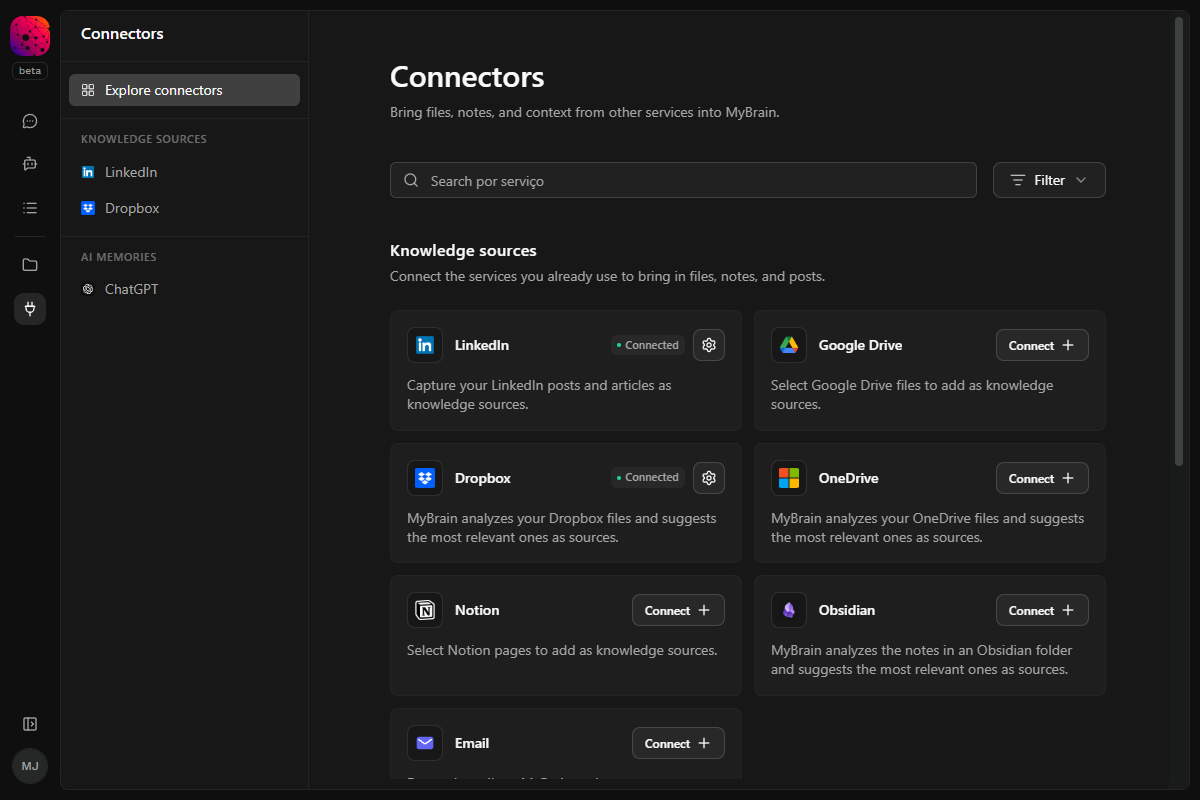
- In the MyBrain web app, open the connectors page and connect Obsidian. A dialog appears with an Open in Obsidian button and, as a manual fallback, a bearer token (shown only once) with a Copy button.
- Click Open in Obsidian — a confirmation inside Obsidian shows exactly which settings will change (token masked) before anything is written. Or paste the token manually into the Bearer token field in the plugin's settings tab.
- Click Test connection.
- Click Resync full vault to send your existing notes. New edits sync automatically.
Selecting which notes are active in MyBrain
Receiving notes is not the same as using them. After the plugin syncs your vault, the MyBrain web app gives you two levels of control:
- Sync scope — in the web app, choose which vault folders sync at all. The choice is pushed to the plugin over the WebSocket and applied immediately; folders outside the scope are never sent from your machine.
- Per-file selector — of the notes that did sync, pick which ones are actually used in search / chat / the knowledge graph. Unselected notes stay in your account (so toggling them back on is instant) but are excluded from anything MyBrain reasons over.
Skip rules
- Files under the vault's config folder (
.obsidianby default; respects a customconfigDir) are always skipped. - Non-
.mdfiles are skipped as standalone sources. Binary attachments are uploaded only when referenced from a note. - Folders outside the sync scope you set in the MyBrain web app are skipped.
Update notifications
Once connected, the plugin asks your MyBrain endpoint for the latest published release about once a day (and on demand via Check for updates in plugin settings). When a newer version exists, it shows a notice and a dialog with the release notes and update instructions. The plugin never installs updates itself — updating happens through Obsidian's community-plugin updater. Each new version can be skipped per device; a skipped version stays silent until the next release ships, but the Plugin version row in settings keeps showing that an update is available.
Mobile
The plugin runs on Obsidian Mobile. Attachment uploads on cellular can be expensive, so they're off by default on mobile — you can enable them under Sync attachments on mobile in plugin settings.
What the plugin sends
The plugin connects only to MyBrain's ingest endpoint. All traffic is over HTTPS / WSS to that single host. No other hosts are contacted from your machine, and no data is shared with third parties.
HTTP endpoints
POST /manifest— the full vault listing: for every markdown file, the relative path, basename, content, frontmatter, modification time, size, and SHA-256 content hash. Sent on first connect (initial vault scan) and whenever the server asks for a refresh via the WebSocket below.POST /ingest— incremental vault deltas. For each changed file: the same fields as/manifest, plus extracted wikilink and standard-markdown-link targets, plus references (hash + path) to any non-markdown files the note embeds. Triggered (with a short debounce) by Obsidian'screate/modify/delete/renamevault events.POST /attachments— binary contents of attachment files referenced by![[file.ext]]orin notes. Only sent when the server reports it doesn't already have a copy (content-hash deduplication).GET /ping— health check, sent when you click Test connection in plugin settings.GET /latest-release— the latest published plugin version and its release notes, used for update notifications. At most once a day, plus when you click Check for updates. MyBrain's servers source this from the plugin's GitHub releases — your machine never contacts GitHub.
WebSocket
wss://…/ws— a long-lived WebSocket the plugin opens after authenticating and keeps connected for the lifetime of the session. It auto-reconnects with exponential backoff and jitter if the connection drops. Its purpose is to let the server push messages at any time: amanifest_requestprompts the plugin to re-sendPOST /manifest(e.g. after a server-side index rebuild), and a sync-scope update changes which folders sync (see above). The connection authenticates by passing the bearer token as thebearer.<token>WebSocket subprotocol.
Version reporting
Every request to your MyBrain endpoint carries two extra headers: X-MyBrain-Plugin-Version (the installed plugin version) and X-MyBrain-Device-Id (a random UUID generated per install and kept in device-local storage — it never syncs with your vault and never leaves your MyBrain endpoint). MyBrain uses them to show an update notice for your connected vault in the web app. How this data is handled is covered by the MyBrain privacy policy.
Privacy
Your data goes only between your Obsidian vault and MyBrain's ingest endpoint. The per-install id and plugin version described under Version reporting are handled per the MyBrain privacy policy. The bearer token is stored in plain text inside this vault's plugin data; avoid storing production tokens in synced or shared vaults, and rotate the token in the MyBrain web app if the vault is compromised. The plugin's source code is open at github.com/mybrain-ai/obsidian-plugin for inspection.
Development
To work on the plugin locally or test an unreleased version, sideload a development build:
- Clone this repo and install dependencies:
git clone https://github.com/mybrain-ai/obsidian-plugin.git cd obsidian-plugin npm install - Build:
This producesnpm run buildmain.jsin the repo root;manifest.jsonandstyles.cssare already in the repo. The build bakes in the production ingest endpoint as the default — to develop against a local backend, connect through the deep link from your locally running web app, which stores the local endpoint in the plugin's settings (stored settings always beat the baked default). - Find your vault's plugin directory. On macOS, Obsidian's vault registry lives at
~/Library/Application Support/obsidian/obsidian.json(%APPDATA%\obsidian\obsidian.jsonon Windows,~/.config/obsidian/obsidian.jsonon Linux). The plugin folder inside any vault is<vault>/.obsidian/plugins/mybrain-ai/. - Copy the three files into that folder, creating it if needed:
mkdir -p "<vault>/.obsidian/plugins/mybrain-ai" cp main.js manifest.json styles.css "<vault>/.obsidian/plugins/mybrain-ai/" - In Obsidian: Settings → Community plugins. If you see "Restricted mode," turn it off first. Then click Reload plugins (or restart Obsidian) and toggle mybrain.ai on under Installed plugins.
- Continue with Connect your vault above.
To iterate, re-run step 2 and copy the new main.js over; in Obsidian disable then re-enable the plugin (or use the "Hot reload" plugin) to pick up the change.
Support
License
MIT — see LICENSE.
For plugin developers
Search results and similarity scores are powered by semantic analysis of your plugin's README. If your plugin isn't appearing for searches you'd expect, try updating your README to clearly describe your plugin's purpose, features, and use cases.