Navigate Headings
approvedby rumcajsev
Navigate markdown file headings and their structure directly in the file explorer. - This plugin has not been manually reviewed by Obsidian staff.
★ 5 stars↓ 553 downloadsUpdated 4mo agoMIT
|
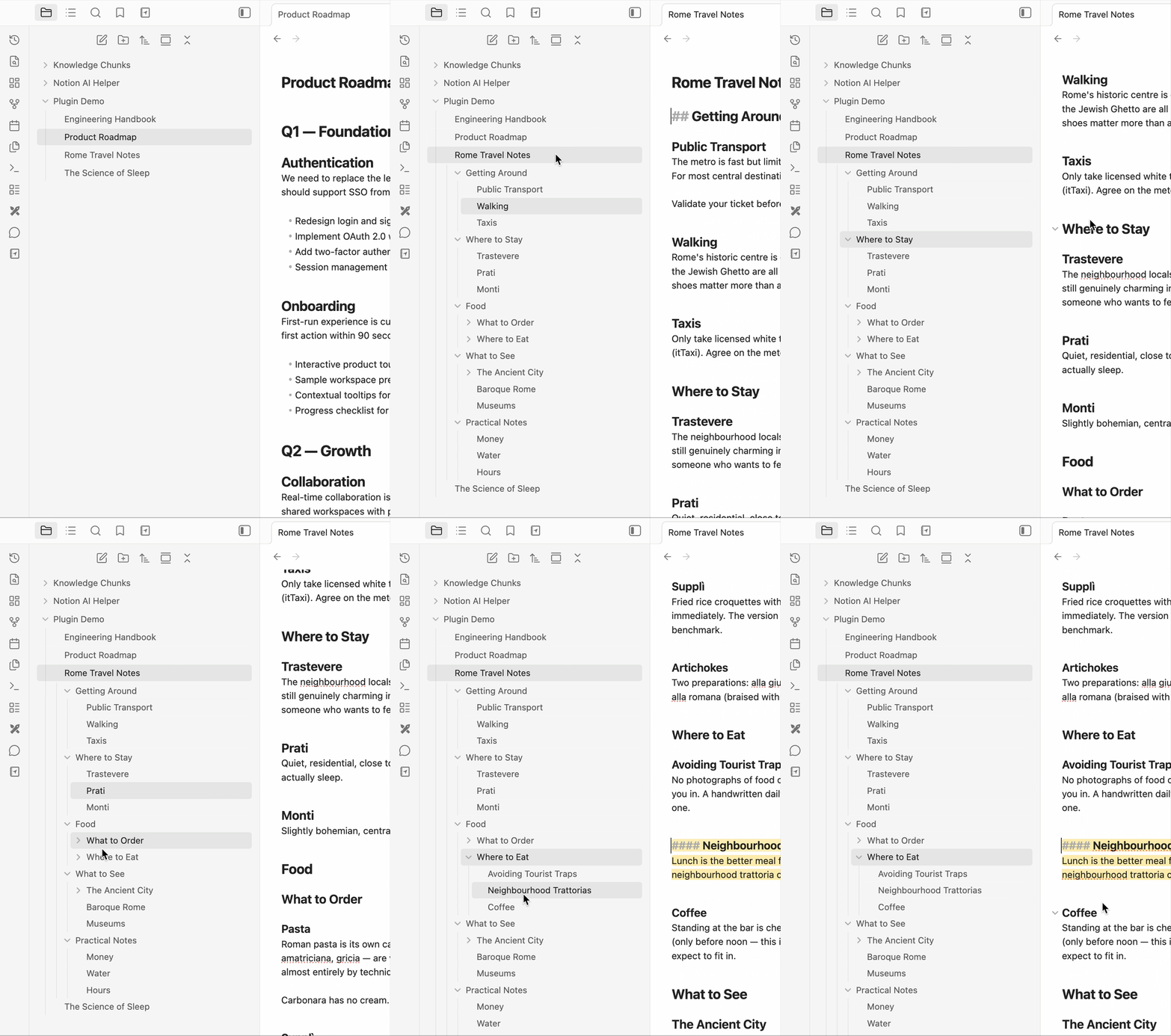
Navigate HeadingsSee and jump between all your file headings directly in the explorer. No more switching tabs to check your document structure. Why Use It
|
How to Use
- Click a file title — expands its headings automatically, down to the level set in Auto-expand down to. If that setting is Nothing, clicking the title just opens the file with no expansion.
- Click the arrow next to a file — always toggles the headings panel regardless of the auto-expand setting. Expands either all levels or just the top level depending on the Arrow expands setting.
- Click a heading — jumps to that section in the editor. If the heading has children, it also toggles them open/closed.
Settings
| Setting | Default | Description |
|---|---|---|
| Show headings up to | H3 | The maximum heading depth shown in the explorer. Headings deeper than this are never displayed. |
| Auto-expand down to | H2 | How deep the panel opens when you click a file title or switch to a file. Nothing disables automatic expansion entirely — only the arrow will open the panel. |
| Arrow expands | All levels | Controls what happens when you click the arrow next to a file. All levels opens every heading at once. Next level only shows just the top-level headings and lets you expand deeper sections manually. |
| Highlight active heading | On | Highlights the heading in the explorer that matches your current scroll position in the editor. |
Installation
Just get it from official Obsidian plugin page!
If you want to install manually:, then:
- Download the latest release from GitHub
- Extract the folder into
.obsidian/plugins/in your vault - Reload Obsidian (Cmd+R or restart)
- Enable the plugin in Settings → Community Plugins
That's it! Enjoy navigating your documents.
For plugin developers
Search results and similarity scores are powered by semantic analysis of your plugin's README. If your plugin isn't appearing for searches you'd expect, try updating your README to clearly describe your plugin's purpose, features, and use cases.