by Alex Sendula
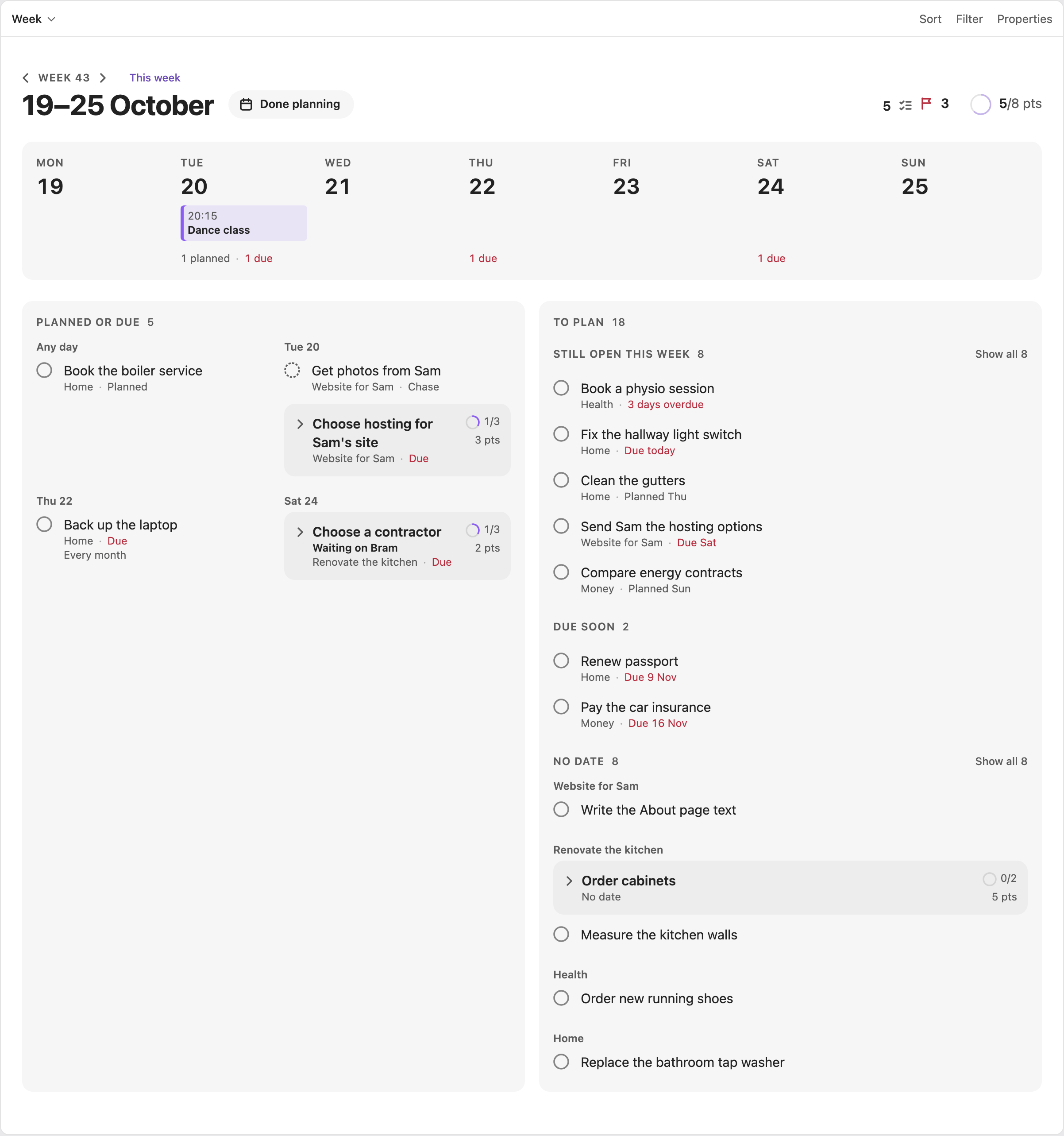
Today, Week, Projects, Backlog and Guide views for your second brain, drawn from your notes and their task lines.
Ninja Board
Ninja Board is an Obsidian plugin that shows your notes as five boards: Today, Week, Projects, Backlog & Waiting, and a Guide. It is for people who keep tasks, projects and appointments as plain notes and want to see and plan them the way a good app would.
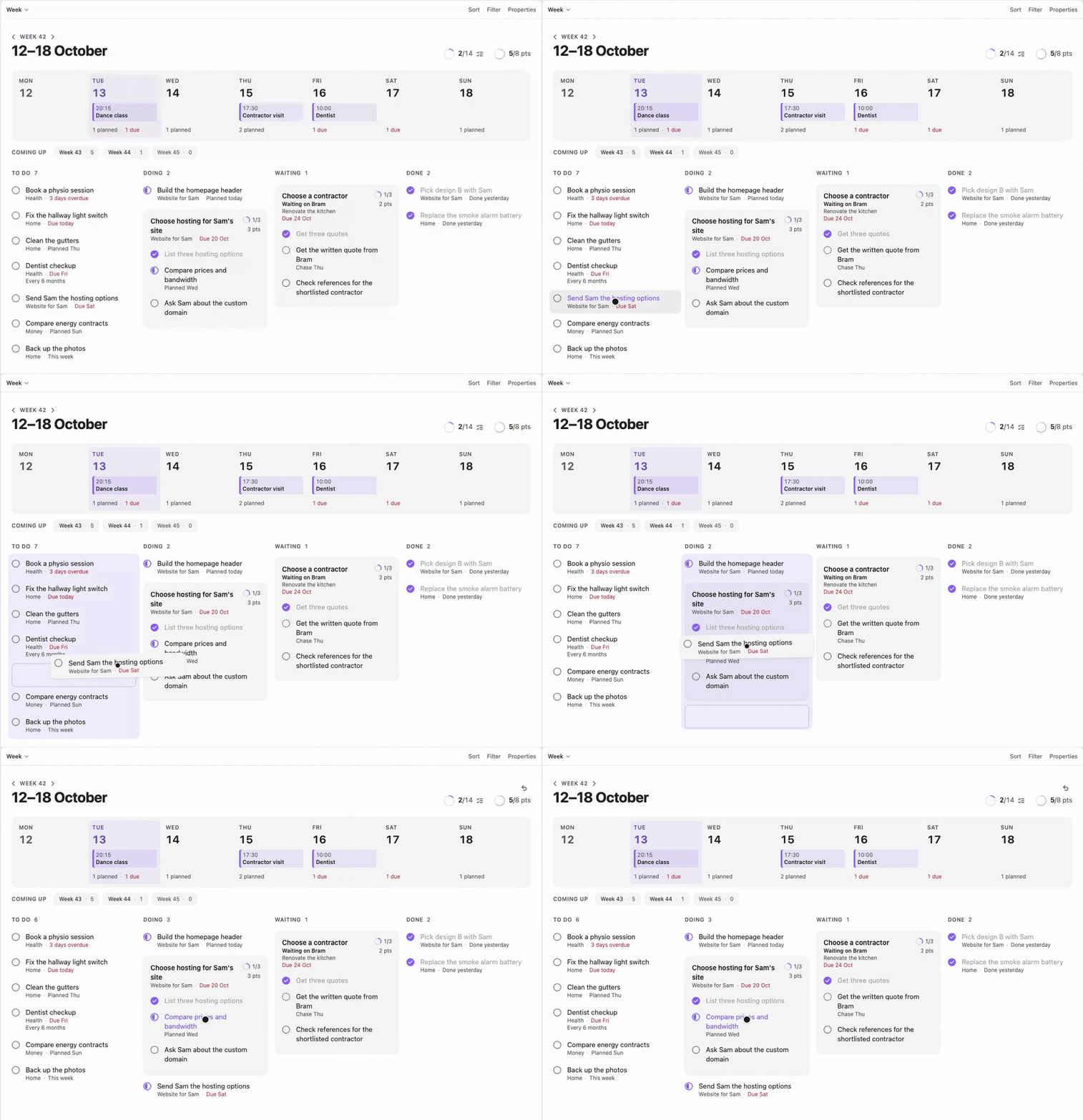
Drag a card to another column, and the note changes with it.
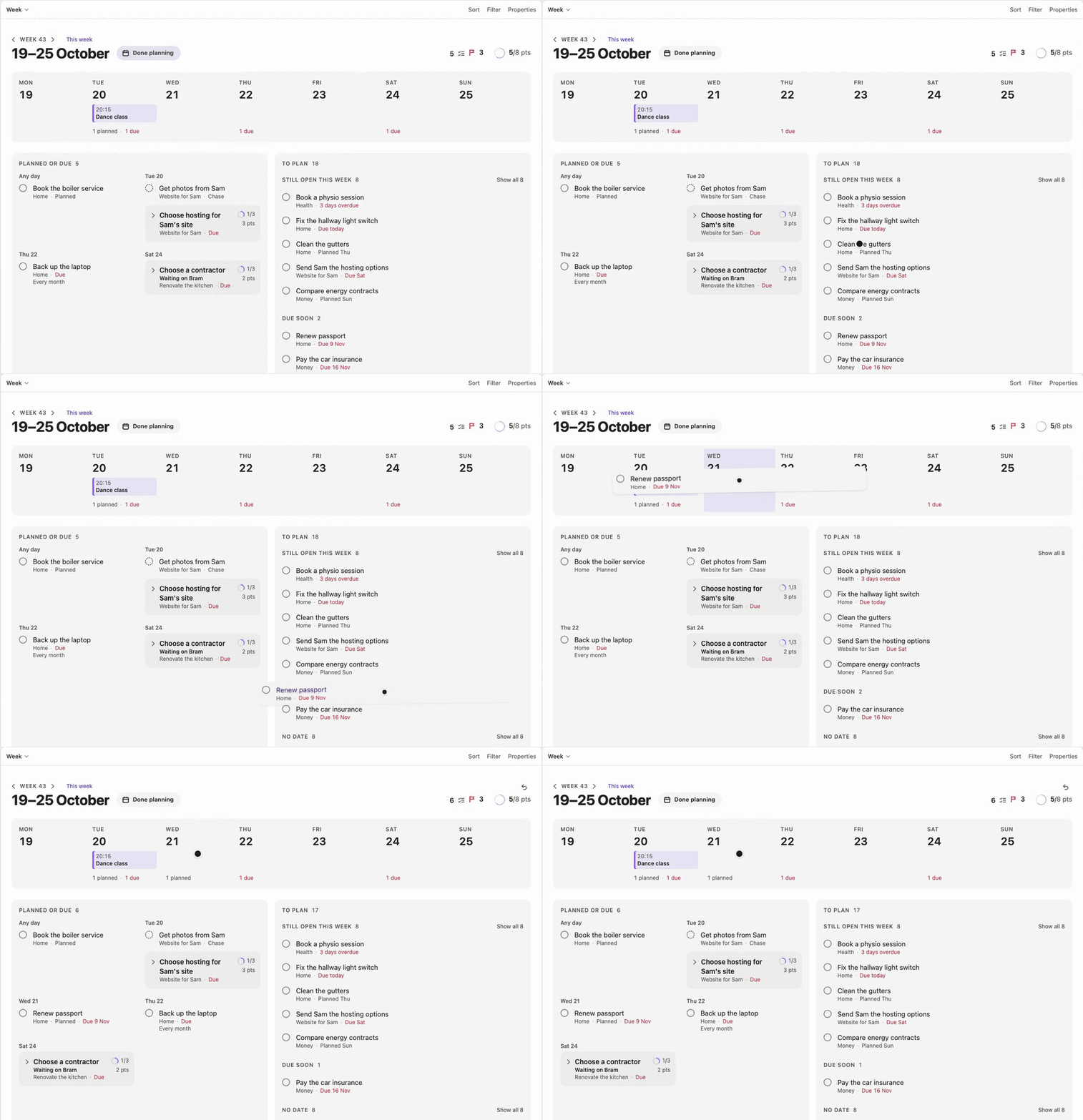
Drop a task on a day in the Week strip to plan it.
What it does
- Adds five views to Bases, Obsidian's core plugin for views over notes. Bases picks the notes, and Ninja Board draws them.
- In a view you can tick a task, set its state, drag a card to another column, plan a task for a day or a week, set a deadline, arrange a board, and open the note behind anything.
- It keeps no data of its own and uses no network. Every change is one small edit to one note, so a view always matches your vault. Even a board's order is saved in its dashboard note.
It works with any vault laid out like the sample vault: notes with a type in their frontmatter, task lines in the Tasks plugin's Dataview format, and the dashboard notes in 01 Dashboard/. The full note format is in Database.
Requirements
- Obsidian 1.10.2 or newer. Ninja Board uses the Bases view API, which arrived in 1.10.0. Ninja Board is tested on desktop. It is not marked desktop-only, but the phone app has not been tried.
- The Bases core plugin, turned on. Without it, Ninja Board shows a Notice and adds no views.
- The Tasks community plugin, set up as in Set up Tasks.
Install
Ninja Board is not in Obsidian's community plugin browser yet. Install it by hand or with BRAT.
By hand:
- Download
main.js,manifest.jsonandstyles.cssfrom the latest release. - Put them in
<your vault>/.obsidian/plugins/ninja-board/. - Reload Obsidian, then turn on Ninja Board under Settings → Community plugins.
With BRAT:
- Install BRAT from the community plugin browser.
- In BRAT's settings, choose Add beta plugin and enter
https://github.com/AlexSendula/ninja-board. - Turn on Ninja Board under Settings → Community plugins.
For a new vault, Second Brain Setup installs Ninja Board, Tasks (already set up) and the dashboard notes for you.
Set up Tasks
Do this once, in Obsidian's settings:
- Under Tasks → Task Format, choose Dataview.
- Under Tasks → Task Statuses, add a custom status: symbol
w, nameWaiting, next status symbolx, status typeON_HOLD. - Leave Set done date on every completed task on. It is on by default.
The Guide's Setup tile checks this for you. The user guide says what it checks. The Guide reads whether Tasks is on, and Tasks' saved settings, to check the setup, and nothing else.
Add the dashboards
Each view lives in a dashboard note. Copy the five notes from sample-vault/01 Dashboard/ into a 01 Dashboard/ folder in your vault. Each one holds a single base block, like Today's:
filters:
  and:
    - '!file.inFolder("10 Archive")'
    - 'file.ext == "md"'
views:
  - type: ninja-board-today
    name: Today
The others use ninja-board-week, ninja-board-projects, ninja-board-backlog and ninja-board-guide. To open on Today, set it under Settings → Files and links → Default file to open.
Try the sample vault
sample-vault/ is a small vault with the dashboards and invented notes. Copy its contents into an empty folder, open that folder as a vault, then install Tasks and Ninja Board as above.
Use it
- Tick a task: click its circle, or press Space.
- Plan, set a deadline or change a state: right-click a row or card (long-press on touch, or Shift+F10) to open its card.
- Move a task or project: drag it to another column, or onto a day of the Week strip to plan it.
- Arrange a board: drag a card within its column, or press Alt+↑ and Alt+↓.
- Open the note: click the title, or press Enter.
- Undo: Cmd/Ctrl+Z in a view, or the command Undo the last change.
The user guide covers each view, planning a week, the cards, repeats and the exact edits Ninja Board makes. If something doesn't show, see Troubleshooting.
Screenshots
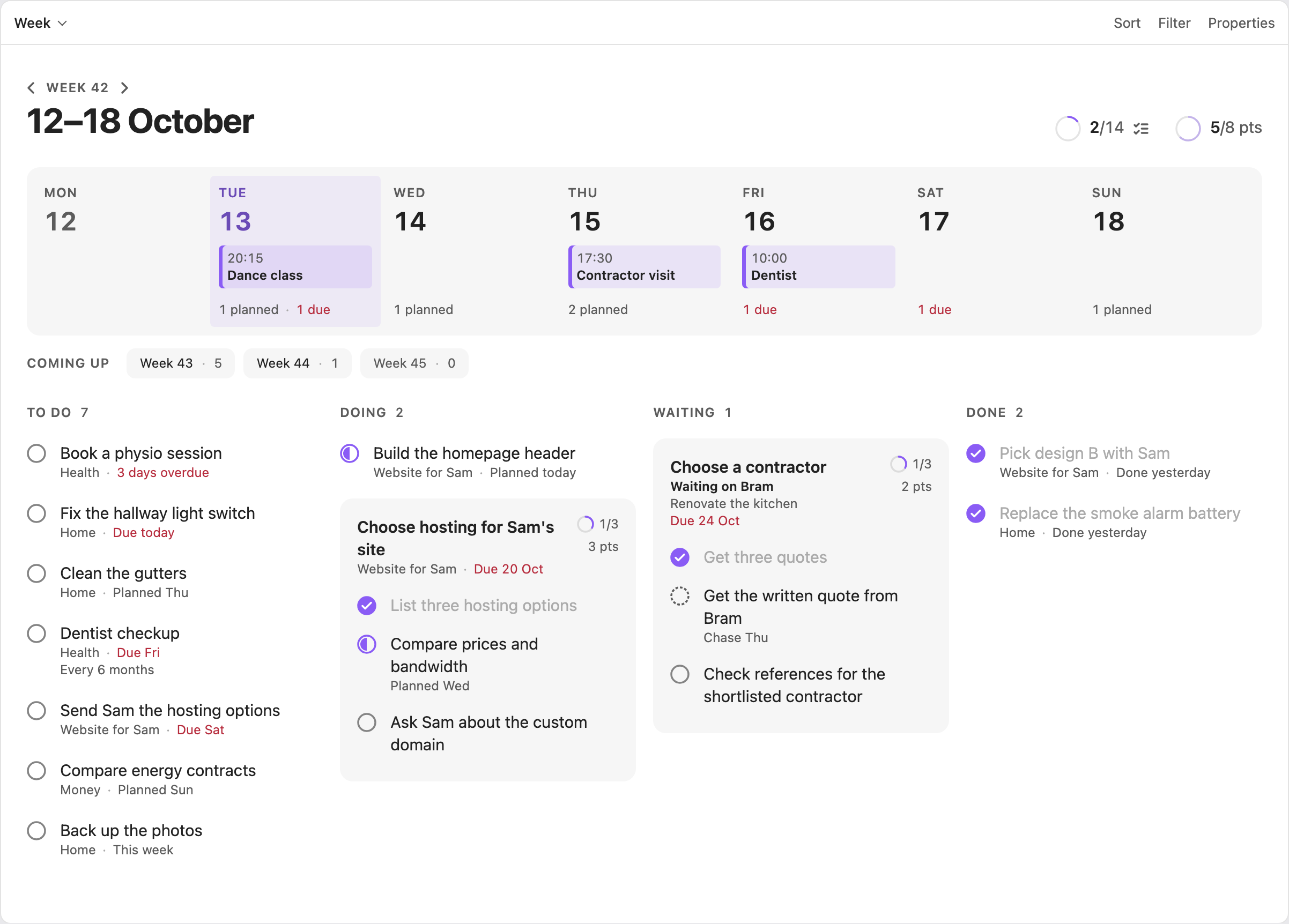
Week
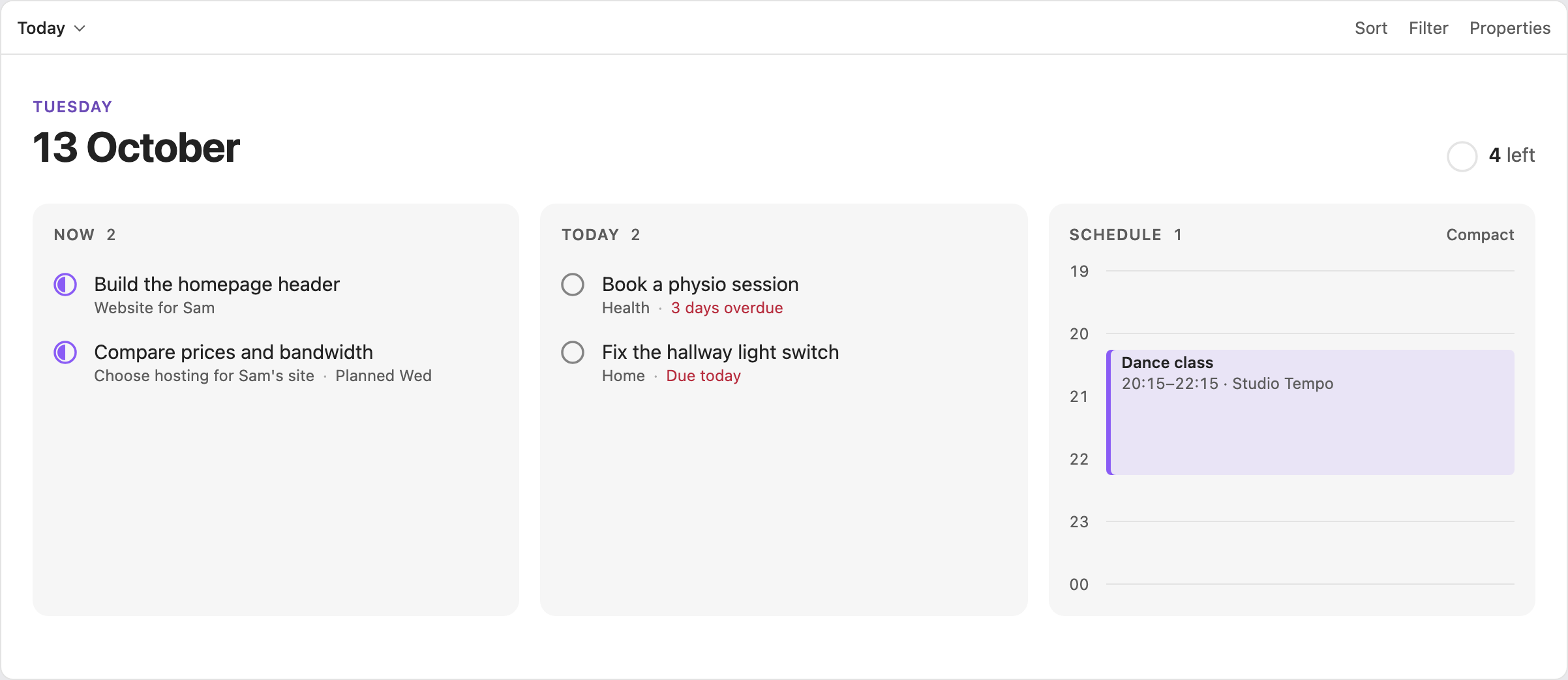 Today | 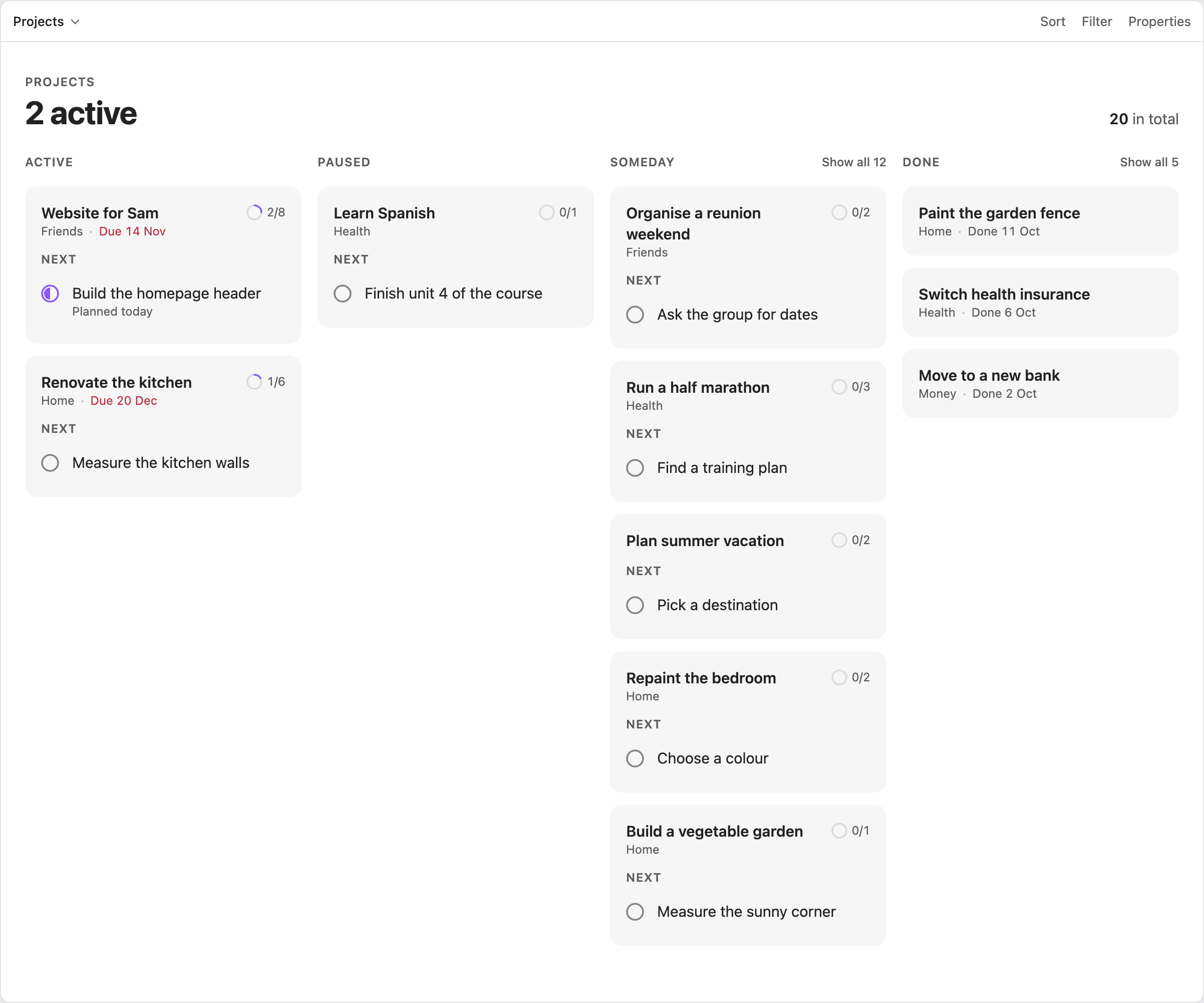 Projects |
 Planning a task | 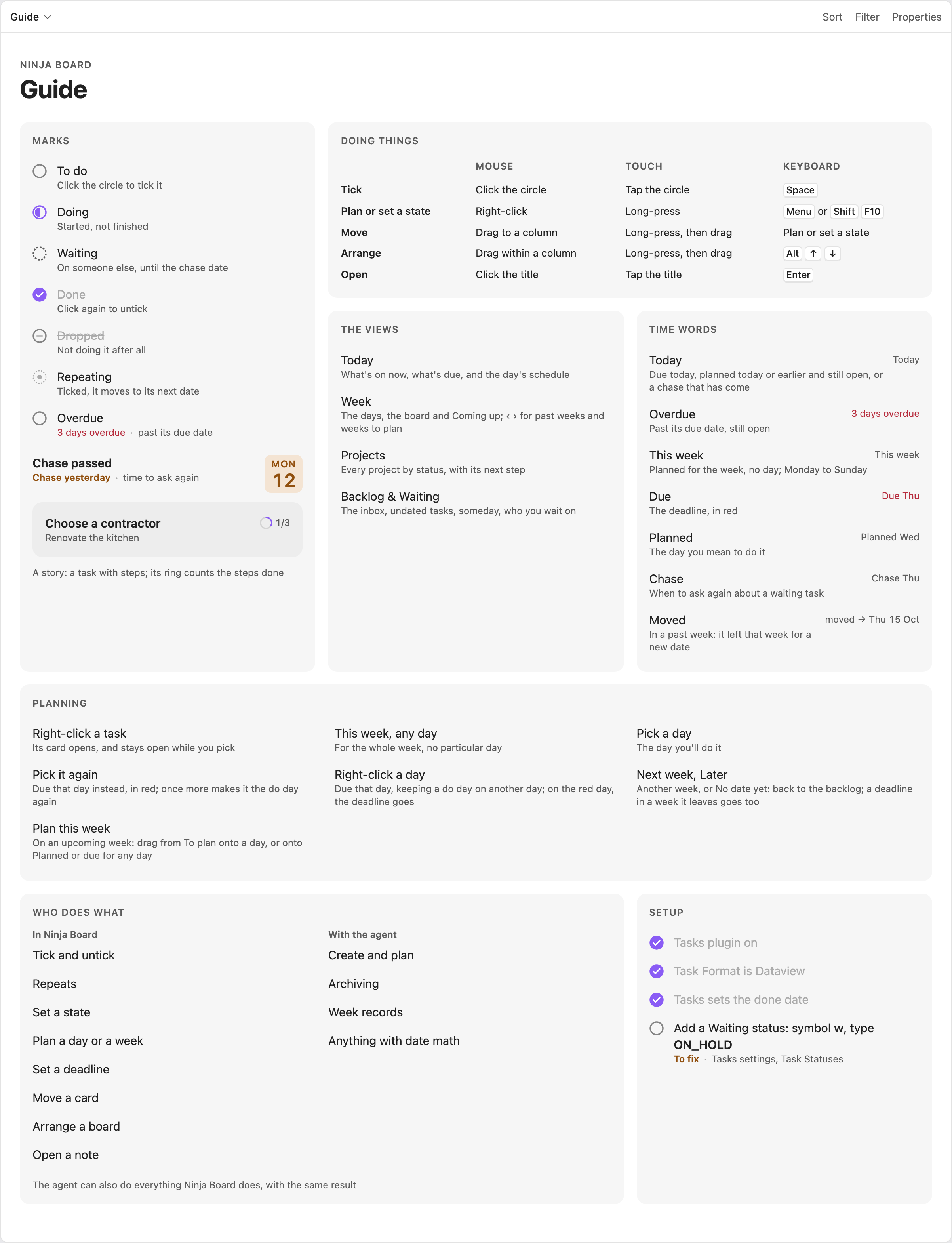 Guide |
Update
Replace the three files with the ones from the new release, then reload Obsidian. BRAT can do this for you.
Developing
You need Node 24 or newer. From this folder:
npm install
npm run build
npm run build writes main.js. With manifest.json and styles.css, that is the whole plugin. Reload Obsidian after each new build.
npm testruns the tests.npm run lintchecks the code with ESLint and Obsidian's review rules. It must report nothing.npm run typecheckchecks the types.npm run devrebuildsmain.json every change.npm run previewshows the real views on the sample vault, at http://localhost:8766/preview/.npm run sandbox(macOS only) builds and copies the plugin into the vault named byBRAIN_VAULT(by default~/Documents/Obsidian Vault). The vault must already have a.obsidianfolder, or the script stops.npm run sandbox -- --yesalso moves that vault's notes to the Trash and copies in the sample vault.
Releases are built by pushing a tag equal to the manifest's version, for example 1.0.1. The release workflow then lints, tests, builds and attests the three files.
More in the developer guide.
Part of Second Brain
- Second Brain: the framework, with its design and research
- Ninja Board: the Obsidian plugin that shows the vault as boards
- Second Brain Setup: sets up a vault from one sentence to your agent
Licence
MIT, Copyright (c) 2026 AlexSendula. See LICENSE.
For plugin developers
Search results and similarity scores are powered by semantic analysis of your plugin's README. If your plugin isn't appearing for searches you'd expect, try updating your README to clearly describe your plugin's purpose, features, and use cases.