Kanban Action Planner
approvedby Sébastien Dubois
Render your notes as configurable Kanban boards and calendars inside Bases, with statuses, ordering, relationships, and scheduling. - This plugin has not been manually reviewed by Obsidian staff.
Kanban Action Planner
An Obsidian plugin that adds a Kanban board view to Obsidian Bases, so you can plan, track, and schedule any set of notes visually.
Pick a status property. It becomes your columns. From there you drag cards between them, reorder them, color them, view and edit the relationships between notes, surface what's blocked, filter as you type, and flip the same board into a calendar to schedule the work. Your existing note properties drive all of it, and every change lands straight back in your frontmatter. Define your note types yourself, or let the Obsidian Starter Kit plugin configure them for you when it's installed.
I built this because I wanted my planning to live in my notes, not in yet another app.
Requires Obsidian 1.12+ (the Bases view API). Desktop only (mobile isn't supported yet).
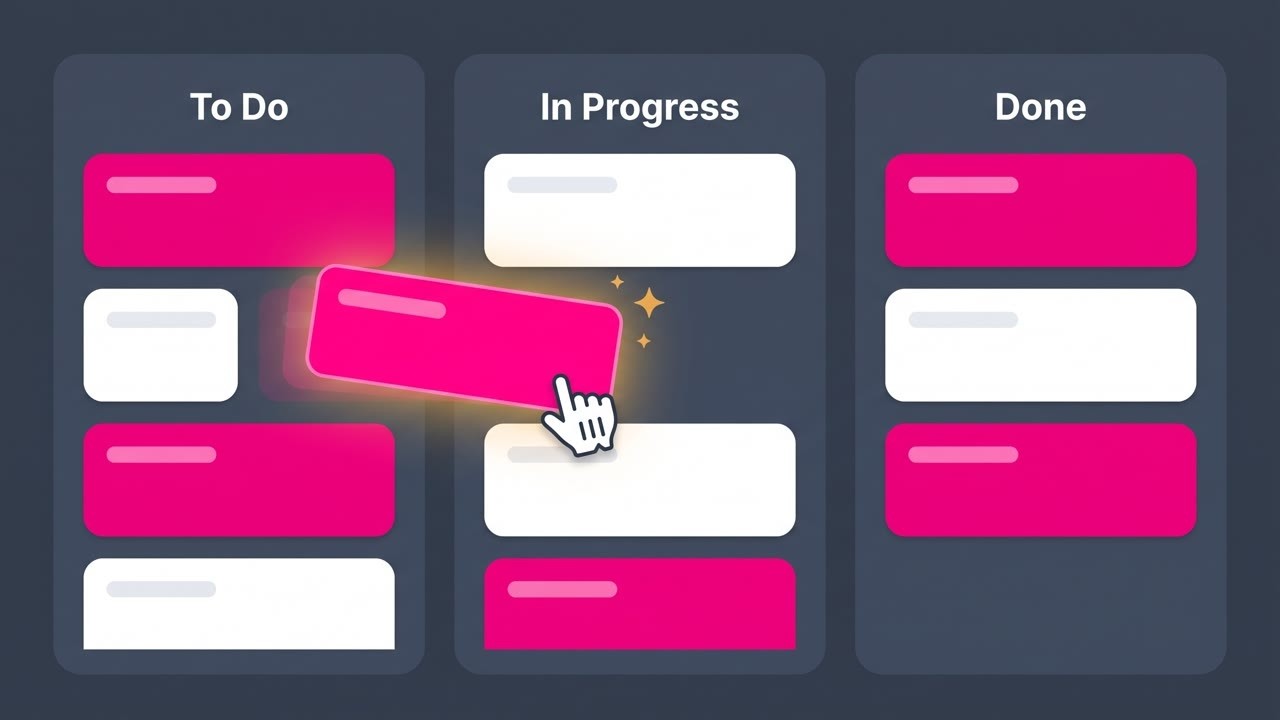
Video tour
Want the whole picture first? Here's a complete walkthrough (~25 minutes): boards, calendar, timeline, triage, WBS, embeds, and how every change lands in your notes:
Screenshots
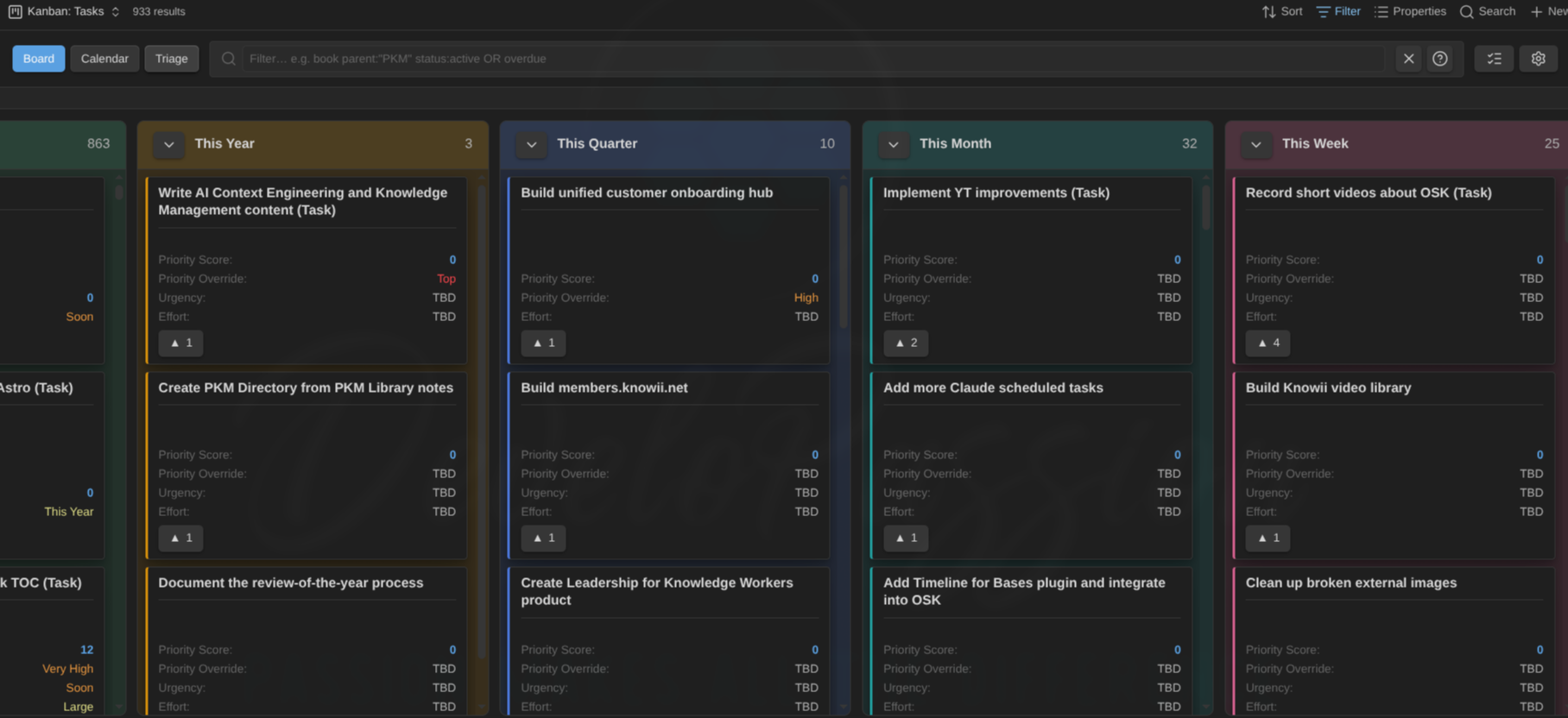
A Base read as a board. Your status property drives the columns, and each card shows the properties you picked in your Bases view:
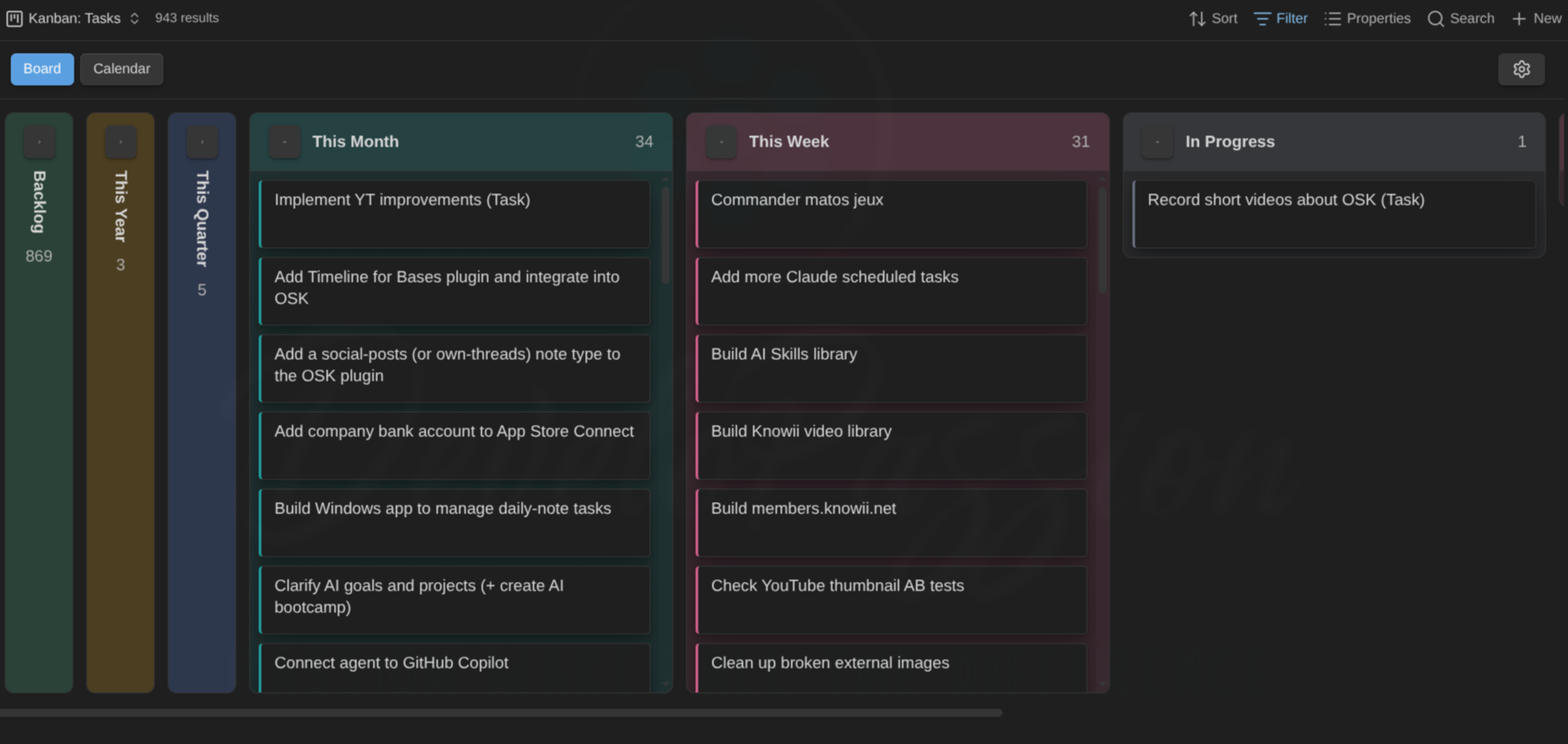
The same idea on a big task base. Collapse the columns you don't need and the backlog stays out of the way:
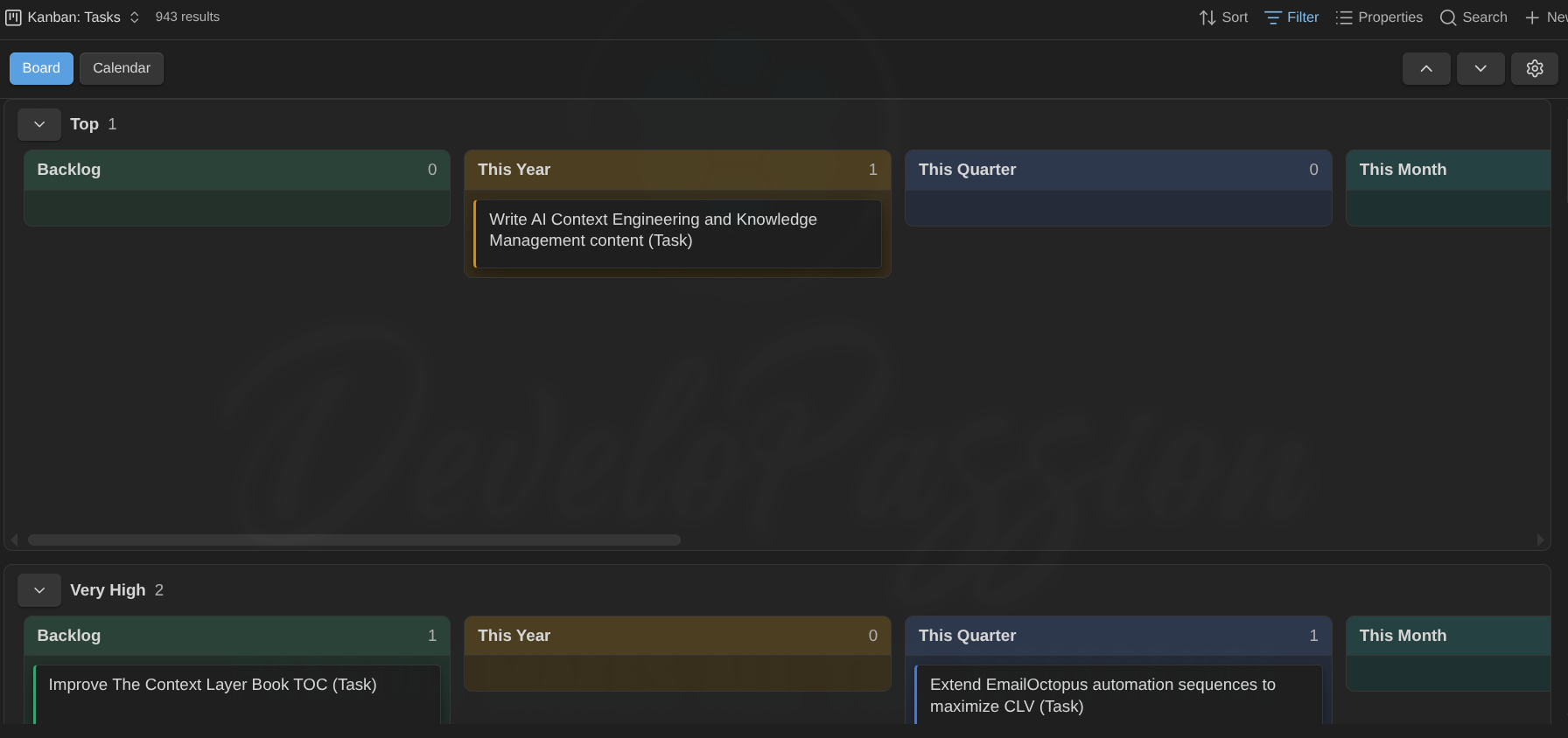
Split the board into swimlanes by note type or any property (here, by priority):
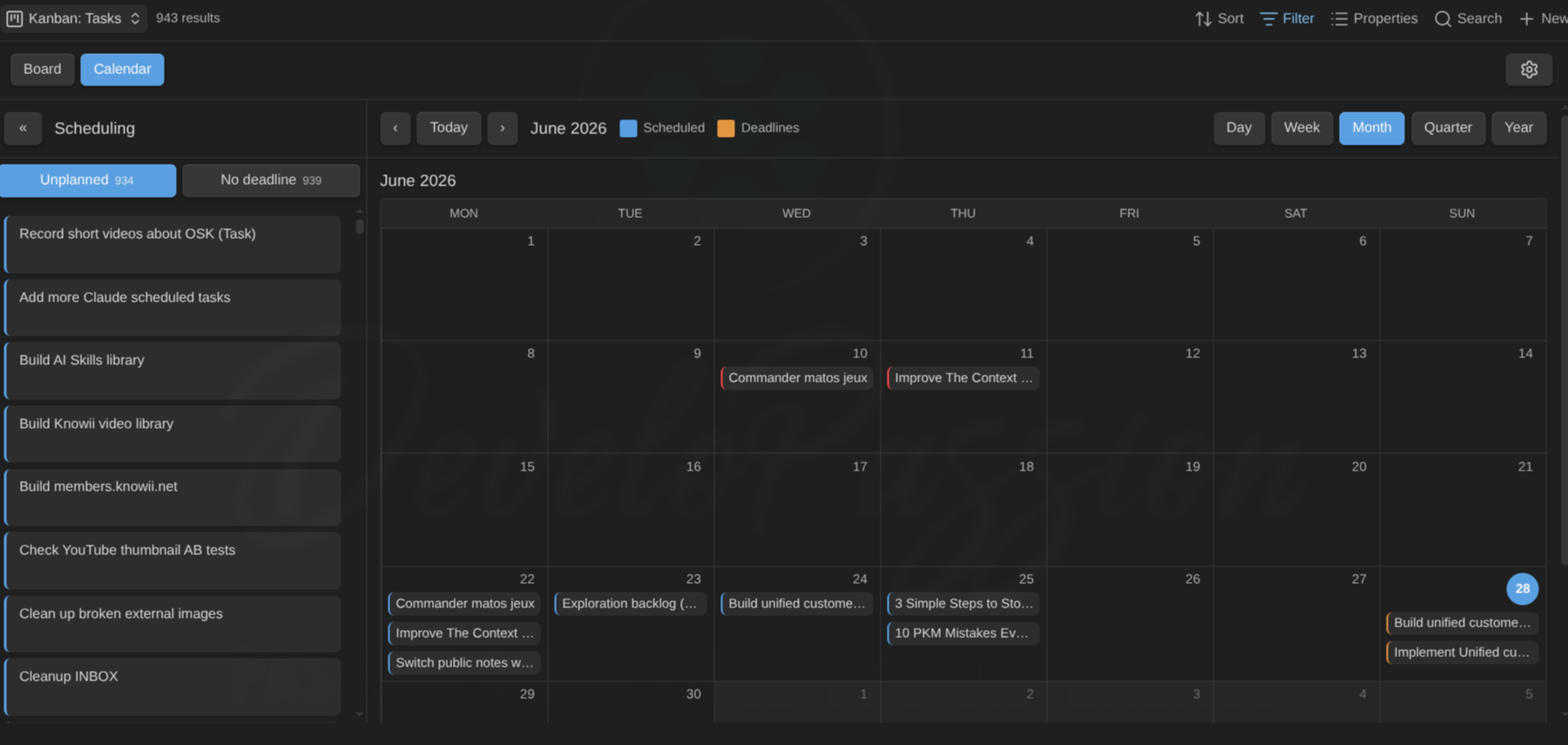
Flip that exact board into a calendar to schedule the work. Scheduled dates and deadlines, plotted together:
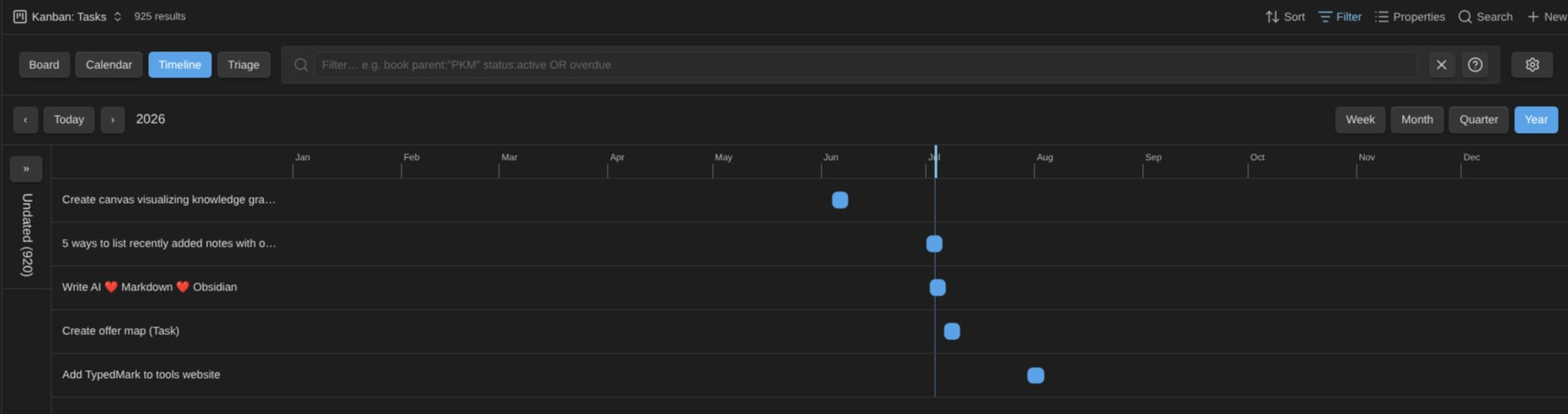
Or into a Gantt-style timeline that places each card by its start date and estimate, with the Unplanned panel grouping cards by note type and status:
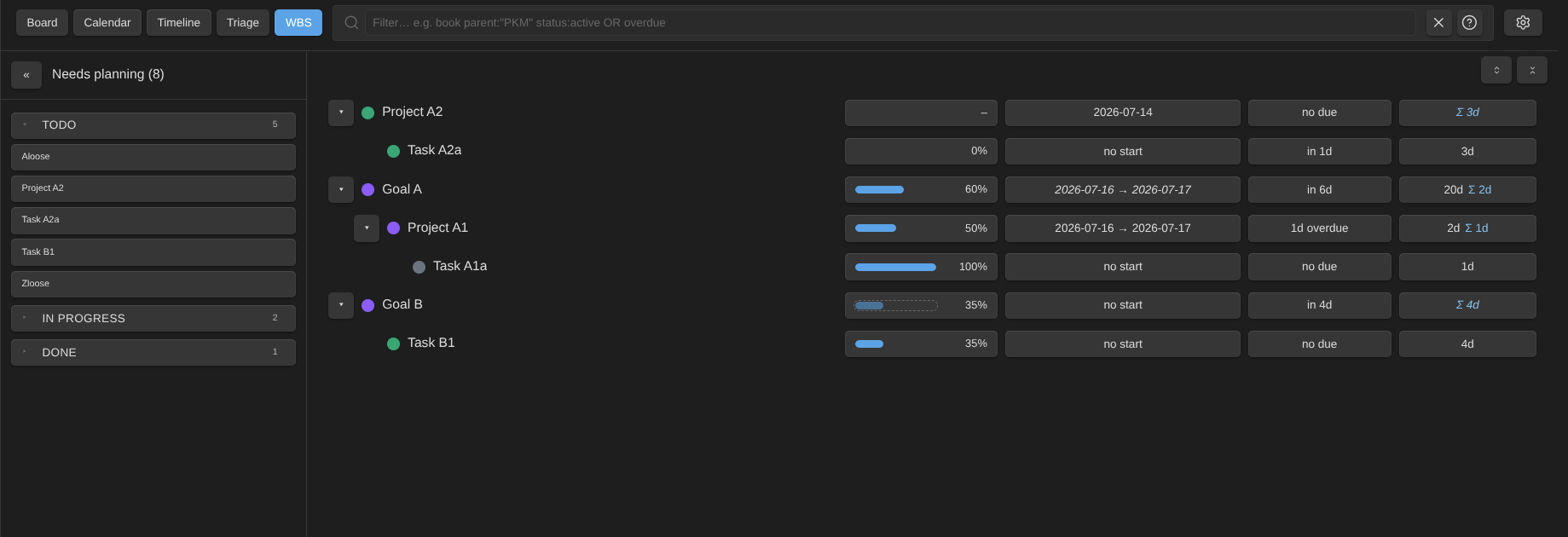
Break the same work down as a WBS tree. Estimates, progress, and dates roll up the hierarchy (own values win, the rest derives from the children):
Or see what's on your plate right now with the Agenda: a flat, prioritized list of Overdue, Today, and Upcoming items, with a Today/Week window switch and an Available only toggle:

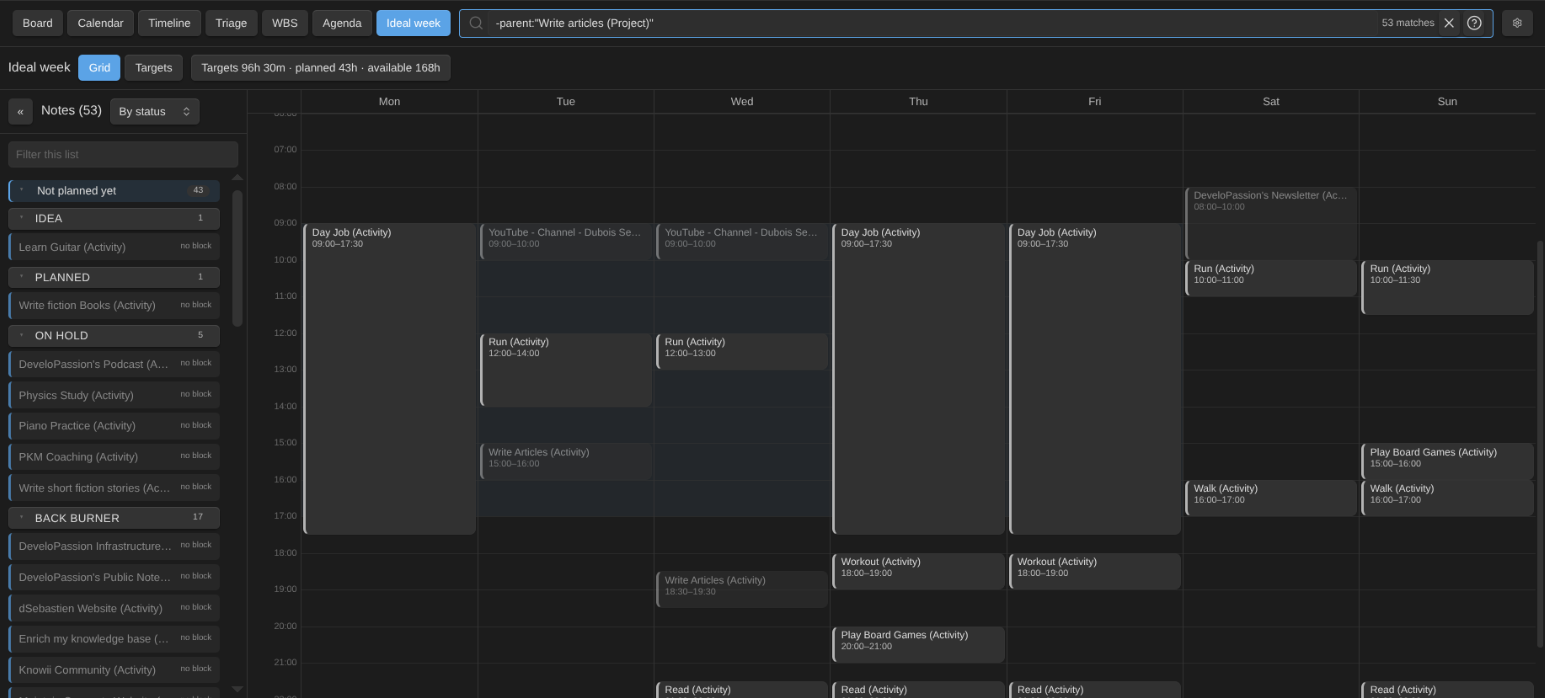
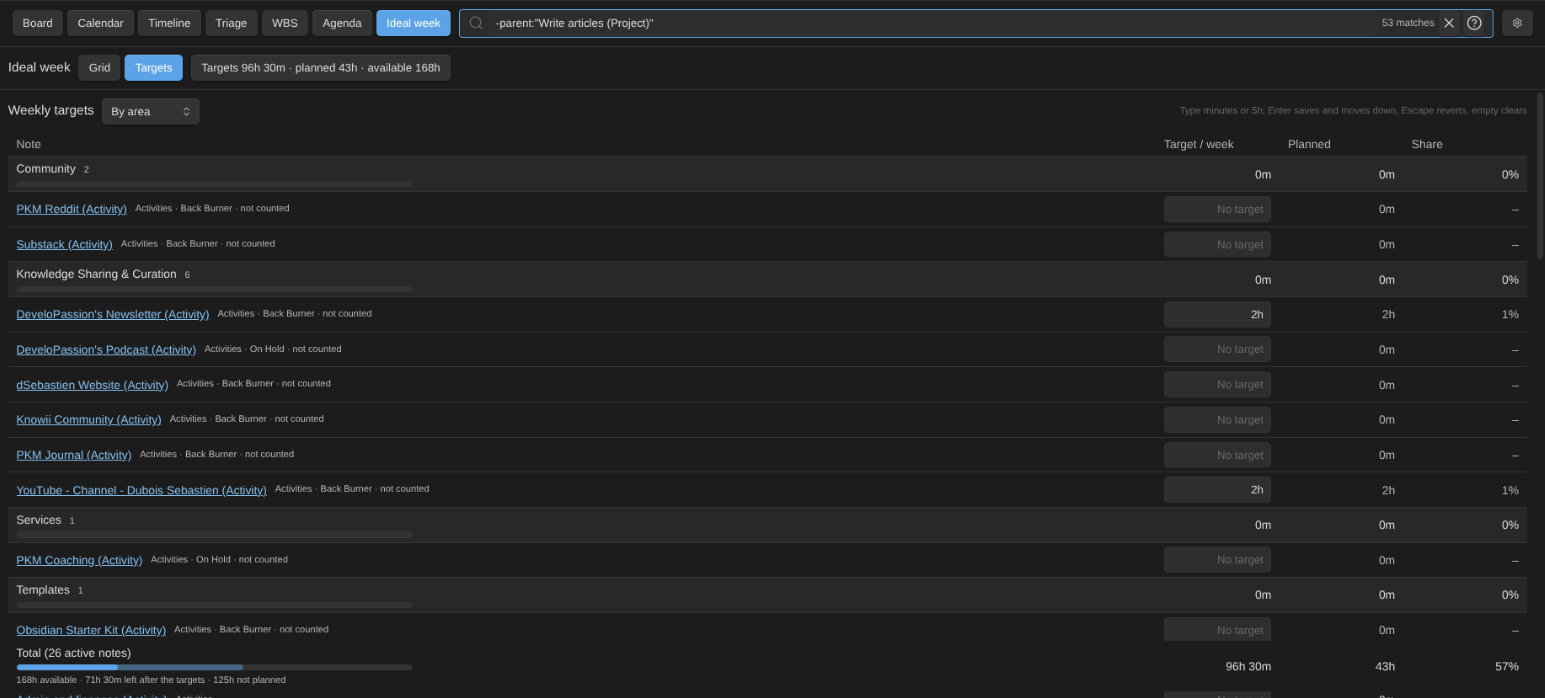
Shape your ideal week: the recurring time blocks of every active activity and project, on a date-less weekly grid. Drag them, resize them, copy them, nudge them with the keyboard, straight into the notes' time_blocks. Overlaps get refused, every note is listed against its weekly target, and the whole week imports from and exports to JSON or Markdown. Cards and WBS rows then show a weekly budget ring (tracked this week vs target, red above the alarm), and the WBS adds lead, cycle and lateness days per row:
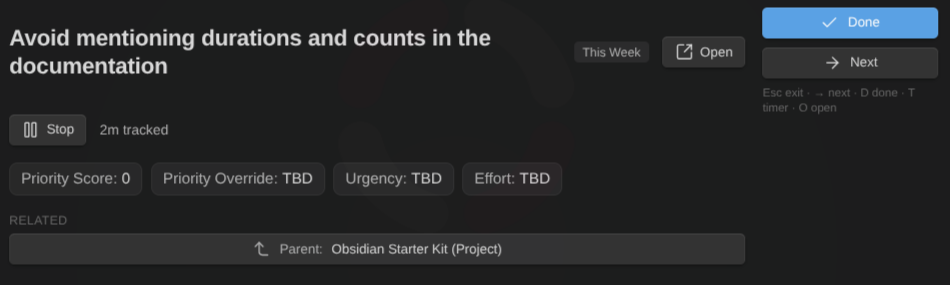
When it's time to actually do the work, spotlight one card full-pane in Focus mode. The timer feeds tracked time into your notes:
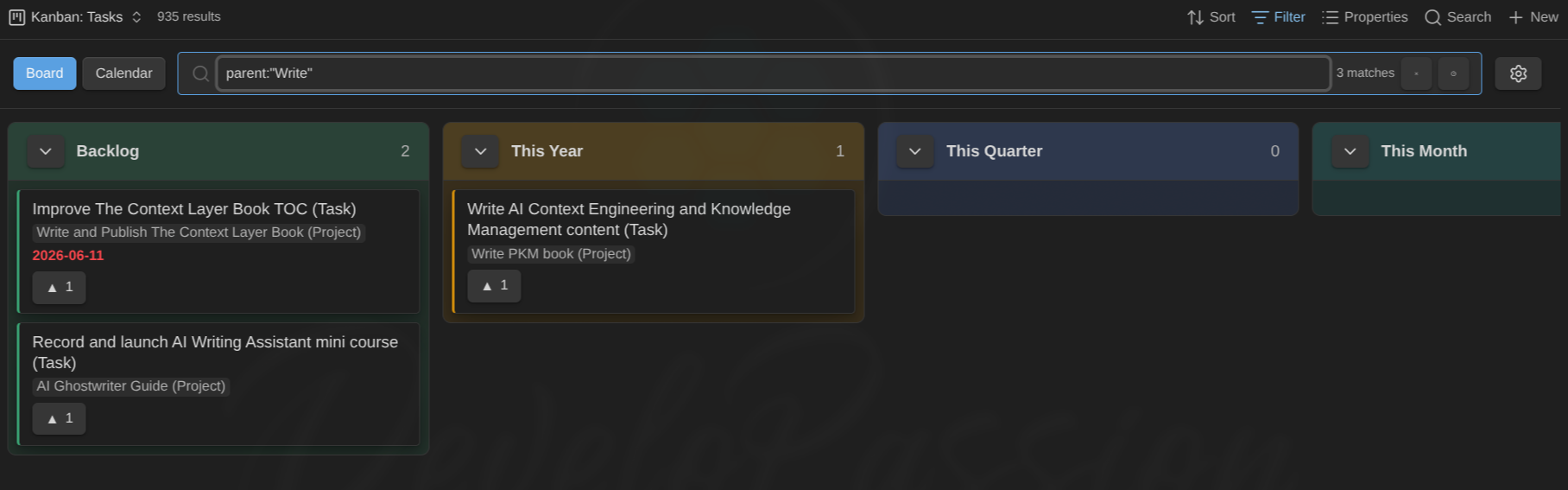
Filter as you type with a compact query language:
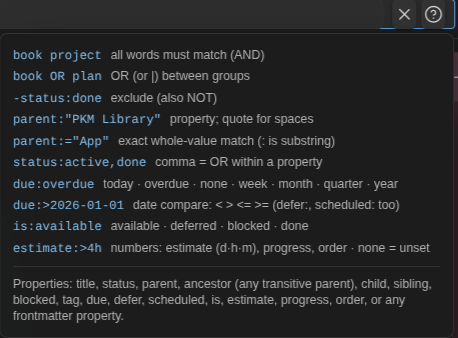
The ? cheat-sheet keeps the whole query language one click away:
Slice any view by GTD contexts (@work, @home, …) from the toolbar @ switcher:
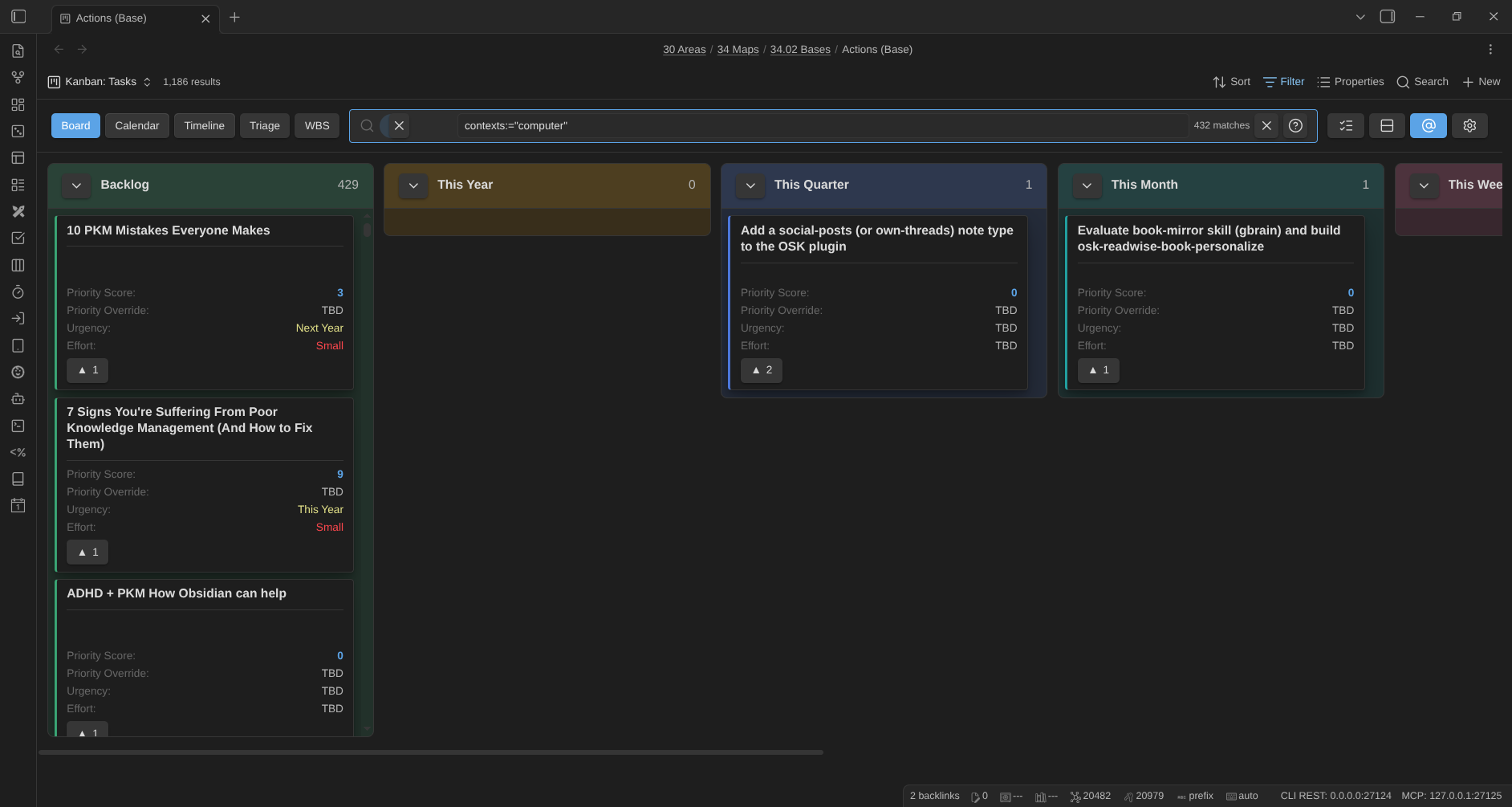
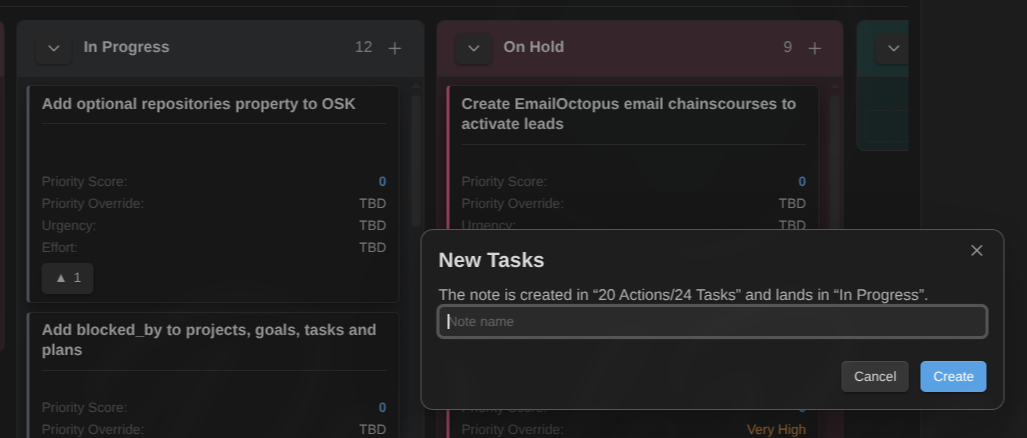
Create cards straight from the board. The dialog shows where the note will land and in which column, before you commit:
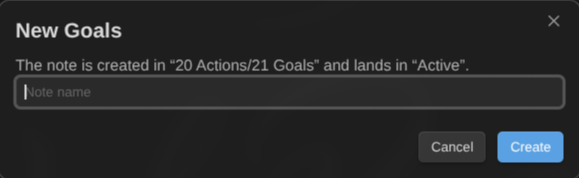
It follows the note type the board is about, so the same + creates a goal on a goals board:
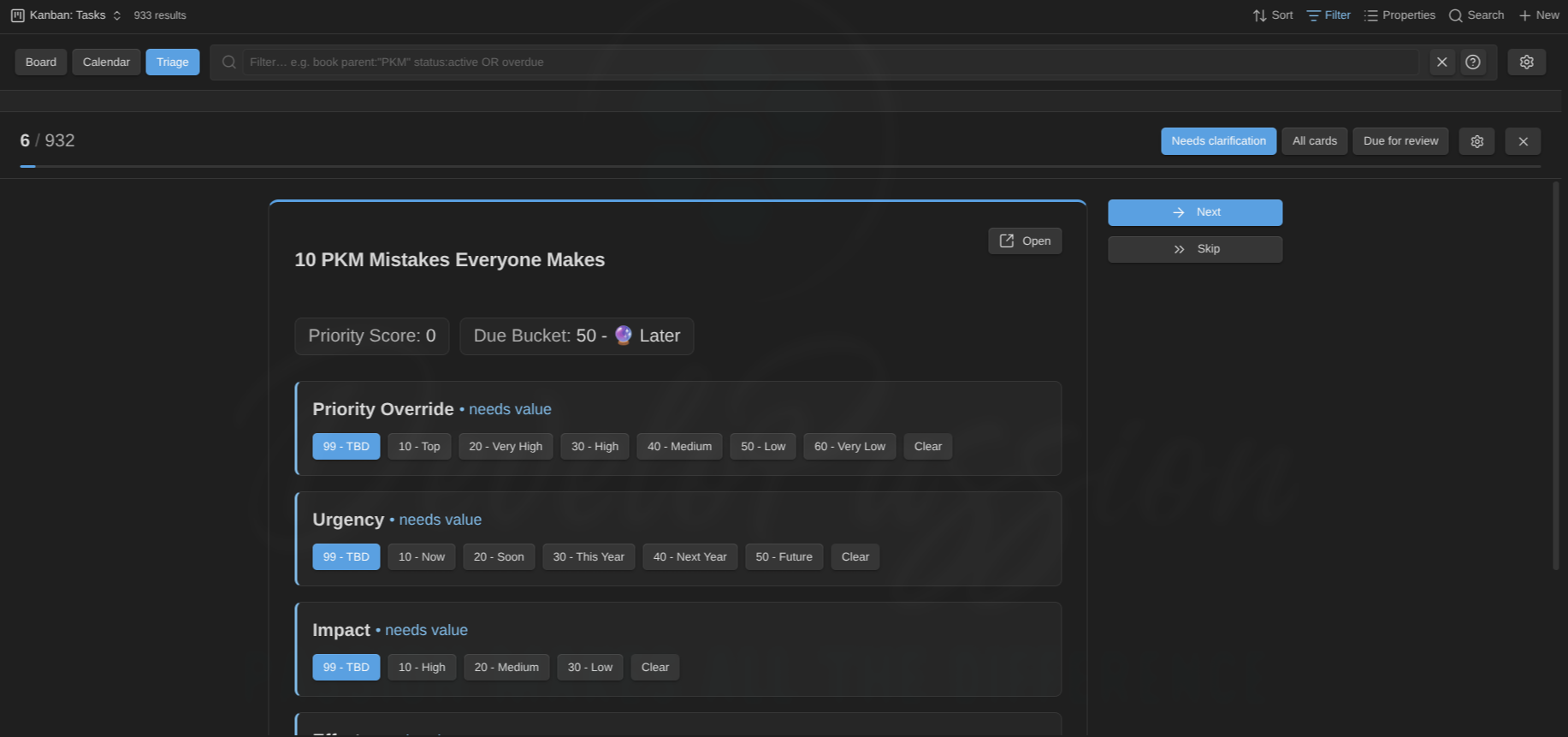
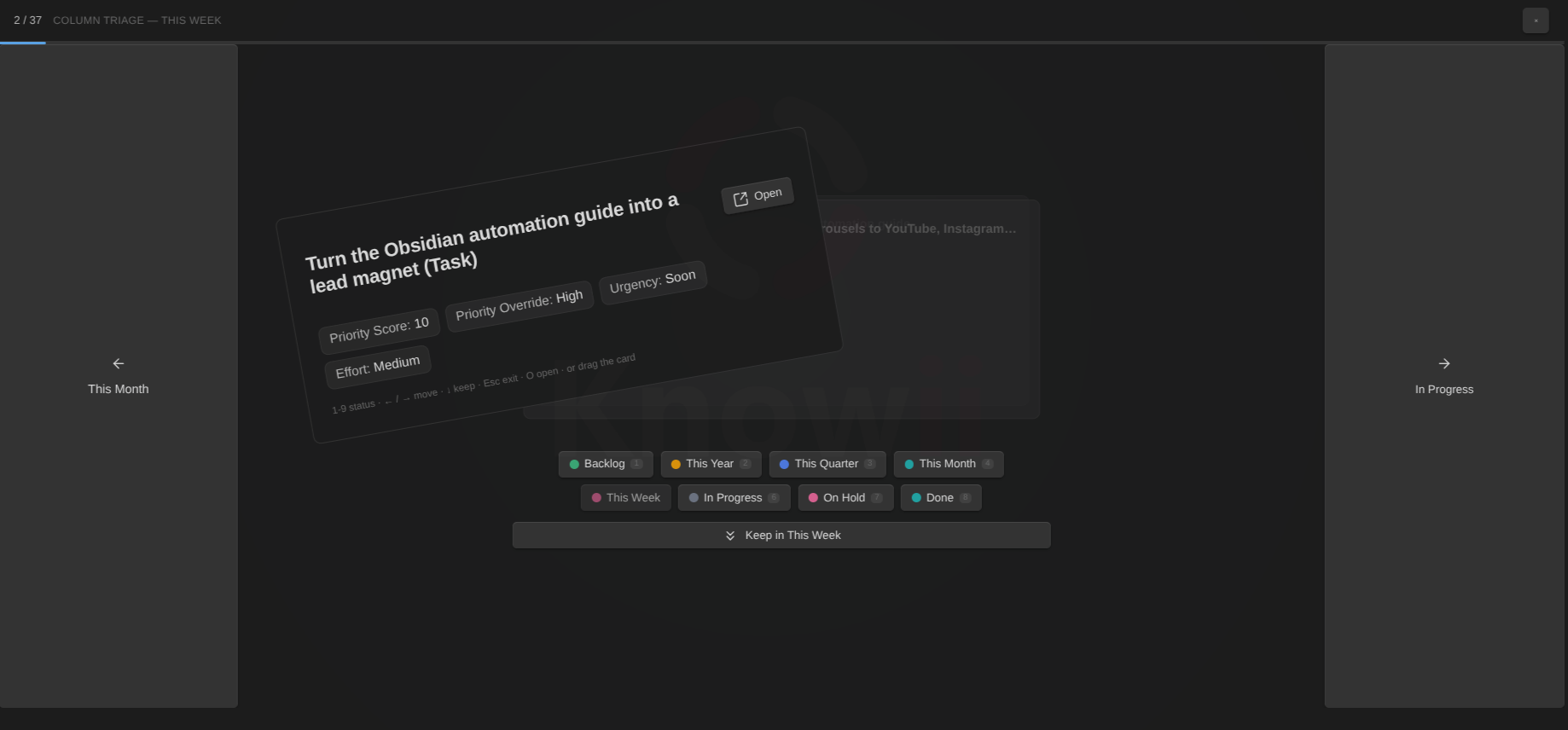
When a backlog gets overwhelming, work through it one card at a time in Triage mode:
Or triage a single board column Tinder-style: a card stack with every status as a chip below it. Swipe or drag the card to any status (stamp + fly-out animation, confetti on done states), or keep it and move on:
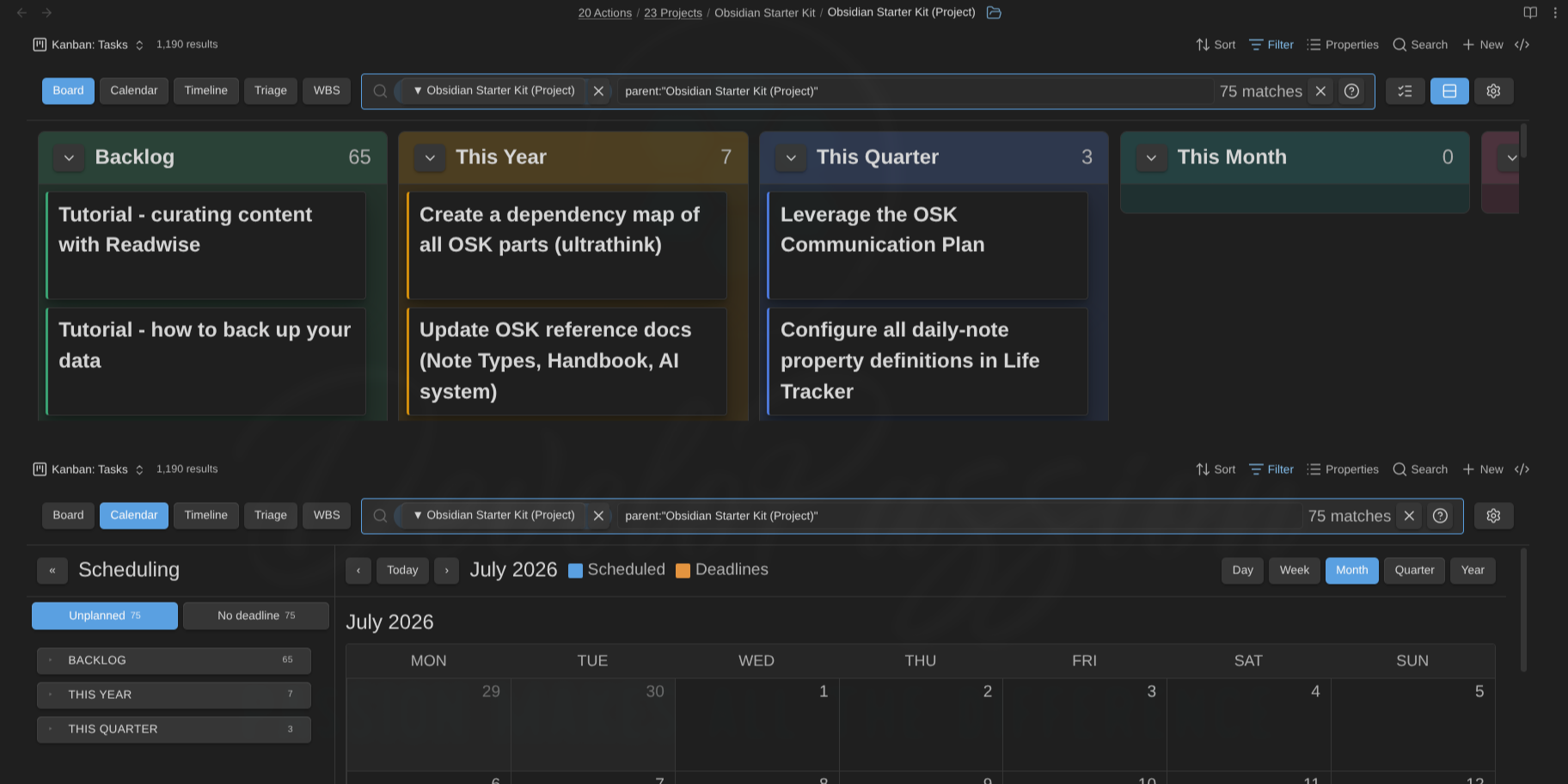
Embed the same view in any note, several times in different modes. Here, a board and its calendar, both pinned to one project via ![[Tasks.base#Kanban|mode=board filter=parent:"Obsidian Starter Kit (Project)"]] and |mode=calendar …:
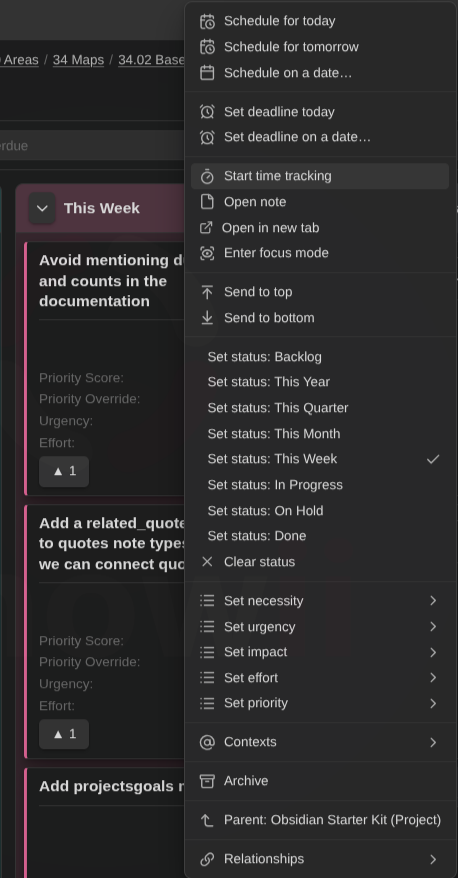
The full card menu: scheduling, time tracking, focus mode, statuses, enums, contexts, relationships, and archiving in one place:
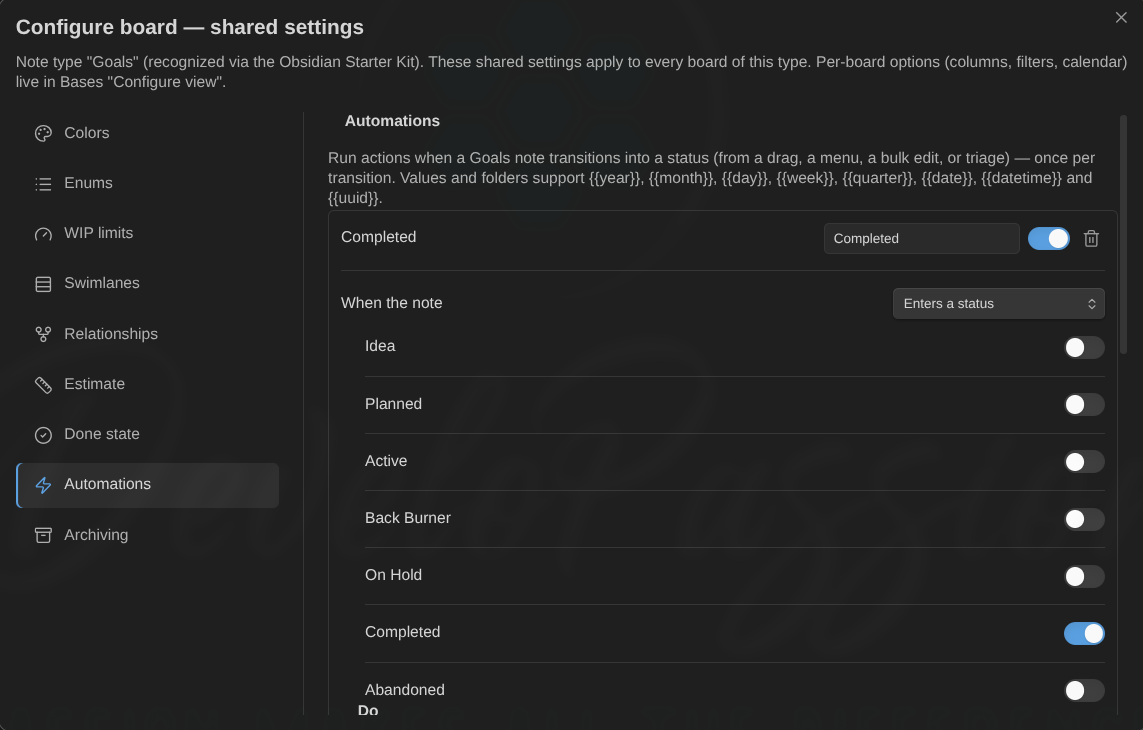
Let the board do the bookkeeping with per-note-type automation rules. Enter a done state and the progress, dates, tags, or even the note's folder update themselves:
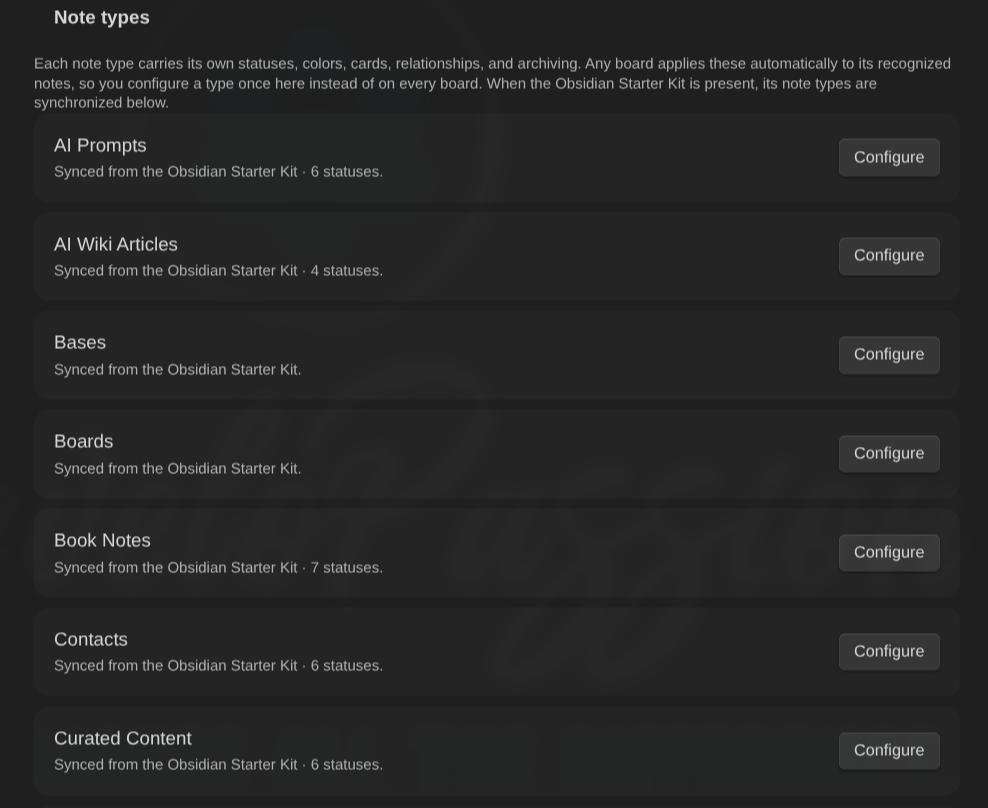
Configure statuses, colors, relationships, and archiving per note type, synced from the Obsidian Starter Kit when it's present:
Install
From Community plugins (once listed): go to Settings → Community plugins → Browse, search for Kanban Action Planner, install, and enable.
Manually: download main.js, manifest.json, and styles.css from the latest release into <vault>/.obsidian/plugins/kanban-action-planner/, then enable the plugin in Settings → Community plugins.
Then add a Kanban view to any Base. That's it. The usage guide walks you through the rest.
Highlights
- Kanban view in Bases. Add one or more Kanban views to any Base. The Base's own filters select the notes.
- Embed a board in any note.
![[Tasks.base#Kanban]]renders the view inside a markdown note, sized to its content up to a scrollable height cap. The wikilink alias overrides that one embed (|mode=wbs height=400 filter=status:active) without ever touching the saved view: mode switches and filter edits inside an embed stay in the embed. The same embed works in an Obsidian Canvas card: drag and drop works as usual, and the canvas card's size controls the board (height=is ignored there), so resizing the card resizes the board.columns=andlanes=narrow a board embed to a subset of its columns or swimlanes, by substring, or by whole name with an=prefix, as incolumns==doing. - Status to columns, defined not guessed. Your status property places cards into columns you define (per view, from the Starter Kit, or in settings), so a typo can never create a stray column. Unmapped notes collect in an "Unmapped" column that hides itself when empty.
- Move, reorder, sort. Drag a card to another column to change its status, or reorder within a column (written to a configurable
manual_orderproperty). Send a card straight to the top or bottom of its column from the right-click menu. Auto-sort each column by name or any property, including a base formula like apriority_score, ascending or descending. Full keyboard support (move, reorder, menu) and command-palette commands. - Filter as you type. A toolbar search box with a compact, Jira-like query (
status:active OR due:overdue,parent:"PKM" -tag:archived), saved per view, in both board and calendar mode.scheduled:,estimate:(unit-aware:estimate:>4h),progress:, andorder:always resolve to the configured properties, whatever they're actually named, just likecontext:does. - GTD contexts. Tag notes with contexts (
@work,@home, …) in acontextslist property and filter to any combination from a toolbar @ switcher (or pin one in an embed withcontext=). Toggle a card's contexts from its right-click menu, and see them color-coded on the calendar and timeline with a click-to-filter legend. - Triage mode. Work through an overwhelming backlog one card at a time, setting priority, urgency, effort, and the rest from one-click controls. Full keyboard support (→ next, ← skip, ↑↓ priority, 1-9 status, ⇧↑/⇧↓ top/bottom) and Tinder-style card swipes (right = next, left = skip, up/down = priority). It doubles as a spaced-repetition review queue, surfacing cards whose review is overdue. A per-column triage pass lives on the board too: hit the triage button in any column header for a Tinder-style card stack. Every status shows as a clickable chip under the card, with full-height prev/next rails, swipe or drag-drop onto any target, and a stamp + fly-out animation (confetti on done states) to seal each decision.
- Relationships, viewable and editable. Parent, sibling, child, and
blocked_byvia link-properties (plus an optional tag and link heuristic). Navigate them, add or remove them from the card menu, flag and filter blocked items. An archived blocker stops blocking. - Focus on a card's children or whole subtree. Zoom into a project (card menu or the ▼ children badge) and the board re-filters to just its children, or all its descendants, in the usual columns. Zoom up from a task via its ▲ parents badge to see the whole project's children (or a goal's entire subtree) at once. A dismissible chip next to the filter box shows the focus; zooming again drills down a level.
- Swimlanes. Split the board into collapsible lanes by note type or any property, with an Ungrouped lane. Cross-lane drag rewrites the grouping property. A board mixing note types auto-groups by type, and each type's lane gets its own columns, colors, and WIP limits. A card's own note type is authoritative for its status, so a project can never be given a task status.
- Calendar mode. Flip a board into a scheduling calendar (day, week, month, quarter, year) that plots scheduled dates and deadlines together. Drag cards onto days to set
date_scheduledordate_due, with an Unplanned / No-deadline panel and per-day zoom. Or right-click any card (board too) to schedule or set a deadline through a date prompt that understands typed dates (tomorrow,fri,next mon,in 3 days) and previews the exact day it will write. In every scheduling panel (calendar, timeline, WBS), drag a card onto another status group to change its status in place. Cards with an estimate span every covered day (dimmed continuation chips). - Timeline mode. A Gantt-style view placing each card by start date + estimate (no end date; days by default, or a per-note-type property/unit override, e.g. tasknotes-style
time_estimateminutes, converted via a configurable minutes-per-day): a square without an estimate, a rectangle spanning it with a duration badge (5d). Drag to move the start, resize the right edge to change the estimate, the left edge to shift the start (end stays anchored). The date that will be written shows live on every drag, resize, and drop. Milestone diamonds, a today line, a per-row red deadline line, Week/Month/Quarter/Year axis with Ctrl/Cmd+wheel zoom, a collapsible "Unplanned" side panel of cards grouped by note type and status, and per-type show/hide on mixed boards. - WBS mode. A work-breakdown-structure view rendering your parent/child hierarchy as a collapsible tree (goal → projects → tasks) with per-node progress bars, estimates, due-date countdowns, and date spans. One rollup model: a note's own value wins, otherwise it derives from its children. Plan top-down, bottom-up, or both, and persist any rollup to the parent in one click (never double-counted). Give a note type a done state (a property + the value(s) that mean done, e.g. the Completed/Done statuses) and done notes count as 100% in the rollup, so a goal with 2 of 4 tasks done shows 50% without any progress numbers. Siblings with planned dates order themselves chronologically. Works on any view: notes without relationships show as standalone rows, and parents excluded by the view's filters (a tasks-only view whose tasks belong to projects) appear as muted “outside view” context rows so the hierarchy keeps its shape. Drag rows to re-parent or onto the panel to detach (the relationship wikilink is rewritten for you), drag cards from the "Needs planning" backlog into the tree, set status/dates/estimates/progress from any row (click the status dot for a quick status menu; the estimate chip edits inline: type
3,2h, or0.5dand press Enter), and distribute a parent's estimate across unestimated children. - Focus mode. Spotlight one card full-pane from any view's card menu: title, properties, subtasks, related notes, and a start/stop timer feeding the time-tracking property. Done fires your automations and offers the next card from the same queue; full keyboard support (Esc/→/D/T/O).
- Ideal week. How you want to spend a week, on a date-less grid. Every active note's
time_blocks(mon-fri 09:00-12:00, 15-minute grid, midnight crossing) render per weekday: move and resize them by drag or keyboard, copy them with Alt, create them by click (type-aware picker) or by dragging a note from the rail, which lists every note against its weekly target and asks for a missing target when you first plan a block. Overlaps are refused with the conflicting note named,minutes_planned_per_weekis recomputed on every edit, and colour follows the first GTD context. Every edit shows at once and the grid never flickers; drag on the empty grid to draw a block over the cells and days you cover, move a whole selection at once, undo and redo (Ctrl+Z / Ctrl+Shift+Z), right-click an empty cell to plan or paste there, set a note's weekly target from its menu, print the week, and import or export the whole week as JSON or Markdown. Activities and projects then show a weekly budget ring (tracked this ISO week vs target, red aboveminutes_alarm_per_week, one notice per week) on their cards and WBS rows, goals and plans roll it up, and the WBS adds a lifecycle chip (lead, cycle, lateness, days active). The ideal week's second face is a targets table: every note's weekly target edited in place (5h, Enter moves down), planned minutes and gap, share of the available week, grouped by area or context with subtotals and repartition bars, and a totals row; a target follows the planned blocks when they overshoot it (never lowered), and the rail groups by status, area (areasproperty) or context, with a filter box for the list. The grid's scale fits a day window (06:00–22:00) to the pane on any window size. And the modes you don't use? Switch them off globally in the settings.
Start/stop a session from any card's menu (one active session; starting elsewhere stops the previous one). Each session lands as a {startTime, endTime, description} entry in a time_entries list, the duration property is recomputed from that list, and a last-session date is stamped; property names map per note type. Pomodoro mode runs timed work/break periods on a card, records them in the daily note's pomodoros list, and shows a status-bar countdown. The WBS rolls tracked time up the tree (own + descendants, actuals add) with a one-click Save total tracked time.
- Quick capture. Every column has a + in its header and an Add card button under its cards: type a name and the note is created in the right folder, with the right template, and lands in that exact column. It reuses what you already configured (an Obsidian Starter Kit note type's folder, template, and name prefix/suffix are picked up automatically) and applies the template with Templater when you have it, before writing the card's properties, so a template that prompts for a status can never override the column you clicked. Whatever the Base filters on (folder, tag, property) is written onto the note too, so the new card really does show up.
- Archiving. Move finished cards into a placeholder-driven folder (
Archive/{{year}}and more), manually or automatically when a card reaches a given status: at once, or after a grace period counted from the note's done date (a board-load sweep archives aged notes, and stamps a done date on notes that lack one). Folder notes (Foo/Foo.md) take their whole folder along. Links are preserved. - Automation rules. Per note type: "when a note enters (or leaves) a status, enters a done state, is archived, or a property crosses a condition (
progress ≥ 100…), do things": set or remove properties (values take{{date}}-style placeholders), add or remove tags, move the note to a placeholder-driven folder. Mark a task Done and its progress jumps to 100, the due date clears, anddate_completedstamps itself. From any write path (drag, menu, bulk, triage), exactly once per transition, with no cascading rules. - Cards show your view's properties. Each card renders the properties you've added to the Bases view (the standard Properties selection), labelled and in order. Ordinary properties and base formulas (
formula.…) alike, so a computed value shows with no extra setup. Enum values are color-coded by rank (warm = top priority or urgency, cool = low) so the board reads like a heatmap, theNN -sort prefix is hidden, and a numeric score shows as an accent badge. The card title can come from any property instead of the note name (per view, with the note name as fallback). Handy when your filenames are IDs or dated slugs. - Note types. Reusable per-type config (statuses, colors, relationships, archiving, swimlanes). Define your own by tag, folder, or regex, or mirror them from the Obsidian Starter Kit when present. With it installed the board configures itself (columns, colors, lanes, done states and date-stamping rules, and the folder + template new cards get), with nothing to set up. It stays entirely optional; everything works without it.
- Productivity touches. Soft per-column WIP limits, per-column aggregates rolling any numeric property up next to the card count (
Σ 13, or an average / min / max; estimates roll up as1d 2h, unit-converted per note type), multi-select with bulk set-status / archive / open, a compact mode showing titles only, overdue and due-today emphasis, an optional due countdown badge (In 3d,2d overdue,Today, color-coded by urgency and positionable on the title, a chip, the corner, or a footer), native hover preview, and per-view state remembered across reloads. - What's new after updates. After a plugin update, a one-time tab opens with the release notes you just received (including any versions you skipped) and ways to support development. It never appears on fresh installs or regular restarts.
- Your notes stay the source of truth. Status, order, dates, relationships, and grouping ALL land in your frontmatter. Desktop only for now (mobile isn't supported yet), and respects reduced-motion settings.
Development
See DEVELOPMENT.md. The short version: bun install, then bun run dev (watch) or bun run build (production). Quality gate: bun run tsc, bun run lint, bun test, bun run build.
License
MIT License. See LICENSE.
My other Obsidian plugins
| Plugin | What it does |
|---|---|
| Agentic Resource Discovery Server | Local-first Agentic Resource Discovery publisher and registry that serves your AI skills and tools to agents over a local HTTP and MCP server |
| Book Exporter | Export books (one manifest note + linked chapter notes) to EPUB and PDF via Pandoc |
| Bookshelf Base | Display your notes as a visual bookshelf via a custom Bases view |
| Dataview Serializer | Serialize Dataview queries to Markdown, and keep the Markdown representation up to date |
| Expander | Replace variables across your vault using HTML comment markers. Supports static values and dynamic functions |
| Ghost Publish | Publish your vault notes to a Ghost blog with configurable presets for tags, newsletters, and frontmatter conventions |
| Graph Explorer Base View | A custom Bases view that renders notes as an interactive force-directed graph with explored/unexplored tracking |
| Hidden Folders Access | Index hidden root-level folders (e.g. .claude) so they appear in the file tree, metadata cache, and Bases |
| Journal Bases | Custom Base views for journaling and periodic reviews |
| Life Tracker | Capture and visualize the data that matters in your life |
| Note Village | A 2D pixel art village where your notes become villagers you can explore and chat with using AI |
| Obsidian Starter Kit | Adds strong typing support and powerful automation support for notes |
| Remarkable Synchronizer | Connect to the reMarkable cloud, list, download, and sync notebook pages as images |
| Replicate | Use AI models with ease via the Replicate.com integration |
| REST and MCP server | Exposes CLI commands as RESTful API endpoints and an MCP server for AI tool integration |
| Time Machine | Browse, compare, and restore previous versions of your notes using built-in file-recovery snapshots |
| Transcriber | Transcribe images to markdown using Ollama vision models |
| Typefully | Publish social media posts with ease using the Typefully integration |
| Update Time | Automatically update front matter to include creation and last update times |
Everything I build is documented in my newsletter and on my YouTube channel.
News & support
To stay up to date about this plugin, Obsidian in general, Personal Knowledge Management and note-taking:
- Subscribe to my newsletter
- Subscribe to my YouTube channel
- Join the Knowii community and learn to organize your notes and put your knowledge to work, together with fellow knowledge workers
If this plugin is useful to you, here are the best ways to support my work ❤️:
- Join the Knowii community
- Become a GitHub Sponsor
- Buy me a coffee
- Subscribe to my YouTube channel
- Check out my products
Found a bug or have an idea? Open an issue.
For plugin developers
Search results and similarity scores are powered by semantic analysis of your plugin's README. If your plugin isn't appearing for searches you'd expect, try updating your README to clearly describe your plugin's purpose, features, and use cases.