Noria
approvedby Biao Zhou
A configurable Obsidian workbench for notes, knowledge, tasks, projects, habits, timelines, statistics, and reviews. - This plugin has not been manually reviewed by Obsidian staff.
Noria for Obsidian
Language: English | 简体中文


Turn knowledge into action, and action into lasting knowledge.
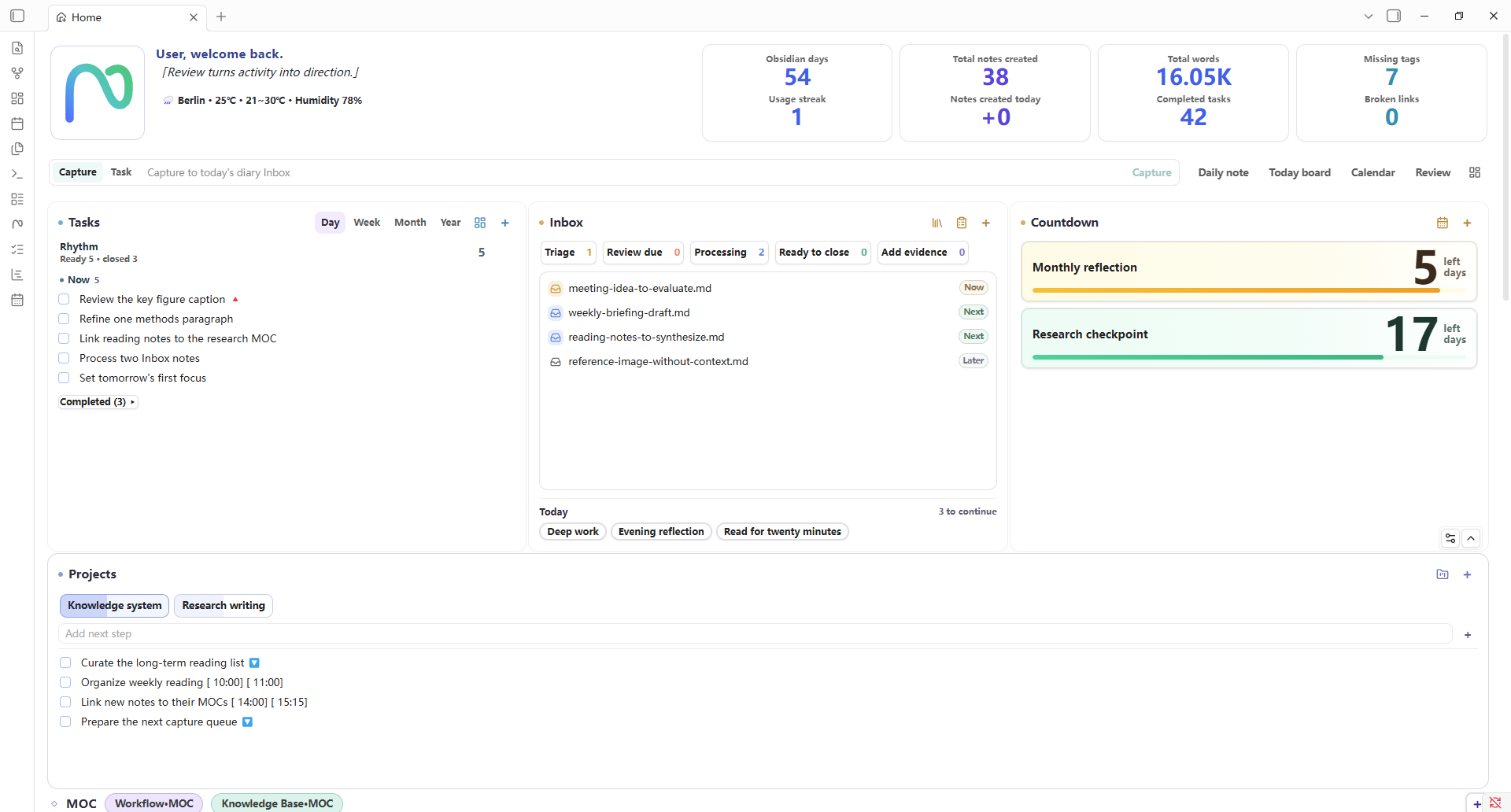
Noria connects daily records, notes, and knowledge management with planning, execution, and review. Its configurable Home brings together Task Board, Task Timeline, Calendar, projects, Inbox and MOCs, habits, trends, and Review Center, helping you see the current state, choose the next useful action, and let long-term knowledge support ongoing work.
Design Direction
| Principle | What it means in Noria |
|---|---|
| Visibility | Home statistics, heatmaps, task trends, note distribution, and daily-state signals make real work visible. |
| Low-friction planning | Task Board and Task Timeline help move from capture to arrangement without moving work into a separate app. |
| Configurability | Home is a widget dashboard; paths, scan scopes, modules, templates, filters, and appearance can be adapted to your vault. |
| Reusable data | The same Data API powers Home, tasks, timelines, periodic stats, review evidence, exports, and custom views. |
Core Surfaces
Home Dashboard
Home is Noria's overview surface. It brings "what needs attention today," "what has been accumulating recently," and "which entrances are worth revisiting" into one configurable dashboard: tasks, projects, Inbox, MOC links, habits, countdowns, weather, note trends, task completion trends, note distribution, heatmaps, and daily-state signals form a lightweight status board.
The statistics make workload visible. You can see recent note growth, task completion, habit continuity, daily-state changes, and vault distribution together. Inbox helps manage temporary capture; projects bring you back to active themes; habits support quick habit setup and 21-day style habit building; countdowns keep important dates inside daily awareness.
Home is also a widget dashboard. Built-in widgets can be enabled, disabled, reordered, and resized. You can add content widgets and, after explicitly granting trust under Maintenance, custom JavaScript view widgets from your vault. The default layout is only a starting point.
Markdown widgets can display daily briefings, current suggestions, weekly reviews, or project-monitor notes produced elsewhere. Noria reads and links the configured .md files; it does not require a model connection or generate those documents itself.
Task Board
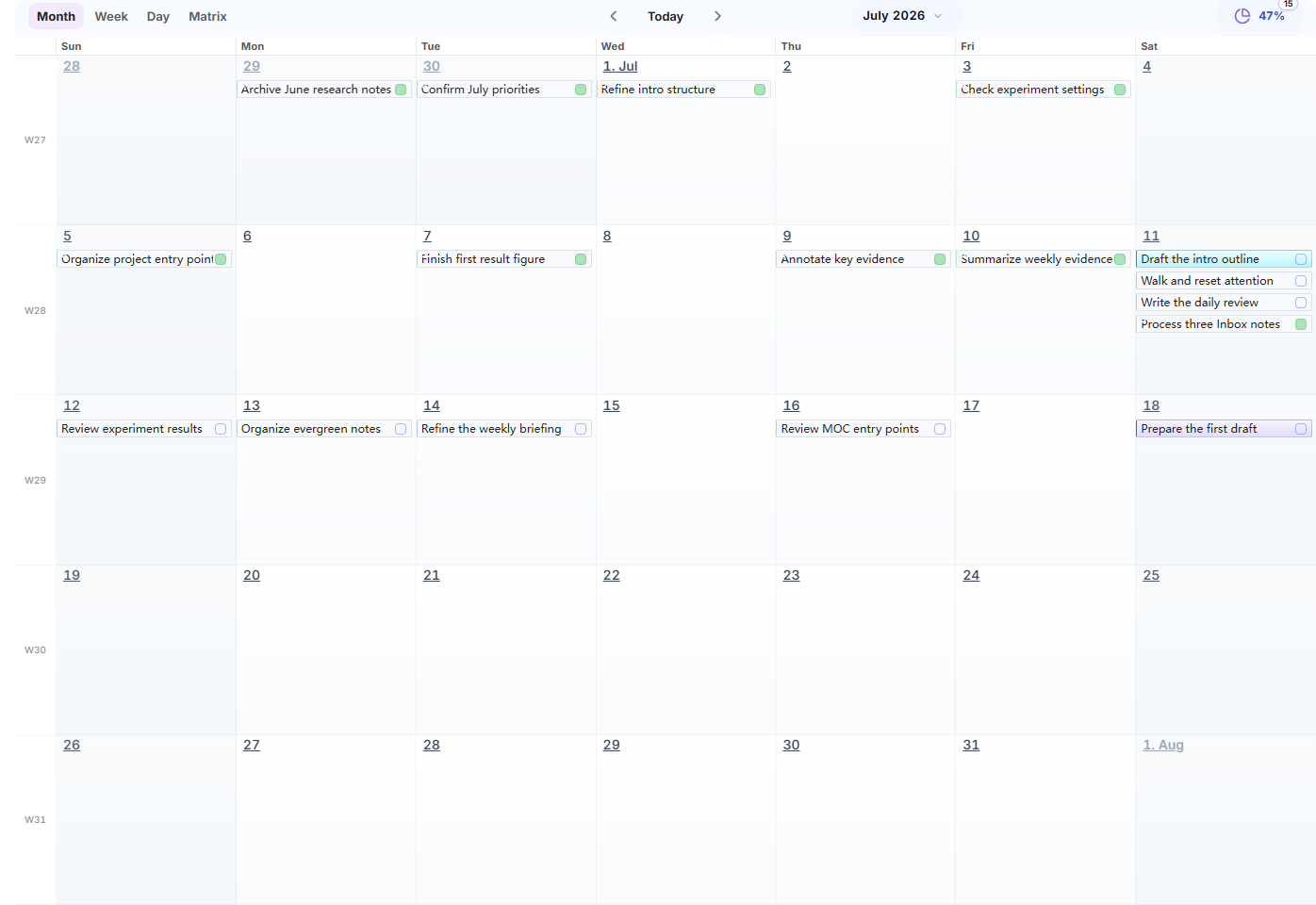
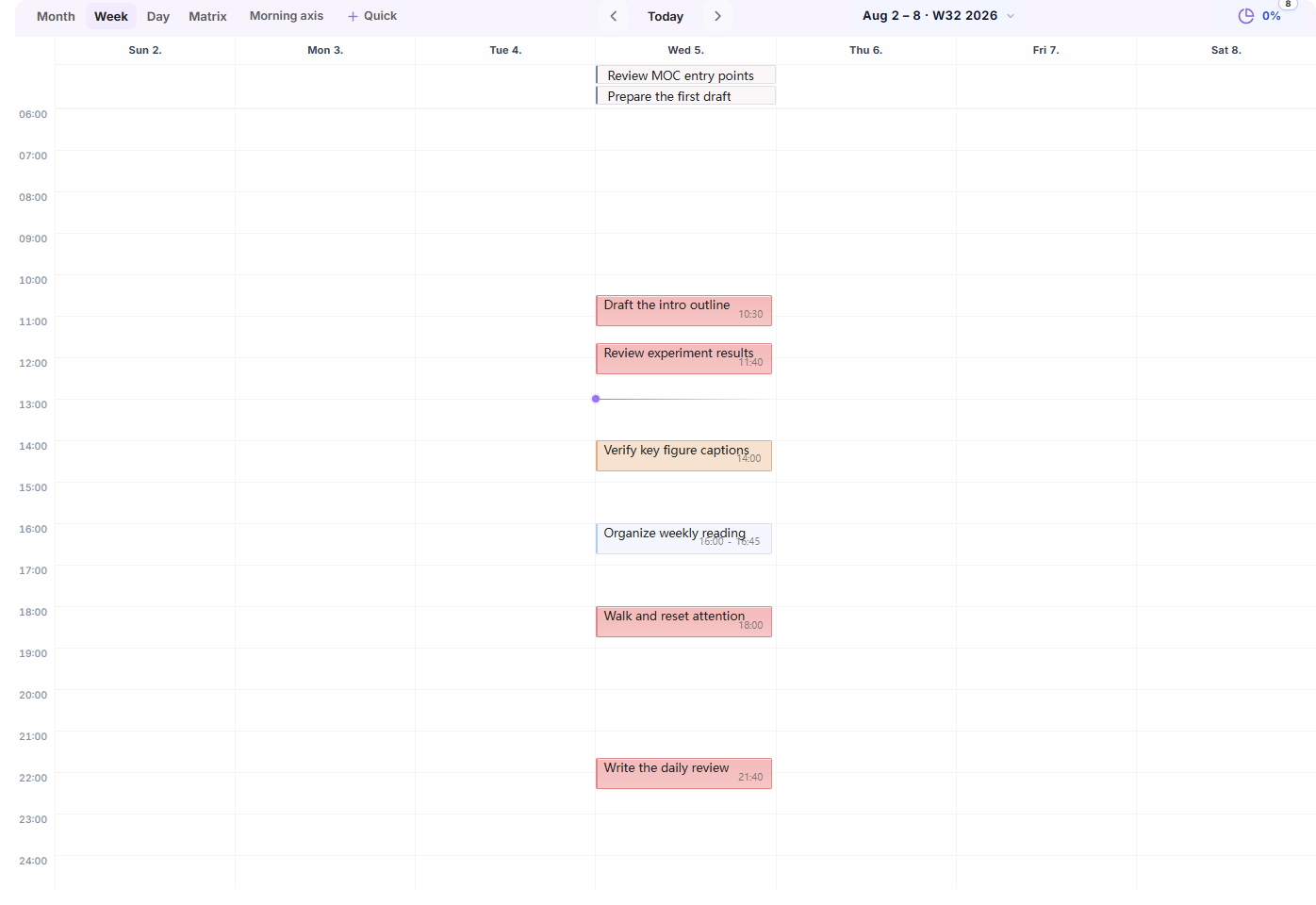
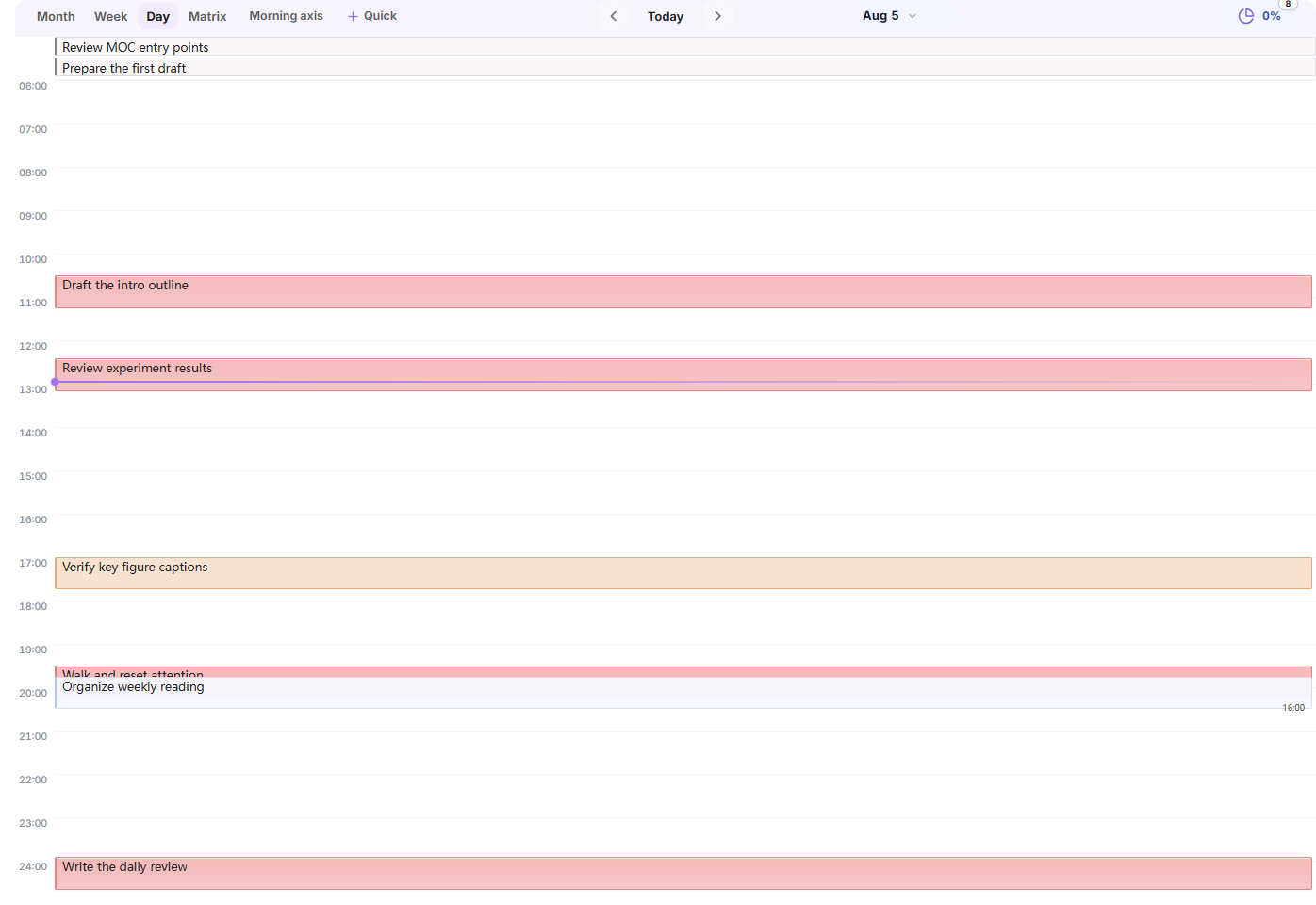
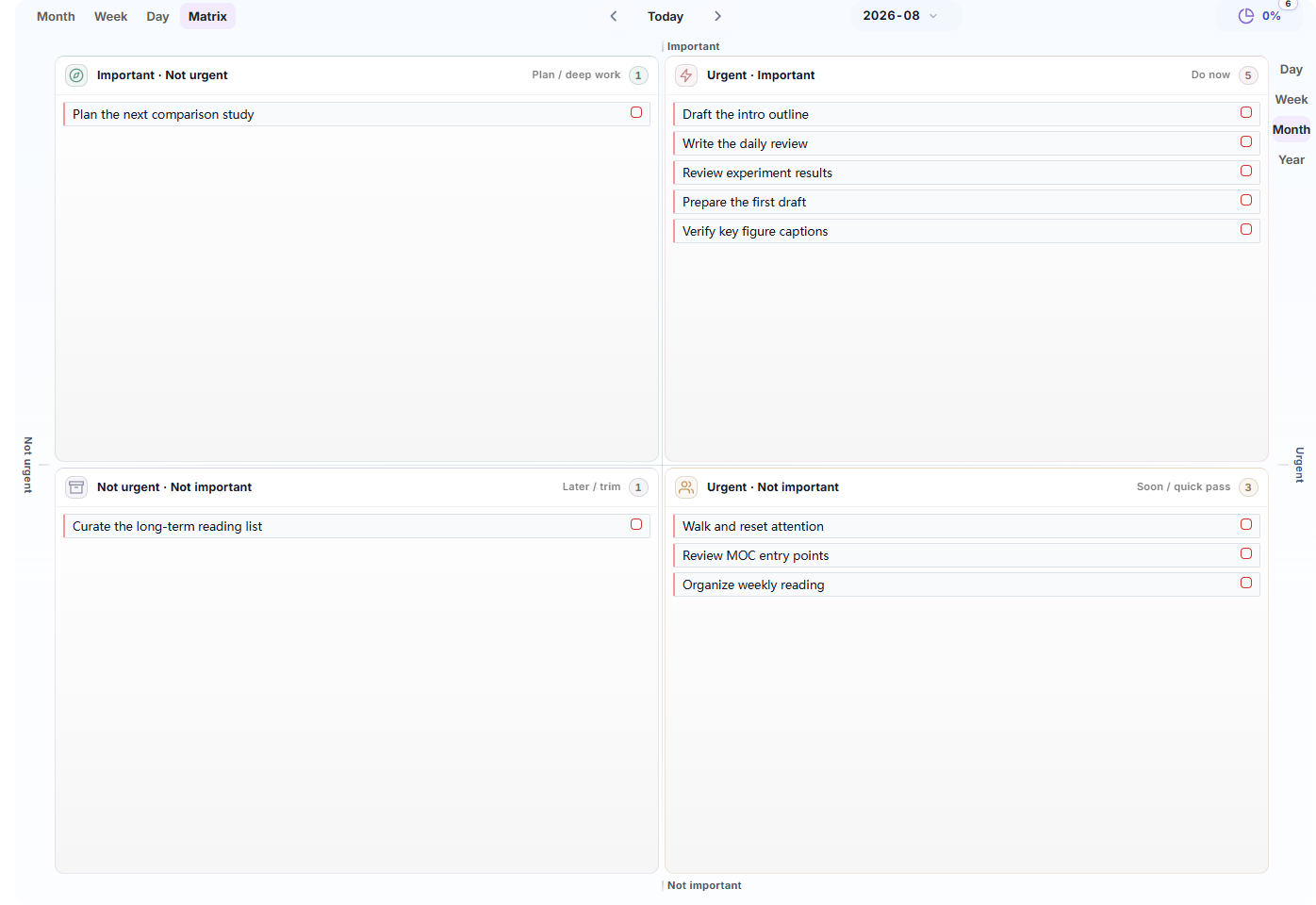
Task Board turns tasks scattered across diaries, projects, and other notes into views you can plan from. Month view is useful for cycles and multi-day work, week view for near-term planning, day view for today's work, and matrix view for priority decisions.
Tasks remain in their original notes. New tasks can be written back to the matching diary, weekly note, or monthly note, while edits, drag actions, and completion changes stay in sync with Home statistics and the timeline.
Task Timeline
Task Timeline brings dated tasks and project phases into one view. Use the main area for a broader plan or keep the sidebar open for the current schedule. Zoom from days into hours to see how a day unfolds.
Every task uses a circle followed by a short title. Circle color shows completion while titles stay readable; hover or focus a task to see its full schedule, duration, and source note. Drag the bottom date row or minimap to move through time.
Name project or global time annotations to mark phases above the tasks. These periods can be edited without changing task dates, and tasks remain connected to their original Markdown notes.
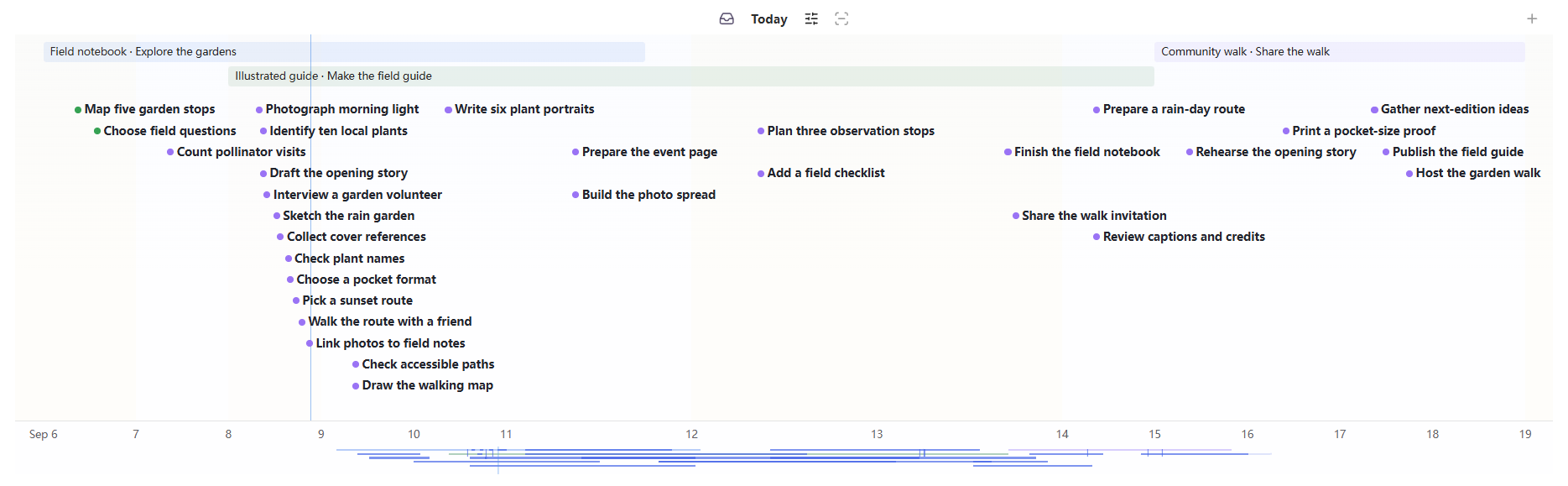
Timeline screenshots use example tasks and show the interactions in Noria 0.4.6. Timeline guide
Calendar
Calendar lives in the Obsidian sidebar and opens or creates daily, weekly, monthly, quarterly, and yearly notes. It can follow Noria-managed paths, Obsidian Daily Notes, or a custom folder and naming pattern. Missing notes are created directly by default; an optional confirmation can be enabled in Settings.
Habits
Habits separate "did I do this today" from "is this becoming established." Home keeps today's check-in lightweight, while full habit cards, individual heatmaps, and aggregate trends live in the trends area. Habit records remain ordinary Markdown.
Trends And Statistics
Trends help you observe change across a period instead of judging each day. Note growth, task completion, habit and workload heatmaps, vault distribution, and daily-state signals share one time range and can be arranged as independent Home widgets.
Review Center
Review Center opens directly on the editable final review, so you can write first instead of waiting for a report to assemble. A lightweight evidence summary follows; full evidence and analysis load only when you open the support area. Noria can prepare daily, weekly, monthly, and yearly evidence for an external AI workflow or another tool, but it does not call a model or auto-save an adopted draft. Markdown is written back only after you confirm it.
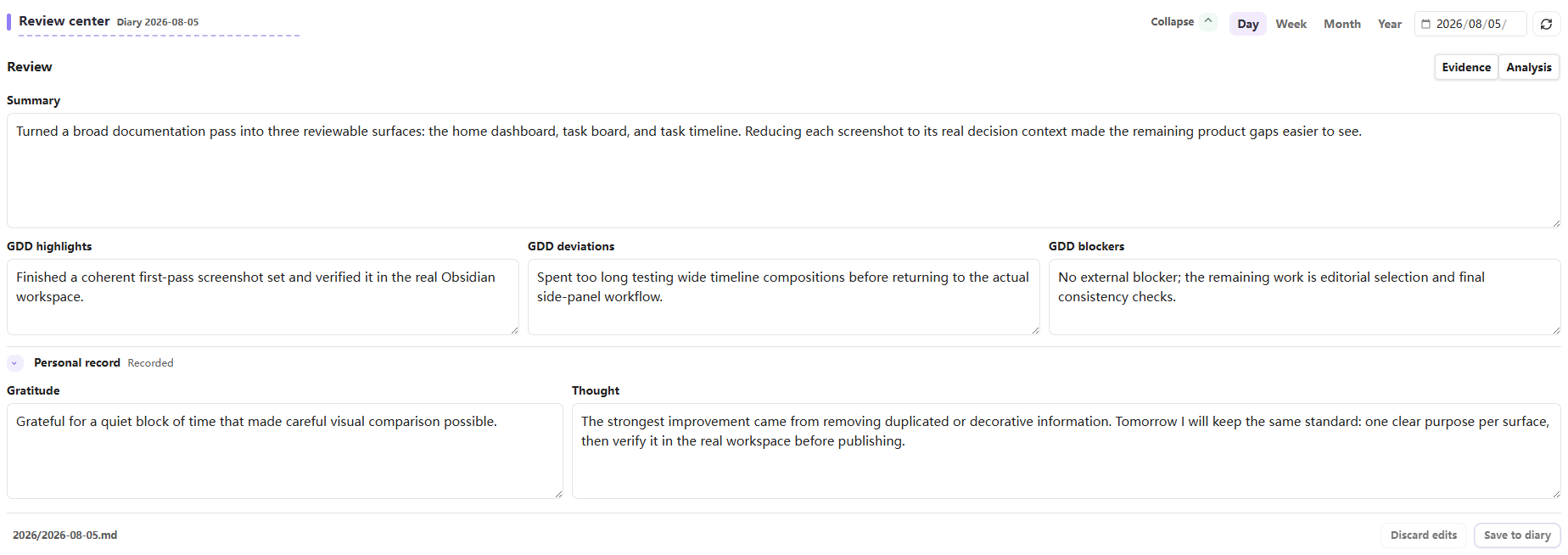
The same data layer powers Home statistics, task views, timeline summaries, periodic views, review evidence, and exports. This avoids each workflow scanning the vault in its own way and makes Noria data easier to use from external agents, scripts, and synchronization workflows.
Configure It Around Your Vault
Noria can run in a new portable Noria/ workspace or connect to an existing vault through paths and scan scopes. Settings cover paths, Home widgets, task filtering, Calendar sources and period templates, appearance, weather, review prompts, and diagnostics. The goal is to fit your knowledge system rather than force your vault into a fixed directory layout.
Workflow
Noria is designed around a simple knowledge-work loop:
- Capture in Inbox, diary notes, or project notes.
- Organize through Home, project panels, MOC links, and Inbox actions.
- Plan with Task Board and Task Timeline.
- Execute from the day view, side timeline, and source tasks.
- Review with reusable evidence and write the final reflection back into your diary.
Quick Start
- Install and enable Noria from
Settings -> Community plugins. - Open
Settings -> Noria -> Overviewand choose Standard workspace for a new vault or Custom paths for an existing vault. - Review the initialization preview, then create only the missing starter files you want. The examples are ordinary Markdown and can be edited or removed at any time.
- Open Home and follow one sample task from the dashboard to its source note, then inspect the same task in Task Board or Task Timeline.
- Adjust diary paths, templates, modules, and Home widgets only when you need a different structure.
Noria can create diary notes from its task and review flows, and it also works with Obsidian's core Templates plugin or calendar-style plugins that create dated notes from templates. Use whichever diary creation flow fits your vault best; Noria only needs the diary root and template paths to be configured correctly.
Roadmap
- Workbench experience: continue refining module interfaces, responsiveness, interaction logic, and narrow-pane behavior so common workflows stay direct.
- Composable Home: improve card creation, visibility, ordering, and sizing, and explore long-term content entrances such as bookshelves, media shelves, and game shelves.
- Feeds and briefings: let RSS and other external workflows write daily feeds, summaries, and project monitoring into agreed Markdown files for Home to present.
- External agent collaboration: help external agents organize plans, projects, habits, and periodic reviews within clear data and write-back boundaries.
Installation
For normal use, install the release assets. Do not clone the source repository into .obsidian/plugins/noria/.
-
Download the latest release assets from GitHub Releases:
manifest.jsonmain.jsstyles.css
-
Create the plugin directory in your vault:
.obsidian/plugins/noria/ -
Put the three files into that directory.
-
Restart Obsidian, or reload community plugins.
-
Enable Noria in
Settings -> Community plugins.
After Obsidian saves settings, the plugin folder normally contains:
.obsidian/plugins/noria/
  manifest.json
  main.js
  styles.css
  data.json
It should not contain src/, tests/, scripts/, node_modules/, or the full Git repository.
Documentation
- User Guide: installation, every module, Settings, common workflows, troubleshooting, paths, and developer reference.
- GitHub Issues: bug reports and feature requests.
- Community: help, workflow sharing, and community channels.
- Support development: voluntary support for Noria's maintenance.
- Changelog: release history.
- Contributing: local development, validation, and PR expectations.
- Security: how to report security issues.
Privacy and disclosures
- Noria requires no account and contains no telemetry, analytics, ads, or payments.
- Noria does not call an AI service. Review Center prepares local evidence and prompts that you may copy to a tool you choose.
- Weather is off in a fresh installation. The first explicit workspace initialization enables it; later repairs preserve the user's choice. When weather loads, Noria may contact IP-location and weather services such as
ipwho.is,ipapi.co, Open-Meteo, orwttr.in; QWeather is contacted only when you configure its host and API key. - Review Center keeps its Git evidence field compatible with external evidence providers, but Noria does not execute Git or other shell commands.
- Custom JavaScript view widgets are disabled by default. If you explicitly enable them under Maintenance, they execute a configured vault-relative JavaScript file with Noria and Obsidian plugin access. Noria blocks protocols, absolute paths, and path traversal; only enable this for files you trust. Built-in Noria views do not require this permission.
- Settings stay in the plugin
data.json; supported secrets are stored through Obsidian SecretStorage. Snapshot and review exports remain inside the vault unless you choose another vault path.
Development
Clone this repository only when you want to develop Noria itself.
npm install
npm run check
To install the current build into a separate test vault while keeping the plugin directory clean:
npm run install:vault -- "/path/to/test-vault"
Replace the example path with a separate test vault. The command builds the plugin and copies only manifest.json, main.js, and styles.css into that vault's .obsidian/plugins/noria/ directory. Existing Noria data.json is preserved.
Project Layout
src/main.js: Obsidian plugin entry and settings implementation.src/runtime/: Home, Task Board, Timeline, Review Center, and shared runtime sources embedded intomain.jsduring build.src/generated/embedded-runtime-sources.js: generated embedded resource index. Do not edit it manually.scripts/: build, release check, and test-vault install scripts.tests/: Node tests for runtime behavior, settings, packaging, and release checks.manifest.json,main.js,styles.css: release assets installed into Obsidian.
Data Storage
- Noria settings are stored in Obsidian's plugin
data.json. - Optional weather credentials use Obsidian SecretStorage.
- Review evidence and snapshot exports are written under the plugin cache unless you choose another output path.
License
MIT. See LICENSE.
Community
Ask questions, share workflows, and suggest improvements. English and Chinese are welcome.
Join Noria on Discord · Obsidian Forum · GitHub Issues
Scan to join the Noria Discord community:

Support development
If Noria helps you, voluntary support is welcome and helps sustain development and maintenance. All features remain available to everyone.
Scan with Alipay to support Noria:
For plugin developers
Search results and similarity scores are powered by semantic analysis of your plugin's README. If your plugin isn't appearing for searches you'd expect, try updating your README to clearly describe your plugin's purpose, features, and use cases.