by Beomsu Koh | 고범수
Play note-backed playlists with YouTube, cached audio, and local files.
Note Player
Play note-backed playlists with YouTube, cached audio, and local files.
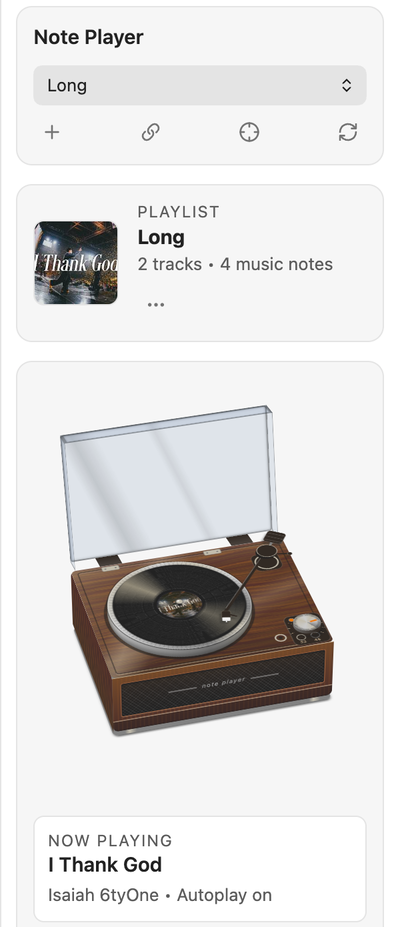
Each track is a Markdown note. Each playlist is a Bases file embedded in a companion note, with playback in the sidebar player.
Features
- Playlists and tracks are notes with frontmatter, so they work with links, properties, and Bases.
- Add a track from a YouTube URL; the note is created with the title, channel, and thumbnail.
- Audio is downloaded once with yt-dlp and cached locally for instant playback.
- Play local audio files from your vault.
- Turntable now-playing card with optional needle and crackle sounds, a queue, repeat-one, and autoplay.
Installation
From the Community plugins browser, search for Note Player, then install and enable it.
Manual: download main.js, manifest.json, and styles.css from the latest release, copy them into <vault>/<config folder>/plugins/note-player/, then enable the plugin.
Requirements
Desktop only (Obsidian 1.13.0 or later). Downloading audio needs two command-line tools on your PATH:
- yt-dlp, for downloading and for expanding playlist links
- ffmpeg, which yt-dlp uses to convert audio to MP3 or WAV
brew install yt-dlp ffmpeg # macOS; use your package manager elsewhere
Usage
Add a track by YouTube URL
Copy a YouTube link, then do any one of these:
- Run the command Add YouTube URL to playlist and paste it into the modal. The paste adds the track immediately.
- Click the link button in the player toolbar.
- Paste straight into the player view.
The track note is created in the Music folder setting (or Obsidian's default location for new notes) and appended to the selected playlist. If no playlist exists, one named Inbox is created. A video that is already in the library reuses its note. A YouTube playlist link adds every video in it, using yt-dlp.
Playlist notes
A playlist is a companion note with type: music-playlist embedding a .base file. Its first view is Obsidian's native Cards view, showing track titles, authors, and the configured thumbnail property. Cards use Obsidian's theme in both light and dark mode. Open a card to open its track note; playback is only from the sidebar player.
Track notes have type: music, a YouTube URL in source, and links to companion playlist notes in playlists. Property names and note types are configurable in settings. Queue membership follows those links; queue order follows the base's first view's sort, regardless of view type, with name ascending when no supported sort is set.
Run Convert playlist notes to Bases from the command palette or settings to preview conversion of legacy track lists and upgrades of paired playlist bases from the former custom view to native cards. Original lists stay in tracks_legacy; filters, sorting, and other views are preserved. Unpaired bases are never upgraded. Conversion runs only when requested, not on startup.
Player
Open it from the ribbon icon or the Open player view command. Other commands:
- Refresh music library
- Load active playlist note into player
- Add active note to selected playlist
- Create or refresh companion bases files
Turntable
The now-playing card shows a spinning record with a tonearm. Starting playback lowers the needle with a synthesized drop and vinyl crackle; pausing lifts it with a soft tick. The sounds are generated with Web Audio (no audio files are bundled) and follow the player volume. Turn them off with Turntable sounds in settings. With reduced motion enabled the record stays still.
Settings
Playlist folder, music folder, property mapping for URL, thumbnail, artist, playlist membership, description, cover, and note types, audio format (MP3 or WAV), autoplay, open on startup, and Turntable sounds.
- Music folder is a library discovery scope and where imported track notes are created.
- Playlist folder is a playlist discovery scope and where new playlists are created.
Both folder settings include all subfolders. Pick an existing folder from the list, or type a new path to create it. In any picker, Shift+Enter creates what you typed, even when other options match. Choosing Vault root in either setting includes the whole vault, including all subfolders.
Disclosures
Note Player is desktop only. It has no telemetry and no accounts, and it sends nothing to any server except YouTube.
Network
- Adding a track sends its video URL to
youtube.com/oembed, through Obsidian'srequestUrl, to read the title, channel and thumbnail. No API key is used. - Thumbnails load from
img.youtube.com. - Downloads, playlist expansion and streaming run yt-dlp, which contacts YouTube. A track that isn't cached yet streams straight from YouTube's media servers while it downloads.
- While a track plays, the stream link for the next uncached track in the queue is looked up ahead of time. Apart from that and thumbnails, YouTube is only contacted when you add a track or play one that isn't cached. Local vault audio never uses the network.
Running programs (yt-dlp and ffmpeg)
- The plugin runs
yt-dlpas a child process to download audio, resolve stream links and expand playlist links. yt-dlp callsffmpegto convert audio. No other programs are run. - It finds yt-dlp on your
PATHor in the usual install folders (~/.local/bin,/opt/homebrew/bin,/usr/local/bin,/usr/bin); it tries to start each one and keeps the first that runs. - To turn this off, don't install yt-dlp (or uninstall it). Local audio files in your vault still play.
Files
- Downloaded audio and waveform data (
<id>.peaks.json) are stored in<vault>/<config folder>/plugins/note-player/audio-cache. The plugin reads, lists and deletes them through Obsidian's vault adapter. Only yt-dlp itself writes into this folder, using the absolute path of the vault. - Nothing outside your vault is written. To clear the cache, delete the folder.
Reading your vault
- To build the music library, the plugin reads the frontmatter of Markdown notes in your Music folder and Playlist folder, including all subfolders, and in the track notes your playlists link to, through Obsidian's metadata cache. Choosing Vault root in either folder setting includes the whole vault, including all subfolders. Initial indexing is deferred until the workspace layout is ready; subsequent indexing runs when notes change and when you run Refresh music library. Discovery uses cached Markdown file metadata rather than walking folders or reading note contents. Only paired
.basefiles are read for queue sorting. Nothing leaves your device. - The property pickers in settings list frontmatter keys found across your vault, with how many notes use each one and a sample value. Nothing leaves your device.
Clipboard
- The plugin never reads the clipboard. When you paste a YouTube link into the Add YouTube URL to playlist field with your own paste (Cmd/Ctrl+V), it is added at once.
- Pasting a YouTube link into the player view adds that track. Other pasted text is ignored.
Troubleshooting
- yt-dlp not found: confirm
yt-dlp --versionworks in a terminal and that its folder is on yourPATH. - Audio not playing: confirm ffmpeg is installed and the video is publicly accessible, then run Refresh music library.
- Playlist missing: check that the note's
typematches the playlist note type in settings.
Development
bun install
bun run dev    # watch build into dist/
bun run ci     # build, typecheck, lint, test
Releases are cut by CI only.
License
MIT. See LICENSE. Author: Beomsu Koh.
For plugin developers
Search results and similarity scores are powered by semantic analysis of your plugin's README. If your plugin isn't appearing for searches you'd expect, try updating your README to clearly describe your plugin's purpose, features, and use cases.