Note Toolbar
approvedby chrisgurney
Add customizable toolbars to your notes.


Note Toolbar
The Note Toolbar plugin for Obsidian lets you create context-aware toolbars for your notes, which can include commands, file and folder links, websites/URIs, menus, and scripts (Dataview, Templater, and JavaScript).
What's new? See the Release Notes
What's ahead? See the Roadmap

Jump to:
Screenshots
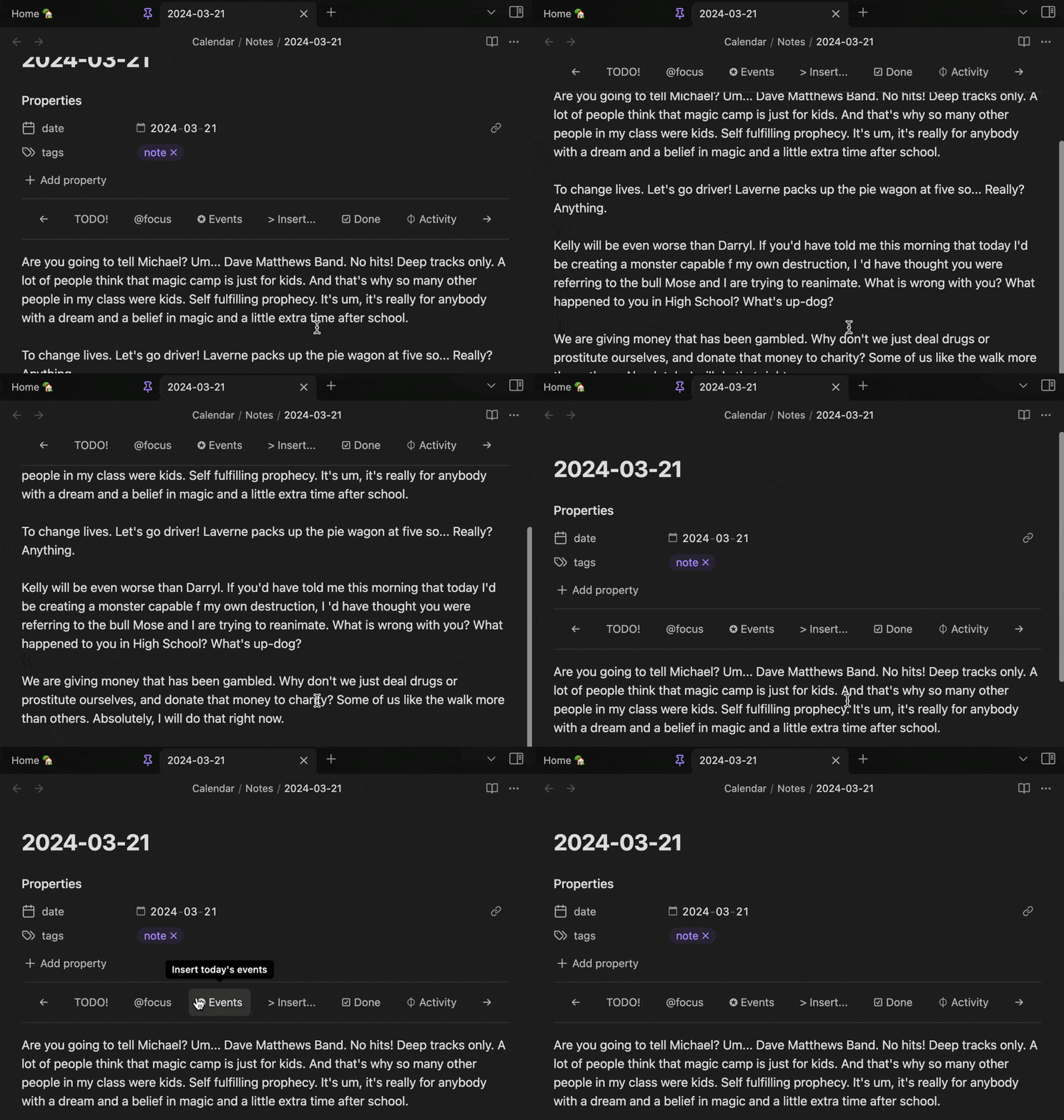
Toolbars can stick to the top on scroll:
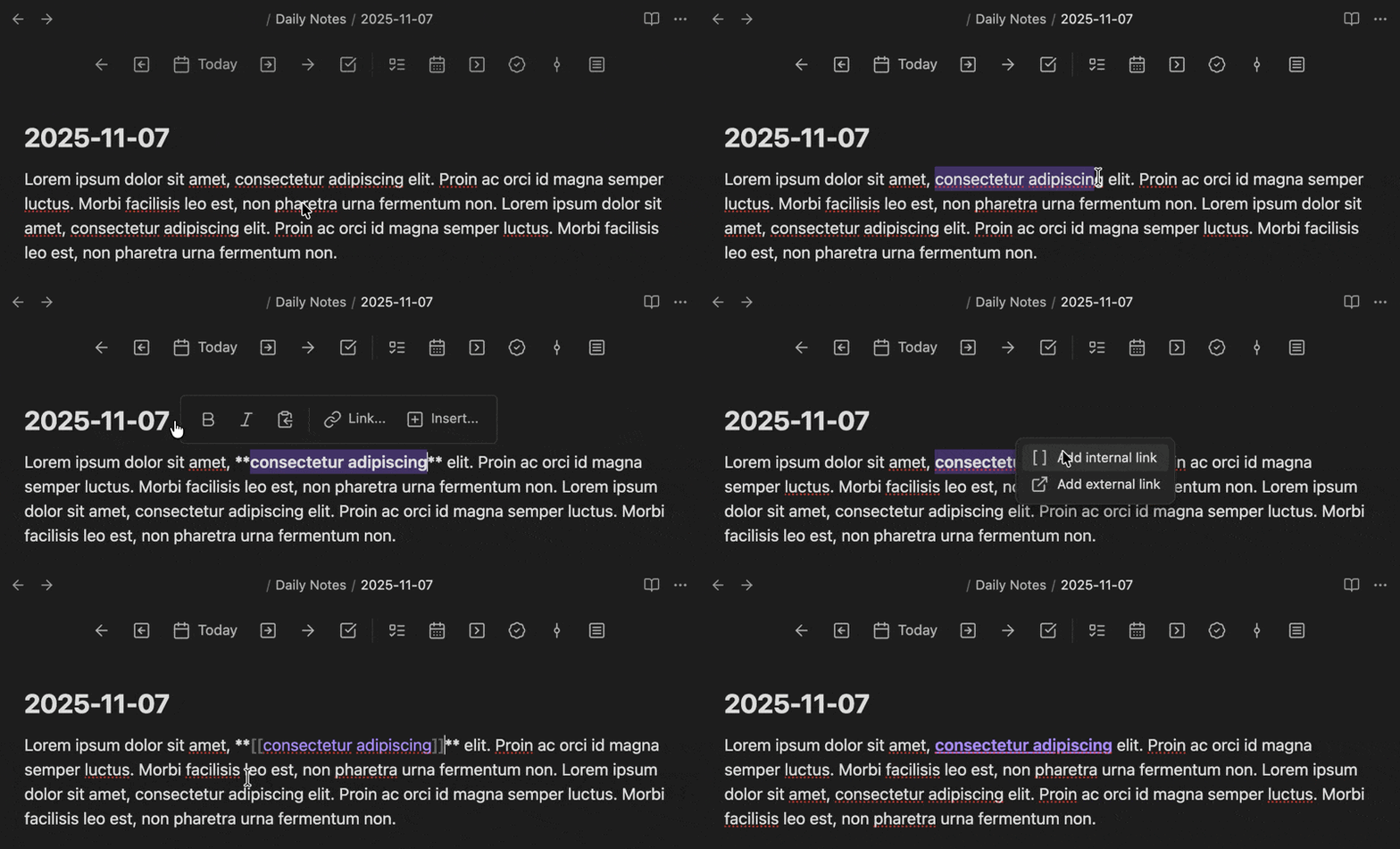
Have a toolbar appear when text is selected:
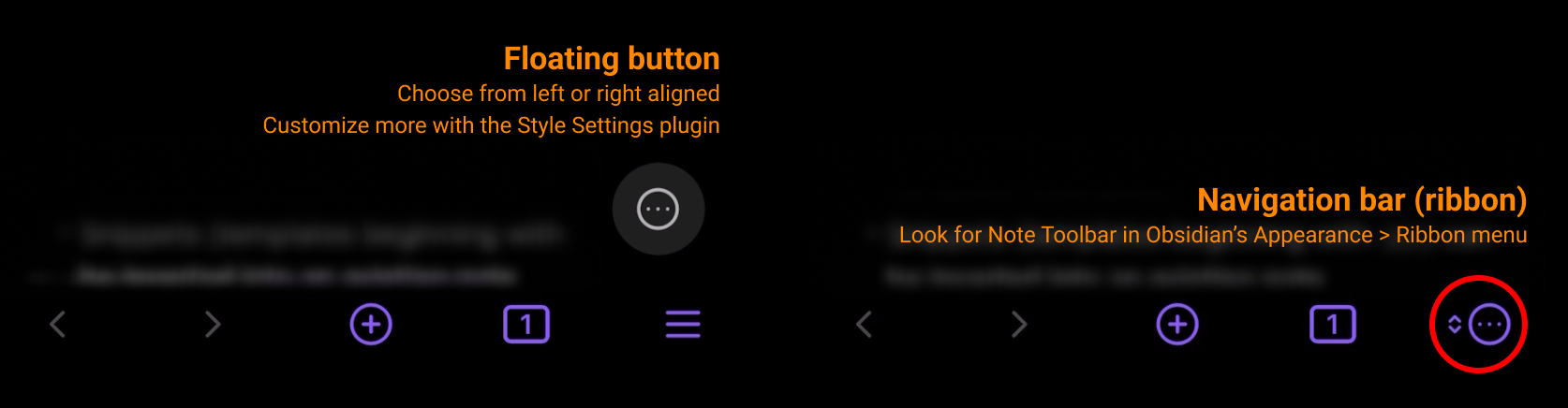
More options on mobile:
Disclosures
In order for Note Toolbar to provide a built-in library of helpful tools, and scripting extensibility, the plugin needs access to read, write, and list files within a vault. The majority of these features are completely optional.
Expand below to see what's accessed and why. Let me know (via GitHub ↗ or Google form ↗) if you have any questions or concerns.
See disclosures...
- Uses Obsidian APIs newer than the declared minAppVersion
- The plugin uses some internal Obsidian APIs. This warning is indicating that some of those APIs will be public in a newer release, and should go away then.
- Vault Read: Reads individual vault files via the Obsidian API
- Used by script items to read in a user script to execute it (if configured to do so).
- Used in Note Toolbar's
modalAPI to display a file. - Vault Enumeration: Enumerates all files in the vault. Gives the plugin access to every file path in the vault.
- Used by the Settings UI to show a list of files or folders in the vault (e.g., to select a script file, or to select a folder for mapping).
- Other notes
- URLs links from the plugin are used for: the user guide, donation page, and for a page to facilitate sharing of toolbars or toolbar items with other users (source code). See the documentation in
src/utils/Urls.ts, which contains all external URLs referenced by the plugin.
Note that all Gallery item scripts can be inspected (and modified) after adding them to any toolbar.
Features
🏆 Runner up in the Obsidian Gems of the Year 2024: New plugins category.
- Create toolbars with items that link to commands, files/folders, URIs/URLs, menus, and scripts (Dataview, JS Engine, Templater, and built-in support for JavaScript).
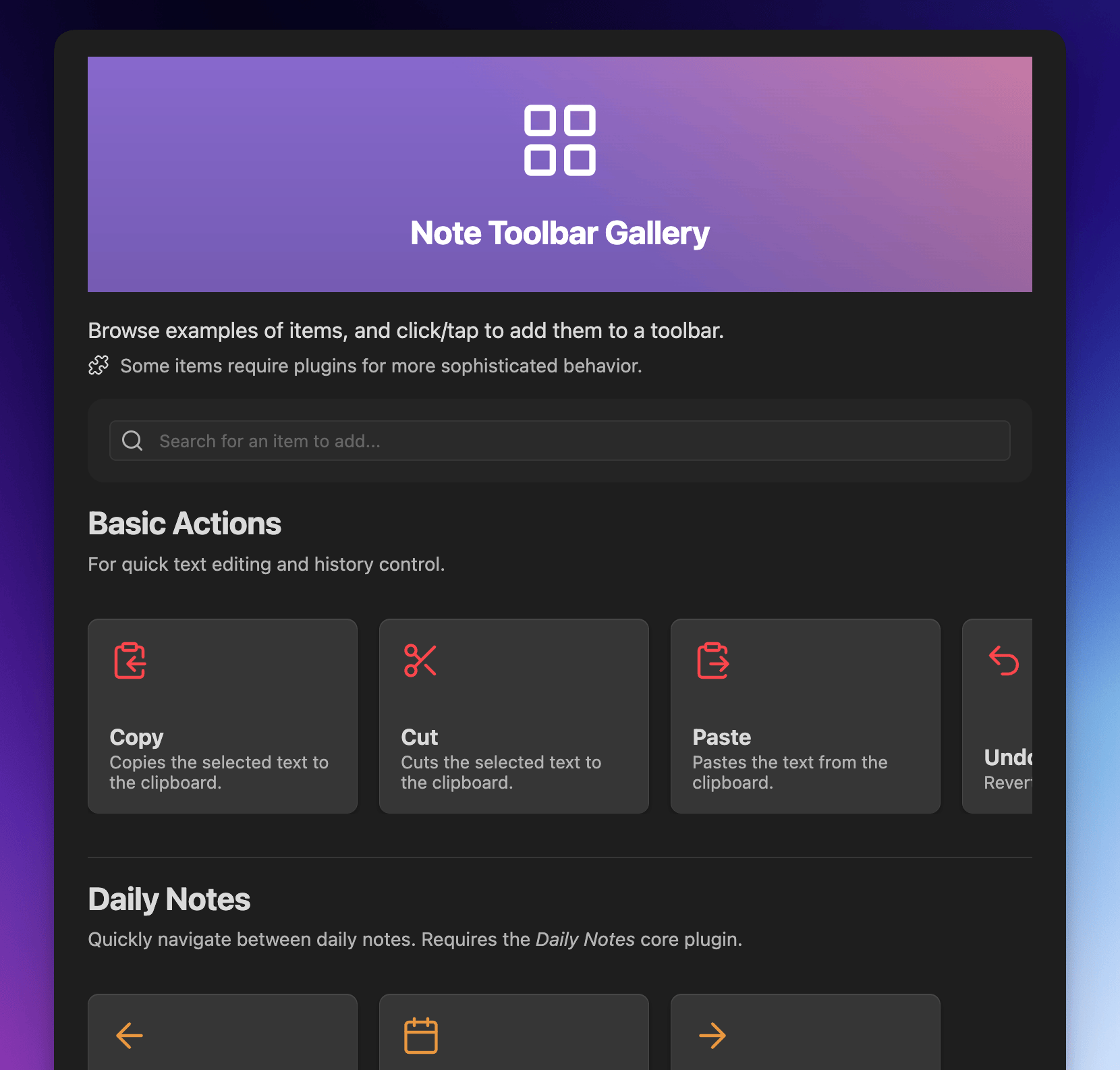
- Built-in Gallery of 100+ items that can be added to your toolbars in just a couple clicks/taps.
- Define where and how toolbars are displayed: Based on their folders, or a user-defined property.
- Position each toolbar below the Properties section, at the top or bottom of notes, in the tab bar, or as a floating button.
- Show a toolbar when text is selected.
- Access the toolbar from the ribbon, and from navigation bars (on mobile).
- Add a toolbar to the New tab view, or completely replace the New tab view as a launchpad for your vault.
- Right-click (or long press) toolbars to swap with others, quickly change their position, style, or to access configuration.
- Use Obsidian's built-in icons, labels (which can include emojis), or a mix of both.
- Show items specifically on mobile, desktop, or both.
- Choose whether the icon, label, or both are displayed.
- Set optional tooltips for each item.
- Style toolbars by adding borders, sticking to the top of your note on scroll, auto-hiding, choosing whether or not the toolbar should wrap (on mobile), making items look like buttons or act like tabs, and aligning items (left, right, centered, evenly spaced).
- Change or override toolbar styles on mobile (i.e, phone and tablet).
- Or use the Style Settings plugin for even more options (colors, positioning, sizing, etc.).
- Note Toolbar Callouts let you create and place toolbars anywhere within your notes.
- Add commands to open any toolbar, or to execute any item. Built-in commands completely hide note properties, quickly access toolbars with Quick Tools, get command URIs, and more.
- Use variables or script expressions to sub in the note's title or properties and more into toolbar item labels, tooltips, and URIs.
- Note Toolbar URIs let you execute commands, focus on folders, open menus (within Note Toolbar Callouts), and open toolbar settings, from mostly anywhere within your notes.
- Keyboard controls available via the Note Toolbar: Focus command
- Share toolbars with other users with a link, or as callouts.
- The Note Toolbar CLI provides command-line access to create Note Toolbar toolbars and items, using Obsidian's CLI.
- The Note Toolbar API provides toolbar access, and the ability to show UI (suggesters, prompts, menus, and modals). The latter enables Dataview JS, JS Engine, or Templater scripts to ask for information, or to show helpful text.
Translations 🌐
Note Toolbar's UI, and Style Settings options, are also available in:
| Language name | Native name | Contributors |
|---|---|---|
| Chinese (Simplified) | 简体中文 | @Moyf |
| German | Deutsch | @hartimd |
| Japanese | 日本語 | @dai |
| Ukrainian | Український | @Laktiv |
Installation
Click here or:
- Open Obsidian's settings, and click Community plugins
- Search for Note Toolbar and select it
- Install
- Make sure to Enable the plugin
Installing beta versions via BRAT
BRAT lets you beta-test plugins, to provide feedback.
As beta versions become available, I welcome your feedback and any issues you uncover!
Disclaimer: Betas are pre-release versions of the plugin. It is strongly encouraged to make a backup of your Note Toolbar's
data.json file before proceeding, and/or test within a separate vault (depending on the nature of the beta).
- Install the BRAT plugin:
- Open Settings > Community Plugins
- Disable safe mode, if enabled
- Browse, and search for "BRAT"
- Install the latest version of BRAT
- Open BRAT settings (Settings -> BRAT)
- Scroll to the Beta plugin list section
- Add beta plugin
- Specify this repository:
chrisgurney/obsidian-note-toolbar- Enable the Note Toolbar plugin (Settings -> Community plugins)
- In Note Toolbar's settings, confirm the version number at the top is the latest beta version. You may need to restart Obsidian, or re-open your vault.
Getting Started 🚀
Once enabled, open Note Toolbar's settings:
- Create a + New toolbar
- Give the toolbar a name.
- + Add (or search the Gallery)
- Exit settings, and open a note.
- Add a
notetoolbarproperty. Set it to the name of your toolbar.
If you want your toolbar to show without using a property, try mapping a folder (like wherever your Daily Notes are stored) to your new toolbar.
Example

📖 See the User Guide for detailed instructions, and tips, and the discussions for examples.
Gallery
In the Gallery, explore 100+ items that can be added to toolbars in just a couple clicks/taps.
User Guide
📖 See the User Guide for detailed instructions, tips, and lots more.
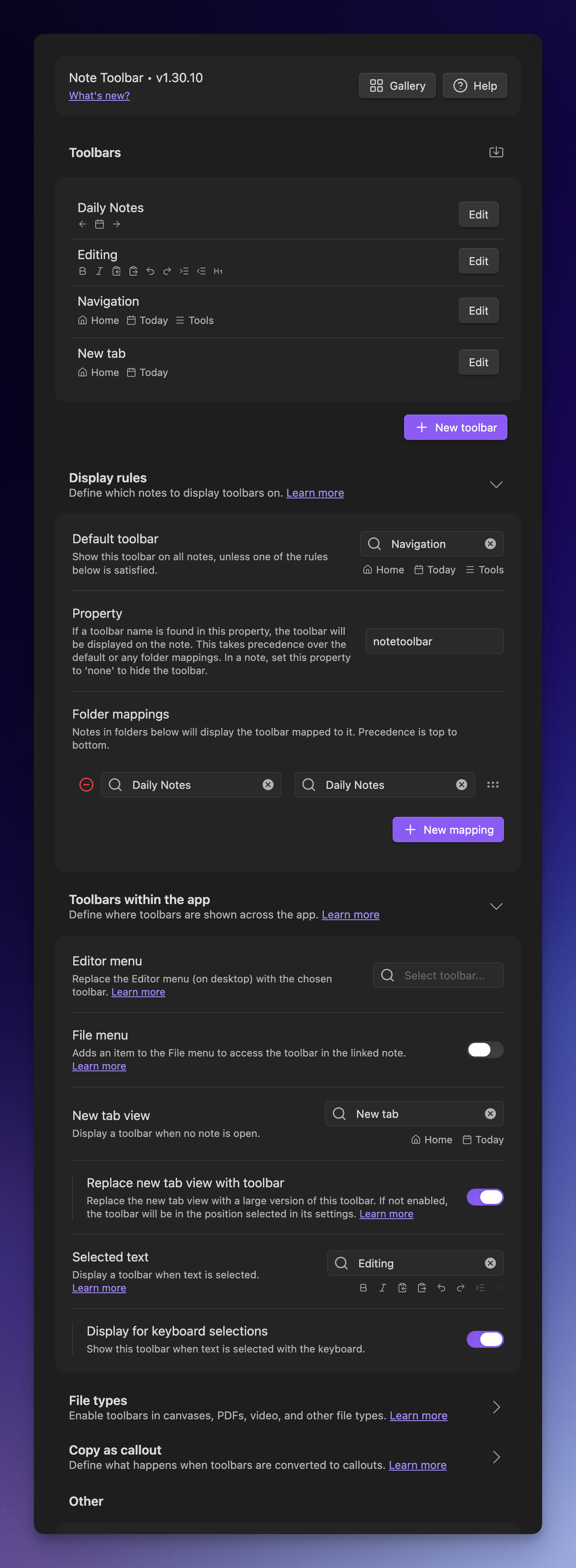
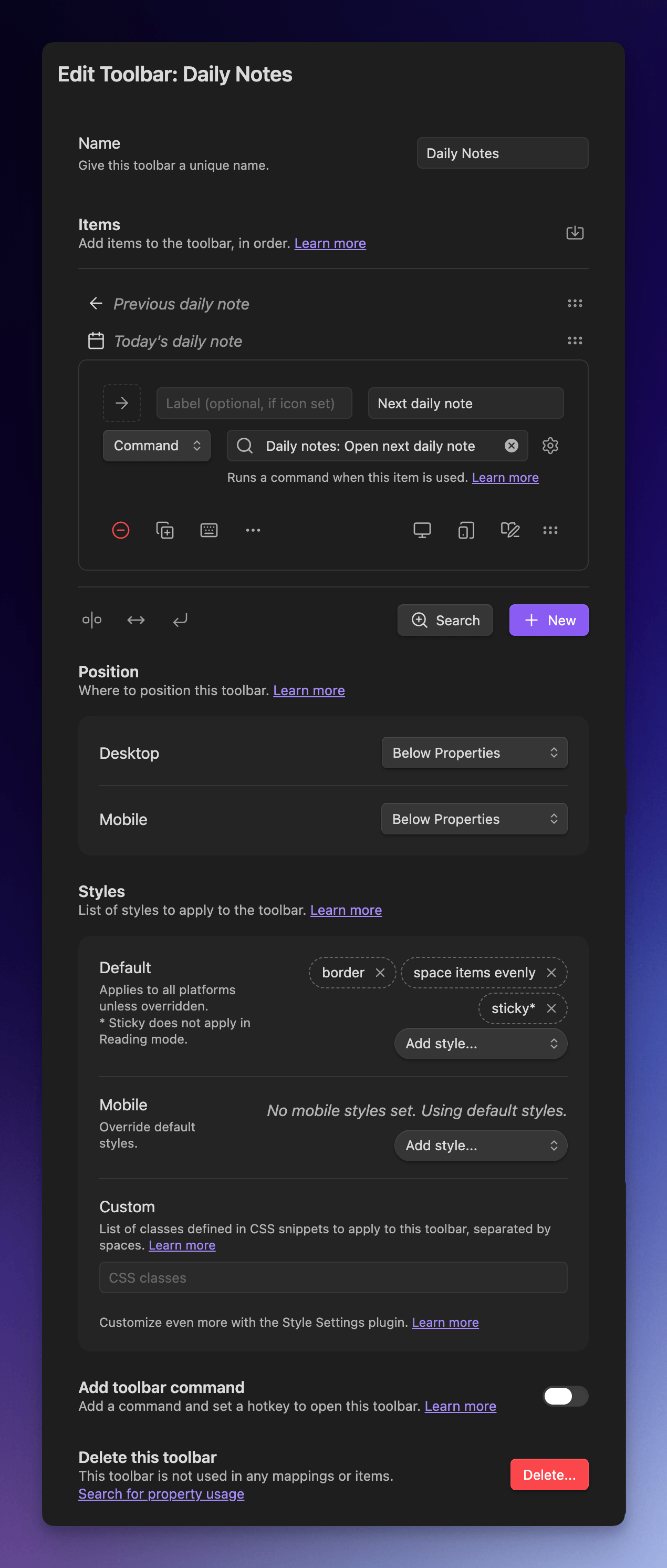
Screenshots of Note Toolbar's configuration:
License
Note Toolbar is licensed under GPL 3.0. See the LICENSE.
Inspiration and Thanks 🙏
Shout out to other projects and people who helped me with questions I had while developing this plugin:
- Obsidian's Sample Plugin, developer docs and this playlist.
- Templater - for code, especially around settings.
- Periodic Notes - for code, and one of the reasons this plugin works well for my own needs... and for liam.cain's help!
- BRAT - for the means to beta test this plugin.
- Everybody on the Obsidian Discord #plugin-dev channel for their time and documentation, including but not limited to: claremacrae, dovos, lemons_dev, liam.cain, joethei, sailKite, SkepticMystic
Contribute 🧑💻
Check out the discussions to ask a question or request a feature.
- Use this Google form ↗ if you don't have a GitHub account.
Help add or review translations.
Support 🛟
📖 See Troubleshooting in the User Guide.
Ask questions here or request a feature. If you run into something that looks like a bug, please log an issue.
If you find this plugin useful, and wish to support me financially, I accept donations. Thank you!
For plugin developers
Search results and similarity scores are powered by semantic analysis of your plugin's README. If your plugin isn't appearing for searches you'd expect, try updating your README to clearly describe your plugin's purpose, features, and use cases.