Editing Toolbar
approvedby pkm-er
The Editing Toolbar is modified from cMenu, which provides more powerful customization settings and has many built-in editing commands to be a MS Word-like toolbar editing experience.
中文 | English
obsidian-editing-toolbar Plugin
[!tip] The 3.x version has been completely refactored with numerous new features. For advanced usage, please refer to: Editing Toolbar Plugin Advanced Guide · PKM-er/obsidian-editing-toolbar · Discussion #217"
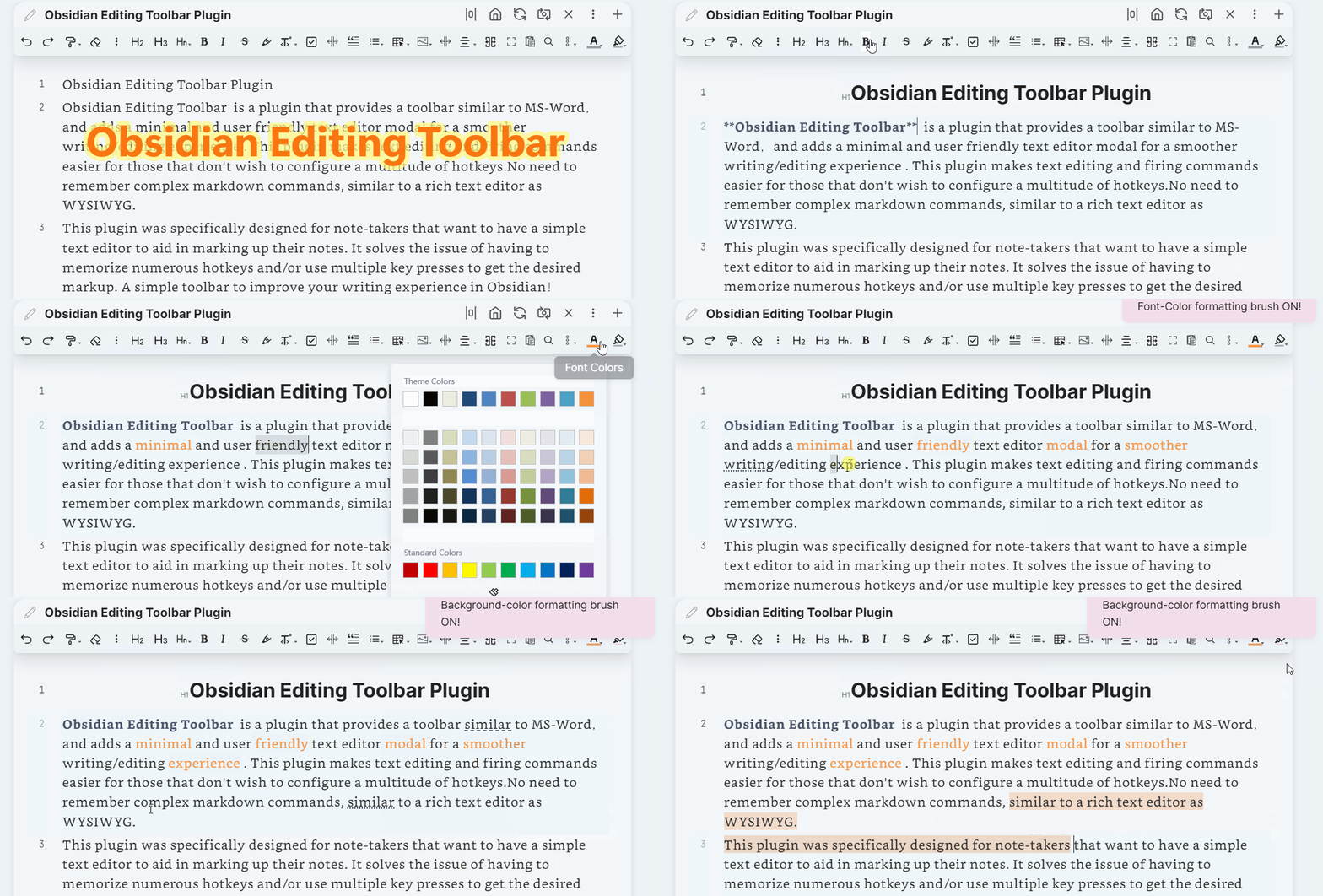
Thanks to the cmenu plugin, which gave me a lot of inspiration, but this plugin has not been maintained for more than a year, so I re-modified it and added a lot of interesting features, including the top toolbar, cursor following, etc., so editing toolbar was created.
Obsidian Editing Toolbar is a plugin that provides a toolbar similar to MS-Word,and adds a minimal and user friendly text editor modal for a smoother writing/editing experience . This plugin makes text editing and firing commands easier for those that don't wish to configure a multitude of hotkeys.No need to remember complex markdown commands, similar to a rich text editor as WYSIWYG. This plugin was specifically designed for note-takers that want to have a simple text editor to aid in marking up their notes. It solves the issue of having to memorize numerous hotkeys and/or use multiple key presses to get the desired markup. A simple toolbar to improve your writing experience in Obsidian!
It is recommended to work with Enhanced Editing Plugin, which can add more useful editing commands.
TOC
how-to-install
Please Refer: How to install Obsidian Plugins
Video Introduction
Obsidian 插件:Editing Toolbar 必装的可视化编辑工具
Key Features
This differs from the cmenu plugin in the following points:
-
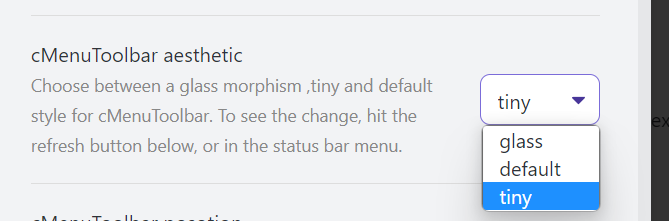
add a new toolbar style tiny
-
add toolbar position options, top, following


-
support multi-window, multi-tab adapted to obsidian 0.14+
-
add some built-in commands
- change-font-color
- change-background-color
- indent-list
- undent-list
- editor-undo
- editor-redo
- hrline
will insert a---split line - justify Both ends aligned
Inserts an html code to align the text at both ends
<p align="justify">..... </p> - left
Insert an html code to align the text left<p align="left">..... </p> - right
Insert an html code to align the text right<p align="right">..... </p> - center
Insert an html code to center the text<center>..... </center> - fullscreen-focus
Default binding shortcut key
Ctrl+shift+F11Will make the notes page display full screen, let you focus more on the writing itself. To exit full screen press ESC or execute the full screen command again - workplace-fullscreen-focus
Default binding shortcut key
Ctrl+F11Unlike fullscreen-focus mode, this one just hides the left and right sidebar panels, it's only workspace full screen - head 1-6 level heading settings
Default binding shortcut key
Ctrl+1,ctrl+2,...Ctrl+6
- support custom command icons

- Support modify command name

- Support for adding submenus

- Support menu dragging and sorting
- Add formatting brush function Built-in two kinds of formatting brush for font color and background color (middle mouse button or right click can cancel the formatting brush status)

- Adaptive shrinkage of toolbar icon width

Work with other plugins
-
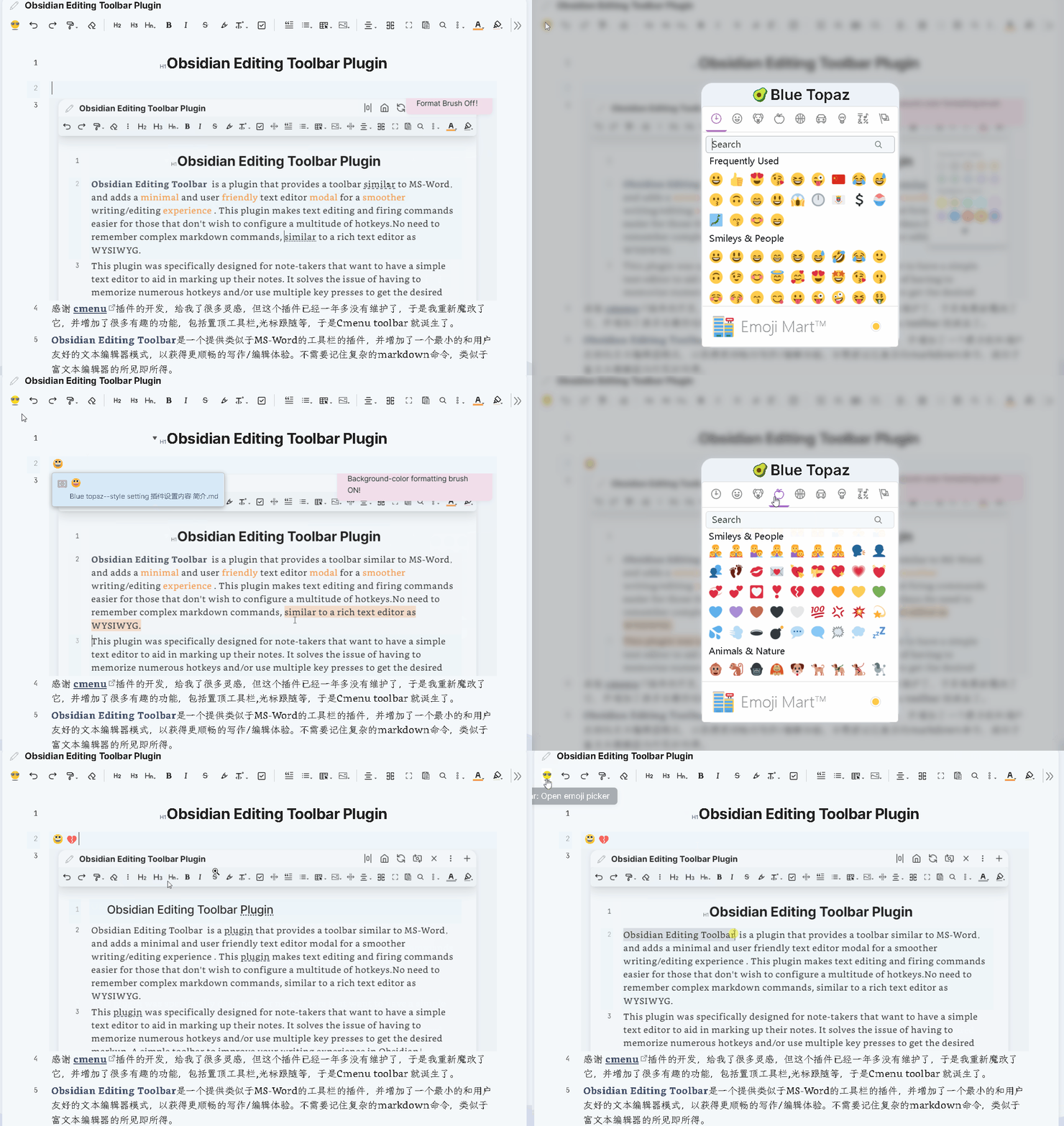
emjoi toolbar Quickly Insert a emoji
-
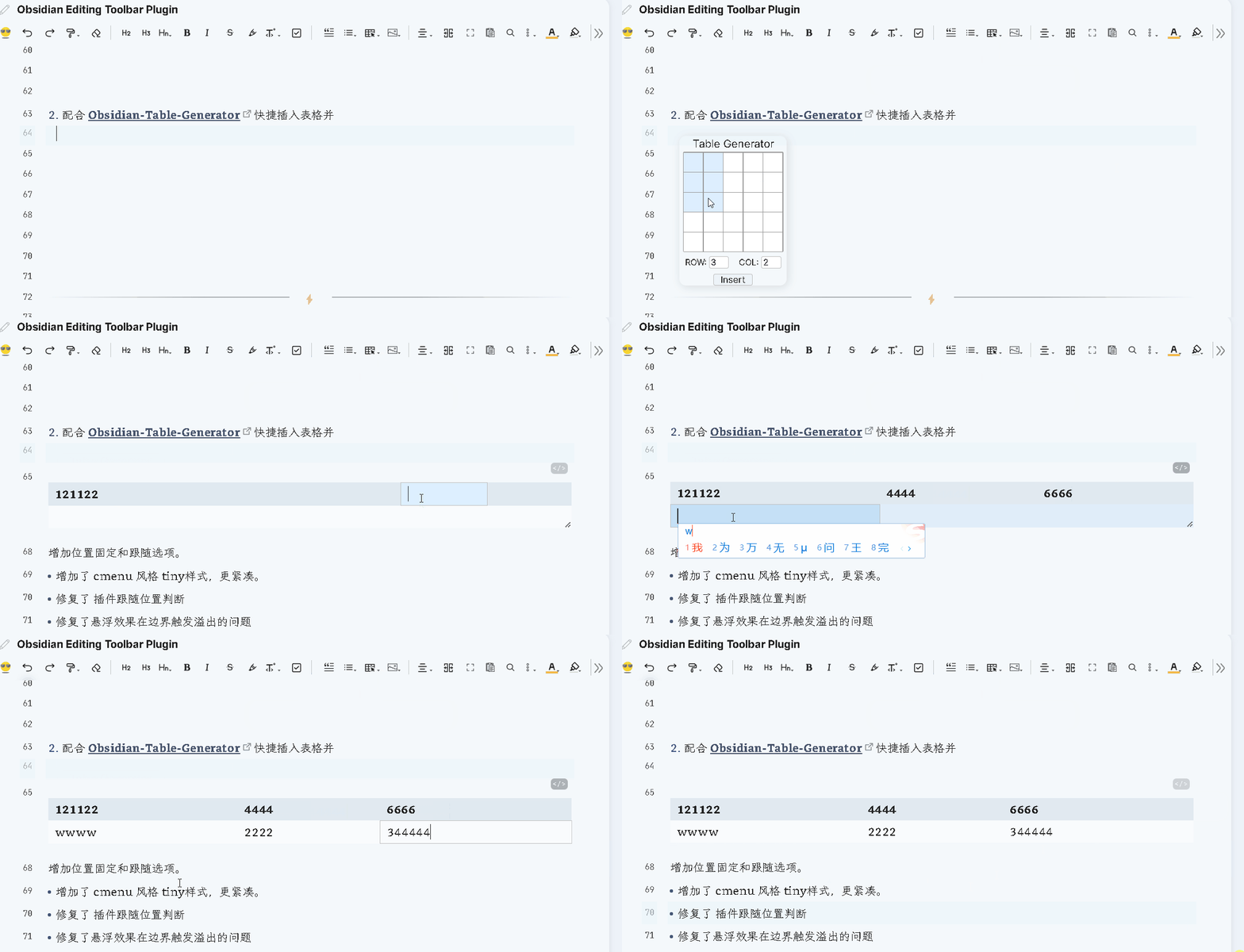
Obsidian-Table-Generator & ob-table-enhance Quickly Insert a table and edit
The above plugins are available from the example vault , all of which have been optimized and have some bugs fixed ☟☟☟
Full Vault showcase
This is the Obsidian example vault is amazing, there are a lot of dazzling features and showcase, I believe you will wonder a bit, is this Obsidian? Blue-topaz-examples
Privacy & Network Access
This plugin may make network requests in the following scenarios. All requests are initiated by the user; no data is sent anywhere unless you explicitly use these features.
| Feature | Endpoint | Data sent | Purpose |
|---|---|---|---|
| AI assist / rewrite / inline completion | User-configured AI API endpoint (OpenAI, DeepSeek, Gemini, Ollama, etc.) | Selected note text, custom prompt, frontmatter properties | Send text to your chosen LLM for AI-assisted editing |
| PKMer sync (optional) | api.pkmer.cn | Toolbar settings JSON, OAuth token (base64url-encoded JWT for authentication) | Sync toolbar configuration across devices |
What is NOT sent: The plugin does not transmit your vault contents, filenames, or personal data to any server controlled by the plugin author. AI requests go directly to the endpoint you configure in settings.
Base64 usage: The plugin uses btoa()/base64url encoding solely for JWT authentication token construction when the optional PKMer sync feature is enabled. No user note content is base64-encoded for transmission.
Local-only data: All toolbar settings, custom commands, and icon configurations are stored locally in your vault's .obsidian/plugins/editing-toolbar/data.json.
support
Thank you very much for your support!


For plugin developers
Search results and similarity scores are powered by semantic analysis of your plugin's README. If your plugin isn't appearing for searches you'd expect, try updating your README to clearly describe your plugin's purpose, features, and use cases.