NotePipe
approvedby jiezhengj
Copy text from Obsidian with file path and line number context, ready to paste into AI agent terminals. - This plugin has not been manually reviewed by Obsidian staff.
NotePipe
English
https://community.obsidian.md/plugins/notepipe
One-click copy from Obsidian with file path and line number context — paste directly into AI agent terminals (Claude Code, etc.).
Background
In desktop GUI AI agent tools, it's very convenient to select a piece of text or code in a document on the side of the window and add it directly to the chat box for discussion.
However, when using CLI-based agent tools in the terminal, it's not as seamless. I often found myself having to copy the document path first, and then copy the specific text content separately.
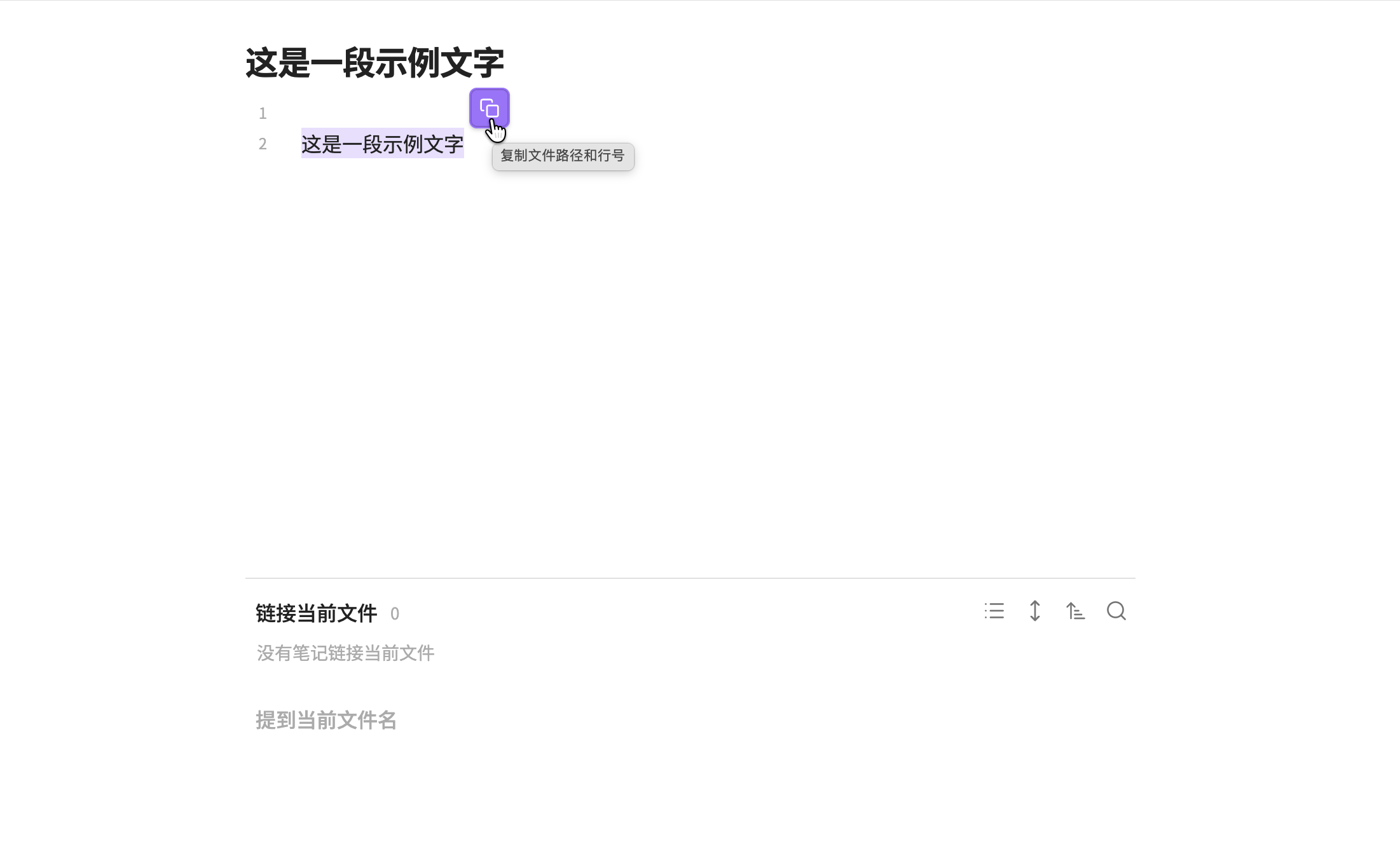
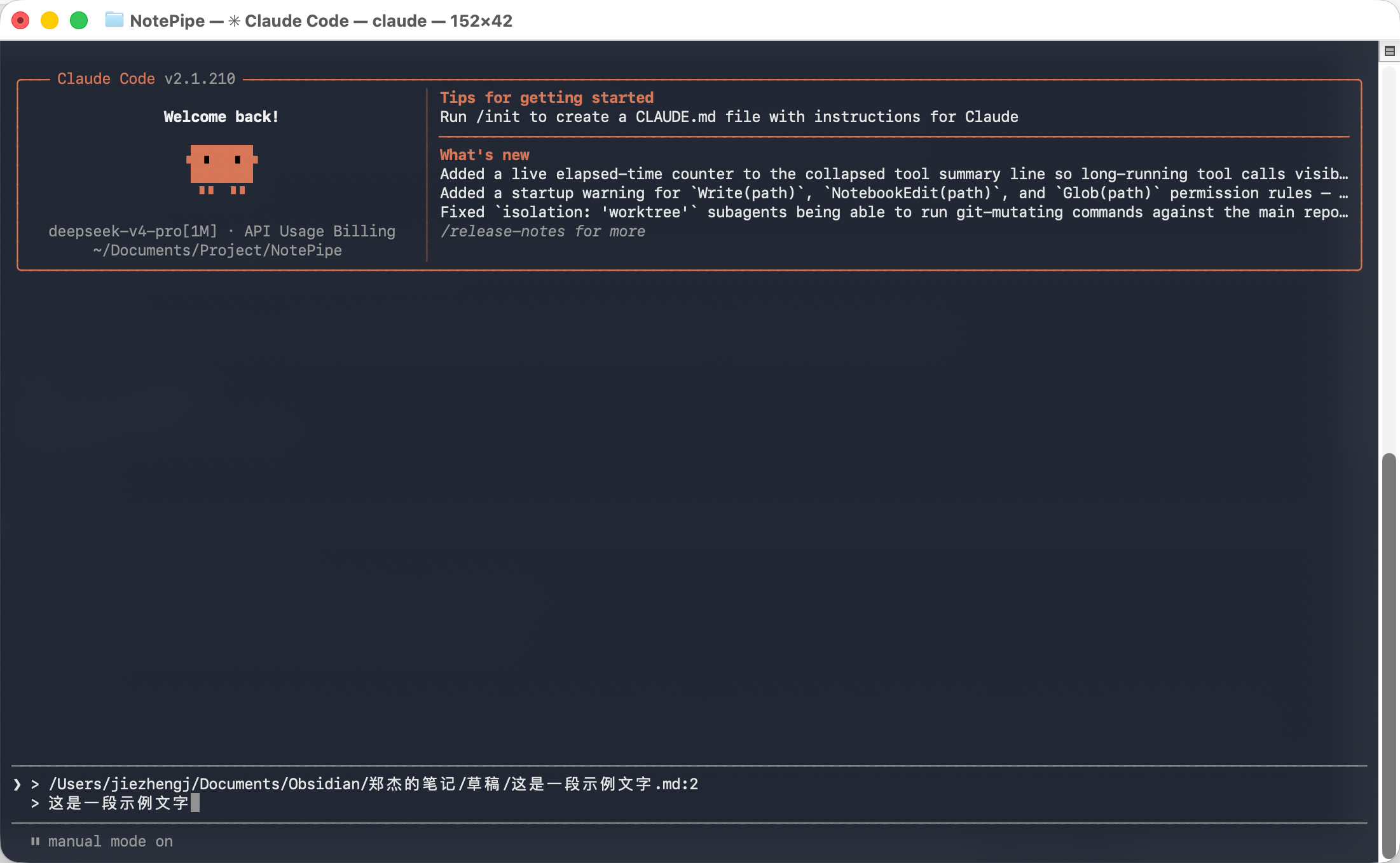
That's why I created this Obsidian plugin. When you select text in Obsidian and copy it via this plugin, it automatically attaches the file path and line number information, ready to be pasted directly into the terminal.
Preview
Select text → click the floating button → paste into terminal. The output uses Markdown blockquote format (>) so the AI can clearly distinguish your reference from your question.
Features
| 🔗 Copy with context | Assign a hotkey in Obsidian Settings → Hotkeys, then copy selected text with file path and line number |
| 🎯 Floating button | A button appears near your selection in both edit and reading mode |
| 📝 Multi-scenario | Edit mode, reading mode, and file explorer are all supported |
| 📂 Absolute paths | Outputs full filesystem paths by default — ready for terminal use |
| 🧩 Customizable template | 7 template variables ({{path}}, {{selection}}, {{startLine}}, etc.) |
| 🌐 Bilingual UI | Automatically matches your Obsidian language setting (English / Chinese) |
Install
Open Obsidian and go to Community plugin marketplace — search "NotePipe" → Install → Enable.
Or manually:
cd /your-vault/.obsidian/plugins/
git clone https://github.com/jiezhengj/NotePipe.git
cd NotePipe
npm install
npm run build
Usage
| Scenario | Action | Output |
|---|---|---|
| Edit mode — select text | Hotkey or command palette | > /path/note.md:5> selected text |
| Reading mode — select text | Click floating button | > /path/note.md:3-7> multi-line selection |
| File explorer — select files | Command palette → Copy | > /path/note1.md |
Template variables
| Variable | Description |
|---|---|
{{path}} | File path |
{{fileName}} | Filename without extension |
{{startLine}} | Start line number (1-indexed) |
{{endLine}} | End line number |
{{selection}} | Selected text |
{{lines}} | Human-readable range ("Line 5" / "Lines 3-7") |
{{folder}} | Parent folder path |
Path mode
| Mode | Example | When to use |
|---|---|---|
| absolute (default) | /Users/xxx/vault/note.md:5 | Pasting into terminal |
| vault-relative | notes/daily.md:5 | Cross-machine portability |
Hotkey
No default hotkey is set. To assign one:
- Open Obsidian Settings → Hotkeys
- Search "NotePipe: Copy with context"
- Assign your preferred shortcut (e.g.
Cmd+Shift+C)
| Platform | Recommendation | Note |
|---|---|---|
| macOS | Cmd+Shift+C | Usually available |
| Windows | Ctrl+Shift+C or Alt+Shift+C | Ctrl+Shift+C may conflict with terminal |
| Linux | Ctrl+Shift+C or Alt+Shift+C | GNOME / Konsole use Ctrl+Shift+C for copy |
Development
git clone https://github.com/jiezhengj/NotePipe.git
cd NotePipe
npm install
npm run dev    # watch mode
npm run build  # production
src/
├── main.ts                  # Plugin entry
├── settings.ts              # Settings tab
├── template-engine.ts       # Template engine
├── context-resolver.ts      # Context resolver
├── floating-button.ts       # Floating button
├── copy-interceptor.ts      # Always-copy mode
└── i18n/
    ├── index.ts             # Translation
    └── locales/
        ├── en.ts
        └── zh.ts
License
MIT
中文
https://community.obsidian.md/plugins/notepipe
在 Obsidian 中选中文本,一键复制为 path:line 格式,直接粘贴到 AI 终端(如 Claude Code)。
背景
在桌面版的 Agent 工具里,我可以很方便地在窗口右侧的文档里,选择一段文本/代码,添加到与 Agent 对话的对话框里,进行讨论。
但是如果用终端里的 CLI 版本的 Agent 工具,就没那么方便了,我经常要先复制文档路径,再复制具体内容文本。所以我做了这个 Obsidian 插件,在 Obsidian 里选中文本,再通过这个插件复制粘贴,到终端里就自动带上路径和行号的定位信息。
预览
选中文本 → 点击浮层按钮 → 粘贴到终端。输出采用 Markdown 引用块格式(> 前缀),AI 可以清晰区分引用内容和你的提问。
功能
| 🔗 附带上下文复制 | 在 Obsidian 设置 → 快捷键中绑定后,一键复制选中文本并附带文件路径和行号 |
| 🎯 浮层按钮 | 选中文本后选区右上角出现复制按钮,编辑/阅读模式均支持 |
| 📝 多场景支持 | 编辑模式、阅读模式、文件列表均可使用 |
| 📂 绝对路径 | 默认输出完整文件系统路径,终端中可直接定位 |
| 🧩 可配置模板 | 7 个模板变量({{path}}、{{selection}}、{{startLine}} 等) |
| 🌐 中英文双语 | 自动跟随 Obsidian 语言设置 |
安装
打开 Obsidian 进入 社区插件市场 — 搜索 "NotePipe" → 安装 → 启用。
或手动安装:
cd /你的vault/.obsidian/plugins/
git clone https://github.com/jiezhengj/NotePipe.git
cd NotePipe
npm install
npm run build
使用
| 场景 | 操作 | 输出 |
|---|---|---|
| 编辑模式选中文本 | 快捷键或命令面板 | > /path/note.md:5> 选中文本 |
| 阅读模式选中文本 | 点击浮层按钮 | > /path/note.md:3-7> 多行内容 |
| 文件列表选中文件 | 命令面板 → 复制 | > /path/note1.md |
模板变量
| 变量 | 说明 |
|---|---|
{{path}} | 文件路径 |
{{fileName}} | 文件名(无扩展名) |
{{startLine}} | 起始行号(从 1 开始) |
{{endLine}} | 结束行号 |
{{selection}} | 选中文本 |
{{lines}} | 可读行范围("Line 5" / "Lines 3-7") |
{{folder}} | 父文件夹路径 |
路径模式
| 模式 | 示例 | 适用场景 |
|---|---|---|
| absolute(默认) | /Users/xxx/vault/note.md:5 | 粘贴到终端使用 |
| vault-relative | notes/daily.md:5 | 跨机器可移植 |
快捷键
插件不预设默认快捷键。设置方式:
- 打开 Obsidian 设置 → 快捷键
- 搜索 "NotePipe: 复制并附带上下文"
- 绑定你习惯的快捷键(如
Cmd+Shift+C)
| 平台 | 推荐快捷键 | 注意 |
|---|---|---|
| macOS | Cmd+Shift+C | 一般无冲突 |
| Windows | Ctrl+Shift+C 或 Alt+Shift+C | Ctrl+Shift+C 可能与终端冲突 |
| Linux | Ctrl+Shift+C 或 Alt+Shift+C | GNOME / Konsole 占用 Ctrl+Shift+C |
开发
git clone https://github.com/jiezhengj/NotePipe.git
cd NotePipe
npm install
npm run dev    # 开发模式
npm run build  # 生产构建
src/
├── main.ts                  # 插件入口
├── settings.ts              # 设置页面
├── template-engine.ts       # 模板引擎
├── context-resolver.ts      # 上下文解析
├── floating-button.ts       # 浮层按钮
├── copy-interceptor.ts      # 始终复制模式
└── i18n/
    ├── index.ts             # 翻译函数
    └── locales/
        ├── en.ts
        └── zh.ts
许可证
MIT
For plugin developers
Search results and similarity scores are powered by semantic analysis of your plugin's README. If your plugin isn't appearing for searches you'd expect, try updating your README to clearly describe your plugin's purpose, features, and use cases.