by Elisa De Gregorio
Plan your novel on a board of colored post-its: one per chapter, colored by its stage in the Hero's Journey, Save the Cat, Three-Act and other structures.
Novel Structure Board
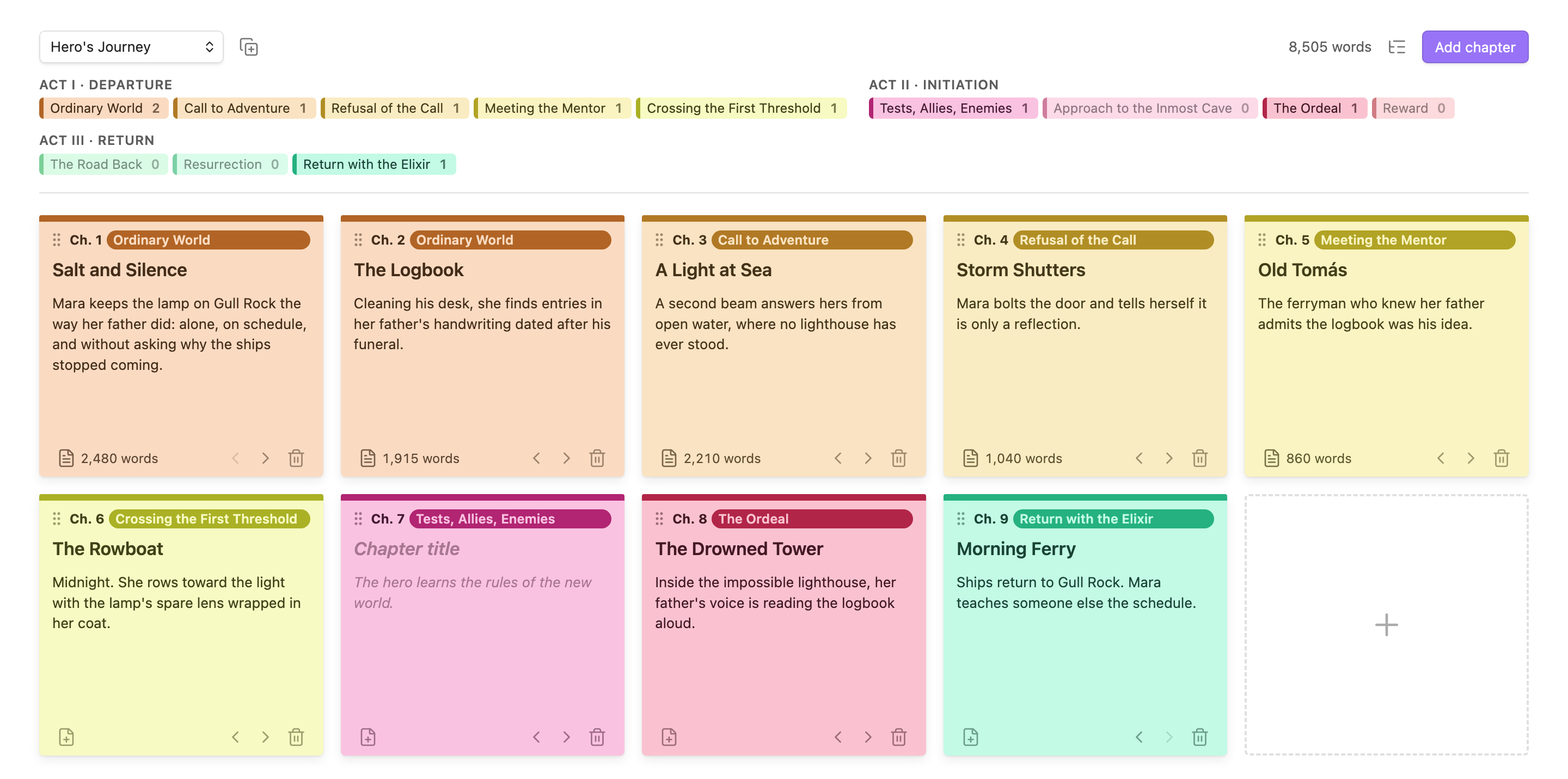
Plan your novel on a wall of post-its. Each card is a chapter, and its color shows where it falls in your story structure: the Hero's Journey, Save the Cat, Three Acts, or one you design yourself.
Features
- One post-it per chapter, with a title, a short summary and a stage. Empty cards show a hint about what the stage is for.
- Colors that follow the structure. Stages in the same act share a color family, so you can see the shape of your book at a glance.
- A legend that doubles as a map. It shows how many chapters each stage has, so missing beats stand out. Click a stage to add a chapter there.
- Linked chapter notes. One click creates
03 - Title.mdin a folder next to the board and opens it. Your prose lives in normal Markdown notes, with search, links and backlinks. - Word counts for each chapter and for the whole novel, updated as you write.
- Reorder freely. Drag cards by the grip, or use the arrows (handy on mobile).
- Custom structures. Design your own acts and stages, or start from a copy of a built-in one.
- Outline export. Copy the board as a Markdown outline, or save it as a note.
- English and Spanish. The interface and all stage names are translated.
Structures
| Structure | Stages | Grouping |
|---|---|---|
| Hero's Journey (Vogler) | 12 | Departure · Initiation · Return |
| Save the Cat | 15 | Act 1 · Act 2A · Act 2B · Act 3 |
| Three-Act Structure | 8 | Setup · Confrontation · Resolution |
| Seven-Point Structure | 7 | — |
| Freytag's Pyramid | 5 | — |
| Kishōtenketsu | 4 | — |
| Your own | any | any |
You can switch a board's structure at any time. Each chapter moves to the stage at the same relative position, so an opening stays an opening and an ending stays an ending.
Getting started
- Run New novel board from the ribbon icon or the command palette, or right-click a folder.
- Give it a name and pick a structure. This creates a
Name.storyboardfile in your vault. - Click a stage in the legend to add a chapter, or press One chapter per stage to fill the board with a template.
- Write a title and a summary on each card. Click the file icon to create the chapter note and start writing. Ctrl/Cmd-click opens the note in a split.
Renaming or moving chapter notes doesn't break the links.
Custom structures
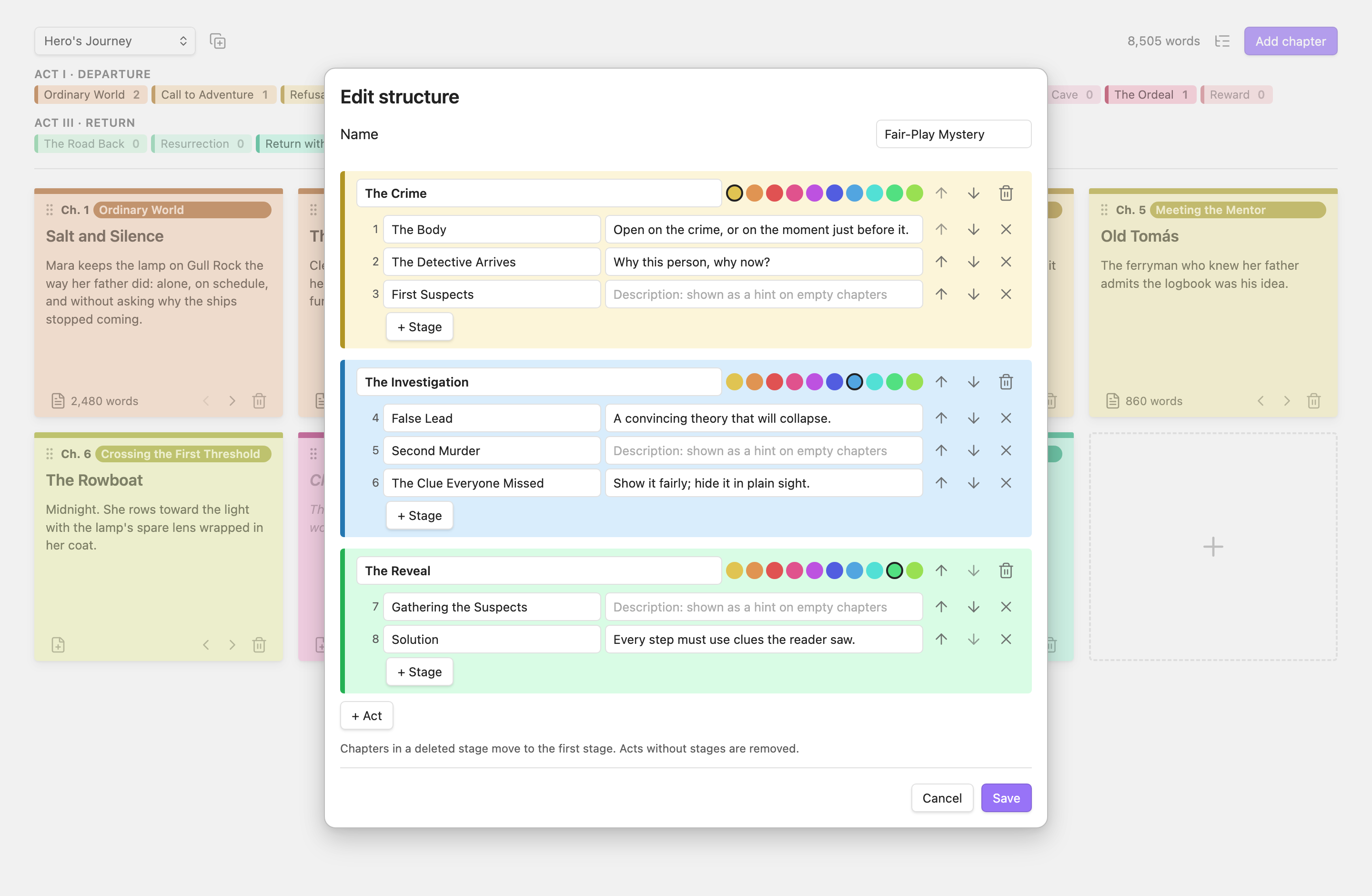
Create structures in Settings → Novel Structure Board → Custom structures → Manage. Start blank, or copy any existing structure.
- Acts have an optional name and a color from a post-it palette. Stages in an act get shades of its color automatically.
- Stages have a name and a description. The description is the hint shown on empty cards.
- The ↑/↓ buttons reorder stages and acts. Moving a stage past the edge of its act moves it into the neighboring act.
On a board, the copy button next to the structure menu turns the current structure into an editable copy and switches the board to it, keeping every chapter in its stage. For a custom structure, the pencil button edits it.
Outline export
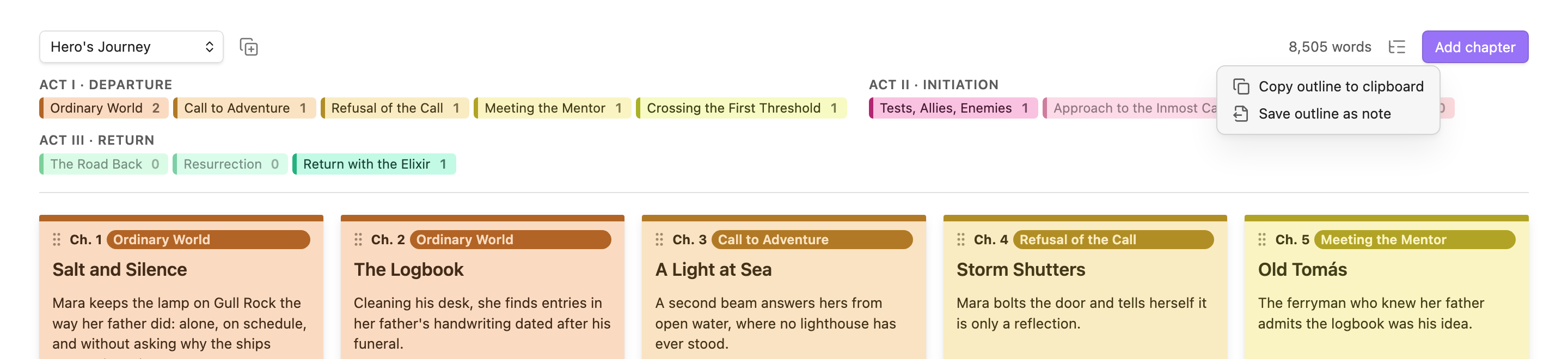
The list button in the board's header, or the command palette, gives you two options. Copy outline to clipboard copies a Markdown outline. Save outline as note writes it to Name - Outline.md next to the board. Chapters stay in board order under act and stage headings:
# The Lighthouse Keeper

Hero's Journey · 9 chapters · 8,505 words

## Act I · Departure

### Ordinary World

- **Ch. 1 · Salt and Silence** — [[01 - Salt and Silence]] (2,480 words)

  Mara keeps the lamp on Gull Rock the way her father did…
En español
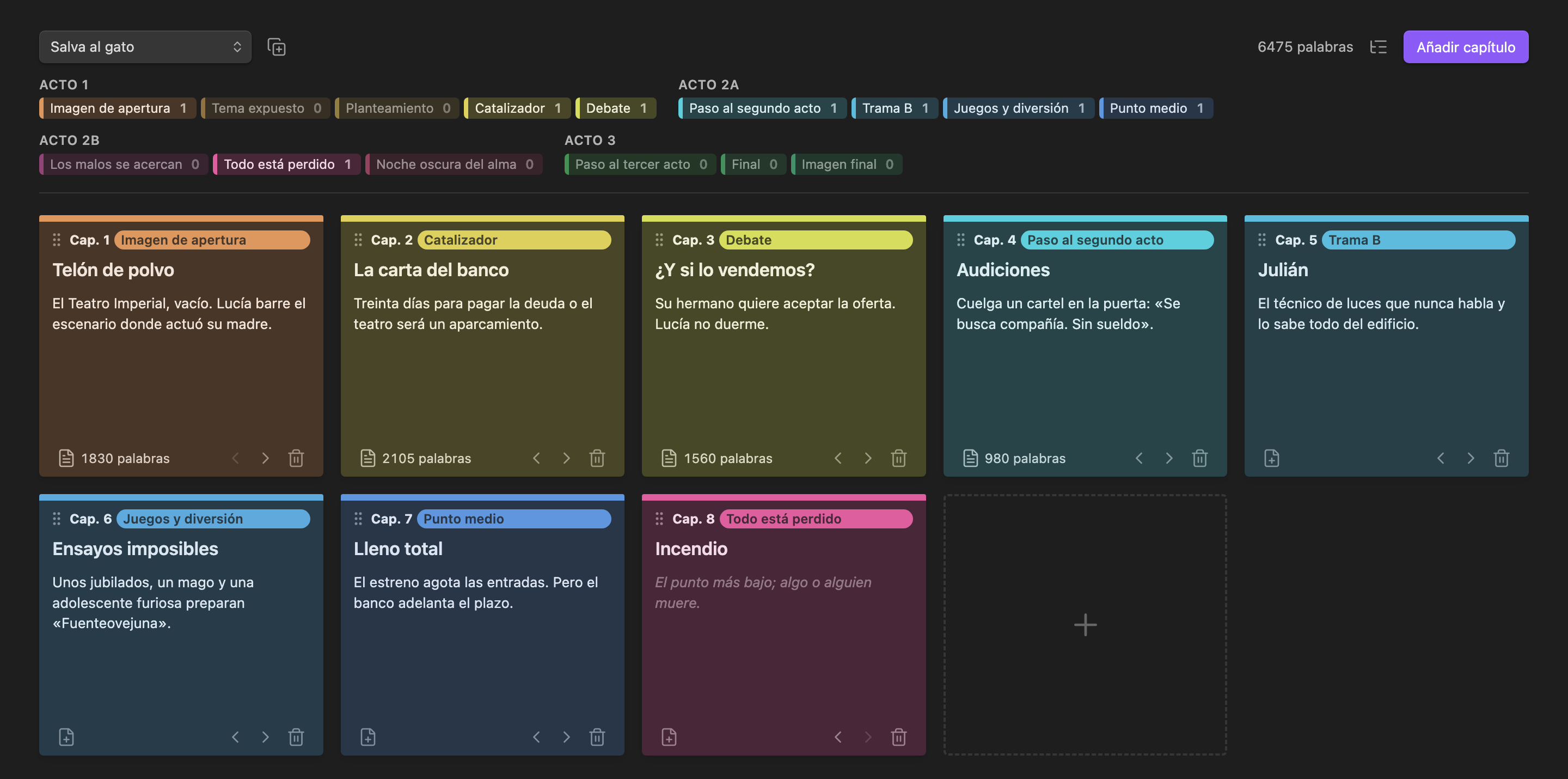
Choose Español in the settings. The board, menus and all stage names switch language: El viaje del héroe, Salva al gato, Estructura en tres actos and more. The plugin also follows Obsidian's light and dark themes.
Settings
| Setting | Description |
|---|---|
| Language | English or Spanish. The default follows Obsidian's language. |
| Default structure | The structure preselected for new boards. |
| Custom structures | Opens a window to create, edit and delete your own structures. |
How your data is stored
- A board is a
.storyboardfile: plain JSON with the structure and the chapter cards (title, summary, stage, linked note path). It syncs like any other file in your vault. - Chapter text lives in ordinary Markdown notes. Each note has
boardandstageproperties. - Custom structures are saved in the plugin's settings (
data.json).
Removing the plugin leaves your chapter notes untouched.
Installation
From Community plugins (once it's listed): go to Settings → Community plugins → Browse, search for Novel Structure Board, then install and enable it.
Manually: copy main.js, manifest.json and styles.css into <vault>/.obsidian/plugins/novel-structure-board/. Then reload Obsidian and enable the plugin under Settings → Community plugins.
Development
npm install
npm run build        # type-check and bundle main.js
npm test             # logic tests (node --test)
npm run lint         # Obsidian's official lint rules (same as the plugin review)
npm run dev          # rebuild on change
npm run screenshots  # regenerate the images in docs/images (macOS, needs Obsidian and Chrome)
The screenshots are rendered from the plugin's real view code, styled with Obsidian's own stylesheet, which is read from your local Obsidian install and never committed.
Support
If this plugin helps you write, you can buy me a coffee:

License
MIT © Elisa De Gregorio
For plugin developers
Search results and similarity scores are powered by semantic analysis of your plugin's README. If your plugin isn't appearing for searches you'd expect, try updating your README to clearly describe your plugin's purpose, features, and use cases.