Completr
approvedby tth05
Advanced auto-completion for LaTeX, frontmatter, and standard writing.
Completr


Advanced auto-completion for Obsidian: LaTeX, front matter, callouts and regular writing.
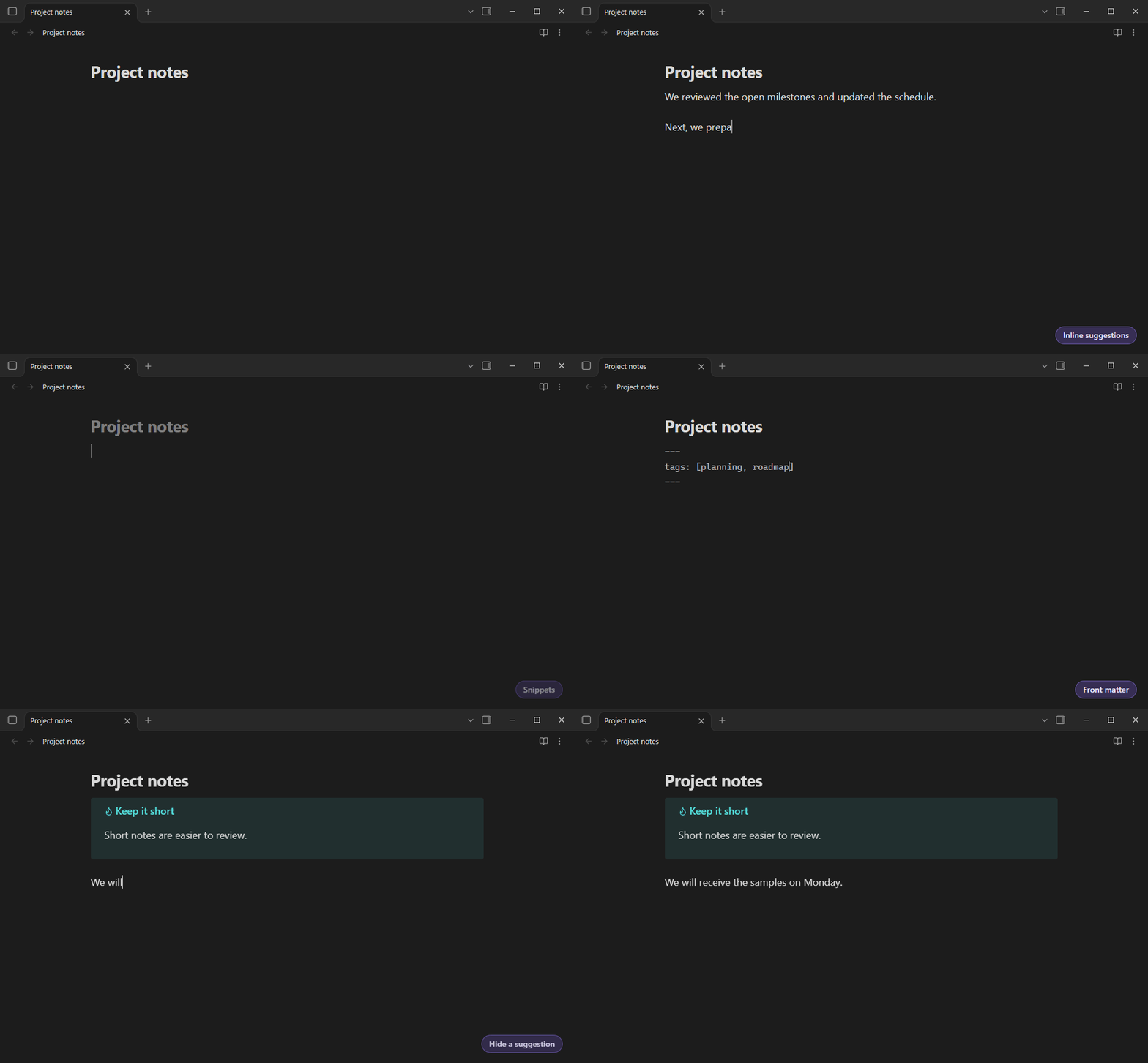
Features
- Words: learned from your notes while you write, or from imported word lists (fast even with millions of
words). Works with every script, optional fuzzy matching (
mkd->markdown) and ranking by usage. - Inline suggestions (optional): the best suggestion in grey after the cursor,
Tabinserts it. - LaTeX: all MathJax commands and environments in
$...$and$$...$$, even before the block is closed. Rendered previews, placeholders to jump through, and your own commands. - Snippets: your own text templates with placeholders, e.g.
:sigor a meeting header. - Front matter: keys and values from your whole vault, including tags like
Area/Topic(in source mode). - Callouts:
> [!suggests callout types with their icons, optionally from Callout Manager. - Blacklist: hide any suggestion with one click, undo right away.
- Small touches (optional): a space after completed words, and a period when you press
Spacetwice.
Installation
Browse the community plugins list in Obsidian and search for Completr.
Manually: download main.js, styles.css and manifest.json from a release
and copy them to <vault>/.obsidian/plugins/obsidian-completr/.
Usage
Keys
All keys are commands, change them under Settings -> Hotkeys (filter for "Completr").
| Command | Default |
|---|---|
| Open suggestion popup | Ctrl/Cmd + Space |
| Select next / previous | ArrowDown / ArrowUp |
| Insert selected suggestion | Enter |
| Close suggestion popup | Escape |
| Jump to next snippet placeholder | Enter |
| Add selected to the blacklist | Ctrl/Cmd + Shift + D |
| Bypass the popup, press Enter | Ctrl + Enter |
| Bypass the popup, press Tab | Ctrl + Tab |
| Accept inline suggestion | - (Tab always works) |
| Toggle automatic popup | - |
| Create snippet from selection | - |
| Learn the words of all notes | - |
- Keys that aren't used by the popup go to the editor as usual, e.g.
Shift + TaborHomeclose the popup and do their normal thing. - Obsidian's hotkey settings can't bind a plain
Tab. Enable Insert with Tab / Jump to next placeholder with Tab in the Completr settings instead. - If Select first suggestion is disabled,
Entercreates a new line until you pick a suggestion with the arrow keys. - In vim mode,
Escapecloses the popup and leaves insert mode. - A popup opened with
Ctrl/Cmd + Spaceignores the minimum typed length for the word it was opened on.
Inline suggestions
Off by default, enable Inline suggestions in the settings. While you type, the rest of the best suggestion appears
in grey after the cursor, and Tab inserts it. Escape hides it until you type the next character. It works with or
without the popup: while the popup is open, it shows the selected suggestion, so Tab and the popup agree.
Only suggestions that continue exactly what you typed are shown (hel -> hello, not Hello), and none in the middle
of a word. To accept with another key, e.g. ArrowRight, assign it to the Accept inline suggestion command. That
key keeps working normally while nothing is shown.
Blacklist
Hover a suggestion and click the eye icon, or select it and press Ctrl/Cmd + Shift + D, to never see it again. A
notice lets you undo that right away. Later, use Manage in the Blacklist section at the bottom of the settings.
Custom LaTeX commands
Add them in the settings (LaTeX -> Add LaTeX command) or edit latex_commands.json in the plugin folder. In the
popup, hovering one of your commands shows a pencil icon that opens it for editing. The file contains a JSON array of
either strings or objects:
["\\mycommand{#}", { "displayName": "\\myenv", "replacement": "\\begin{myenv}\n~\n\\end{myenv}" }]
In replacements, # marks a placeholder and ~ the final cursor position. The built-in commands can be disabled in the
settings.
Snippets
Snippets work outside of math blocks: typing the start of a snippet's name suggests it, with the start of its text next
to it. Add them in the settings, with the Create snippet from selection command, or in snippets.json (same format as
the LaTeX commands).
A name can be anything. Starting it with a character like : or / (:sig, /date) keeps a snippet out of the way
of normal words: it is only suggested once that character and one more are typed.
Since # and ~ are common in markdown, snippets use a different placeholder syntax:
{{}}: an empty placeholder{{some text}}: a placeholder pre-filled with "some text", which is selected so typing replaces it{{cursor}}: where the cursor ends up after the last placeholder
[{ "displayName": "meeting", "replacement": "## Meeting {{title}}\nAttendees: {{}}\n\n{{cursor}}" }]
Data files
Completr keeps its data in its plugin folder (.obsidian/plugins/obsidian-completr/):
scanned_words.txt: words learned from your notes, one per linewordLists/: imported word listsblacklisted_suggestions.txt: the blacklist, one entry per linelatex_commands.json: your own LaTeX commandssnippets.json: your snippetscallout_suggestions.json: callout types (unless Callout Manager is used)suggestion_usage.json: how often suggestions were used, for ranking
Looking for word lists?
Development
Requires Bun (currently a canary build for bun lint: bun upgrade --canary).
- Clone the repo into the
pluginsfolder of a test vault, runbun installandbun run dev, enable the plugin bun run build: production buildbun check: typecheck, lint and formatting check (bun run fixfixes what it can)bun test: unit testsbun run test:e2e: UI tests. Starts an isolated Obsidian instance with a temporary vault and drives it through the Chrome DevTools Protocol. Needs a local Obsidian installation (override withOBSIDIAN_EXE).E2E_HEADED=1shows the window,E2E_KEEP=1keeps it open after the run.
For plugin developers
Search results and similarity scores are powered by semantic analysis of your plugin's README. If your plugin isn't appearing for searches you'd expect, try updating your README to clearly describe your plugin's purpose, features, and use cases.