Regex Find/Replace
approvedby gru80
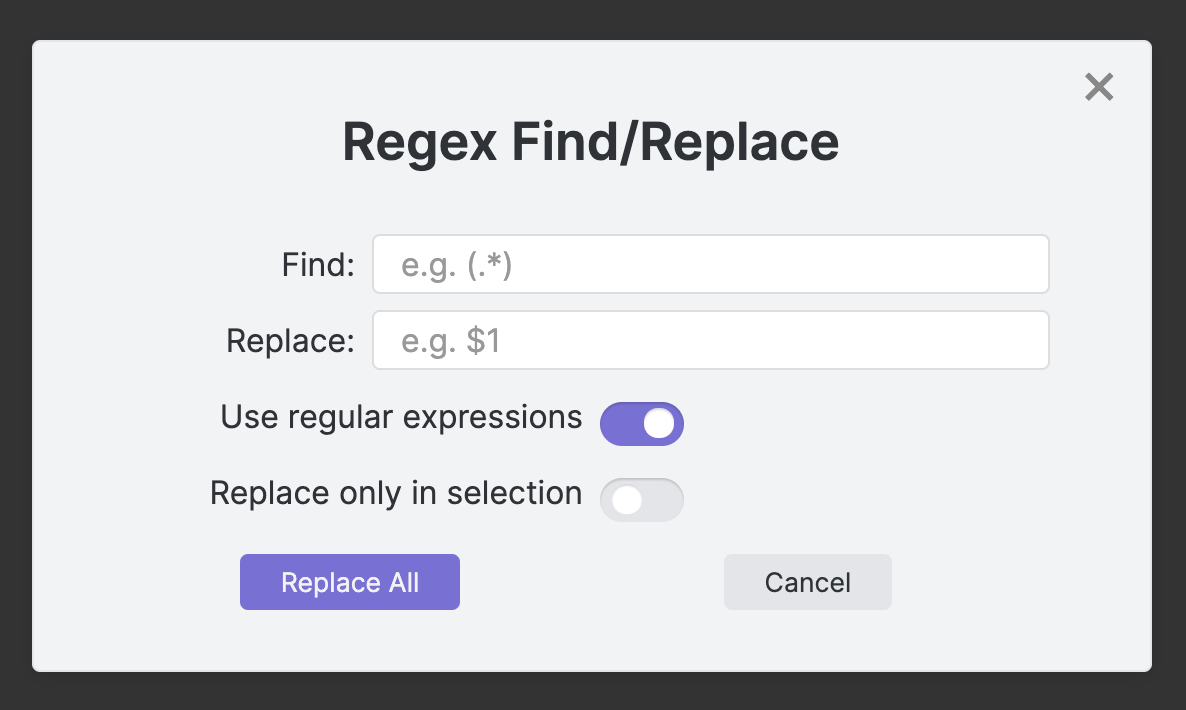
A find/replace dialog which optionally supports regular expressions and scope (full document or text selection).


Obsidian Plugin - Regex Find/Replace
Provides a dialog to find and replace text in the currently opened note. In addition to Obsidians on-board find/repace function, this plugin provides options to
- use regular expressions or just plain text
- replace found occurances in the currently slected text or in the whole document
Desktop as well as mobile versions of Obsidian are supported.
How to use
- Run
Regex Find/Replace: Find and Replace using regular expressionsfrom the command palette or - Assign a shortcut key to this command and use it to open the dialog
- The plugin will remember the last recent search/replace terms as well as the settings
How to install
From inside Obsidian
This plugin can be installed via the Community Plugins tab in the Obsidian Settings dialog:
- Disable Safe Mode (to enable community plugins to be installed)
- Browse the community plugins searching for "regex find/replace"
- Install the Plugin
- Enable the plugin after installation
Manual installation
The plugin can also be installed manually from the repository:
-
Create a new directory in your vaults plugins directory, e.g.
.obsidian/plugins/obsidian-regex-replace -
Head over to https://github.com/Gru80/obsidian-regex-replace/releases
-
From the latest release, download the files
- main.js
- manifest.json
- styles.css
to your newly created plugin directory
-
Launch Obsidian and open the Settings dialog
-
Disable Safe Mode in the
Community Pluginstab (this enables community plugins to be enabled) -
Enable the new plugin
Version History
1.0.0
Initial release
1.1.0
- Case insensitive search can now be enabled in the settings panel of the plugin (regex flag /i)
- Find-in-selection toggle switch is disabled if no text is selected in the note
- Performance improvements and bug-fixes
1.2.0
- Option to interpret
\nin repleace field to insert line-break accordingly - Option to pre-fill the find-field with the selected word or phrase
- Used regex-modifier flags are shown in the dialog
For plugin developers
Search results and similarity scores are powered by semantic analysis of your plugin's README. If your plugin isn't appearing for searches you'd expect, try updating your README to clearly describe your plugin's purpose, features, and use cases.