by Daniel Chen
Inline task buttons, progress cards with one-gesture archiving, and Home and favorite shortcuts for task notes.
English | 简体中文
Office Flow
Office Flow is a small personal Obsidian plugin for faster task notes and a softer workspace: inline task buttons, pretty progress cards, one-gesture archiving of temporary to-do lists, and two header shortcuts.
Features
- Task edit mode: inline buttons after every unfinished task for child tasks, pen notes and top-level tasks, plus a category picker for empty tasks.
- Progress cards:
office-progresscode blocks render a progress card for a section of the current note or of another note. - Archive and restore: hold a card's percent badge to move the section's tasks into today's archive file, and hold again there to bring them back.
- Home and favorite buttons: two header actions that open your Home note and a favorite note.
- Pink sidebar: optional soft pink sidebars and ribbons.
Plain Obsidian API, TypeScript and CSS. No external services, no extra libraries.
Task edit mode
In editing mode every unfinished task (- [ ]) gets small buttons right after the checkbox:

| Button | Inserts below the task |
|---|---|
+ | an indented child task ( - [ ] ) |
✎ | an indented pen note ( 🖊) |
- (child tasks only) | a new top-level task (- [ ] ) |
| category picker (empty tasks only) | one of four labels as the task text |
Pen notes belong to the task above them, so new tasks are inserted after a task's pen notes, both from the buttons and when you press Enter on the task. Backspace on an empty inserted line removes that line again.
The four category labels default to Action, Research, Design and Code and can be changed in settings.
Commands: Toggle task edit mode, Insert child task, Insert pen note.
Progress cards
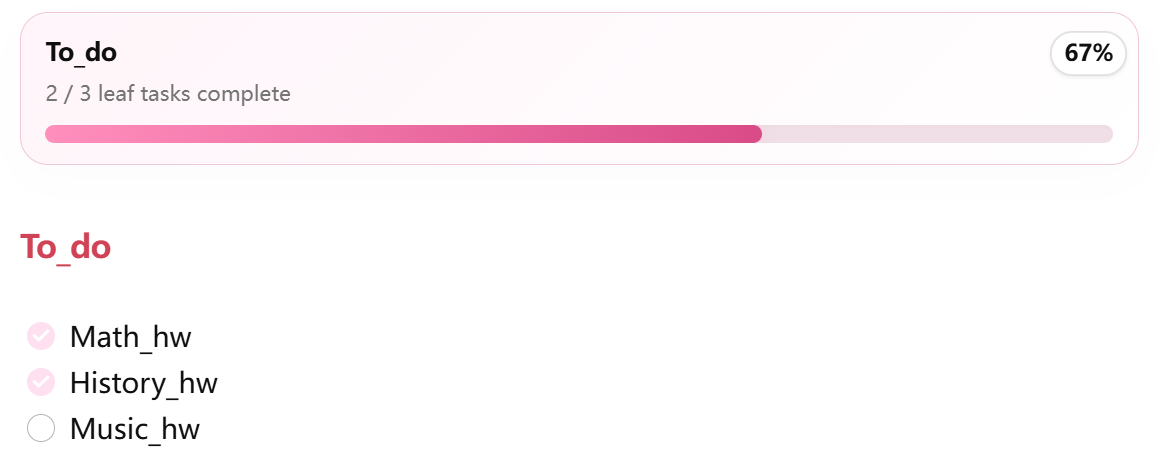
Put an office-progress code block anywhere and list the sections to track, one per line.
A section of the current note:
```office-progress
To_do
```
A section of another note, optionally with an alias that becomes the card title:
```office-progress
[[Home 7_21|Work]] : Today's Tasks
[Everyday_Task] : Today's Tasks
```
A section is a heading whose text contains the given name, up to the next heading of the same or a higher level. The counter counts leaf tasks: a task that has child tasks is a group, not a task. Clicking the alias on a cross-note card opens that note.
Archive and restore
A temporary to-do list is most useful when it can be cleared in one gesture but is still kept somewhere. On a card for a section of the current note, the percent badge is that gesture:
- Click the percent. It turns into an archive icon (it reverts after 5 s, or on a short press).
- Press and hold the icon for 2 s. A ring fills up, then everything under the heading (tasks, child tasks, pen notes, other blocks) moves to today's archive file. The heading and its
office-progressblock stay where they are.
Archived sections land in archive/todo/2026_10_16_temp_todo.md. Each archived block carries its own card and remembers where it came from:
## 15:32 To_do
```office-progress
15:32 To_do
restore: [[study/Everyday_Task]] : To_do
```
- [ ] Music_hw
Inside the archive folder the badge is blue and works the other way round: hold it to move the block back under its original heading and remove it from the archive file. Notes inside the archive folder are never archived.
Both actions need the heading to match exactly one heading in the note; otherwise you get a notice and nothing is written. The archive file is written before the source is trimmed, so a failed step never loses tasks.
Home and favorite buttons
Two actions appear at the top right of every Markdown view:
- Home opens the note set as Home note (default
Home). - Heart opens the note set as Favorite note. Right-click the heart to make the current note the favorite.
Commands: Open Home note, Open favorite note.
Pink sidebar
Turns the left and right sidebars and ribbons a soft pink. Just a toggle.
Settings
| Setting | Default | What it does |
|---|---|---|
| Task edit mode | on | Show the inline task buttons and the Enter / Backspace helpers. |
| Category picker | on | Show the category labels on empty tasks. |
| Home button | on | Show the Home and heart actions in view headers. |
| Office progress blocks | on | Render office-progress code blocks. |
| Pink sidebar | on | Apply the pink sidebar style. |
| Home note | Home | Note opened by the Home action. |
| Favorite note | empty | Note opened by the heart action. |
| Archive folder | archive/todo | Where archived sections go. Cards inside it show the restore control. |
| Archive date format | YYYY_MM_DD | Moment.js format for the start of the archive file name. |
| Archive file name suffix | temp_todo | Literal text added after the date with an underscore. |
| Category 1 to 4 | Action, Research, Design, Code | Labels offered by the category picker. |
Installation
- Download
main.js,manifest.jsonandstyles.cssfrom the latest release. - In Obsidian open Settings → Community plugins → Installed plugins and click the Open plugins folder icon.
- Create a folder named
office-flowinside that plugins folder and put the three files in it. - Restart Obsidian, go back to Community plugins and enable Office Flow.
Once the plugin is listed in the community directory you can install it from Community plugins → Browse instead.
The task buttons need Obsidian's editing mode (Live Preview or source). Progress cards also render in reading mode and inside other plugins that render Markdown, such as Always-on-Top Tasks.
Development
npm install
npm run build
npm run build type-checks and bundles src/main.ts into main.js. To try a change, copy manifest.json, main.js and styles.css into <vault>/.obsidian/plugins/office-flow/ and reload Obsidian. npm run dev rebuilds on every save.
To release, bump the version in manifest.json, package.json and versions.json, commit on main, and push a tag named after the version (for example 1.2.3). The release workflow builds the plugin, attests main.js, manifest.json and styles.css, and publishes them as the only release assets; if you create the release by hand first, it attaches the files to that release instead.
For plugin developers
Search results and similarity scores are powered by semantic analysis of your plugin's README. If your plugin isn't appearing for searches you'd expect, try updating your README to clearly describe your plugin's purpose, features, and use cases.