Office Viewer
approvedby Jerry Pan
View local PPTX and DOCX files inside Obsidian. - This plugin has not been manually reviewed by Obsidian staff.

Office Viewer
Read and search local PowerPoint presentations and Word documents in Obsidian.
Read locally · Search PPTX and DOCX · Reference exact slides · Keep sources unchanged
Office Viewer opens local .pptx presentations and .docx Word documents in
desktop Obsidian without conversion or upload. PPTX keeps its slide-reference
and embed workflows; DOCX deliberately focuses on continuous reading and
search within the current document.
The current release is 0.2.5. GitHub receives the release first; Obsidian Community Plugins may follow after its catalog refreshes.
Install
Obsidian Community Plugins (recommended)
- Open Settings → Community plugins.
- Enable Community plugins if needed, then open Browse.
- Search for Office Viewer, install it, and enable the plugin.
GitHub Release
Download main.js, manifest.json, and styles.css from
GitHub Releases
into <Vault>/.obsidian/plugins/office-viewer/, reload Obsidian, and enable
Office Viewer.
Feedback and support
- Report a problem: use the Bug report form.
- Request an improvement: use the Feature request form.
- Share your real workflow: start a Workflow story.
- Ask a question: use GitHub Discussions Q&A.
- Security vulnerabilities: use the private reporting described in
SECURITY.md.
Bug reports should use the latest release and include Copy diagnostic summary when available. Never upload confidential presentations, screenshots containing sensitive content, filenames, paths, slide text, or images.
Features
Reading
- Open
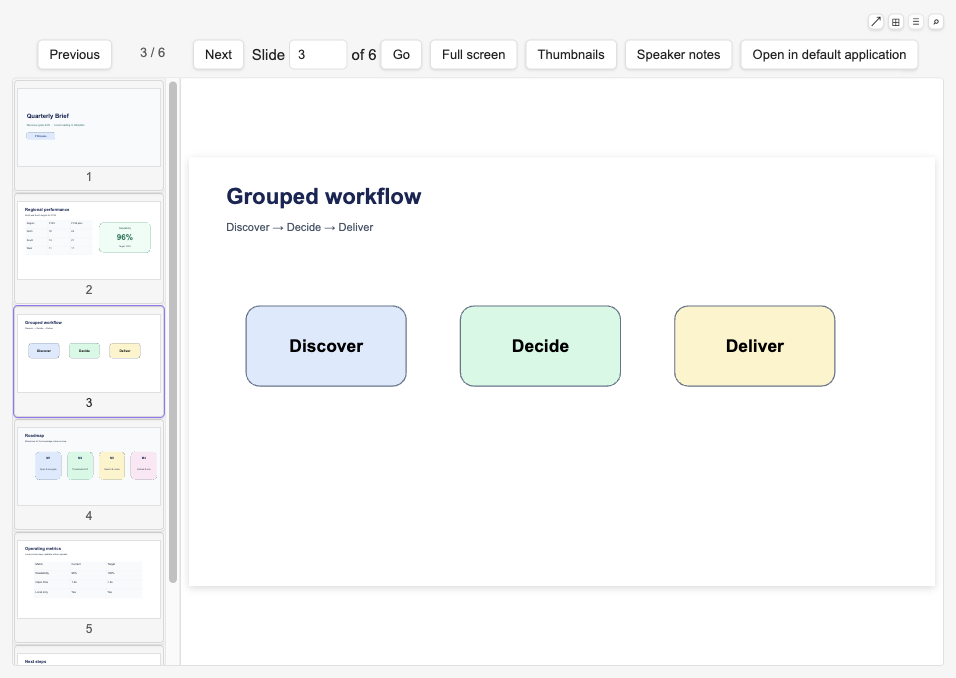
.pptxfiles directly from your Vault and read them slide by slide. - Navigate with Previous / Next buttons, jump to any slide by number, or use
ArrowLeft/ArrowRightandPageUp/PageDownkeys. - Each open file has its own independent reading position, thumbnail scroll state, and full-screen state across workspace panels.
- The current slide always fills the available reading area automatically.
Word document reading and search
- Open
.docxfiles directly from the Vault in a continuous, read-only view. - Read final-view main-body headings, paragraphs, lists, tables, inline images, and safe hyperlinks. Headers, footers, comments, text boxes, and deleted or hidden text are outside the DOCX view.
- Common embedded raster images, placeable Windows metafiles (WMF/EMF payloads that convert locally), and Office charts with usable cached series data are shown as preview images. Exact Word print layout is not claimed.
- Press
Cmd+ForCtrl+Fto open the document search panel and focus its field;Escapecloses it. Search covers visible main-body text in the current document only. Results are one entry per matching paragraph, with a match count and excerpt, and jump to a visible session-only highlight. - Very large documents use a clearly labelled simplified reading mode with a bounded DOM. Detected content that cannot be represented is marked in flow with a document-level notice.
- DOCX does not create stable paragraph references, embeds, companion notes, persistent reading positions, or a Vault-wide search index.
Thumbnails
- A scrollable thumbnail strip shows previews of all slides alongside the main view.
- Thumbnails render progressively, starting with the slide you are on.
- Drag the right edge of the thumbnail strip to resize previews, double-click to reset, or use keyboard arrows when the divider is focused.
Full screen
- Enter full screen to use the full display while keeping the toolbar and thumbnail strip accessible.
- Exit with the on-screen control or the platform Escape key.
Fallback
- Open in default application sends the file to PowerPoint, Keynote, Word, Pages, or your system default when the preview is not enough.
Slide references and embeds
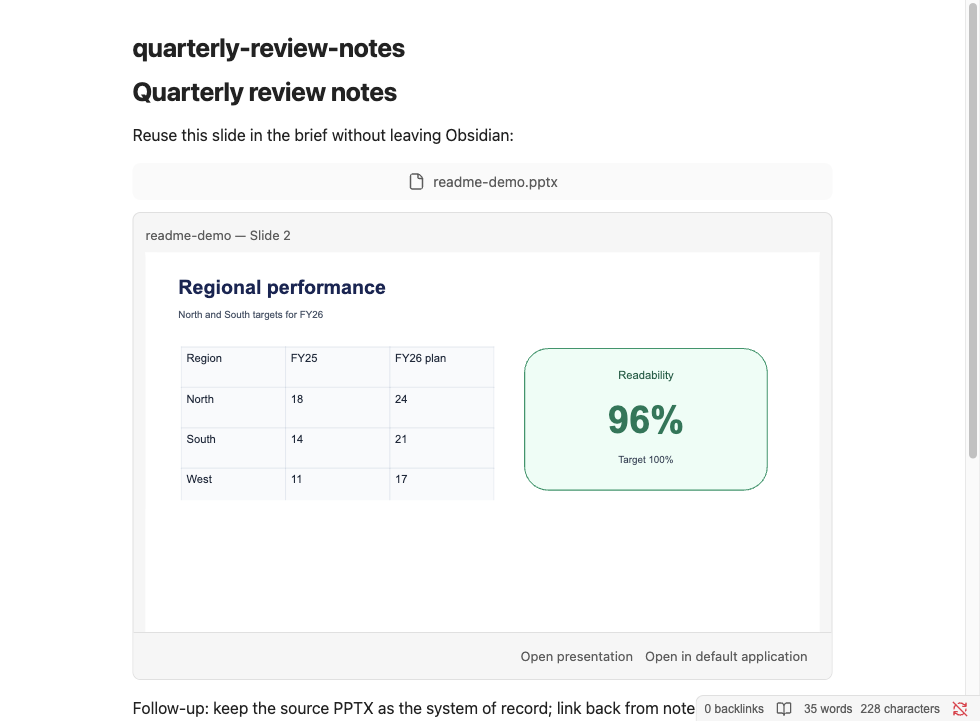
- Copy slide reference creates a source-preserving Vault wikilink that returns to the same native slide even after slides are reordered.
- Copy slide embed creates the same stable reference as a live, source-backed single-slide embed in Markdown Reading View and, for a standalone canonical embed line, in Live Preview.
- Select visible text on the current slide to use Copy selected text with
source. Ordinary
Cmd+C/Ctrl+Cremains unchanged; the explicit action copies the selected text followed by the stable slide reference. - In Live Preview, only a canonical PPTX single-slide embed that is the sole
non-whitespace content on its line becomes an inline widget. Cursor,
selection, or a click on the slide canvas reveals the exact Markdown; only
the explicit source action opens the PPTX. Source mode always shows syntax.
Plain
![[deck.pptx]], prose-mixed, or multi-embed lines stay ordinary Markdown. - Deleted slides and missing presentations fail explicitly without silently falling back to an ordinal position.
Speaker notes
- Expand the current-slide speaker notes panel to read author note paragraphs without leaving Obsidian. The panel starts collapsed and keeps your choice while you navigate within the same view.
- Copy speaker notes as plain text with the canonical slide reference when the current slide has usable notes.
- Notes-master text, headers, footers, dates, and slide numbers are never shown as speaker notes.
Presentation content search
- Press
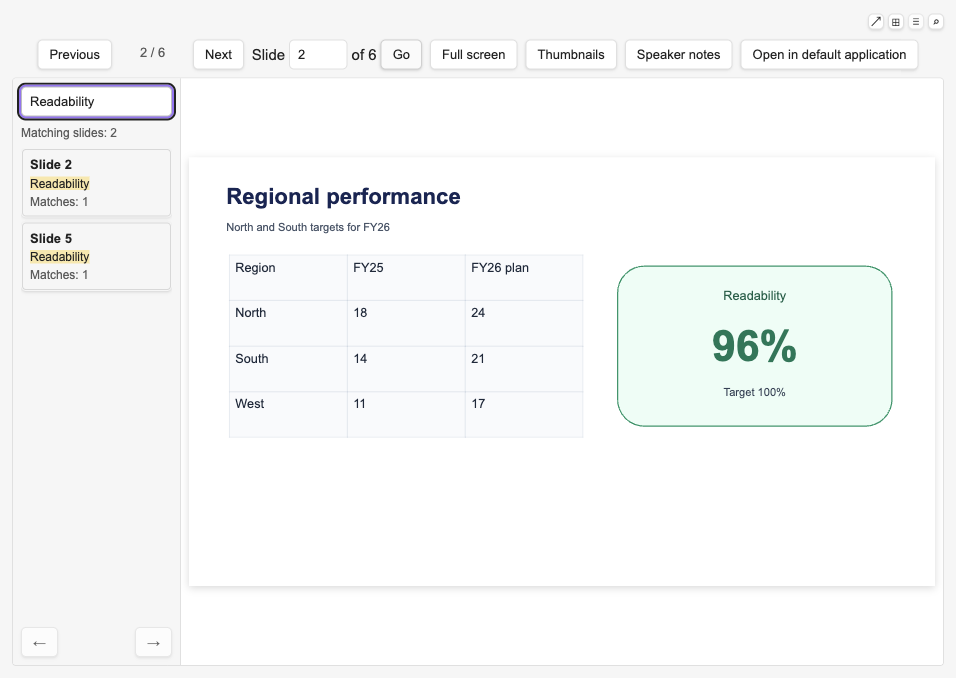
Cmd+ForCtrl+Fin an open PPTX to search that presentation. When speaker notes are available, search defaults to slides and notes together and offers All / Slides / Notes scope filters for the current view only. - Search covers source-authored titles, body text, text boxes, shape text, table cells, and author speaker notes. Results stay local to the current view and are never persisted.
- Images, master/layout text, charts, SmartArt, OCR, Vault-wide indexing, and highlighting on the main rendered slide are not searched.
Error handling
- Corrupted, encrypted, or otherwise unreadable PPTX or DOCX files show a clear explanation rather than a blank screen or a cryptic error.
- Legacy
.pptfiles are recognized and explained without attempting to parse them. Legacy.docand macro-enabled.docmare not registered. - Compatible files that run into a rendering problem show a warning while keeping the last readable slide or document content visible when possible.
Reading position
- Remember reading position (on by default) reopens each file at the slide you left off.
- Stores only a Vault-relative path, file size, modification time, slide index, and update timestamp. It does not store slide text, images, paths outside the Vault, or author metadata. Turn it off at any time to clear saved positions instantly. Explicitly claimed companion-note path pairs are stored separately and are not cleared by this setting.
Presentation companion note
- From an open
.pptxviewer, use Open companion note to create or claim one same-directory, same-basename Markdown note for presentation-level writing. Merely opening a PPTX does not write the Vault. - Newly created notes contain only a heading and an ordinary wikilink to the source PPTX. Existing same-name Markdown is adopted unchanged.
- The source PPTX remains read-only. Plugin data stores only the two Vault-relative paths for a claimed relationship.
Compatibility awareness
- Diagnostic summary is off by default.
- When enabled, detectable unsupported media or missing fonts show a persistent banner on the next open, retry, or reload of that file.
- Blocking errors, retry, and Open in default application stay visible regardless of the diagnostic setting.
Diagnostic summary
- Turn on Diagnostic summary in settings to show compatibility warnings and the copy control on the next open, retry, or reload.
- Copy diagnostic summary captures versions, file size, slide count, timings, and stable categories for troubleshooting. It excludes filenames, paths, slide text, images, and any personal or rendered content.
Languages
- The interface supports English, Simplified Chinese, and Traditional Chinese, following your Obsidian language setting. Other languages fall back to English.
Privacy
- Everything stays local. The plugin never uploads files, phones home, or collects telemetry. Source PPTX and DOCX files are never modified. Companion notes are Markdown files created only by an explicit action; plugin data stores only their Vault-relative path pairs. PPTX and DOCX search queries, extracted text, snippets, and results are session-local and are not saved.
Development install
Requirements: desktop Obsidian, Node.js 22, and npm.
npm install
npm run build
mkdir -p /path/to/vault/.obsidian/plugins/office-viewer
cp main.js manifest.json styles.css /path/to/vault/.obsidian/plugins/office-viewer/
Enable Office Viewer under Community plugins, then open a .pptx or
.docx from the Vault file explorer. Rebuild and copy the same three files after source
changes. npm run test:e2e performs the equivalent build-and-install path in a
sandboxed test Vault without using a personal Obsidian configuration.
Packaged install, upgrade, and uninstall
A release ZIP contains the three runtime files (main.js, manifest.json,
and styles.css) plus the project license, attribution notice, and bundled
renderer licenses. GitHub Releases publish only the three Obsidian runtime
files (with build provenance attestations); the full ZIP stays available as the
tag CI artifact from npm run release:package. Extract the ZIP contents to
<Vault>/.obsidian/plugins/office-viewer/, reload Obsidian, and enable
Office Viewer. To upgrade, disable the plugin, replace all three runtime
files together, reload Obsidian, and re-enable it. To uninstall, disable the
plugin and remove the office-viewer directory; the plugin never writes to
source PPTX or DOCX files.
Development
npm install
npm run fixtures
npm run verify
npm run test:e2e
npm run test:e2e:docx
npm run test:compatibility
npm run test:compatibility:docx
npm run test:performance
npm run test:performance:docx
npm run test:performance:baseline
npm run release:check
npm run release:package
npm run test:release
npm run test:e2e downloads and launches a sandboxed Obsidian instance. It
does not use the normal Obsidian configuration or a personal Vault. Six cases
exercise the production adapter; a separate installed case uses a test-only
adapter to inject one recoverable slide failure, then rebuilds the production
bundle before exiting.
npm run test:compatibility opens the representative corpus through the same
installed plugin path, captures fixed-environment screenshots, compares them
with approved visual baselines, and writes ignored run artifacts under
artifacts/compatibility/. The first renderer currently scores 90.0% readable
main content and meets the 80% M0 gate with known SVG degradation; see
docs/compatibility/aiden-pptx-renderer-1.2.4.md.
npm run test:compatibility:docx uses a pinned installed Obsidian environment
and requires at least 90% readable main-body content. The accepted result is
100%; see docs/compatibility/docx-preview-0.3.6.md.
npm run test:performance repeats the installed-Obsidian benchmark on the
current machine and writes ignored evidence under
artifacts/performance/aiden-pptx-renderer-1.2.4/. The committed
reference-machine result for @aiden0z/pptx-renderer@1.2.4 is
tests/performance/baselines/aiden-pptx-renderer-1.2.4.json, with the matching
human-readable report in
docs/performance/aiden-pptx-renderer-1.2.4.md. Validate the committed evidence
shape and fixed gate calculation with npm run test:performance:baseline.
npm run test:performance:docx measures DOCX first-readable, search-ready,
query, cleanup, stress DOM, and heap budgets in installed Obsidian. The accepted
baseline is documented in docs/performance/docx-preview-0.3.6.md.
To refresh the reference baseline, run npm run test:performance without
changing its samples or thresholds, inspect the recorded verdict, then copy
artifacts/performance/aiden-pptx-renderer-1.2.4/results.json and
artifacts/performance/aiden-pptx-renderer-1.2.4/summary.md byte-for-byte over
those two committed files. Run
npm run test:performance:baseline after the copy. A budget miss remains valid
evidence and must be committed as FAIL rather than tuned away.
npm run release:check validates package, manifest, compatibility-version,
supported-extension, license, and required-documentation consistency without
requiring a version bump on main.
npm run release:check:publish adds tag, commit, and GitHub-release guards
for tagged releases only. Publish releases with the plain manifest version as
the tag and release name, for example 0.2.1, not v0.2.1; Obsidian matches
the GitHub release directly against manifest.json.
npm run release:package creates a
deterministic dist/office-viewer-<version>.zip. npm run test:release
installs that extracted ZIP into a clean test Vault, opens real PPTX and DOCX
fixtures,
rehearses an in-place package upgrade, and verifies disable/removal without
network access or source mutation. Tag CI requires the exact manifest version
as the tag name, runs publish checks, attests main.js / manifest.json /
styles.css, proves a second package build is byte-identical, uploads the ZIP
as a workflow artifact, and publishes only those three attested files to the
GitHub Release.
Current boundaries
.pptxand.docxare parsed. Legacy.pptreceives an explicit local explanation and external-open fallback; legacy.docand macro-enabled.docmare not registered.- Read-only and local; the plugin never writes back to the source file.
- Desktop Obsidian only; mobile and tablet are not supported.
- No Office, LibreOffice, PDF conversion, cloud renderer, or document server.
- Normal viewing does not upload presentation or document content, follow external relationships, execute macros/scripts, or make a network request.
- Rendering is a readable preview, not pixel-perfect PowerPoint or Word fidelity. Embedded SVG, unsupported chart types, and other advanced content can degrade or show in-flow placeholders. Use Open in default application when the preview is not trustworthy.
- Detectable unsupported media and unavailable fonts show compatibility warnings only when Diagnostic summary is enabled. Unknown PowerPoint or Word differences may still exist.
- Privacy and security details are in
PRIVACY.mdandSECURITY.md. - Editing, saving, animations, legacy
.ppt/.docparsing, OCR, Vault-wide search, main-slide search highlighting, DOCX paragraph references or embeds, multi-slide or full-deck embeds, prose-mixed or multi-embed Live Preview lines, telemetry, accounts, licensing, and cloud services are out of scope.
Test fixture
The committed minimal presentation is generated from repository-authored
content with PptxGenJS. See tests/fixtures/README.md for provenance.
Office Viewer is an open-source project by Jerry Pan.
For plugin developers
Search results and similarity scores are powered by semantic analysis of your plugin's README. If your plugin isn't appearing for searches you'd expect, try updating your README to clearly describe your plugin's purpose, features, and use cases.