by theluckystrike
Convert outline exports into ordered Markdown notes.
OPML Note Import
Convert outline exports into ordered Markdown notes. Start with an OPML file in your vault, inspect the proposed paths, then create one note for each root outline item. Child items become nested lists. Item notes stay with their outline text.
A root named Launch plan can become Launch plan.md, while a second root named Reading list becomes Reading list.md. The source file stays in place. You can read the new files with the plugin turned off.
Features
Select a local outline
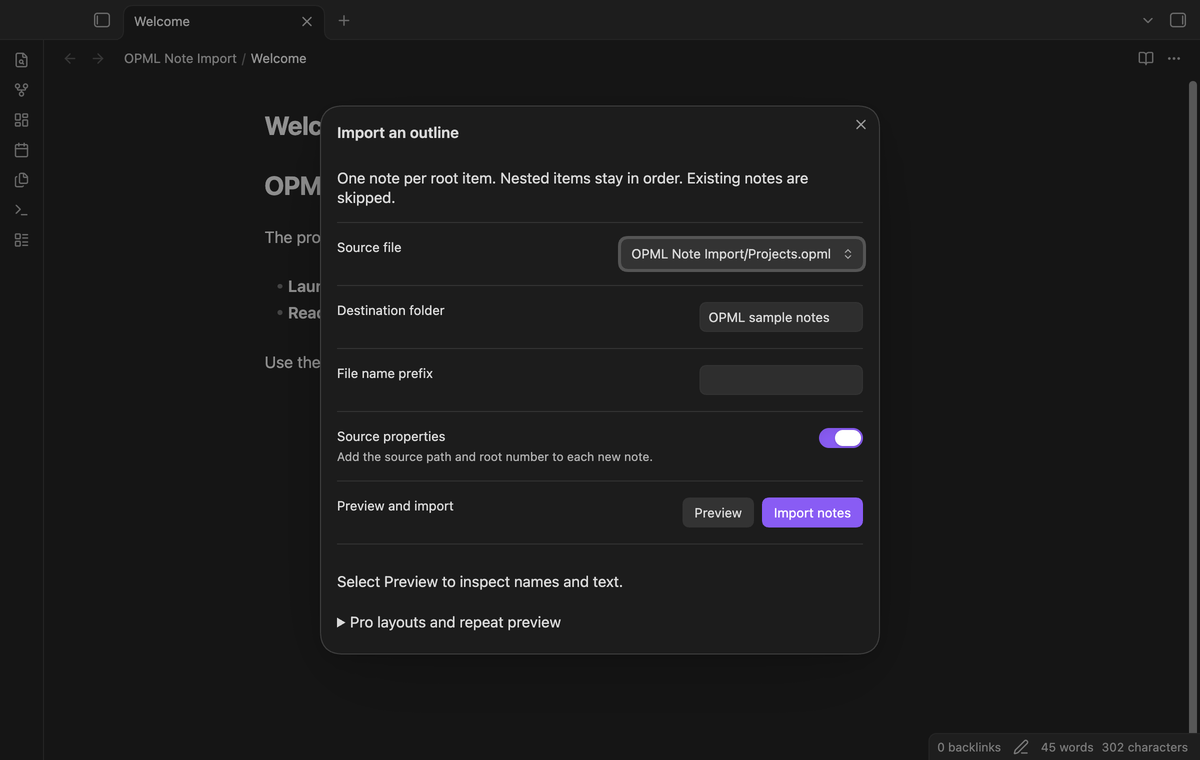
The command lists files with an .opml extension from the current vault. Choose a source file, an output folder, and an optional file name prefix. The import reads the file through the Obsidian vault API. You do not need to upload the outline or connect the outline tool that produced it.
Keep nested items and notes
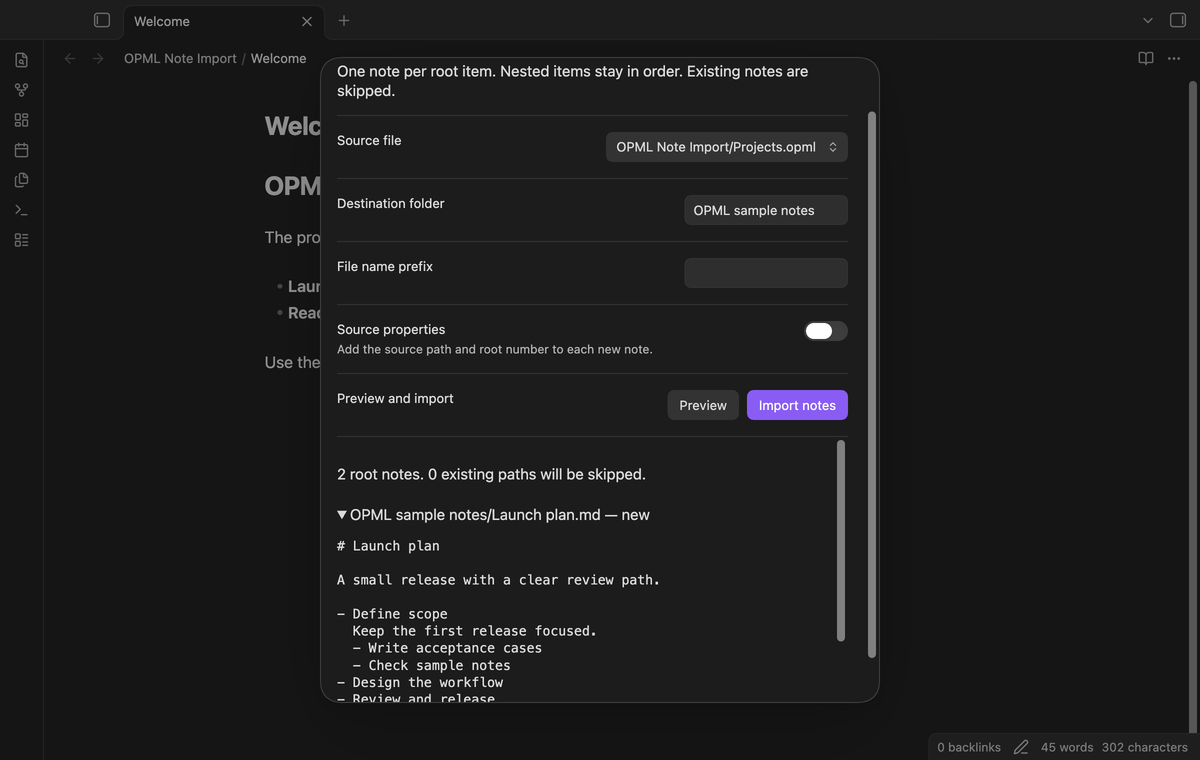
Each root item becomes a heading in a separate note. Child order and indentation follow the source outline. The parser reads text, note, and _note attributes. If an item has both note attributes, both values appear in source attribute order. XML character references become text. Escaped HTML stays literal text, so a bold tag does not become Markdown formatting. Common URL attributes appear as text beneath the item.
Inspect file name conflicts
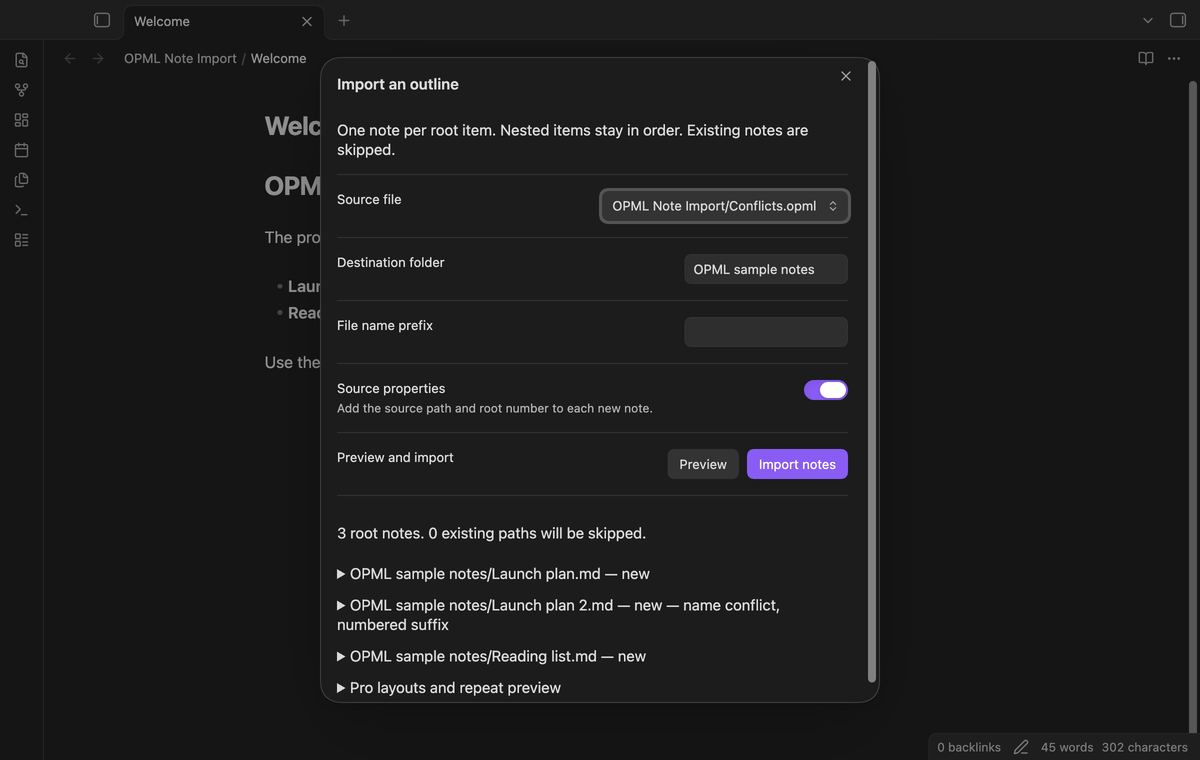
Preview lists the proposed paths before you write files. Duplicate safe names receive a stable numbered suffix, starting at 2. Case variants also count as duplicates. If a destination exists, the import skips that path and reports it. It does not replace the note with source text. A file that blocks a destination folder produces an error before the import starts.
Read parse errors
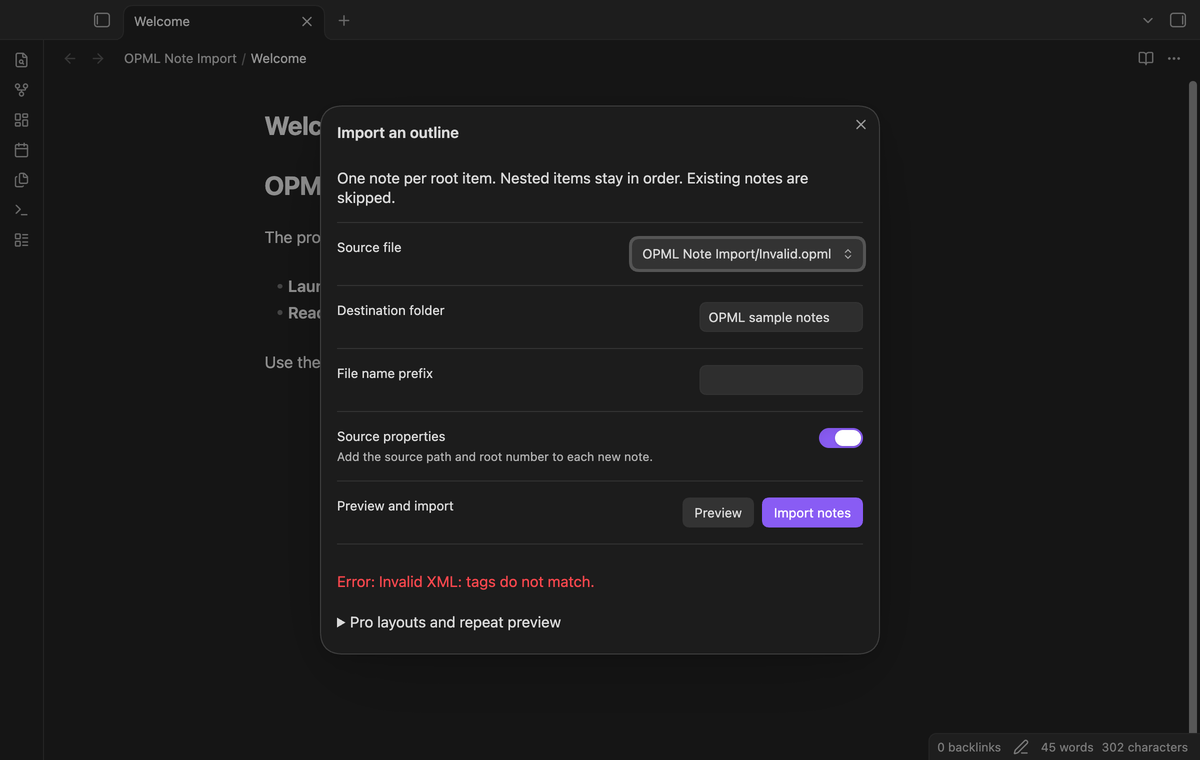
Invalid XML stops the plan before note creation. Files with a DOCTYPE or entity declaration are rejected before DOMParser runs. The import does not fetch feeds or external entities. Unknown outline attributes are reported by name, so you can inspect data that this version does not convert. The preview does not claim that those attribute values were imported.
Save layouts (Pro)
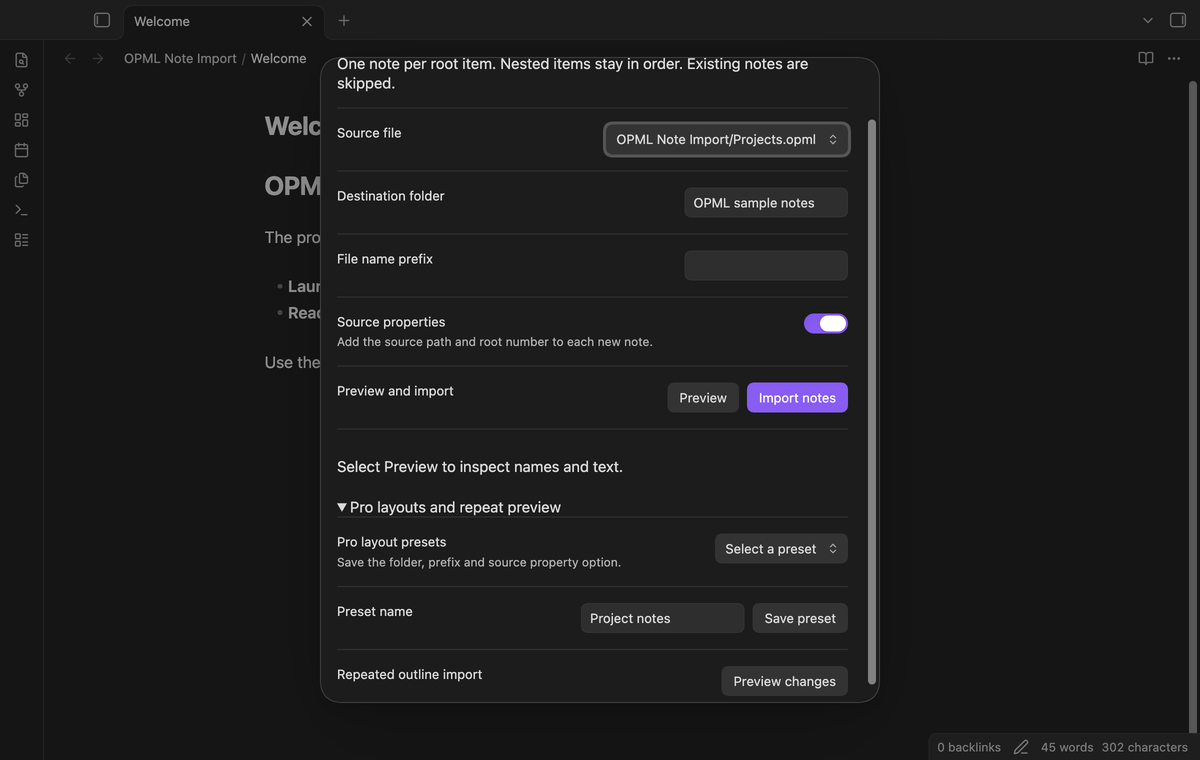
Pro can save a named layout with its folder, prefix, and source property option. Select a saved layout to apply those options to another outline. Saving the same name replaces that preset. The plugin keeps up to 50 layouts in its local data. The source file is selected separately, which lets one layout serve several project exports.
Preview repeated imports (Pro)
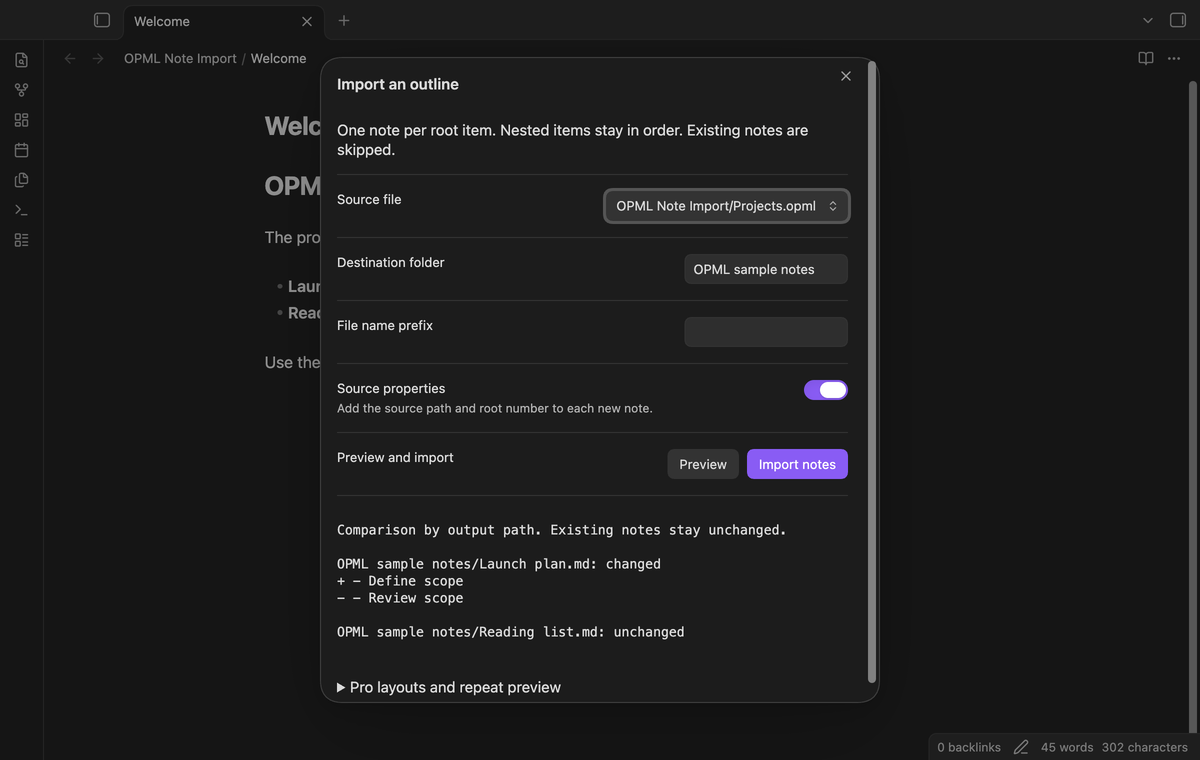
Pro compares planned Markdown with the file at each destination path. It labels the file new, changed, or unchanged. A folder at the output path is shown as blocked. For changed text, it shows lines present only in the planned text with a plus sign and lines present only in the existing text with a minus sign. The comparison does not update existing files. Reordered lines can produce a changed label without added or removed lines.
Install
Use the release files supplied by the publisher. Copy main.js, manifest.json, and styles.css into a folder named opml-note-import inside your vault's community plugin folder. Restart Obsidian or reload community plugins, then enable OPML Note Import. Use a test vault for your first import if you want to inspect the output before adding it to your working notes.
The manifest states the minimum supported Obsidian version. The code uses public Obsidian APIs and browser APIs. No Node or Electron API is part of the import. This permits mobile installation, but a phone or tablet test has not been completed. Desktop test results do not establish device support.
Usage
- Export an outline as OPML from your outline tool.
- Copy the .opml file into the vault. If it is not in the file explorer, check the vault's file visibility options.
- Run OPML Note Import: Import an outline file from the command palette.
- Select the source, folder, prefix, and source property option.
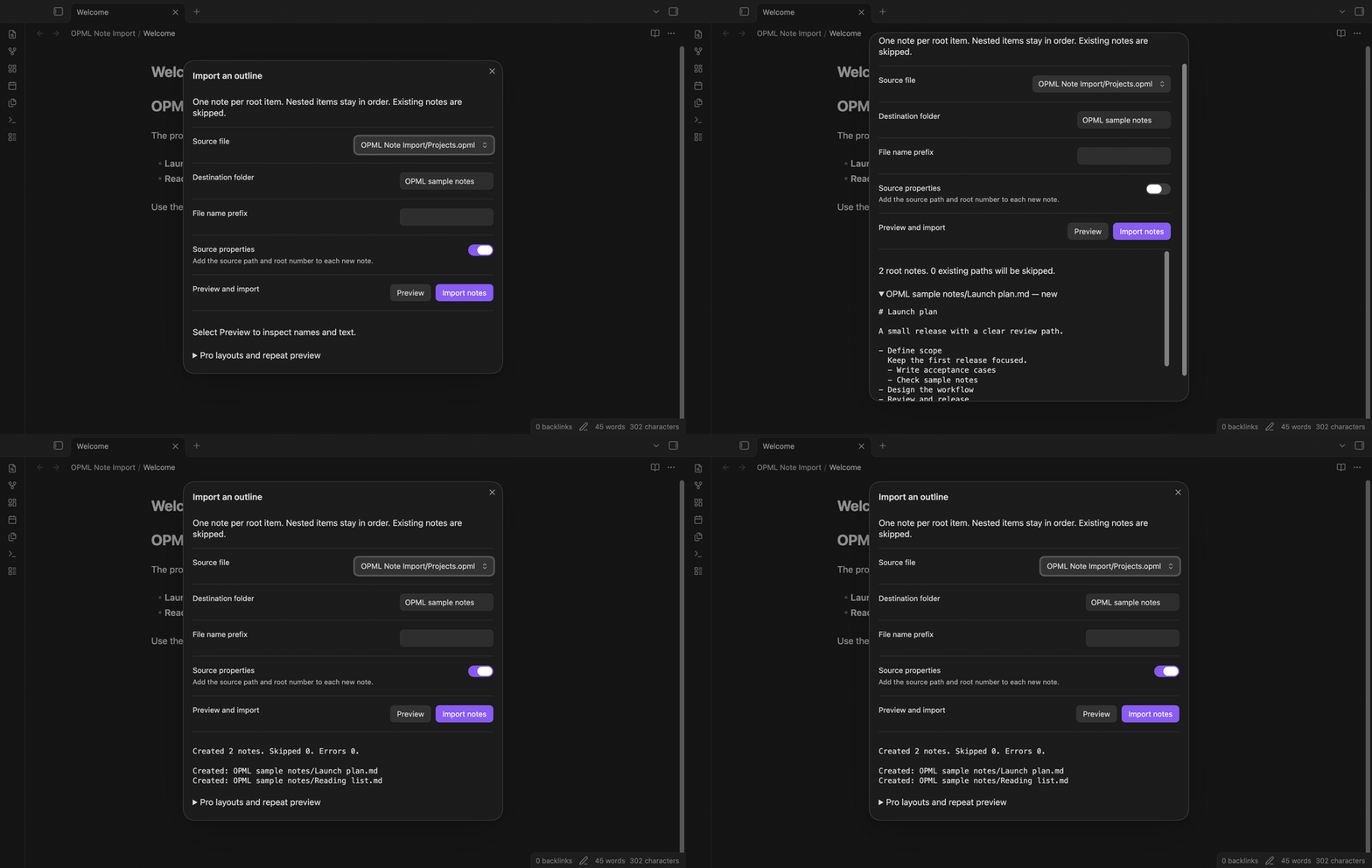
- Select Preview. Expand a root path to inspect its Markdown text.
- Select Import notes. Read the created, skipped, and error paths in the result.
A destination folder is created when needed. The default folder is OPML imports. An empty folder field puts notes at the vault root. The importer rejects dot segments, hidden folder segments, and reserved path characters. A root title is limited to 100 Unicode characters and 240 UTF-8 bytes, then cleaned for a file name. Leading dots get an underscore. A missing or blank title becomes Untitled. A reserved device name gets an underscore prefix.
For a repeated export, use the same folder and prefix to compare matching paths. A renamed root appears as a new path. The repeat preview does not find removed roots or notes that you moved elsewhere. Import notes still skips existing paths after a comparison. Move or rename output notes yourself if you need a fresh copy without changing the earlier import.
Settings
The import dialog contains the layout controls. After an import result, those controls become the starting layout for the next dialog. Source properties are on by default. They add the source path, root number, and source id to YAML frontmatter. A source id consists of the vault source path and the root's position; it is not a permanent identity across root reordering.
The plugin account tab contains the optional GitHub Sponsors controls. Free use includes selecting files, previewing names and text, importing roots, reporting conflicts, and keeping nested notes. There is no paid root count limit. Saved presets and repeat comparisons require an active Pro state. The parser limits remain the same in both tiers.
FAQ
Can this import a feed subscription export? It can preserve outline text and common URL attributes, including xmlUrl. It does not download articles, subscribe to feeds, or import attachments. Choose a feed reader for those tasks.
What happens to rich text? HTML that arrives as escaped attribute text remains visible as text. Markdown control characters are escaped to reduce accidental formatting. Text outside the supported outline attributes is not converted.
What limits apply? The parser rejects input over two million text characters, more than 100 nested XML levels, or more than 10,000 outline items. A create error is reported per path. Files created before a storage error remain in the vault; the import does not roll them back.
What was not tested? Linux and Windows desktops, physical Android and iOS devices, exports from installed outline applications, very large production vaults, live paid sponsorship, and interrupted writes on remote storage were not tested. Unit tests cover the supplied XML acceptance cases. Desktop end-to-end tests exercise the file selector, preview, import, parse rejection, and Pro controls with a simulated Sponsors response.
Payment, account and network
The core features are free. Pro features need a GitHub Sponsors sponsorship of theluckystrike: $5 a month or more, or $15 once. A total payment of $15 meets the payment requirement for Pro without further payment. Sign-in and the checks below still apply. Your notes stay readable and editable with or without Pro.
GitHub handles the payment. Sponsor at https://github.com/sponsors/theluckystrike. You need no account for the free features. Pro needs the GitHub account that sponsors.
Until you select "Sign in with GitHub" in the settings, OPML Note Import makes no network requests. Sign in uses the GitHub device flow. OPML Note Import sends its public client ID and the scope read:user to https://github.com/login/device/code and shows you a code. While you enter the code at https://github.com/login/device, it asks https://github.com/login/oauth/access_token every few seconds to check the sign-in status. The scope permits profile reads only. GitHub needs this access to show the sponsorship tier. It grants no repository scope and no write access.
After sign in, OPML Note Import sends one query to https://api.github.com/graphql. It checks if the signed-in account sponsors theluckystrike. It asks for the tier and the total payment to theluckystrike. The plugin reuses a successful check for 7 days. Failed checks can retry after 6 hours. Select Refresh to request an earlier check. It sends no note content, file names or other vault data, and it has no telemetry.
After a successful check, Pro can work offline for up to 14 days. Sign out or a negative sponsorship answer turns Pro off. The plugin stores the GitHub token through the secret storage API of Obsidian. It does not put the token in its saved settings or its local sponsorship data. The local storage of this device keeps your GitHub login, the tier and the time of the last check. Sign out clears the token. You can also revoke the access in your GitHub settings, under Applications.
Support
The publisher is theluckystrike. For a support report, include your Obsidian version, the step that failed, and the error text. A short OPML example with private content removed can help reproduce a parse problem. Do not include a GitHub access token. The plugin has no telemetry. Its source and release files use the MIT license.
For plugin developers
Search results and similarity scores are powered by semantic analysis of your plugin's README. If your plugin isn't appearing for searches you'd expect, try updating your README to clearly describe your plugin's purpose, features, and use cases.