by theluckystrike
Import decrypted Standard Notes backups with tags and dates.
Standard Notes Import
Move a decrypted Standard Notes JSON backup into your vault. The plugin creates Markdown files from supported Note records, joins their Tag records, and keeps source titles, UUIDs and date strings in properties. Use one command to choose the backup and check the result before you import.
The free importer has no note count limit. It keeps the backup in place and leaves existing notes unchanged. Pro adds saved folders by source tag and a preview of changed records on a repeat import.
Features
Choose a decrypted backup
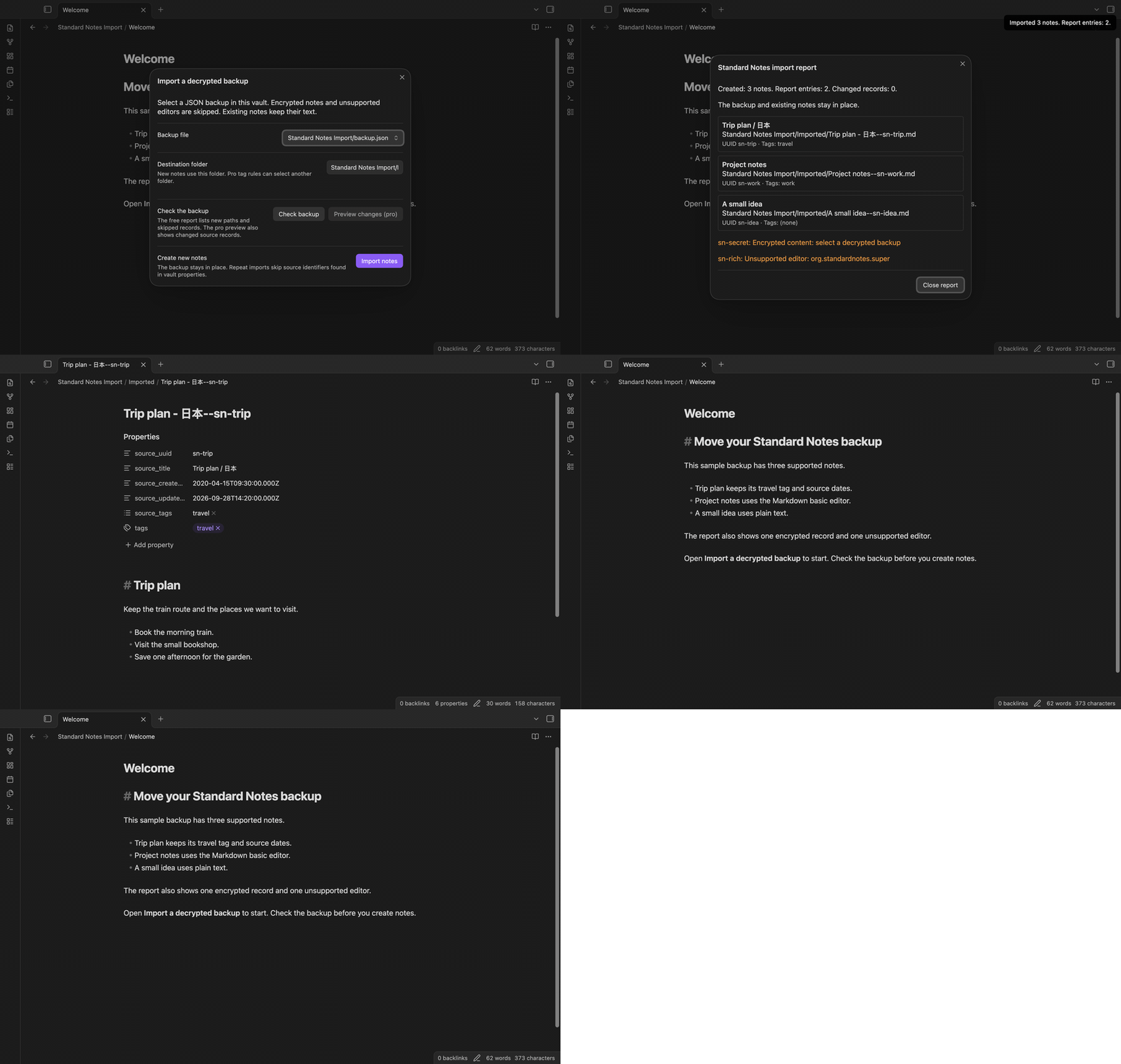
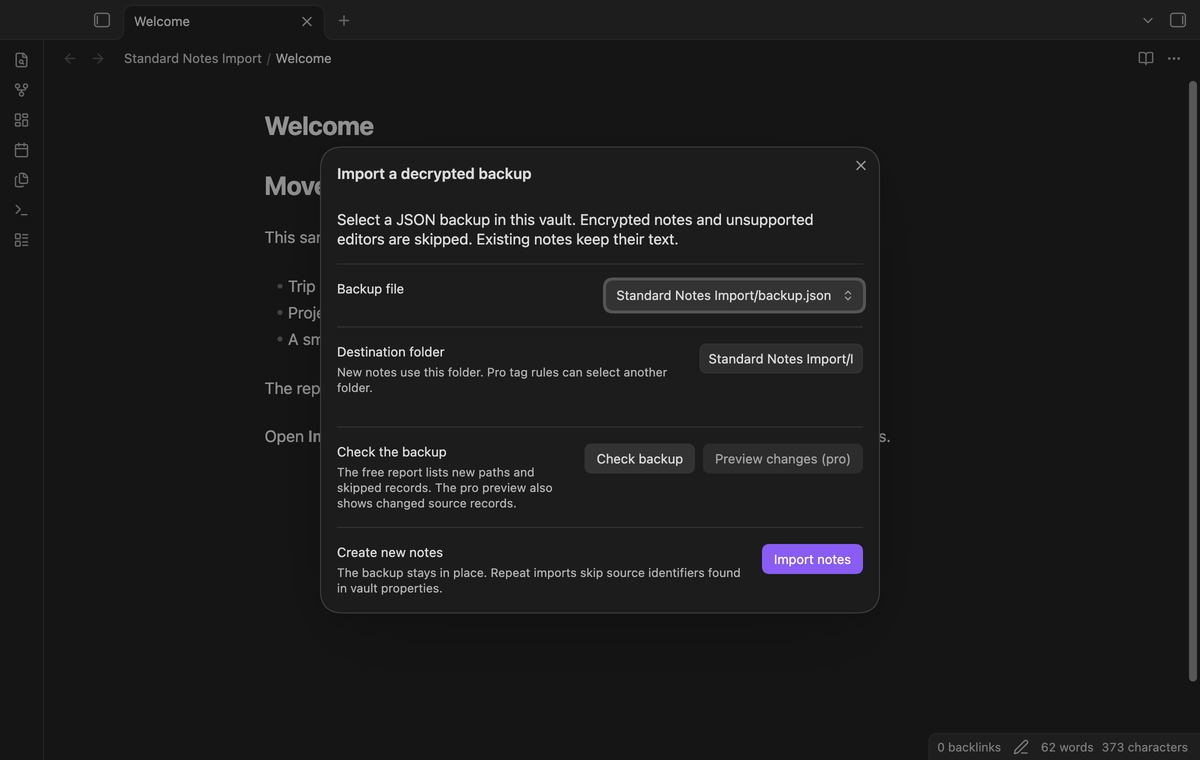
Run "Import a decrypted backup" from the command palette. Choose a JSON file already in the vault and enter a destination folder. "Check backup" shows the planned paths and report entries without creating notes. "Import notes" checks the vault again and creates new files. A file outside the vault must be copied into the vault first.
The supported input is a JSON object with an items array. Version 1 reads a backup with no version field or with version 004. A Note needs a UUID of 1 to 80 ASCII letters, digits or hyphens, and object content with string title and text fields. Encrypted string content is skipped with a message.
Keep text and join source tags
Plain text records with no editor identifier are supported. A supplied noteType must be plain-text or markdown; other note types are skipped. The tested identifiers com.standardnotes.plain-text and org.standardnotes.simple-markdown-editor are supported too. Markdown text stays in the note body. The importer does not convert rich editor data or download attachments. An unsupported editor appears by identifier in the report.
A Tag can reference a Note, or a Note can reference a Tag. The importer joins these two directions and removes repeated tag names. Deleted tags are skipped. Original tag names stay in source_tags. Obsidian tags go in tags; spaces and unsupported characters become _. Numeric tag names get a tag_ prefix. Folder rules use the original names.
Keep titles and source dates
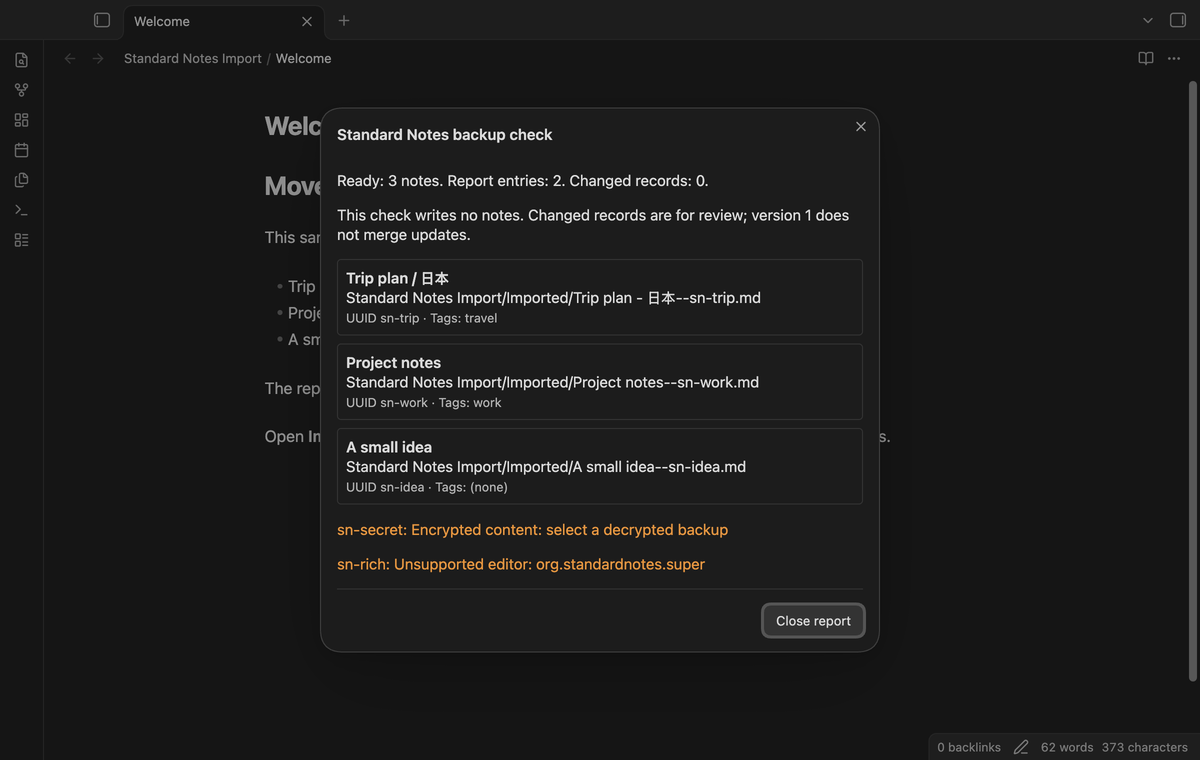
Properties include source_uuid, source_title and source_tags. When the backup supplies created_at or updated_at strings, the importer writes source_created_at and source_updated_at. These values are source strings. The plugin does not replace them with the import time or set file system dates.
Paths use a safe title and the full source UUID, such as Trip plan--n1.md. Path separators and unsafe filename characters become hyphens. Empty titles use Untitled. The original title, including Unicode, stays in the properties. Two notes with the same title can have distinct UUID paths. Long titles are shortened for the filename. A title that starts with a dot gets a Note- prefix. Non-breaking spaces become regular spaces in paths.
Read skipped records and conflicts
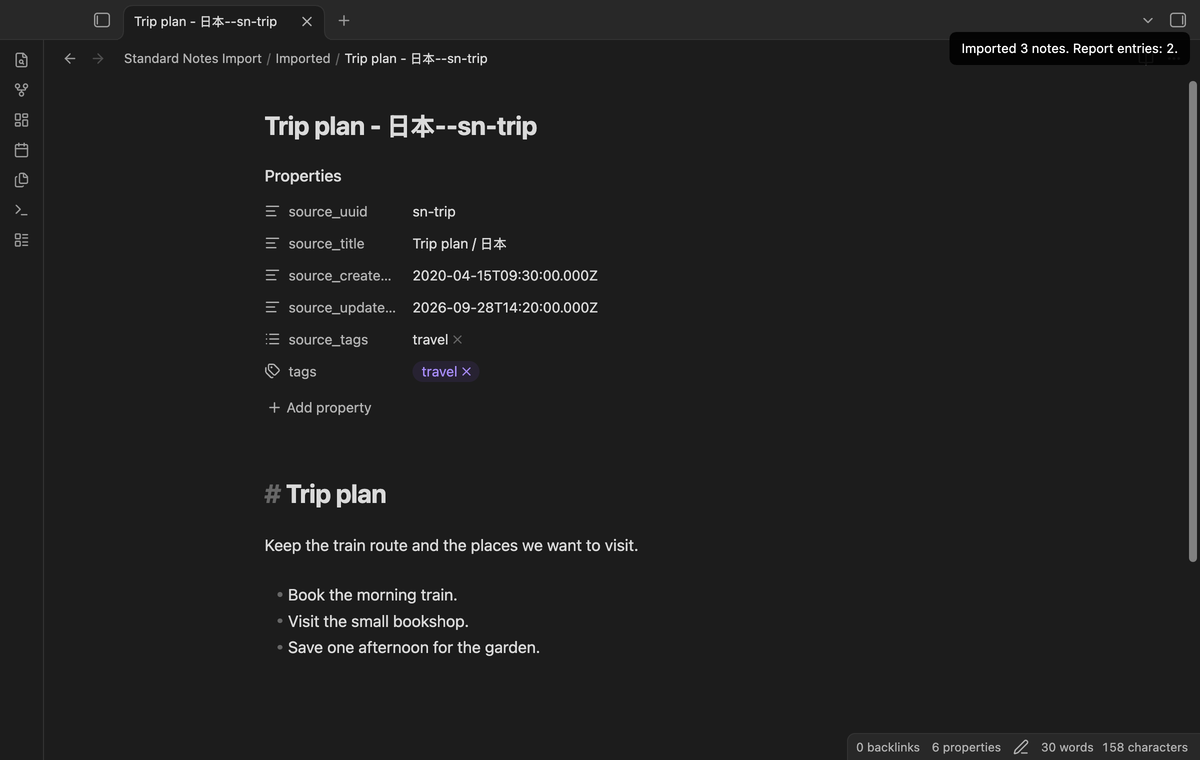
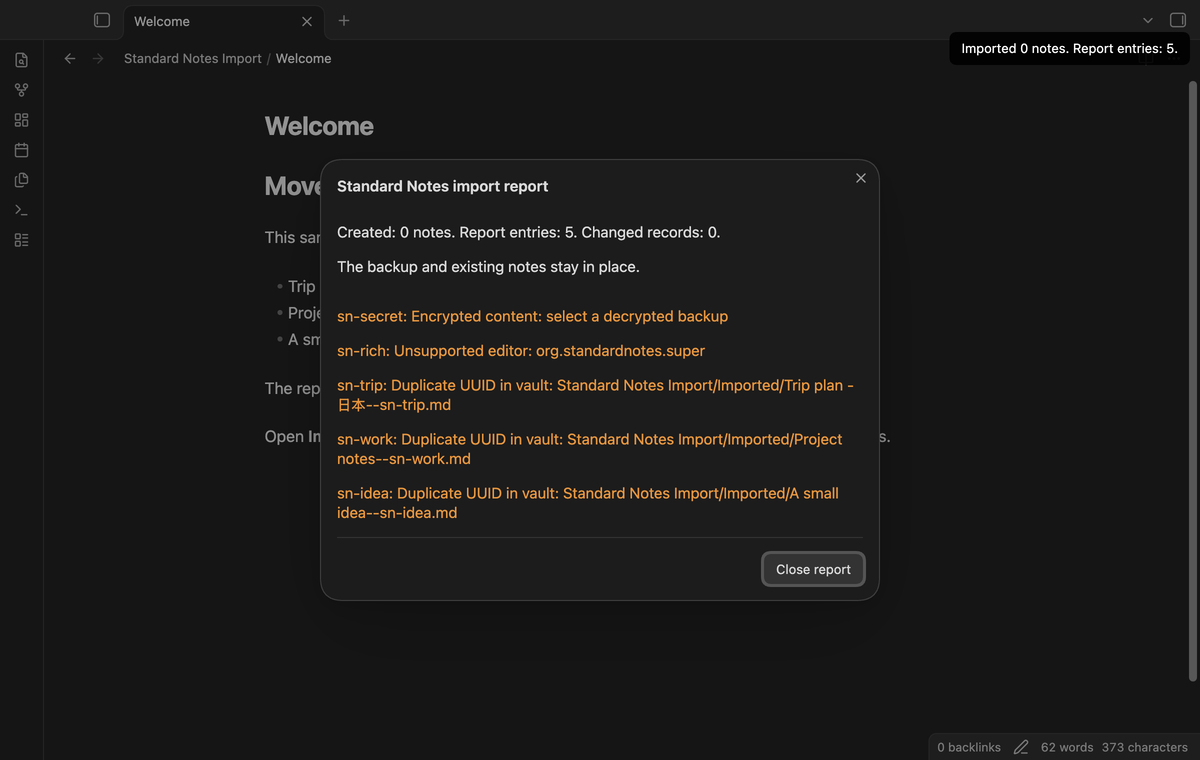
The report lists unsupported records, encrypted content, malformed shapes, missing tag references, duplicate UUIDs and path conflicts. A duplicate within the backup produces at most one note. A UUID already in the properties of a vault Markdown file is skipped, even if that file was renamed or moved. Existing text stays in place.
An occupied output path is reported. The importer does not choose a numbered replacement path. If a write fails, the report names the path and the error. Notes created before that failure stay in the vault. The backup remains available for another attempt. The report stays in a modal until you close it.
Save destination rules by tag (Pro)
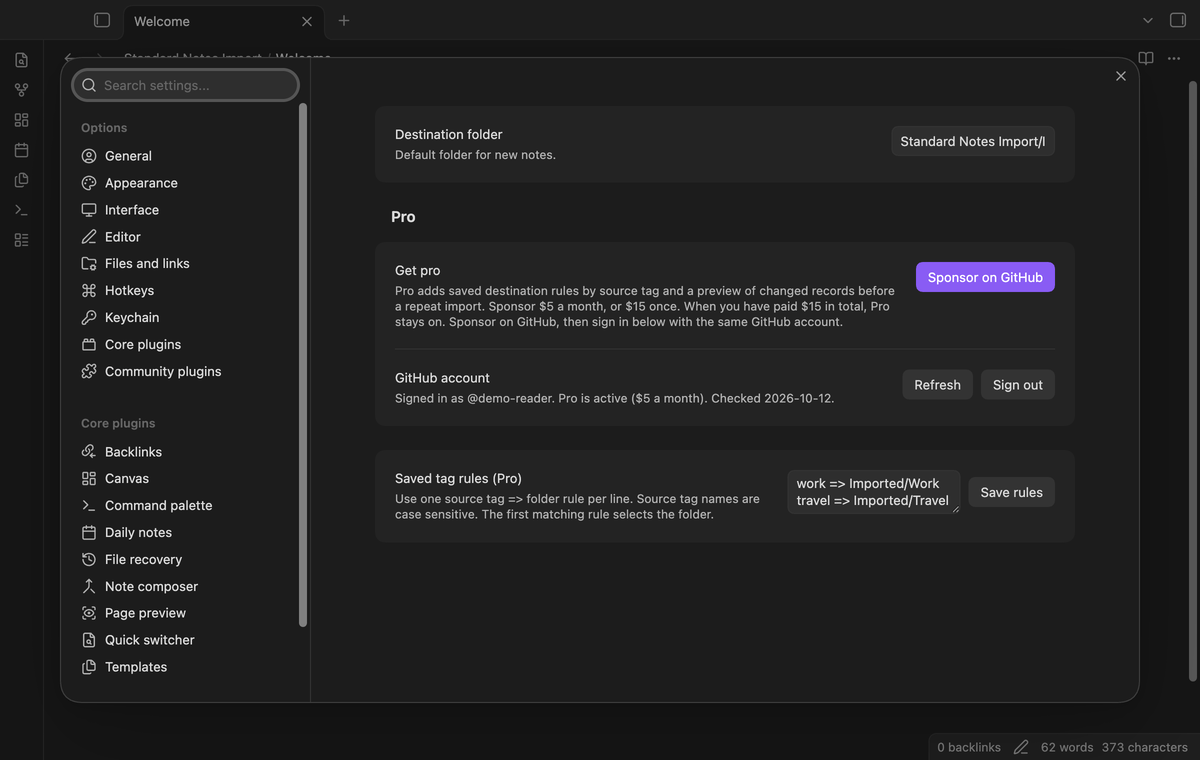
In the plugin settings, enter one rule per line, such as work => Imported/Work. Select "Save rules". Tag names are case sensitive. The first matching rule selects the folder; a note without a matching tag uses the default destination. Rules are saved in the plugin data in this vault. When Pro is off, they stay saved but the importer uses the default destination.
Preview changed records (Pro)
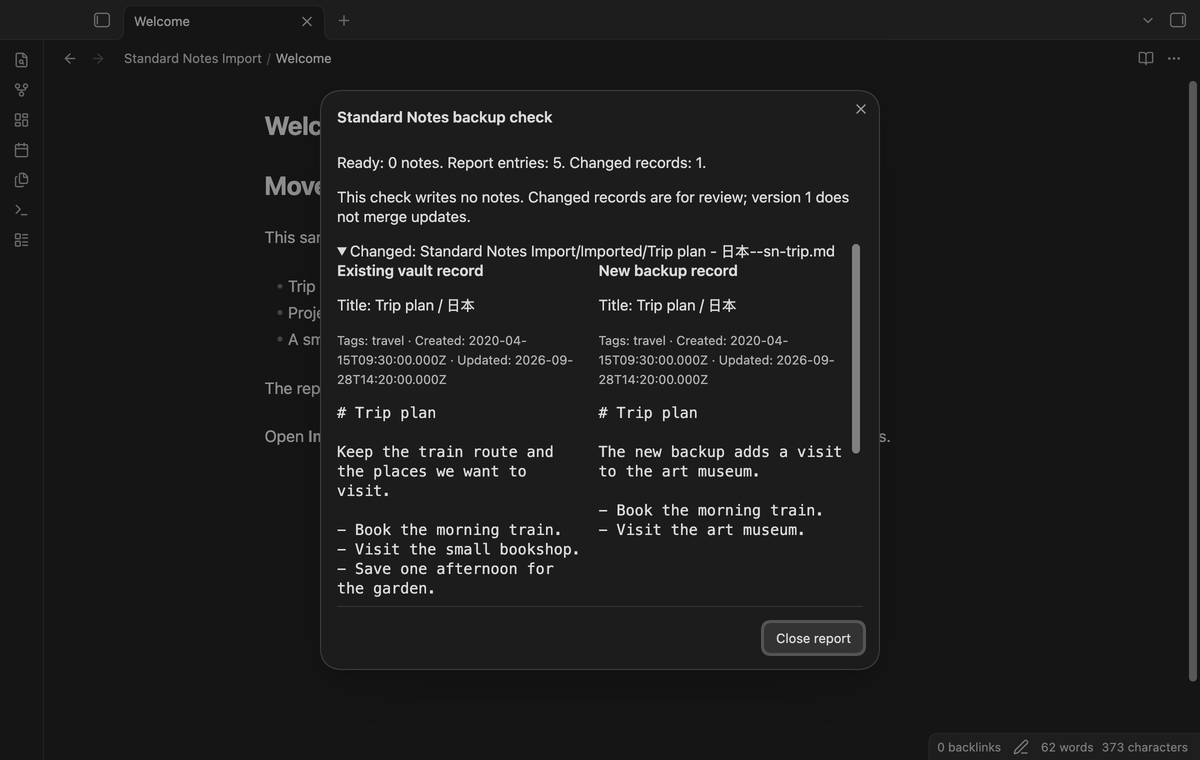
Select "Preview changes (pro)" in the import dialog to compare source records with notes that have matching UUIDs. Expand a changed record to read the existing vault record and the new backup record. The comparison includes text, original title, source tags and source date strings. A local body edit can therefore appear as a change too.
The preview writes no notes. Version 1 does not merge changed text, replace existing notes or move them to a new rule folder. A repeat import creates notes for new source UUIDs and skips existing ones. Use the preview to decide which records need a separate manual review.
Install
For a manual install, use the built main.js, manifest.json and styles.css in <vault>/.obsidian/plugins/standard-notes-import/. Enable it in Community plugins. The plugin needs Obsidian 1.13.4 or newer. The MIT license is in LICENSE.
Usage
- Export a decrypted JSON backup from Standard Notes. Keep a separate copy before you begin.
- Copy the backup into your vault and run "Standard Notes Import: Import a decrypted backup".
- Choose the file and destination, then select "Check backup".
- Read the planned paths and skipped records. Close the report to return to the dialog.
- Select "Import notes". Open the new Markdown files and check their text and properties.
An import adds files. To undo it, remove the files created for that import. Use the report paths to identify them. The plugin has no undo command.
Settings
"Destination folder" sets the default for the next import dialog. The dialog can use another folder for one import. Use a relative folder path inside the vault. Empty paths, parent traversal, hidden folder names and unsafe folder names are rejected.
The Pro section has the sponsorship controls, account state and saved tag rules. Sign out leaves the free importer available. A saved rule does not change the location of a note already imported.
FAQ
What did you not test?
No Linux app run, physical mobile device, live payment, live GitHub sign-in, encrypted backup decryption, rich editor conversion or attachment conversion was tested. Tests cover synthetic legacy and version 004 fixtures and the supported editor identifiers. Untested export versions are rejected. Large private backups and synchronization conflicts between devices were not tested.
Why does a repeat import skip my changed note?
The source UUID is its identity. Keeping existing files avoids overwriting edits in the vault. Pro provides a comparison for review, but version 1 has no update merge. Removing the UUID property can cause a record to be treated as new; an occupied path can still block it.
Payment, account and network
The core features are free. Pro features need a GitHub Sponsors sponsorship of theluckystrike: $5 a month or more, or $15 once. A total payment of $15 meets the payment requirement for Pro without further payment. Sign-in and the checks below still apply. Your notes stay readable and editable with or without Pro.
GitHub handles the payment. Sponsor at https://github.com/sponsors/theluckystrike. You need no account for the free features. Pro needs the GitHub account that sponsors.
Until you select "Sign in with GitHub" in the settings, Standard Notes Import makes no network requests. Sign in uses the GitHub device flow. Standard Notes Import sends its public client ID and the scope read:user to https://github.com/login/device/code and shows you a code. While you enter the code at https://github.com/login/device, it asks https://github.com/login/oauth/access_token every few seconds to check the sign-in status. The scope permits profile reads only. GitHub needs this access to show the sponsorship tier. It grants no repository scope and no write access.
After sign in, Standard Notes Import sends one query to https://api.github.com/graphql. It checks if the signed-in account sponsors theluckystrike. It asks for the tier and the total payment to theluckystrike. The plugin reuses a successful check for 7 days. Failed checks can retry after 6 hours. Select Refresh to request an earlier check. It sends no note content, file names or other vault data, and it has no telemetry.
After a successful check, Pro can work offline for up to 14 days. Sign out or a negative sponsorship answer turns Pro off. The plugin stores the GitHub token through the secret storage API of Obsidian. It does not put the token in its saved settings or its local sponsorship data. The local storage of this device keeps your GitHub login, the tier and the time of the last check. Sign out clears the token. You can also revoke the access in your GitHub settings, under Applications.
Support
Use the published repository's issue tracker for bug reports. Include the Obsidian version, backup version and report message. If you share a sample, remove private text and use invented UUIDs and titles. Do not include tokens, encryption keys or a complete private backup. The publisher is theluckystrike at notemods.com.
For plugin developers
Search results and similarity scores are powered by semantic analysis of your plugin's README. If your plugin isn't appearing for searches you'd expect, try updating your README to clearly describe your plugin's purpose, features, and use cases.