by Jie Tang
Resize and move PDF++ rectangular selections, updating Markdown links and Excalidraw crops.
PDF++ Region Editor
Resize and move PDF++ rectangular selections with the mouse, updating Markdown links and Excalidraw crops.
An independent companion plugin for PDF++, maintained by Tang-Jay. This is not an official PDF++ release.
Three steps to adjust an existing region
Adjust the region you already added to your note. No need to draw a new selection and insert it again. The original note reference is updated when you release the mouse.
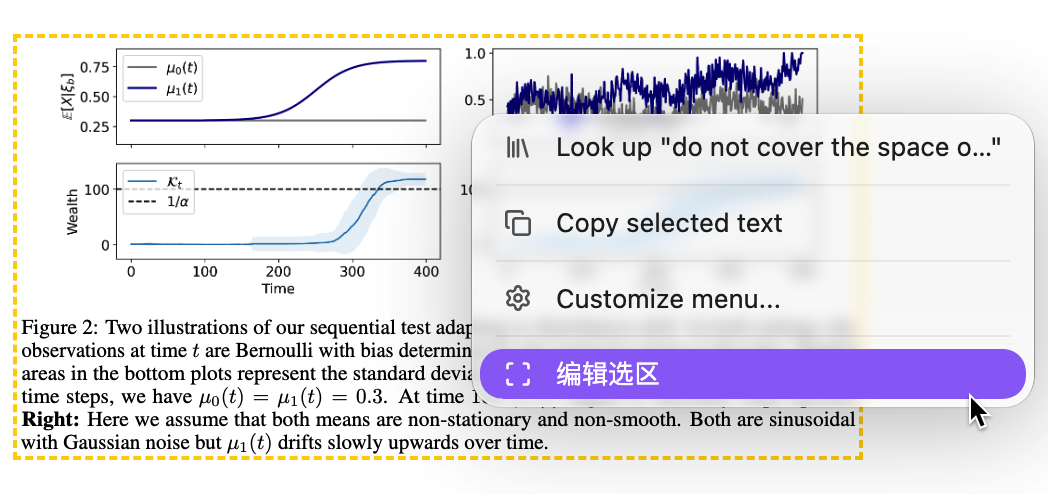
1. Right-click to edit
Right-click inside an existing region or near its border, then choose 编辑选区 (Edit region).
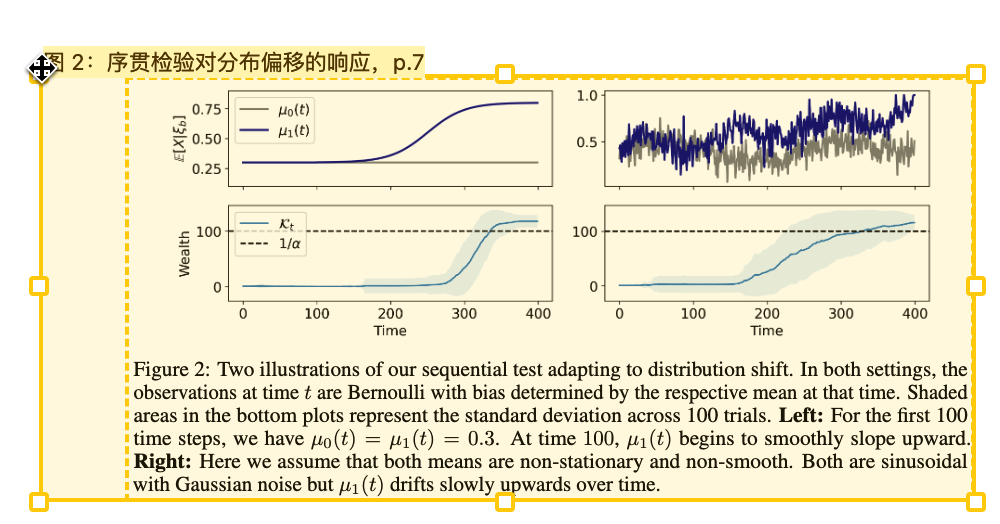
2. Drag to adjust the region
Drag a corner or edge handle to resize the region. Drag inside the box to move it.
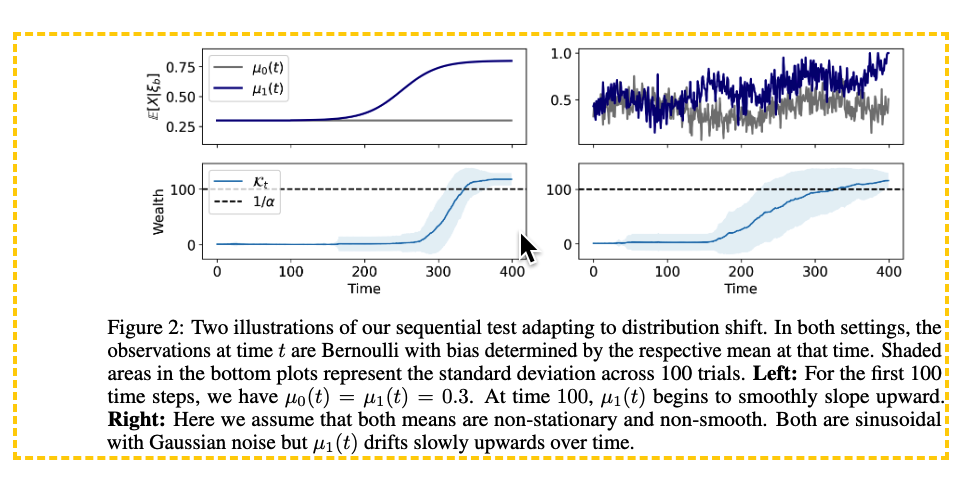
3. Release to save
Release the mouse to save the new region and return to viewing mode. The existing note reference is updated automatically, so you can keep reading without recreating the selection or adding it to your note again.
Features
- Move a region or resize it using eight handles.
- Edit a region in a dialog with a rotatable PDF preview.
- Right-click a region in the PDF viewer to edit it in place; releasing the mouse saves the change.
- Update the selected Markdown link while preserving its color, alias, embed marker and other parameters.
- Update an Excalidraw PDF image's crop, link, dimensions and independent frame together.
- Cancel an adjustment or undo the last supported edit.
- Refuse stale saves when the source note, image or frame has changed.
The plugin changes links and drawing data. It does not modify the original PDF file.
Requirements and compatibility
- Desktop Obsidian. Mobile support is not declared.
- Enable PDF++ for the PDF viewer context-menu workflow and PDF++ region rendering.
- Enable Excalidraw to use drawing integration.
- PDFs must resolve to actual PDF files inside the vault. Remote PDFs and PDF++ dummy PDFs are not supported by the dialog's binary-file loader.
- The current interface is in Chinese.
Version 0.4.3 was tested in macOS 15.7.9 with Obsidian 1.15.0, PDF++ 0.40.31 and Excalidraw 2.29.1. Its minimum Obsidian version is conservatively set to 1.15.0, the version actually tested. Windows, Linux, mobile and older Obsidian versions have not been tested. Excalidraw has its own Obsidian version requirements.
The PDF viewer integration uses internal Obsidian interfaces, PDF++ settings and a context-menu hook. The drawing integration uses Excalidraw interfaces. Changes in these applications may require a plugin update.
Installation
Install and enable PDF++ first. Enable Excalidraw if you need drawing support.
Community directory
Open the community listing and choose Add to Obsidian, or search for PDF++ Region Editor under Settings → Community plugins → Browse. If the entry is not yet available in your client, use manual installation below.
Manual installation
- Install and enable PDF++ in Obsidian. Enable Excalidraw if you need drawing support.
- Download
main.js,manifest.jsonandstyles.cssfrom a published GitHub release. - Create
<vault>/.obsidian/plugins/pdf-rect-editor/and place the three files directly inside it. - Restart Obsidian, then enable PDF++ Region Editor under Settings → Community plugins.
You can also build from source using the instructions below and copy the same three files.
Usage
Edit a Markdown region link
-
In a Markdown note's source or live-preview editor, place the cursor inside an existing region link, for example:
![[paper.pdf#page=1&rect=100,200,300,400&color=yellow|Figure 1]] -
Run PDF++ Region Editor: 编辑光标所在的 PDF 选区, click the ribbon's 调整 PDF 选区 icon, or use the editor context-menu action.
-
Drag inside the region to move it, or drag a handle to resize it. 旋转 90° rotates the preview.
-
Select 保存选区 to update that link. Press Esc or 取消 to cancel. Use the note editor's normal undo action to undo a saved edit.
Edit inside the PDF viewer
- Open a PDF with existing
rectlinks in a note or supported drawing. - Right-click a linked region and select 编辑选区.
- Drag the region or one of its handles. Releasing the mouse saves the change and exits editing. Press Esc during the drag to cancel.
- When several sources exist, select the intended note or drawing through 选区来源笔记 in the context menu.
- Use 撤销上次选区调整 to undo the controller's last saved edit. This undo is available only during the current viewer session and is rejected if the source has changed.
In-place editing is enabled by default and can be disabled through PDF 页面内直接编辑 in plugin settings.
Edit an Excalidraw PDF crop
- Select one PDF crop image, or its frame containing only that image.
- Run PDF++ Region Editor: 编辑选中的 Excalidraw PDF 选区, or click the ribbon icon.
- Adjust the region and save. The image crop, PDF link, displayed size and frame size are updated together.
- To undo a dialog edit, run PDF++ Region Editor: 撤销上次画布选区调整. The undo record is kept in memory and is not retained across plugin reloads.
The image must have native PDF crop metadata and a valid PDF rect link. Rotated drawing elements and frames shared with other elements are rejected. If multiple images use the same region, select the intended image in its source drawing before editing from the PDF viewer.
Supported links and limitations
- Supports wikilinks and embeds with a positive
pageand exactly one validrect=x1,y1,x2,y2parameter. - Rejects links containing
annotation, because changing only their rectangle would leave the annotation inconsistent. - Edits existing regions; it does not create the initial region link.
- Updates a particular selected link or image, rather than replacing every matching link in the vault.
- Saved coordinates are rounded to two decimal places. Existing color parameters are preserved verbatim.
- Validation includes 18 unit tests and 28 checks driven through Obsidian CLI in the running application. See Compatibility test record for coverage and limits.
Privacy and file access
This plugin's own code makes no network requests, collects no telemetry and accesses no files outside the vault. It reads vault PDFs and notes, updates selected note links or drawing data, and stores its in-place-editing preference in the plugin's data.json. PDF++, Excalidraw and Obsidian have their own behavior and settings.
Development
Use a recent Node.js version with the built-in test runner, such as Node.js 22 or newer. No npm packages need to be installed for the current build or tests; obsidian is provided by the host application at runtime.
npm test
npm run build
node --check main.js
Edit files in src/; main.js is generated by build.cjs. The release assets are main.js, manifest.json and styles.css.
For a release, keep manifest.json and package.json versions aligned, update versions.json when the minimum Obsidian version changes, and use a GitHub release tag exactly matching the manifest version (for example 0.4.3, without a v prefix). Attach the three release assets individually.
License
MIT. Copyright (c) 2026 Tang-Jay. See LICENSE.
PDF++ and Excalidraw are separate installed plugins; their source and binaries are not included in this repository. Their respective licenses continue to apply to those projects.
Credits
- PDF++ by Ryota Ushio provides the region-link workflow this companion extends.
- Excalidraw for Obsidian provides drawing and PDF-crop integration.
- Obsidian provides the plugin host and PDF viewer.
For plugin developers
Search results and similarity scores are powered by semantic analysis of your plugin's README. If your plugin isn't appearing for searches you'd expect, try updating your README to clearly describe your plugin's purpose, features, and use cases.