Advanced Audio Recorder
pendingby Anatol Khmialeuski
Forked from Super Duper Audio Recorder
Advanced audio recording with input device and folder configuration.
Obsidian Advanced Audio Recorder
An advanced audio recording plugin for Obsidian with configurable save location, input device selection, pause/resume control, multi-track capture, format conversion, and built-in diagnostics.
Desktop only | Requires Obsidian 0.15.0+
Features
- Audio recording with real-time status bar and ribbon icon feedback.
- Pause and resume mid-recording without losing progress.
- Multi-track recording from up to 8 input devices simultaneously.
- 8 output formats: WAV, WebM, OGG, MP3, MP4, M4A, AAC, FLAC.
- Audio format conversion between supported formats via context menu.
- Audio file info viewer showing duration, bitrate, sample rate, codec, and more.
- Configurable save location with vault folder or near-active-file mode.
- Insert at original position to place the audio link where recording started.
- System diagnostics for troubleshooting environment and codec issues.
- Test recording to verify device and format settings before real use.
Installation
- Open Settings in Obsidian.
- Navigate to Community plugins and disable Safe mode.
- Click Browse and search for "Advanced Audio Recorder".
- Click Install, then Enable the plugin.
Quick start
- Click the microphone icon in the left ribbon (or run
Start/stop recordingfrom the command palette). - Speak or play audio into your microphone.
- Click the ribbon icon again (or run the command) to stop and save.
- An audio embed link is automatically inserted into the active note.
Commands
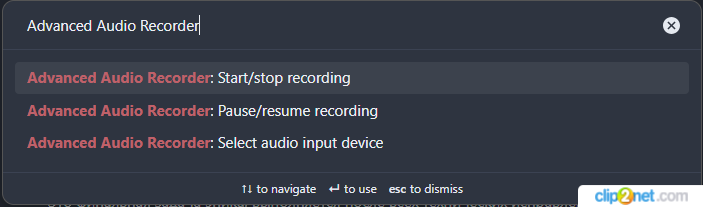
All commands are available via the command palette (Ctrl/Cmd + P) and can be assigned custom hotkeys in Settings > Hotkeys.
| Command | Description |
|---|---|
| Start/stop recording | Starts a new recording session or stops the current one. The recorded file is saved and a link is inserted into the active note. |
| Pause/resume recording | Pauses an active recording and resumes it. Available only while recording is active. |
| Select audio input device | Opens a quick device picker modal. The selected device is saved to settings immediately. |
Tip: The plugin does not assign default hotkeys to avoid conflicts. Assign your own hotkeys in Settings > Hotkeys for the best experience.
Recording workflow
Starting a recording
Click the microphone icon in the ribbon or run Start/stop recording from the command palette. The plugin captures the current note and cursor position so the audio link can be inserted there when recording finishes.
During recording:
- The ribbon icon changes from a microphone to an active recording indicator.
- The status bar displays
Recording...with Pause and Stop buttons.
Pausing and resuming
While recording is active, run Pause/resume recording from the command palette or click the Pause button in the status bar.
- The status bar shows
Recording pausedwith Resume and Stop buttons. - Run the same command again or click Resume to continue recording.
Stopping and saving
Click the ribbon icon or run Start/stop recording again. The plugin:
- Stops the MediaRecorder.
- Flushes audio buffers and assembles the final file.
- Writes the file to the configured save location.
- Inserts an embed link (
![[filename.ext]]) into the active note. - Cleans up temporary data.
Save progress indicator
For longer recordings, saving may take noticeable time. The status bar shows a progress bar during this phase:
| Progress | Stage |
|---|---|
| 0% | Saving... |
| 20% | Flushing buffers... |
| 40% | Assembling audio... |
| 60% | Writing file... |
| 80% | Cleaning up... |
| 100% | Saved |
The ribbon icon switches to a save icon while saving is in progress.
Context menu actions
Right-click on an audio file in the File Explorer, on an audio embed link in the editor, or on an embedded audio player to access these actions:
Audio file info
Displays detailed metadata about the audio file in a modal dialog:
- File name and file size
- Duration (HH:MM:SS)
- Container format (MIME type)
- Audio codec (opus, aac, mp3, pcm, flac, etc.)
- Bitrate (calculated kbps)
- Sample rate (Hz)
- Channels (Mono/Stereo)
The modal includes a Copy as Markdown button that copies all metadata as a formatted Markdown list to the clipboard. This is useful when filing bug reports.
Convert audio format
Opens a conversion dialog to transcode the audio file to a different format. Options:
- Target format with encoder description (e.g.,
FLAC (flac-encoder),MP3 (lamejs)). - Bitrate selection (64-320 kbps).
- Delete source file toggle to remove the original after successful conversion.
- Update links in notes:
Do nothing,Replace source link, orInsert after source link.
The conversion reads the source file, decodes it at its native sample rate (to avoid resampling artifacts), re-encodes it in the target format, and saves the new file alongside the original.
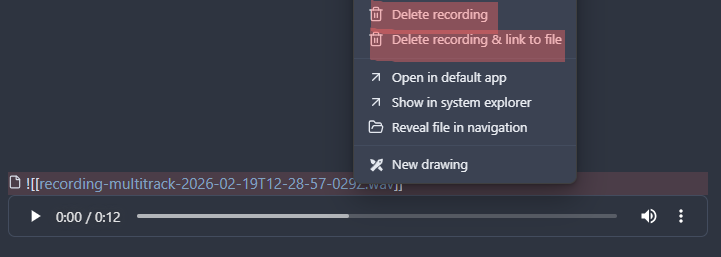
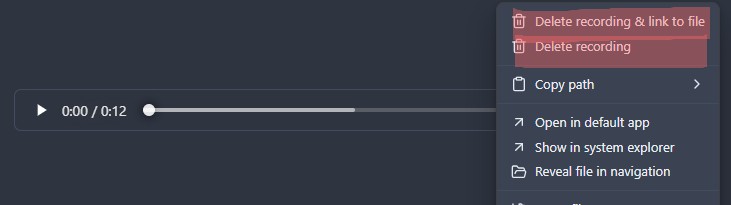
Delete recording
Moves the audio file to the system trash.
Delete recording & link to file
Moves the audio file to the system trash and removes the corresponding embed link from the editor. Available when right-clicking on a link in the editor or on an embedded player.
Formats and containers
Available recording formats depend on your platform's MediaRecorder support. The plugin detects supported formats at runtime.
| Format | Codec | Encoding | Notes |
|---|---|---|---|
| WebM | Opus | Online | Default format. Widely supported on desktop. |
| OGG | Opus/Vorbis | Online | Good compatibility on most systems. |
| WAV | PCM | Online (streaming) | Uncompressed. Captured as raw PCM in real time and assembled into a WAV file on save. Supports long recordings reliably without memory issues. |
| MP3 | MP3 | Offline (lamejs) | Encoded after recording stops using the lamejs library. |
| FLAC | FLAC | Offline (flac-encoder) | Lossless compression. Encoded after recording using flac-encoder. |
| MP4 | AAC | Online/Offline | Browser-dependent. May use offline encoding via mediabunny. |
| M4A | AAC | Online/Offline | Same as MP4, different container extension. |
| AAC | AAC | Online/Offline | Raw AAC stream. Browser-dependent support. |
Online encoding means the browser's MediaRecorder writes data in real time during recording.
Offline encoding means the audio is captured in a supported intermediate format (e.g., WebM) and then re-encoded after recording stops. The settings tab marks offline formats with an (offline) label.
Multi-track recording
Record from multiple input devices simultaneously (up to 8 tracks).
Setup
- Enable Multi-track recording in settings.
- Set the Maximum tracks count (1-8).
- Assign an Audio source (input device) to each track.
- Choose the Output mode:
- Single file: all tracks are mixed into one file.
- Multiple files: each track is saved as a separate file.
Behavior
- Each track uses its own MediaRecorder instance with the configured format and bitrate.
- All tracks start and stop together.
- In Multiple files mode, file names include the track number or device name (when Use source names for tracks is enabled).
Settings reference
Open Settings > Advanced Audio Recorder to configure the plugin.
Audio input
| Setting | Description | Default |
|---|---|---|
| Input device | Select the default microphone/input device. The dropdown dynamically lists all available devices and auto-refreshes when devices are connected or disconnected. | Auto-detected |
| Sample rate | Audio sample rate in Hz. Options: 8000, 16000, 22050, 44100, 48000. | 44100 |
Output format
| Setting | Description | Default |
|---|---|---|
| Recording format | Final file format. Offline formats are labeled with (offline). | WebM |
| Audio bitrate | Compression quality. Options: 64, 96, 128, 160, 192, 256, 320 kbps. Higher values produce better quality and larger files. | 128 kbps |
| Output summary | Read-only display showing the current format, bitrate, compression type, and encoder. | — |
| Delete source after conversion | When converting audio via context menu, automatically delete the original file after successful conversion. | Off |
| Update links after conversion | How to handle links to the source file in notes after conversion. Options: Do nothing, Replace source link, Insert after source link. | Replace source link |
File storage
| Setting | Description | Default |
|---|---|---|
| Save folder | Vault folder where recordings are stored. Offers autocomplete suggestions from existing folders. | Vault root |
| Save recordings near active file | Save recordings in the same directory as the currently active note. Takes priority over Save folder. | Off |
| Active file subfolder | Optional subfolder relative to the active file directory (e.g., audio). Created automatically if it does not exist. Only visible when "Save near active file" is enabled. | — |
| File prefix | Filename prefix for recordings (e.g., recording produces recording-1710000000000.webm). | recording |
| Insert at original position | Remember the note and cursor position when recording starts. The audio link is inserted at that location, even if you navigate away during recording. | Off |
Multi-track recording
| Setting | Description | Default |
|---|---|---|
| Enable multi-track recording | Record from multiple input devices at the same time. | Off |
| Maximum tracks | Number of simultaneous tracks (1-8). | 2 |
| Output mode | Single file combines all tracks into one file. Multiple files saves one file per track. | Single file |
| Audio source for track N | Select the input device for each track. One dropdown per track. | — |
Diagnostics
| Setting | Description |
|---|---|
| Test recording | Records a 5-second test clip using current settings and plays it back. The test file is automatically deleted when you leave settings. Useful for verifying device and format compatibility. |
| System info | Opens a modal with full system diagnostics: Obsidian version, Electron version, platform, audio devices, supported formats, codec support, active recording configuration, and all plugin settings. Includes a Copy to clipboard button for sharing in bug reports. |
| Debug mode | Enables verbose console logs prefixed with [AudioRecorder] for troubleshooting recording issues. |
Troubleshooting
No sound is recorded
- Check that the correct Input device is selected in settings.
- Run the Test recording from settings to verify device access.
- Ensure your OS/browser has granted microphone permissions to Obsidian.
Recording format is not available
Some formats require browser-level MediaRecorder support. If a format is not listed:
- Try WebM or WAV which have the broadest support.
- Check System info in settings to see which formats and codecs your environment supports.
Conversion fails
- Ensure the source file is a valid audio file (not corrupted).
- Check that the target format is supported for offline encoding (see the Formats and containers table).
- Use Audio file info from the context menu to inspect the source file properties.
Recording is slow to save
Long recordings may take time during the save phase (buffer flushing, audio assembly). The progress bar in the status bar shows the current stage. This is expected behavior.
Collecting diagnostics for bug reports
When reporting issues:
- Open Settings > Advanced Audio Recorder > System info and click Copy to clipboard.
- Right-click the problematic audio file and select Audio file info, then click Copy as Markdown.
- Include both outputs in your bug report along with steps to reproduce.
See Bug reporting guide for detailed instructions.
License
This project is licensed under the MIT License. See the LICENSE file for details.
Support
If you find this plugin useful, consider supporting its development!
For plugin developers
Search results and similarity scores are powered by semantic analysis of your plugin's README. If your plugin isn't appearing for searches you'd expect, try updating your README to clearly describe your plugin's purpose, features, and use cases.