Audio Recording Timer
pendingby Musashino Software
Start audio recording with a countdown or end time.
Audio Recording Timer
Start Obsidian’s core audio recording with a countdown duration or an end time, and stop it automatically when time is up.
Usage
- Click the plugin’s timer icon in the left ribbon.
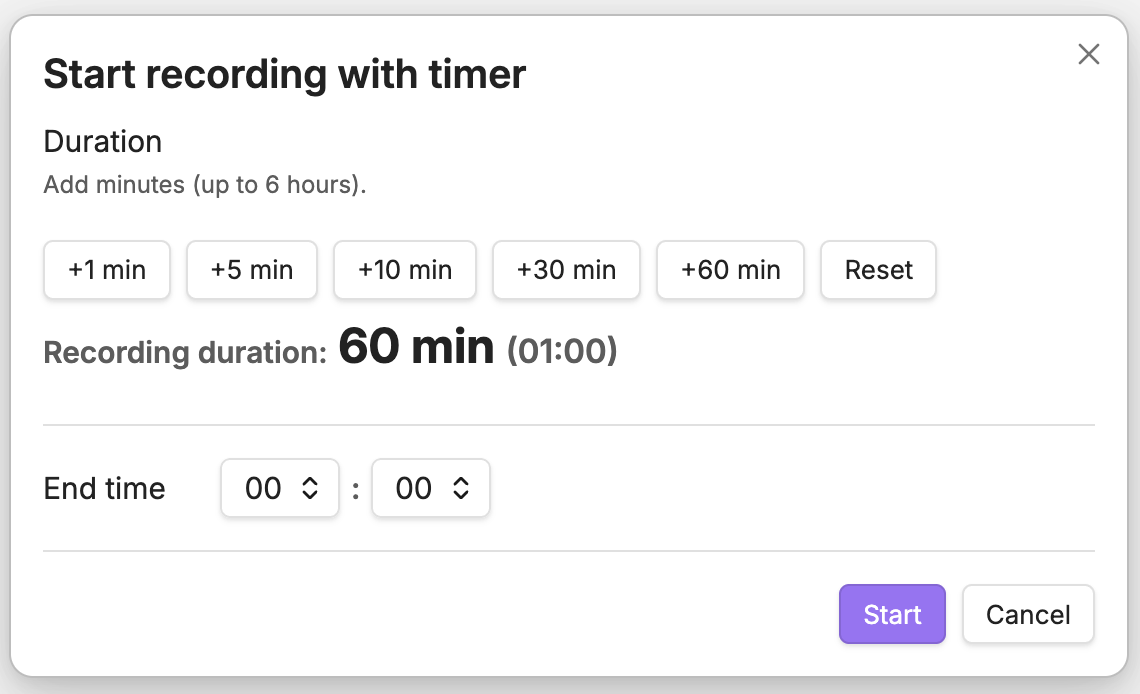
- Choose a duration (quick add buttons) or an end time (dropdowns).
- Click Start.
While recording:
- Click the plugin’s timer icon again to stop now or extend.
- Remaining time is shown in the status bar (desktop).
Requirements
- Obsidian core plugin Audio recorder must be enabled.
By default, this plugin uses:
- Start:
audio-recorder:start - Stop:
audio-recorder:stop
You can change them in Settings → Audio Recording Timer if needed.
Notes
- To “unify” the UI, you can hide the core recorder’s ribbon icon from Obsidian (right-click the ribbon icon and hide it).
- Auto-stop uses best-effort timing. If the OS suspends Obsidian (e.g., sleep), the stop is executed immediately after the app resumes.
Disclosures
- No payment or account required.
- No network use.
- No ads or telemetry.
- Uses your device microphone via Obsidian’s core Audio recorder plugin. Recorded files are created by Obsidian inside your vault according to your attachment settings.
Development
This repo can auto-deploy the built files into your vault’s plugins folder after each successful build.
- Copy
.env.exampleto.envand setOBSIDIAN_PLUGINS_DIR. - Run
npm run dev(watch) ornpm run build(production).
License
- Source code: MIT (see
LICENSE). - Third-party assets: see
THIRD_PARTY_LICENSES.md.
For plugin developers
Search results and similarity scores are powered by semantic analysis of your plugin's README. If your plugin isn't appearing for searches you'd expect, try updating your README to clearly describe your plugin's purpose, features, and use cases.