Mi18n
pendingby J.K.
Internationalization for Markdown. Write multiple languages in a single note, then switch the visible language globally.
Internationalization for Markdown
Write multiple languages in a single note, then switch the visible language globally.
What it does
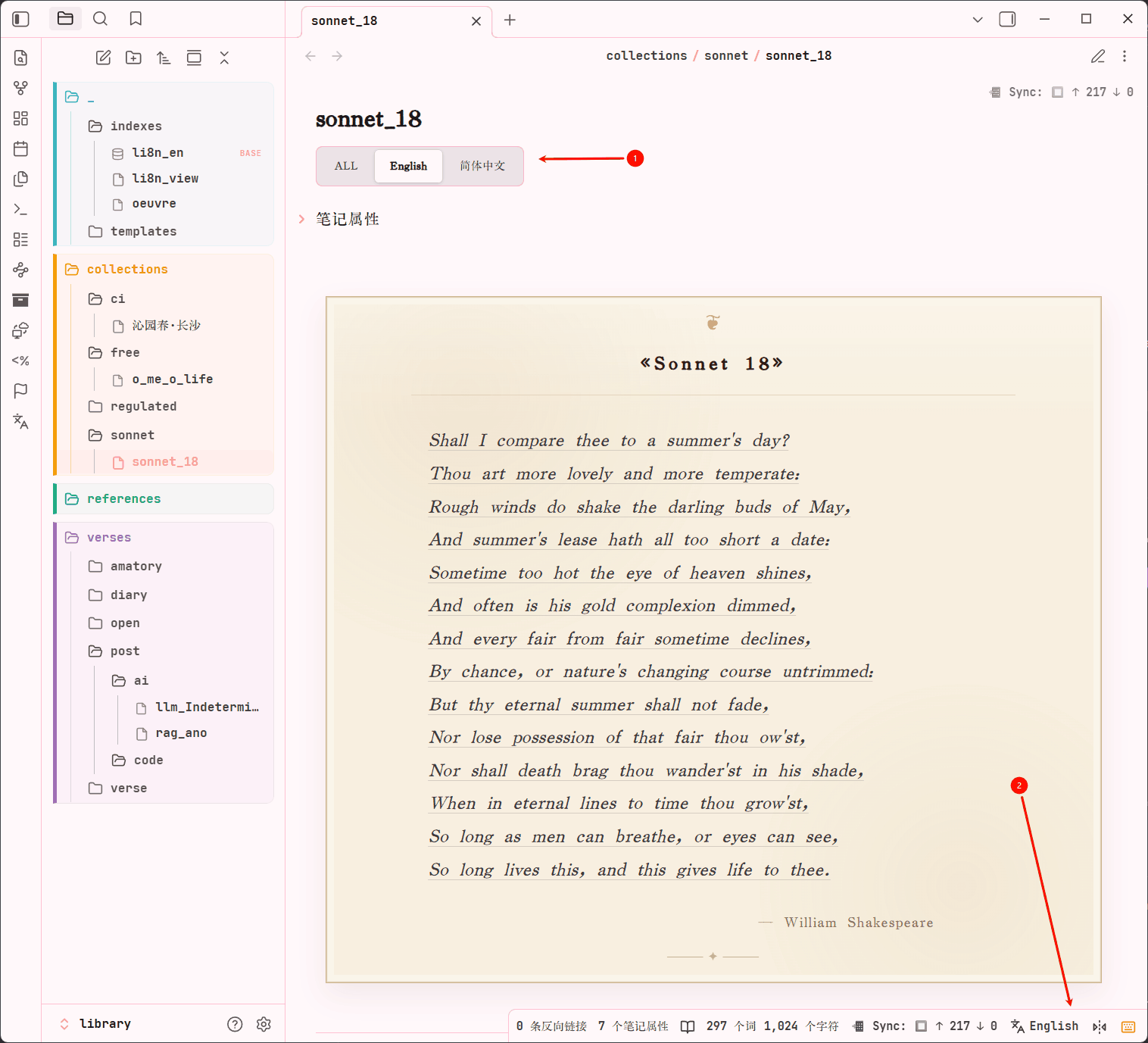
mi18n lets you keep every translation of a note in one file, then show only the language you need. Switch languages globally from the ribbon, status bar, or command palette — all open notes update instantly in reading mode, Live Preview, and source mode.
Quick start
Wrap each language's content in a lang block:
:::lang en
Hello, world!
:::

:::lang zh-CN
你好,世界!
:::
Click the ribbon icon or the status bar badge to pick a language. Only that language's blocks are visible — everything else is hidden in both reading mode and the editor.
Syntax styles
All four styles are interchangeable — use whichever fits your workflow:
| Style | Open marker | Close marker | Visible in reading mode |
|---|---|---|---|
| Fenced div (default) | :::lang zh-CN | ::: | Yes |
| Hexo tag | {% lang zh-CN %} | {% endlang %} | Yes |
| Markdown comment | [//]: # (lang zh-CN) | [//]: # (endlang) | No |
| Obsidian comment | %% lang zh-CN %% | %% endlang %% | No (hidden in Live Preview too) |
Multi-language blocks — :::lang en zh-CN shows the block when either language is active.
Rules:
- Open and close markers must be on their own line with no leading spaces.
- Language code matching is case-insensitive (
zh-CNandzh-cnare treated identically). - Content outside any block is always visible regardless of the active language.
- Unclosed blocks extend to the end of the file.
Frontmatter
mi18n automatically keeps these keys in sync — you rarely need to write them manually:
---
lang: [en, zh-CN, ja]   # languages present in this note (auto-synced on save)
lang_view: zh-CN         # lock this note to a specific language on every open
lang_ignore: true        # disable mi18n entirely for this note
title: "My Article"      # shown as the inline title for the default language
title_zh-CN: "我的文章"  # per-language title variant (title_<lang>)
---
When Override note title from frontmatter is enabled (Settings → Interface), mi18n replaces the inline title shown at the top of the note with the value from title (or the matching title_<lang> variant) instead of the filename. The base title is used for the default language and as a fallback for any language that has no dedicated variant.
Clicking the inline title temporarily reveals the real filename so you can rename the file normally — mi18n re-applies the translated title as soon as you finish.
UI controls
Ribbon button
Left-sidebar icon. Opens a language picker menu showing all configured languages plus Show all languages. Can be hidden in settings.
Status bar badge
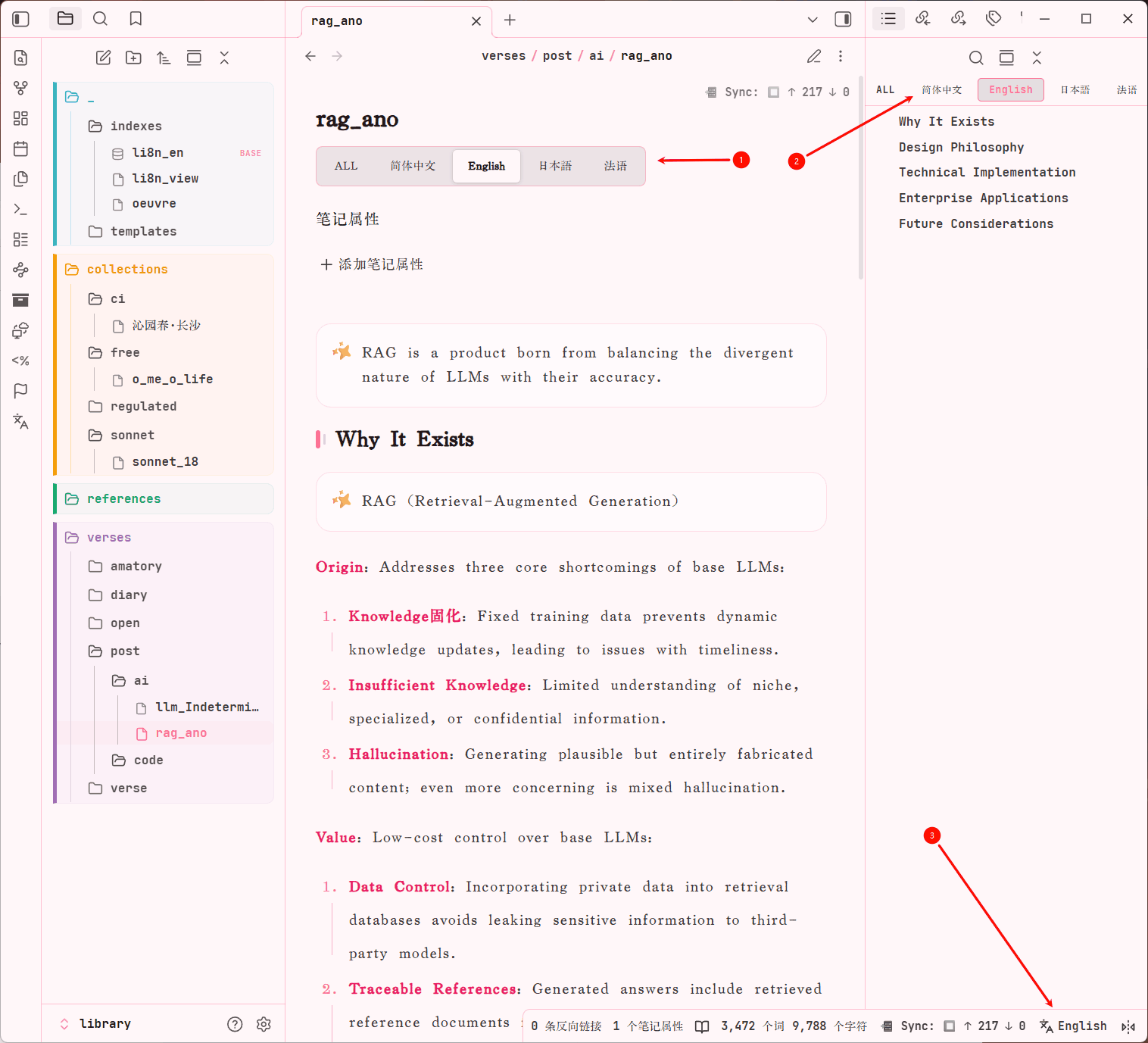
Bottom-right indicator shows the active language code. A warning dot appears when the current note is missing translations for some configured languages. Click for the full language menu.
Two icon buttons sit beside the badge:
- Compare — opens the language comparison dialog
- Language — same as clicking the badge
Reading-mode pill bar
A floating language switcher appears at the top of every multilingual note in reading mode. Click any pill to switch. Includes ALL to show every block simultaneously.
Outline panel integration
When the Outline panel is open, a language switcher is injected at its top. Headings from inactive language blocks are hidden automatically so the outline stays clean.
Editor context menu
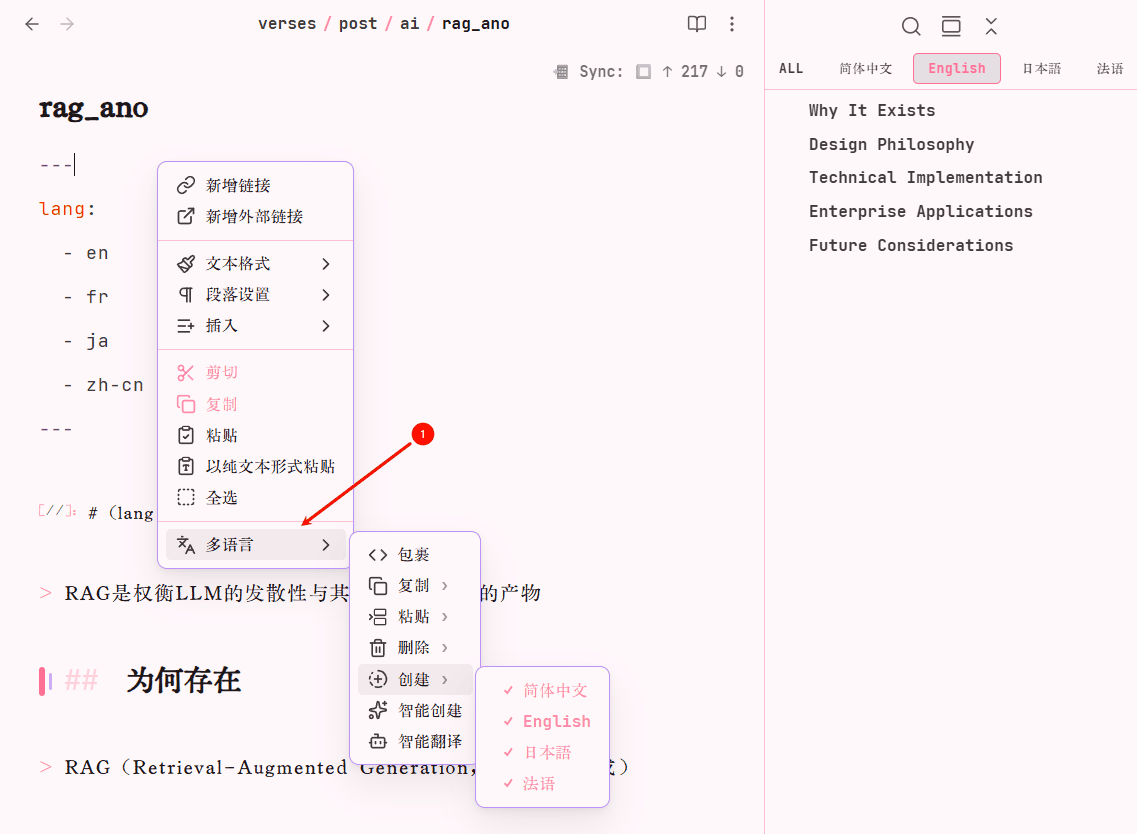
Right-click anywhere in the editor → Multilingual submenu:
| Action | Description |
|---|---|
| Wrap | Wrap the current selection in a lang block for the active language |
| Copy → | Copy a language's full content to the clipboard |
| Paste as… → | Paste clipboard content as a new lang block for a chosen language |
| Delete → | Remove all blocks for a chosen language from the note |
| Manual insert → | Insert an empty lang block for a chosen language at the cursor |
| Smart insert | Auto-detect which languages are missing and insert the next needed block |
| Smart AI translate | Open the AI translation modal |
Hover over Copy / Paste as / Delete / Manual insert to reveal a language picker flyout. Languages that already exist in the note are shown as disabled in Paste as and Manual insert.
File explorer context menu
Right-click any Markdown file in the file explorer → Multilingual → Export → <language>
Exports that language's content (lang markers stripped) as a standalone .md file. If the selected language block is not found, shared content outside any block is exported with a notice.
Commands (Command Palette)
| Command | Description |
|---|---|
Switch language: <name> | Switch to a specific language (one command per configured language) |
Switch language: Show all languages | Show all language blocks simultaneously |
Cycle to next language | Rotate through configured languages in order |
Insert language block | Insert an empty lang block at the cursor |
Smart insert language block | Insert the next missing language block intelligently |
Wrap selection in language block | Wrap selected text in a lang block |
Smart AI translate | Open the AI translation modal |
Insert multilingual block template (all languages) | Insert empty blocks for every configured language |
Language comparison
Opens side-by-side panes showing different languages of the same note with synchronized scrolling.
To open: click the compare icon in the status bar → select two or more languages → Apply split view. Each pane locks to its language independently. Click Return to normal mode to close the comparison session.
AI translation
The Smart AI translate modal provides:
| Element | Description |
|---|---|
| Source panel | Rendered Markdown preview of the selected source language |
| Translation panel | Real-time token-by-token streamed output |
| Edit toggle | Switch the translation panel between rendered preview and raw text editing |
| Regenerate | Re-run the translation with the same settings |
| Insert | Append the result as a new lang block in the note |
Closing the modal or clicking Cancel immediately aborts the API request — no tokens are wasted mid-generation.
Supports any OpenAI-compatible API: OpenAI, Ollama, OpenRouter, SiliconFlow, and others. Configure under Settings → AI translation.
Settings
Open Settings → mi18n:
Language library
- Active language — the language shown across all notes right now
- Default language — assumed language for notes that have no lang markers (switching away makes those notes invisible)
- Configured languages — add / rename / remove entries; codes must exactly match your markers
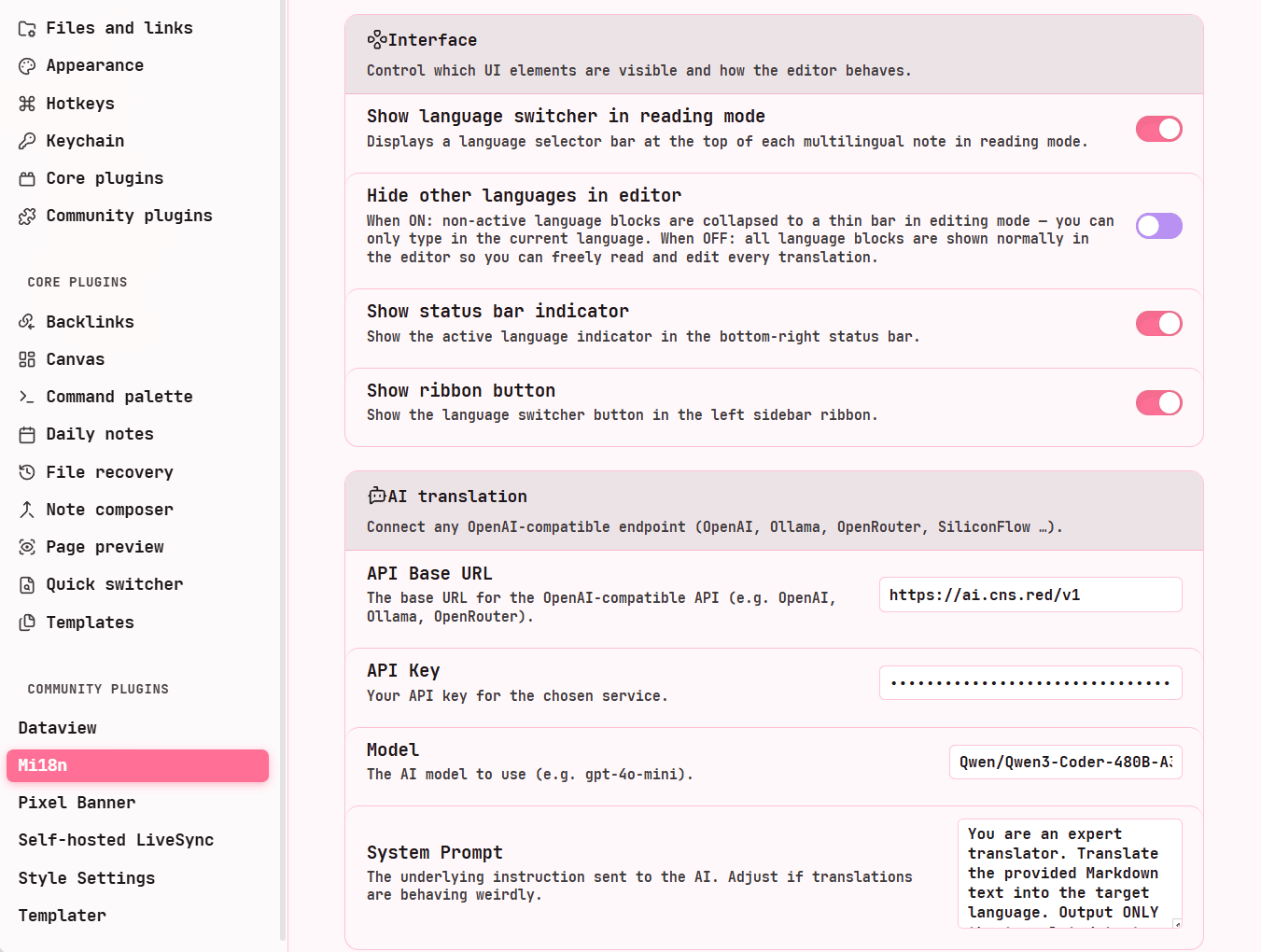
Interface
- Override note title from frontmatter — display the
title/title_<lang>frontmatter value as the inline title instead of the filename; clicking the title temporarily restores the filename for renaming - Hide other languages in editor — collapse inactive blocks to a thin bar in Live Preview / source mode
- Show language switcher in reading mode — toggle the reading-mode pill bar
- Show ribbon button — toggle the left-sidebar icon
- Show status bar indicator — toggle the status bar badge
AI translation
API Base URL · API Key · Model (e.g. gpt-4o-mini) · System prompt
Scope
Restrict mi18n to specific vault folders:
- Working directories — plugin only activates inside listed folders (empty = all files)
- Excluded directories — plugin is fully disabled inside these folders (takes priority over working directories)
Notes without lang markers
A note with no lang markers is treated as written entirely in the Default Language. If you switch to a different language, the whole note becomes invisible — intentionally, because there is no translation for that language.
License
MIT
For plugin developers
Search results and similarity scores are powered by semantic analysis of your plugin's README. If your plugin isn't appearing for searches you'd expect, try updating your README to clearly describe your plugin's purpose, features, and use cases.