Settings Sidebar Organizer
pendingby Golomp
Groups Community Plugins into folders, allows renaming, reordering, and compacting the sidebar.
🗂️ Obsidian Settings Sidebar Organizer
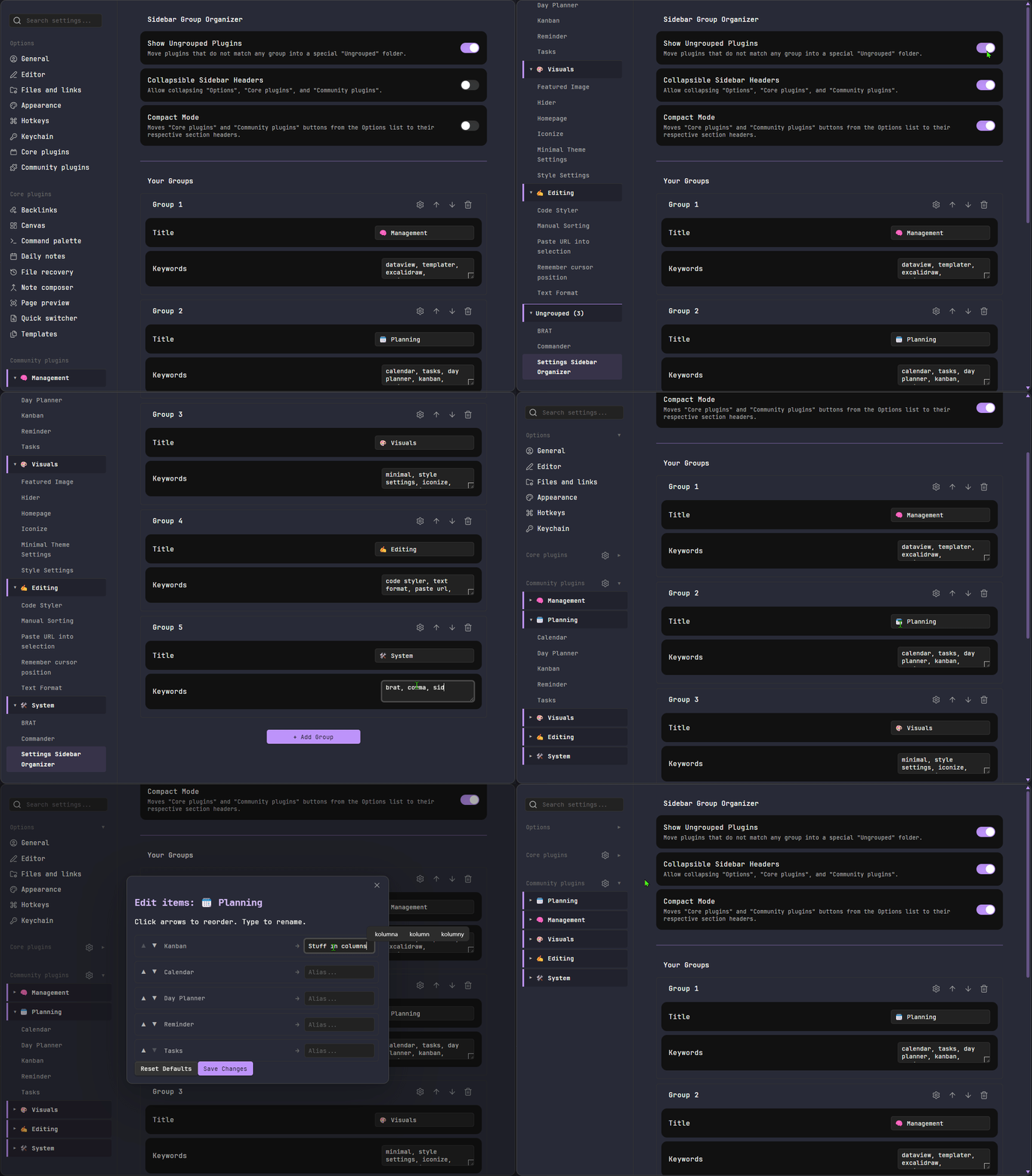
Tame your plugin list. Group Community Plugins into custom collapsible folders, rename them (alias), reorder them manually, compact the sidebar UI headers, and more...
🗿 Why?
Created because I had too many plugins and got lost in the sidebar; feedback welcome!

[!CAUTION] Experimental "DOM Hack" This plugin manipulates the Obsidian UI directly because there is no official API for the settings sidebar.
- Risk: If Obsidian updates their UI structure (CSS classes), this plugin might break or stop working until updated.
- Stability: It creates "proxy" buttons. When you click an item in a folder, it programmatically clicks the real, hidden button.
✨ Key Features
1. 📂 Grouping & Organization
- Custom Folders: Create your own categories (e.g., "Design", "Automation").
- Keyword Matching: Automatically sorts plugins into folders based on words in their names.
- "Ungrouped" Folder: Automatically catches any plugin that doesn't match your keywords so nothing gets lost (can be hidden).
2. ✏️ Aliases & Order
- Renaming (Aliasing): Rename plugins in the sidebar to save space or improve clarity.
- Manual Reordering: Use Up/Down arrows to sort plugins exactly how you want them.
3. 📉 Compact & Clean UI
- Compact Mode: Hides the large "Core plugins" and "Community plugins" tabs. It moves them to small ⚙️ icons in the section headers to improve clarity.
- Collapsible Headers: Allows you to fold the main "Options", "Core plugins", and "Community plugins" sections.
📦 Installation
Method 1: Manual (recommended)
- Download
main.js,styles.css, andmanifest.json. - Create folder
.obsidian/plugins/settings-sidebar-organizer/. - Paste files and reload Obsidian.
Method 2: BRAT
- Install BRAT from the Community Plugins store.
- Go to Settings > BRAT > Add Beta plugin.
- Paste this repo URL:
https://github.com/CyrylSz/obsidian-settings-sidebar-organizer - Click Add Plugin.
⚙️ How to use
Everything is configured via Settings > Settings Sidebar Organizer:
- Create Group: Click
+ Add Group. - Assign Plugins: Type keywords (comma-separated) in the "Keywords" box.
- Fine-tune: Click the Gear Icon (⚙️) next to a group to:
- Set an Alias (rename).
- Reorder items.
For plugin developers
Search results and similarity scores are powered by semantic analysis of your plugin's README. If your plugin isn't appearing for searches you'd expect, try updating your README to clearly describe your plugin's purpose, features, and use cases.