timeflow
pendingby gaut3
Track flexible work hours and time off with built-in timer, visualizations, and statistics.

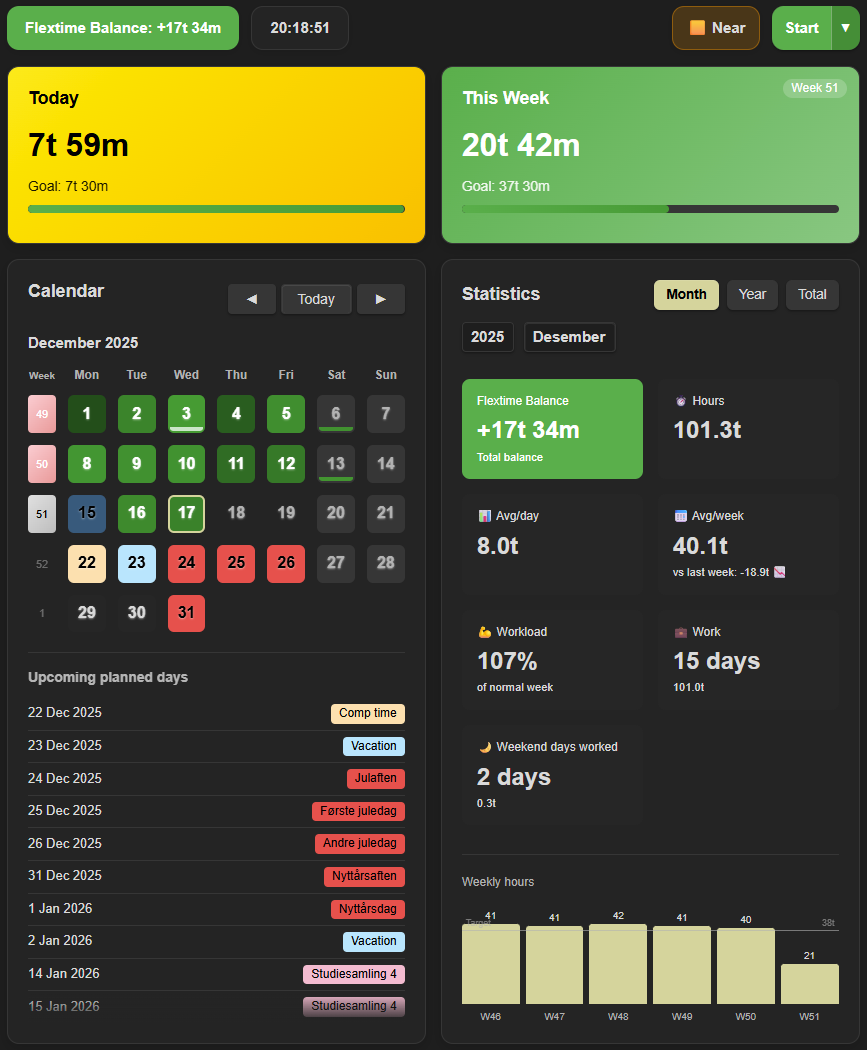
timeflow provides a comprehensive flextime tracking dashboard with built-in timer functionality, beautiful visualizations, and extensive customization options.
Note: timeflow was originally designed for Norwegian work culture (7.5h workdays, 37.5h weeks, specific leave types like "avspasering" and "egenmelding"). However, all settings are fully customizable - workday hours, work week structure, leave types, colors, and labels can all be adjusted to match your country's work culture and personal needs.
Features
🌐 Multi-Language Support
- Norwegian (Norsk) - Default language
- English - Full English translation
- Switch languages instantly in Settings
- Dates format automatically (DD.MM.YYYY for Norwegian, YYYY-MM-DD for English)
- Absence type names and note types translate automatically
⏱️ Built-in Timer System
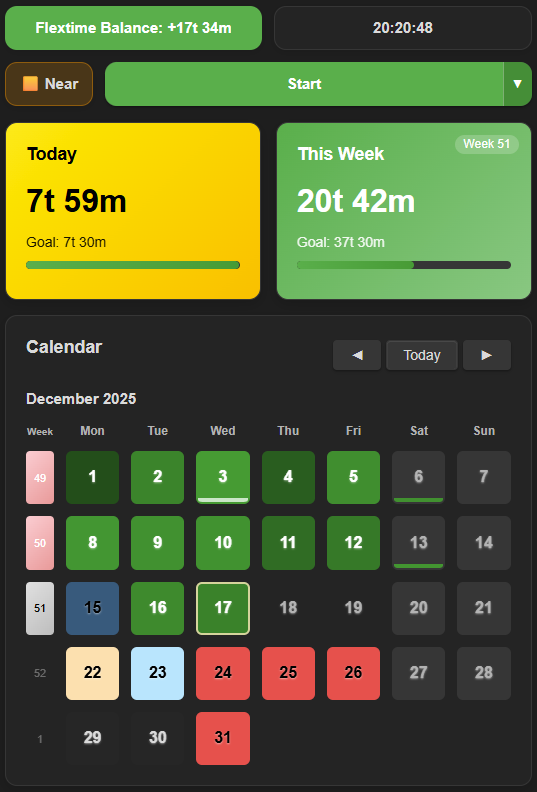
- Start/Stop Timers - Start and stop work timers directly from the dashboard
- Live Timer Display - See running timers with real-time duration updates in the day/week cards.
- Automatic Logging - Completed timers are automatically saved to your data file
- Quick Access - Start/stop timers via command palette or dashboard buttons
- Comment System (v1.3.6) - Add comments to timer entries when stopping
- Optional comment modal appears when stopping timers
- Overtime comment requirement when exceeding daily goal + threshold
- Comments displayed in history table and calendar context menu
- Comments included in CSV exports
📊 Tracking & Visualization
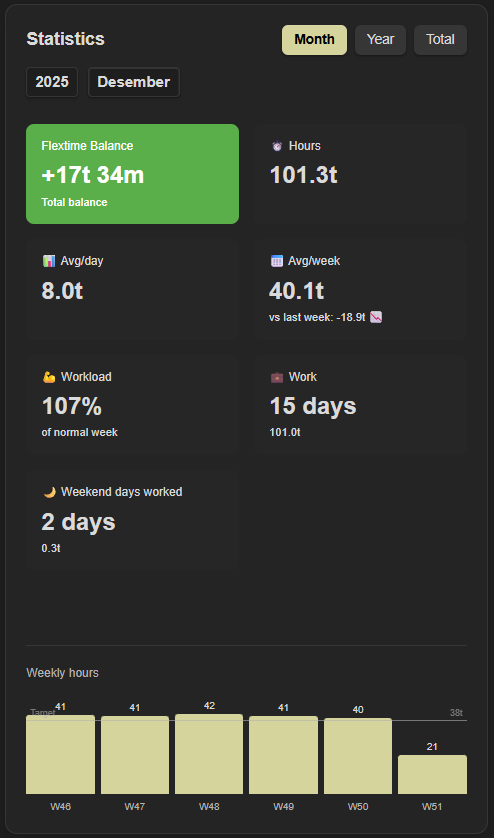
- Live Flextime Balance Tracking - See your flextime balance with automatic updates and color-coded indicators
- Daily, Weekly, Monthly and Yearly Views - Track your work hours with intuitive cards and responsive layout
- Week Numbers - ISO 8601 week numbers displayed in calendar and week card (toggle in settings)
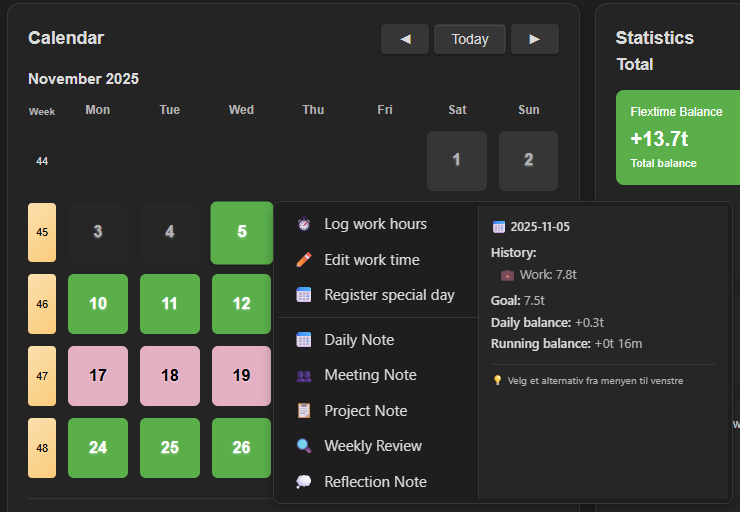
- Interactive Month Calendar - Visual calendar with color-coded days for planned holidays and flextime
- Click any date for quick actions
- Edit work time, register absences, create notes
- View running timers and day summaries in info panel
- Week number column for easy reference
- Comprehensive Statistics - View statistics for total, yearly, and monthly periods
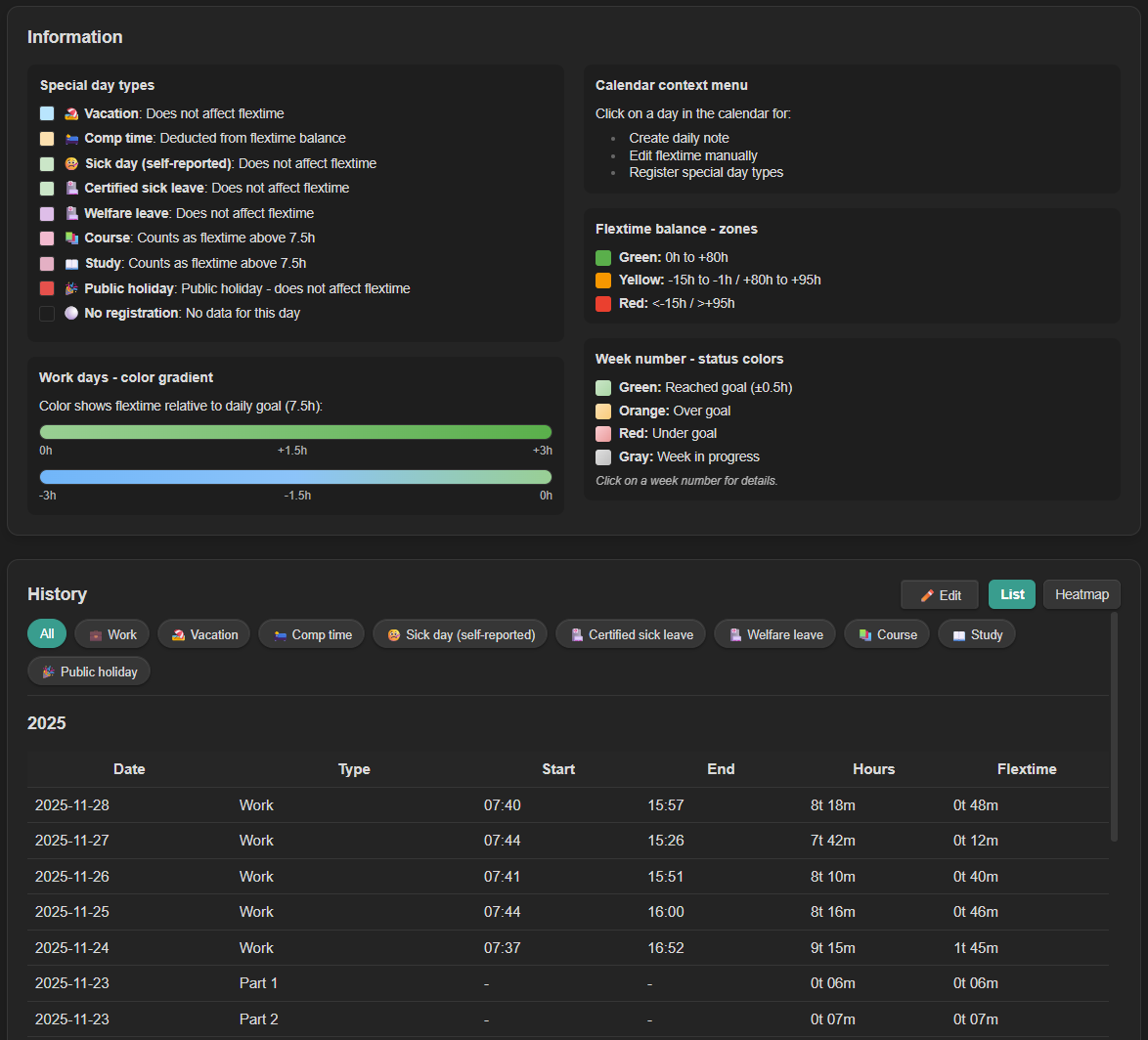
- Multiple History Views - List and heatmap visualizations of your work history
- Filtering by day type in list view
- Bulk editing in wide mode
🎯 Planning & Organization
- Holiday Planning - Integrate planned holidays and absences from a markdown file
- Customizable Note Types - Create and manage custom note templates with flexible configuration
- Daily notes, meeting notes, project notes, weekly reviews, reflections
- Custom folders, templates, tags, and filename patterns
- Add/edit/delete note types through settings
- Smart Sick Day Registration (v1.2.0)
- Clock-based time inputs (From/To) for precise sick time tracking
- Auto-fill calculates remaining time based on existing work entries and daily goal
- "Full day" checkbox for quick full-day sick leave registration
- Only full sick days count towards annual limits
- Calendar Context Menu - Click any date to:
- Add work time entries
- Edit existing entries (with running timer support)
- Register absences (vacation, sick leave, courses, etc.)
- Create custom note types
- View day summary with running timers
- Data Validation - Automatically detect issues like negative durations, long-running timers, and overlapping entries
- Delete Confirmation - Safety dialog before deleting entries to prevent accidental data loss
- CSV Export - Export your time data to CSV for further analysis
- Month selector modal for targeted exports
- "All months" option for complete data export
- Comments included in exports (v1.3.6)
- Multi-Format Import - Import time data from multiple formats:
- Timekeep JSON format
- CSV files (Norwegian DD.MM.YYYY or ISO YYYY-MM-DD dates)
- Generic JSON arrays
- Auto-detection of format and delimiter
- Preview before importing with validation feedback
⚙️ Advanced Customization
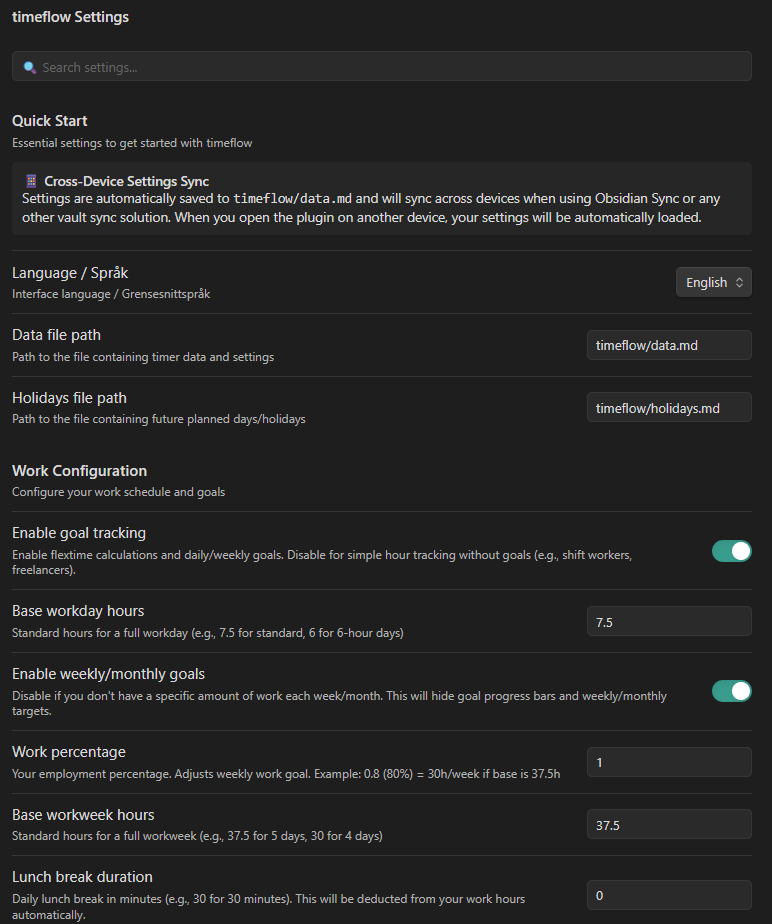
Work Configuration
- Flexible Work Schedules
- Configurable workday hours (e.g., 7.5, 8, 6-hour days)
- Configurable workweek hours (e.g., 37.5, 40, 30-hour weeks) - optional, can be hidden if weekly goals disabled
- Work percentage (full-time, part-time employment) - optional, can be hidden if weekly goals disabled
- Lunch break deduction - Automatically subtract lunch breaks from work hours
- Flexible work days - Select any combination of days as your work week (Mon-Sun)
- Alternating weeks support - Configure different work days for alternating weeks (e.g., every other weekend)
- Weekly/monthly goals toggle - Disable weekly goals for flexible schedules without fixed hours
Leave Management
- Configurable Leave Limits
- Maximum sick leave days (egenmelding) - default: 8 days
- Maximum vacation days (ferie) - default: 25 days
- Dashboard displays usage against configured limits
Absence Types
- Fully Customizable - Change names, colors, icons, and text colors for all day types:
- Jobb (Work) - configurable as a work type
- Avspasering (Comp time)
- Ferie (Vacation)
- Helligdag (Public holiday)
- Velferdspermisjon (Welfare leave)
- Egenmelding (Self-reported sick leave) - rolling 365-day limit tracking
- Sykemelding (Doctor's note sick leave)
- Kurs (Course/Training)
- Studie (Study leave)
- Automatic History Conversion - Planned absences are automatically converted to timer entries when they pass, ensuring they appear in Historikk and statistics
Advanced Configuration
- Balance Calculation Settings
- Configurable balance start date - Choose when to start counting flextime balance
- Starting flextime balance (v1.3.6) - Set an initial balance for users migrating from other time tracking systems
- Half-day hours - Fixed value or percentage-based (e.g., 50% of workday)
- Balance color thresholds - Customize when balance shows green/yellow/red
- Data validation thresholds - Adjust warning levels for long sessions, weekly totals, etc.
- Work Schedule History (v1.2.0)
- Track changes to your work schedule over time
- Historical flextime calculations use the correct schedule for each period
- Automatically created when you first change work settings
- Simple Tracking Mode - Disable goal tracking for flexible schedules without fixed targets
- Compliance Warnings - Optional warnings for Norwegian labor law compliance (daily/weekly hour limits, rest periods)
- Overtime Comment Requirement (v1.3.6) - Require comments when work exceeds daily goal + configurable threshold
- Custom Colors - Customize balance badge colors and progress bar colors
Theme & Layout
- System Theme - Automatically follows Obsidian's light/dark theme
- Hour Unit Preference - Display hours as "h" or "t" (timer)
- Flexible View Location - Open in sidebar or main window
- Default location configurable in settings
- Quick toggle button below System Status
- Responsive Design
- Scales smoothly with sidebar width
- Wide mode enables bulk editing in Historikk
- Two-column Informasjon layout in wide mode
- Optimized for mobile devices
- Collapsible sections prevent content cut-off
📱 Cross-Device Sync
- Automatic Settings Sync - Settings are saved in
timeflow/data.mdalongside your timer data, so if you have Obsidian set up with syncing, timeflow will automatically use the settings specified intimeflow/data.md - Zero Configuration - No manual setup required, just enable the plugin on another device
Requirements
- Obsidian v0.15.0 or higher
Installation
Manual Installation
- Download the latest release from the Releases page
- Extract
main.js,manifest.json, andstyles.cssto your vault's plugin folder:<your-vault>/.obsidian/plugins/timeflow/ - Reload Obsidian (Ctrl/Cmd + R)
- Go to Settings → Community plugins → Enable "timeflow"
Using BRAT (Beta Reviewers Auto-update Tester)
For automatic updates during beta testing:
- Install the BRAT plugin from Community plugins
- Open BRAT settings and click "Add Beta plugin"
- Enter:
https://github.com/gaut3/timeflow - BRAT will install and keep the plugin updated automatically
Timer Data Storage
- All timer data is stored in
timeflow/data.mdin your vault - Uses Timekeep-compatible format (backwards compatible!)
- Data is stored in a
timekeepcodeblock as JSON - Format:
{"entries":[...],"settings":{...}} - Settings are automatically synced for cross-device use
- You can import existing Timekeep data with duplicate detection
# timeflow data

This file contains your time tracking data in Timekeep-compatible format.

\`\`\`timekeep
{
  "entries": [
    {
      "name": "Jobb",
      "startTime": "2025-11-25T07:44:34",
      "endTime": "2025-11-25T15:52:31",
      "subEntries": null,
      "comment": "Optional comment for this entry"
    }
  ]
}
\`\`\`

\`\`\`timeflow-settings
{
  "workPercent": 1.0,
  "baseWorkday": 7.5,
  "baseWorkweek": 37.5,
  ...
}
\`\`\`
This means:
- ✅ You can import existing Timekeep data
- ✅ Data can be read by Timekeep plugin if you switch back
- ✅ Support for collapsed entries and subEntries
File Structure
timeflow uses a simple folder structure to organize its files:
Your Vault/
└── timeflow/                     # timeflow plugin folder
    ├── data.md                   # Timer data + settings (Timekeep-compatible)
    ├── holidays.md               # Holiday and absence definitions
    └── templates/                # Note templates (customizable)
        ├── daily-notes.md
        ├── meeting-note.md
        ├── project-note.md
        ├── weekly-review.md
        └── reflection-note.md
Note: These paths are configurable in settings. You can adjust them to match your vault structure.
Holiday File Format
Create a file (default: timeflow/holidays.md) with the following format:
- 2025-12-25: helligdag: Jul
- 2025-07-01: ferie: Sommerferie
- 2025-06-23: ferie:half: Halv dag før sankthans
- 2025-06-15: avspasering:14:00-16:00: Leaving early
Format: - YYYY-MM-DD: type[:modifier]: description
Modifiers:
:half- Half day (4 hours instead of full workday):HH:MM-HH:MM- Time range for avspasering (e.g.,14:00-16:00for leaving early)
Supported types:
helligdag- Public holiday (counts as full workday, no flextime change)ferie- Vacation (counts as full workday, no flextime change)avspasering- Comp time (withdraws from flextime based on duration)egenmelding- Self-reported sick leave (reduces daily goal by sick hours)sykemelding- Doctor's note sick leave (reduces daily goal by sick hours)velferdspermisjon- Welfare leave (reduces daily goal by sick hours)kurs- Course/Training (regular workday applies)studie- Study leave (regular workday applies)
Importing Data
timeflow supports importing time data from Timekeep JSON, CSV (Norwegian DD.MM.YYYY or ISO dates), and JSON arrays.
Go to Settings → timeflow → Data Management → Import Data to upload a file or paste data. The importer auto-detects the format and provides a preview with validation before importing. Duplicate entries are automatically detected and skipped.
Flextime Calculation
- Workdays: Hours beyond the daily goal contribute to flextime
- Lunch Breaks: Automatically deducted from work hours (if configured)
- Weekends: Behavior depends on settings:
- Default: All work hours count as flextime bonus
- With weekend work enabled: Count toward weekly goals
- Absences: Days marked as holidays, sick leave, etc. count as full workday (no flextime change)
- Half Days: Goal is 4 hours instead of full workday
- Avspasering (Comp Time): Withdraws from flextime balance
- Courses/Training: Regular workday goal applies
Sick Day Handling (v1.2.0)
Sick leave types (egenmelding, sykemelding, velferdspermisjon) use intelligent goal reduction:
- Goal Reduction: Instead of counting against flextime, sick time reduces your daily goal
- Partial Sick Days: If you work 5 hours and take 2.5 hours sick leave, your goal becomes 5 hours
- Full Sick Days: A full day of sick leave means 0 hours goal for that day
- Smart Counting: Partial sick days (from data.md) do NOT count towards your annual sick leave limit - only full days registered in holidays.md count
- Auto-Fill: When registering partial sick time, the end time auto-fills based on your work entries and remaining daily goal
This ensures your flextime balance isn't unfairly affected when you're sick, while still accurately tracking your sick leave usage.
Color Coding
Timesaldo Badge
The flextime balance badge uses color coding to indicate compliance with recommended limits:
- 🟢 Green: 0-80 hours (healthy flextime balance within guidelines)
- 🟡 Yellow: -15 to 0 or 80-95 hours (approaching limits, consider adjusting)
- 🔴 Red: < -15 or > 95 hours (outside recommended range, action needed)
These thresholds are configurable in Settings → Advanced Configuration → Balance Color Thresholds.
Calendar Days
- Light to dark green gradient: Positive flextime (overtid) - darker green = more hours worked beyond goal
- Light to dark blue gradient: Negative flextime (undertid) - darker blue = more deficit
- Special colors: Customizable colors for vacation, sick leave, courses, etc.
- Border: Today's date has a colored border
- Gray: Weekends with no work (unless weekend work is enabled)
- Light gray: Past empty weekdays (no work registered)
Day and Week Cards
- Dynamic background colors based on progress toward goals
- Progress bars showing percentage of goal completion
- Contextual messages based on work patterns
Troubleshooting
Dashboard not loading
- Check that the plugin is enabled in Obsidian settings
- Verify
timeflow/data.mdexists and is readable - Check console for errors (Ctrl+Shift+I)
Settings not syncing
- Ensure
timeflow/data.mdcontains thesettingsfield - Verify Obsidian Sync or your sync solution is working
- Check that the data file is not excluded from sync
Timer not showing in calendar
- Make sure you've stopped the timer (running timers show in the banner)
- Check that the timer has both startTime and endTime
- Verify the date matches the calendar view
Data validation warnings
- Check for entries with negative durations
- Look for long-running timers that haven't been stopped
- Verify entries don't have overlapping time ranges
Holiday file not found
- Check the file path in settings (Settings → timeflow → File Paths)
- Ensure the file exists in your vault
- File path should be relative to vault root
Credits
Originally a dataview script that used TimeKeep data for tracking time. Converted to Obsidian plugin with full TypeScript implementation with AI
License
MIT License
Support
For issues and feature requests, please create an issue on GitHub.
For plugin developers
Search results and similarity scores are powered by semantic analysis of your plugin's README. If your plugin isn't appearing for searches you'd expect, try updating your README to clearly describe your plugin's purpose, features, and use cases.