Time Tracker Plus
pendingby Hudson Ventura
A clean, minimalist time tracking that helps you track time spent on tasks with a simple, table-based interface.
Time Tracker Plus for Obsidian
A clean, minimalist time tracking plugin for Obsidian that helps you track time spent on tasks with a simple, table-based interface.
It was inspired on https://github.com/Ellpeck/ObsidianSimpleTimeTracker
Features
- ⏱️ Time tracking - Start and stop timers with one click
- 🎯 Target time goals - Set time goals and track progress with a visual progress bar
- 📊 Real-time updates - See durations update live as timers run
- 🔴 Visual indicators - Clear red indicators show when timers are active
- 🗂️ Multiple segments - Track multiple tasks in one tracker
- ✏️ Editable entries - Edit segment names and timestamps
Quick Start
Creating a Time Tracker
- Open the command palette (
Ctrl/Cmd + P) - Search for "Insert Time Tracker"
- Enter a target time (optional) - e.g.,
2h,30m,1h30m - Press Enter
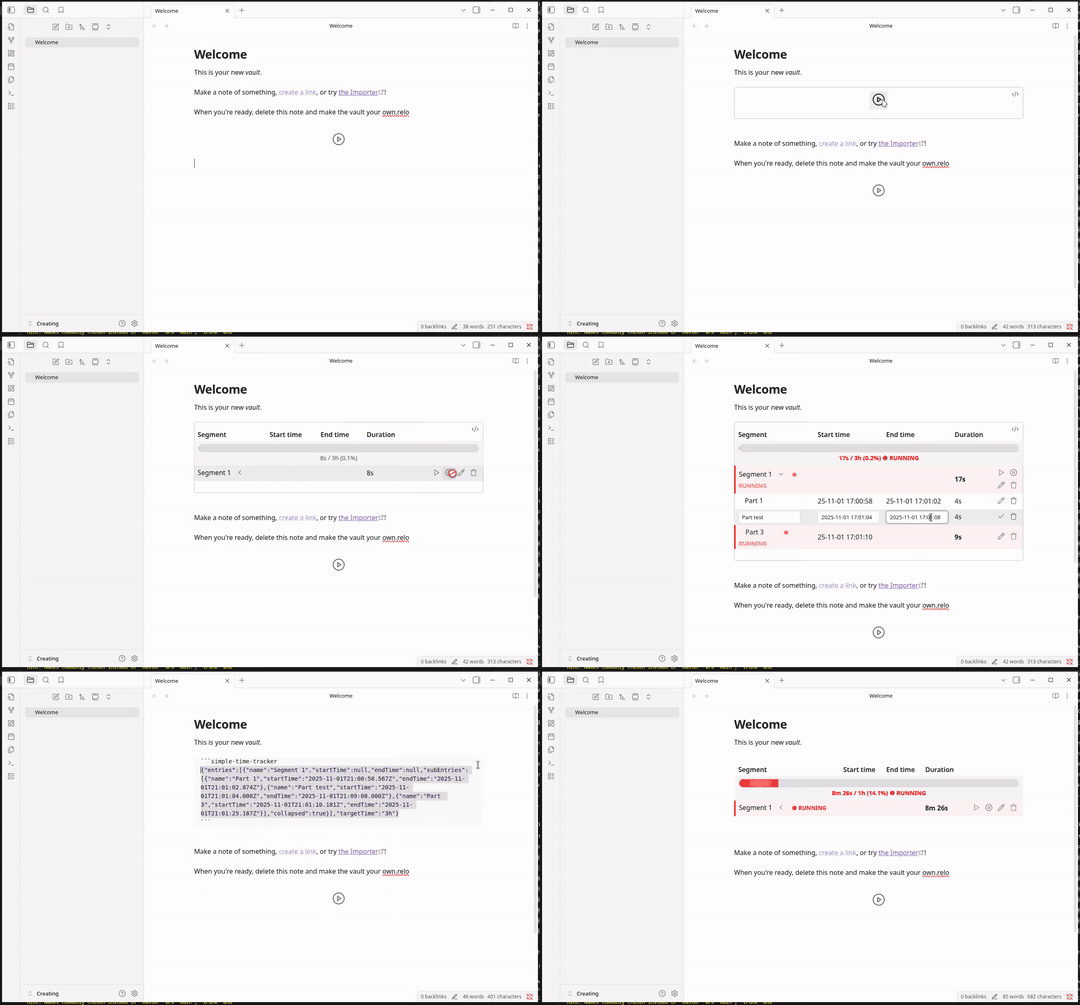
An empty tracker will be inserted in your note:
>   ```time-tracker-plus
>   {"entries":[],"targetTime":"2h"}
>   ```
Starting Your First Timer
When you have an empty tracker, click the Play button (▶️) to start your first segment.
Tracking Time
Once a timer is running, you'll see:
- 🔴 Red background on the active row
- 🔴 Bold red duration counting up in real-time
- 🔴 "RUNNING" indicator next to the segment name
- 🔴 Animated progress bar (if target time is set)
Usage Guide
Segment Controls
Each segment has control buttons on the right:
| Button | Action | Description |
|---|---|---|
| ▶️ Play | Continue | Creates a new sub-entry to continue tracking this segment |
| ⏹️ Stop | Stop | Stops the currently running timer in this segment |
| ✏️ Edit | Edit | Edit segment name, start time, and end time |
| 🗑️ Delete | Remove | Delete this segment (with confirmation) |
Editing Segments
- Click the Edit button (✏️) or double-click the segment name
- Modify the segment name, start time, or end time
- Click the checkmark or press Enter to save
- Press Escape to cancel
Target Time & Progress Bar
When you set a targetTime, a progress bar appears inside the table showing:
- Current time vs. target time
- Progress percentage
- Visual progress bar that fills as you work
- Red animated bar when timer is running
Target time format:
30s- 30 seconds5m- 5 minutes2h- 2 hours1h30m- 1 hour 30 minutes2d5h- 2 days 5 hours1y2M3d4h5m6s- Combinations of years, months, days, hours, minutes, seconds
Sub-Entries (Continue Feature)
The Play button (▶️) creates sub-entries, allowing you to:
- Pause and resume work on the same segment
- Track multiple work sessions
- See total time across all sub-entries
Example:
Segment 1 (6s total)
  ├─ Part 1: 2s
  └─ Part 2: 4s
Sub-entries don't have control buttons - all controls are on the main segment.
Stop All Timers Command
To stop all active timers in the current document:
- Open command palette (
Ctrl/Cmd + P) - Search for "Stop All Timers"
- Press Enter
You'll see a notification showing how many timers were stopped.
Settings
Access plugin settings via: Settings → Simple Time Tracker
Available Settings
- Timestamp Display Format - How timestamps are shown in the table
- CSV Delimiter - Character used when copying as CSV
- Fine-Grained Durations - Include days, months, and years in durations
- Timestamp Durations - Show durations as timestamps (12:15:01) vs duration format (12h 15m 1s)
- Display Segments in Reverse Order - Show newest segments at the bottom
- Show Total Today - Display total time spent today
Tips & Tricks
1. Multiple Trackers
You can have multiple time trackers in the same note to track different tasks:
## Project A
> ```time-tracker-plus
> {"entries":[],"targetTime":"4h"}
> ```

## Project B
> ```time-tracker-plus
> {"entries":[],"targetTime":"2h"}
> ```
2. Daily Time Tracking
Create a daily note template with a time tracker:
# {{date}}

## Time Tracking
> ```time-tracker-plus
> {"entries":[],"targetTime":"8h"}
> ```
3. Quick Time Entry
- Double-click any segment name to quickly edit it
- Press Enter while editing to save immediately
- Press Escape to cancel editing without changes
4. Visual Scanning
When timers are running:
- Look for red borders on the left of table rows
- Watch for pulsing "● RUNNING" text
- Check the animated red progress bar
Data Format
Time trackers are stored as JSON inside code blocks:
{
  "entries": [
    {
      "name": "Segment 1",
      "startTime": "2025-11-01T20:28:35.470Z",
      "endTime": "2025-11-01T20:28:42.645Z",
      "subEntries": null
    }
  ],
  "targetTime": "2h"
}
Properties
entries- Array of time segmentstargetTime- (Optional) Target time goalname- Segment namestartTime- ISO 8601 timestampendTime- ISO 8601 timestamp (null if running)subEntries- Array of sub-entries (for continued sessions)
Keyboard Shortcuts
While editing:
Enter- Save changesEscape- Cancel editing
Troubleshooting
Timer not updating
- Ensure you're in Reading View or Live Preview mode
- Try reloading the note
Progress bar not showing
- Verify your tracker has a
targetTimeproperty - Check the format is correct (e.g.,
"2h","30m")
Can't edit timestamp
- Only non-running entries can have their end time edited
- Running entries only allow name and start time editing
Trackers not working in tables
- Code blocks cannot be embedded in Markdown tables
- Use headings to organize multiple trackers instead
Support
For issues, feature requests, or questions:
- Check the plugin settings for customization options
- Reload Obsidian if the plugin isn't responding
- Disable and re-enable the plugin to reset
Credits
Original plugin concept and base code from the Simple Time Tracker plugin. Enhanced with progress tracking, visual indicators, and improved UX.
License
MIT License - See LICENSE file for details
Version: 1.0.0
Author: Time Tracker Plus
Last Updated: November 2025
For plugin developers
Search results and similarity scores are powered by semantic analysis of your plugin's README. If your plugin isn't appearing for searches you'd expect, try updating your README to clearly describe your plugin's purpose, features, and use cases.