Easy AI Image Generator
pendingby gprecious
Generate AI images using Gemini or OpenAI. Features prompt history, auto Korean-to-English translation, and customizable settings.
Easy AI Image Generator
Generate AI images directly in Obsidian using OpenAI DALL-E 3 or Google Gemini Imagen.
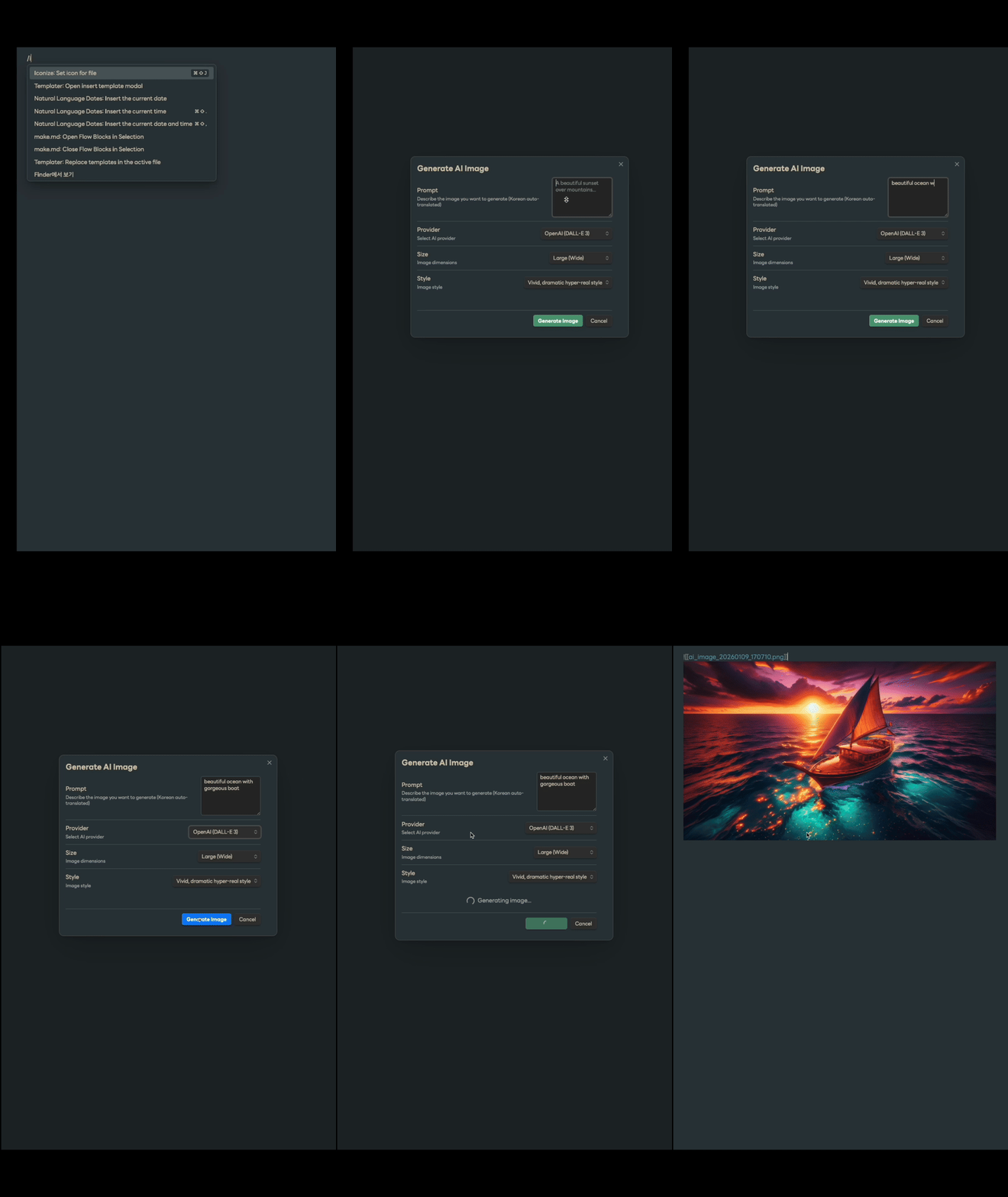
Features
- Multiple AI Providers: Choose between OpenAI (DALL-E 3) and Google Gemini (Imagen)
- Korean Auto-Translation: Automatically translates Korean prompts to English for better results
- Customizable Settings: Configure image size, style, and save location
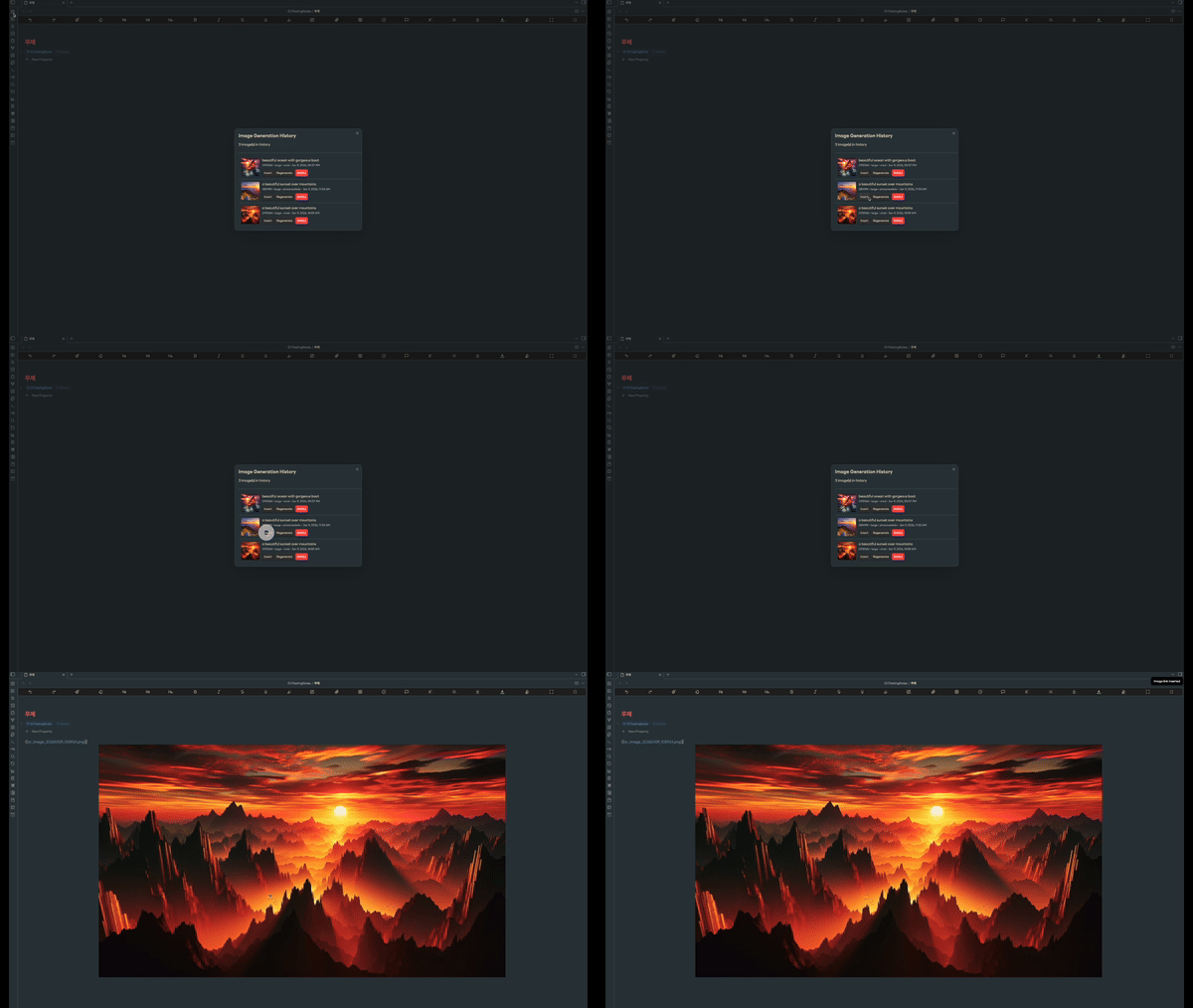
- Generation History: Browse past generations and regenerate with one click
- Quick Access: Ribbon icon for instant access to generation history
- Seamless Integration: Images are automatically embedded in your current note
Installation
From Obsidian Community Plugins
- Open Obsidian Settings
- Go to Community Plugins and disable Safe Mode
- Click Browse and search for "Easy AI Image Generator"
- Install and enable the plugin
Manual Installation
- Download the latest release from GitHub Releases
- Extract to your vault's
.obsidian/plugins/obsidian-easy-ai-image-generator/folder - Reload Obsidian
- Enable the plugin in Settings → Community Plugins
Setup
Getting API Keys
OpenAI API Key
- Go to OpenAI Platform
- Create a new API key
- Copy and paste it into the plugin settings
Google Gemini API Key
- Go to Google AI Studio
- Click "Get API Key" in the sidebar
- Create a new API key
- Copy and paste it into the plugin settings
Configuration
- Open Obsidian Settings → Easy AI Image Generator
- Enter your API key(s)
- Select your preferred default provider
- Configure default image size and style
- Set your preferred save location (default:
Attachments/)
Usage
Generate an Image
- Open a note in edit mode
- Use the command palette (
Ctrl/Cmd + P) and search for "Generate AI Image" - Enter your prompt (Korean supported!)
- Select size and style options
- Click "Generate Image"
- The image will be automatically inserted at your cursor position
View Generation History
- Click the image icon in the left ribbon
- Or use command palette: "Open Image History"
From the history modal, you can:
- Insert: Add a previous image to your current note
- Regenerate: Create a new image with the same prompt
- Delete: Remove an item from history
Image Options
Sizes
| Size | Dimensions |
|---|---|
| Small | 1024×1024 |
| Medium | 1024×1024 |
| Large | 1792×1024 (wide) |
Styles
OpenAI DALL-E 3
- Vivid: Dramatic, hyper-real style
- Natural: More natural, realistic style
Google Gemini
- Photorealistic: High detail, photography style
- Artistic: Creative, expressive interpretation
- Anime: Japanese animation aesthetic
- Sketch: Pencil drawing style
File Naming
Generated images are saved with timestamp-based names:
ai_image_YYYYMMDD_HHMMSS.png
Example: ai_image_20250109_143052.png
Pricing
This plugin uses external AI services that may incur costs:
- OpenAI DALL-E 3: ~$0.04-0.08 per image
- Google Gemini Imagen: ~$0.03 per image
Please check the respective pricing pages for current rates.
Support
If you find this plugin helpful, consider supporting its development:

Links
License
MIT License - see LICENSE for details.
For plugin developers
Search results and similarity scores are powered by semantic analysis of your plugin's README. If your plugin isn't appearing for searches you'd expect, try updating your README to clearly describe your plugin's purpose, features, and use cases.