GenImage Inserter
pendingby kunihiros
Generate images from note text using Gemini AI and insert them into your notes.
GenImage Inserter
An Obsidian plugin that generates images from your note text using Gemini AI and inserts them directly into your notes.
Demo
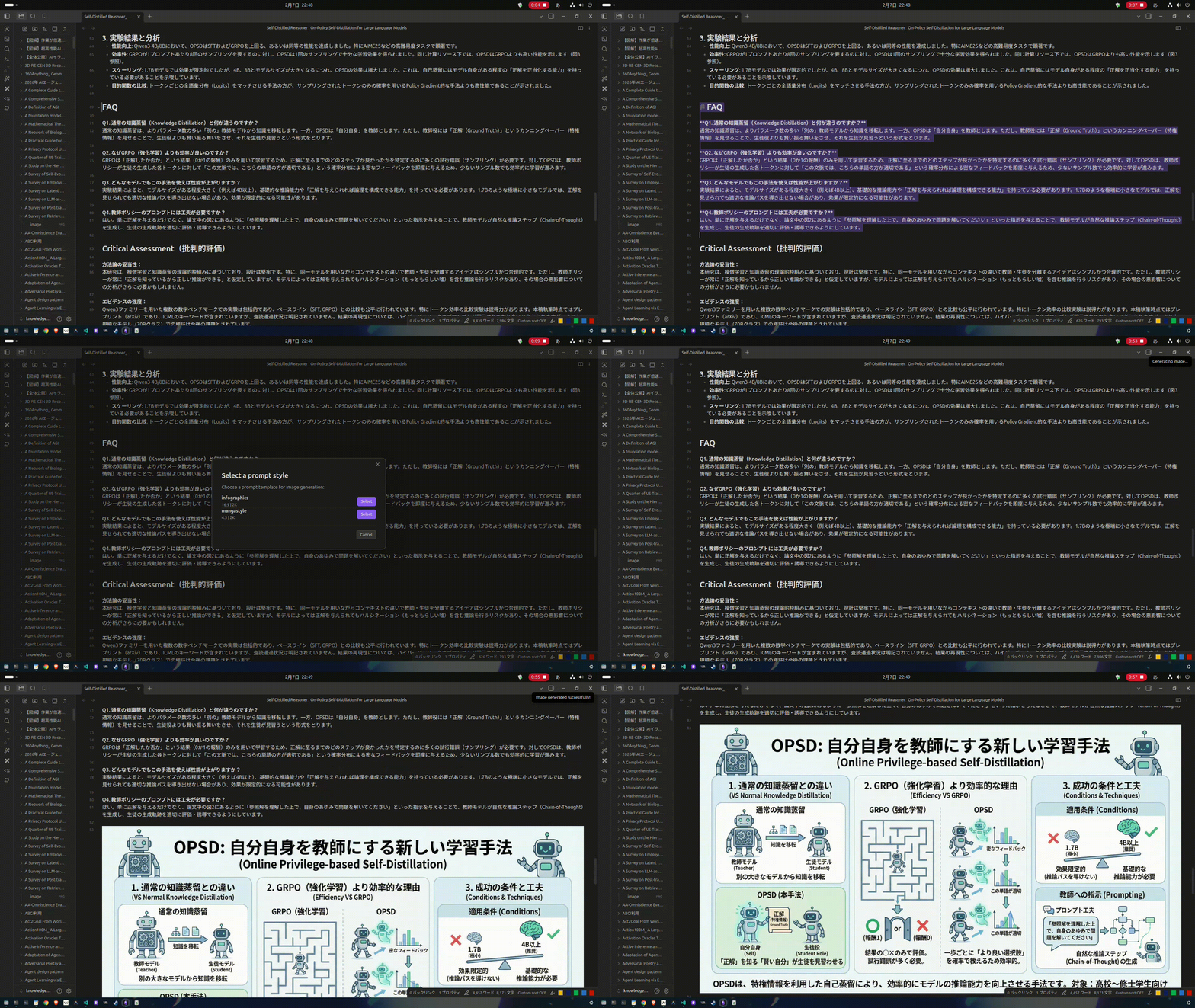
- Easy to use! (Not so first as it is though, in case of gemini3pro image 😇)
Features
- 🎨 Generate images from selected text or entire note content using Gemini AI
- no text selection makes an entire note as context to generate.
- 📝 Multiple prompt templates with customizable aspect ratio and image quality
- 🖱️ Right-click context menu integration
- 📁 Images saved to configurable directory within your vault (organized by note name)
- 📋 Detailed logging for troubleshooting
Supported Models
| Model | Speed | Quality | aspect_ratio | image_size |
|---|---|---|---|---|
gemini-2.5-flash-image | Fast | Good | ✅ Supported | ❌ Not supported (fixed 1024×1024) |
gemini-3-pro-image-preview | Slower | High | ✅ Supported | ✅ Supported (1K/2K/4K) |
Recommend: 3-pro
Installation
Manual Installation
- Download
main.js,manifest.json, andstyles.cssfrom the latest release - Create a folder
genimage-inserterin your vault's.obsidian/plugins/directory - Copy the downloaded files into the folder
- Reload Obsidian and enable the plugin in Settings → Community plugins
Configuration
Plugin Settings
| Setting | Description | Required |
|---|---|---|
.env file path | Path to your .env file (must be outside your vault for security). Supports ~ for home directory (e.g., ~/.config/secrets/.env) | ✓ |
| Prompt directory | Directory containing your prompt .md files (relative to vault root) | ✓ |
| Image output directory | Directory where generated images will be saved (relative to vault root, empty = vault root) | |
| Notification delay | Seconds before showing "Generating..." notification (0 = immediate) |
.env File Format
Create a .env file outside your vault with the following content:
LLM_PROVIDER=gemini #LLM Provider is currently fixed to GEMINI
GEMINI_API_KEY=your_api_key_here
GEMINI_MODEL=gemini-3-pro-image-preview
Recommended path: Use ~/.config/genimage-inserter/.env to ensure cross-platform compatibility (Linux, macOS, Windows).
⚠️ Security: The
.envfile must be outside your vault to prevent accidental sync or exposure of your API key.
Prompt Files
Create .md files in your prompt directory. Each file can optionally include YAML frontmatter to specify image generation parameters:
---
aspect_ratio: "16:9"
image_size: "2K"
---
Your system prompt text here...

Describe what kind of images you want the AI to generate.
Available Parameters
| Parameter | Values | Default | Notes |
|---|---|---|---|
aspect_ratio | 1:1, 2:3, 3:2, 3:4, 4:3, 4:5, 5:4, 9:16, 16:9, 21:9 | 1:1 | Works with all models |
image_size | 1K, 2K, 4K | 1K | Only works with gemini-3-pro-image-preview |
Example Prompt Files
Illustration style (illustration.md):
---
aspect_ratio: "16:9"
image_size: "2K"
---
You are an illustrator. Create a beautiful illustration based on the following text.
Use vibrant colors and warm, inviting style.
Photorealistic (realistic.md):
---
aspect_ratio: "1:1"
---
Generate a photorealistic image based on the following text.
Focus on natural lighting and composition.
Simple (no frontmatter, uses defaults):
Create an image based on the following text.
Usage
- Open a note in Obsidian
- Right-click and select Generate image
- Choose a prompt template from the modal
- Wait for the image to be generated
- The image is automatically saved and inserted into your note
With Selected Text
If you select text before right-clicking:
- The selected text is sent to the AI as context
- The generated image is inserted at the end of the selection
Without Selection (Entire Note)
If no text is selected:
- The entire note content is sent to the AI as context
- The generated image is inserted at the end of the note
⚠️ Note: The image link is inserted at the last line of the note with a single line break. If your note ends within a code block (
```), fenced block, or other Markdown structure, the image link may be inserted inside that structure and displayed as plain text. In such cases, manually move the image link outside the structure.
Output Structure
Generated images are saved in a folder named after your note:
{image output directory}/{note name}/{timestamp}_{note_name}.{ext}
Example: If your note is "My Travels" and output directory is assets/generated:
assets/generated/My Travels/20260207143052_My_Travels.png
Image Link Format
Images are inserted using standard Markdown syntax for maximum compatibility:

Logging
Logs are saved to .obsidian/plugins/genimage-inserter/genimage-inserter.log for debugging purposes.
Development
# Install dependencies
pnpm install

# Development build (watch mode)
pnpm run dev

# Production build
pnpm run build

# Run tests
pnpm run test
License
0-BSD
For plugin developers
Search results and similarity scores are powered by semantic analysis of your plugin's README. If your plugin isn't appearing for searches you'd expect, try updating your README to clearly describe your plugin's purpose, features, and use cases.