Image Resizer
pendingby hysa
Resize images in your notes with drag handles and direct numeric input.
Image Resizer for Obsidian
Intuitively resize images embedded in your Obsidian notes with drag handles, direct numeric input, and more.
Features
🖱️ Drag to Resize
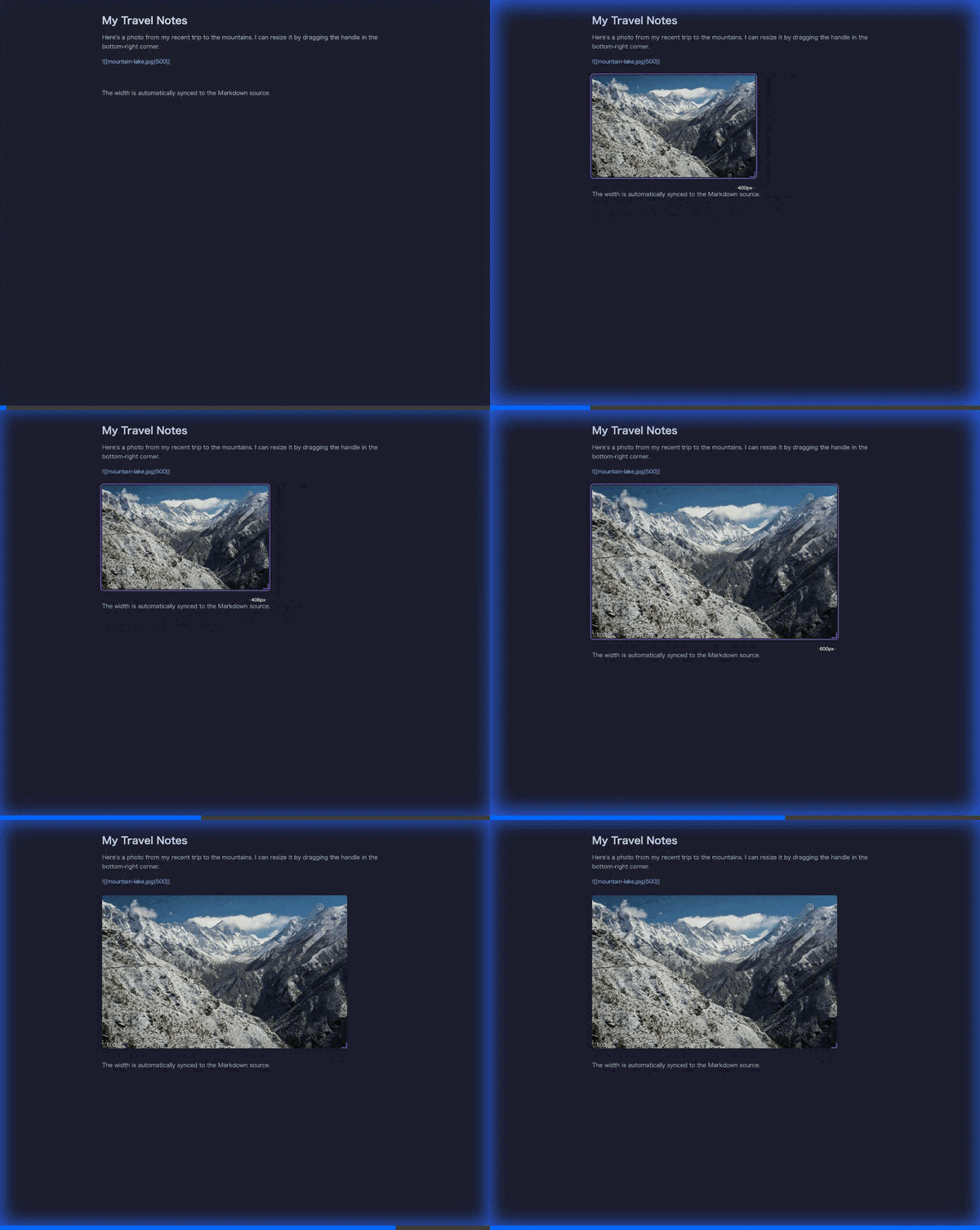
Grab the handle at the bottom-right corner of any image and drag to resize it visually. A tooltip displays the current width in real time.
🔢 Numeric Width Input
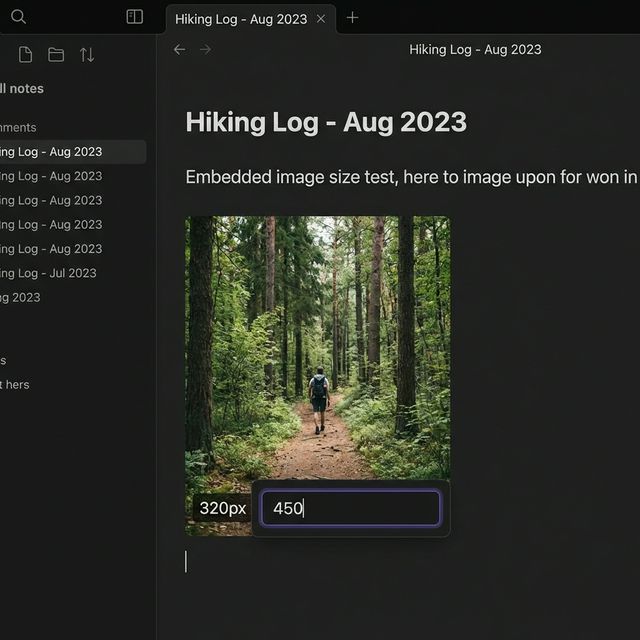
Click the width badge (e.g. 320px) at the bottom-left of an image to type an exact pixel value.
📝 Markdown Auto-Sync
Size changes are automatically written back to the Markdown source (e.g. ![[image.jpg|300]]). No manual editing required.
📋 Default Size on Paste
Automatically apply a configurable default width when images are pasted or dropped into a note. Only newly pasted images are affected — existing images are never modified.
🔍 Double-Click Preview
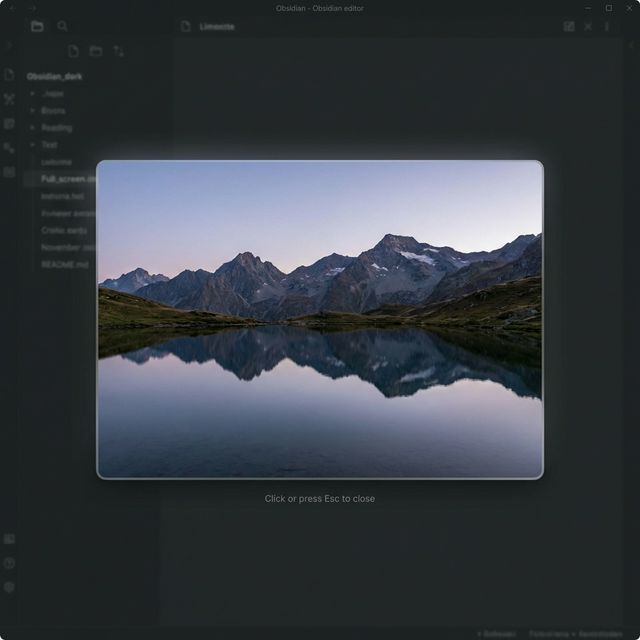
Double-click an image to view it in a full-screen lightbox overlay. Press Esc or click anywhere to close.
Settings
| Setting | Description | Default |
|---|---|---|
| Default image width | Default width (px) for pasted/dropped images. Set to 0 for original size | 0 |
| Apply default on paste | Automatically apply the default width on paste/drop | ON |
| Minimum width | Minimum image width (px) when resizing | 50 |
| Maximum width | Maximum image width (px) when resizing | 1200 |
| Show resize handle | Show the resize handle on hover | ON |
| Snap to grid | Snap interval in pixels. Set to 0 to disable | 10 |
| Double-click preview | Enable full-screen preview on double-click | ON |
Installation
From Community Plugins (recommended)
- Open Settings → Community plugins → Browse
- Search for "Image Resizer"
- Click Install, then Enable
Manual Installation
- Download
main.js,manifest.json, andstyles.cssfrom the latest release - Place them in your vault's
.obsidian/plugins/image-resizer/directory - Restart Obsidian and enable the plugin in Settings → Community plugins
Development
# Install dependencies
npm install

# Development build (watch mode)
npm run dev

# Production build
npm run build
License
For plugin developers
Search results and similarity scores are powered by semantic analysis of your plugin's README. If your plugin isn't appearing for searches you'd expect, try updating your README to clearly describe your plugin's purpose, features, and use cases.