Anti-Ephemeral State
pendingby Ivan Mezentsev
Per-note state persistence: scroll, cursor, and view mode memory.
Anti-Ephemeral State for Obsidian





Return exactly where you left off in every Obsidian note - scroll, cursor, view mode.
📋 Changelog
For detailed changes, see CHANGELOG.md.
Demo
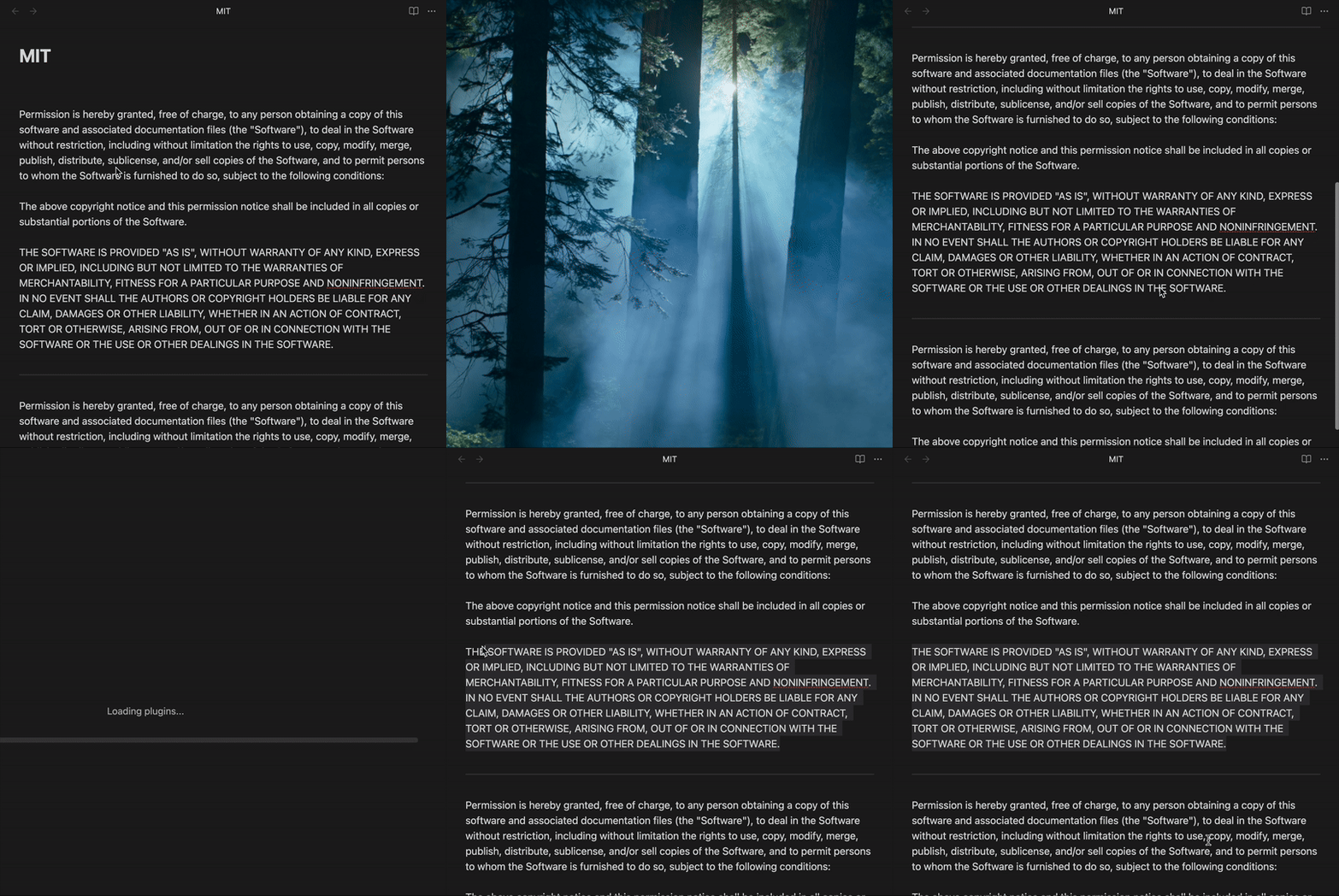
🔧 How it Works
The plugin combats ephemerality by preserving each note's state in separate JSON files, enabling seamless synchronization across devices when Obsidian sync is configured. By storing state data in individual files, conflicts are limited to specific notes rather than affecting the entire database as a whole.
The state is read every time a file is opened and saved half a second after the last changes in the document. This aggressive approach to fighting ephemerality allows you to focus on your work without being distracted by primitive concerns like scrolling to position and remembering the last selected text fragment.
Key benefits:
- Cross-device synchronization - State files sync with your vault, maintaining consistency across all devices
- Isolated conflicts - Individual state files limit conflicts to specific notes rather than the entire vault
- Automatic persistence - State is automatically saved and restored without manual intervention
- Anti-ephemeral design - Eliminates the temporary nature of view states, preserving your exact working context
🔒 Lock Mode (optional)
Keep notes safe from accidental edits and spot external changes at a glance.
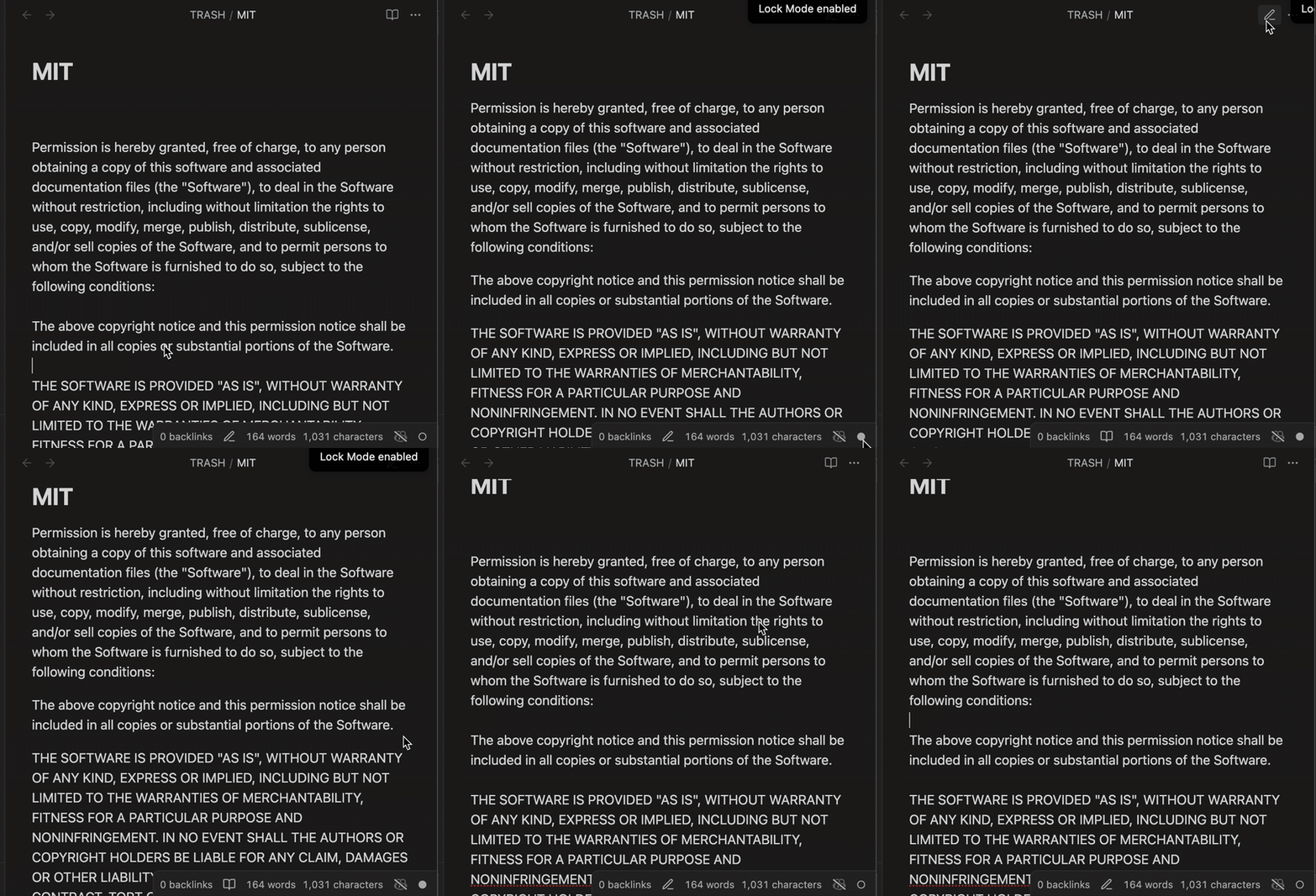
- Status bar icon: click to Lock ● / Unlock ○ the active note. Lock switches it to Reading view and marks it as protected. The icon reflects the current state.
- Auto-return: if you start editing a protected note, it instantly snaps back to Reading and shows a short notice "Lock Mode enabled".
- External changes: when a protected note was modified outside Obsidian, a "✖" indicator appears with tooltip "File content was modified externally". Clicking it performs the same toggle as the lock icon.
- Command Palette: the "Lock/Unlock" command mirrors the icon’s action.
- Settings: toggle "Enable Lock Mode" in plugin settings.
- Compatibility: works seamlessly with cursor, scroll, and view mode restore.
🚀 Installation
From Obsidian Community Plugins
- Open Obsidian Settings
- Navigate to Community Plugins
- Search for "Anti-Ephemeral State"
- Install and enable the plugin
Manual Installation
- Download the latest release from GitHub
- Extract to your vault's
.obsidian/plugins/anti-ephemeral-state/directory - Enable the plugin in Obsidian settings
With BART
- Install BART
- In Obsidian, open the command palette
- Run
Brat: Add a beta plugin for testing - Paste
ivan-mezentsev/anti-ephemeral-state - BART will install the plugin
- Enable the plugin in Obsidian settings
🤝 Contributing
Contributions are welcome! Please:
- Fork the repository
- Create a feature branch
- Submit a pull request
For issues or feature requests, visit the GitHub repository.
📄 License
MIT License - see LICENSE file for details.
🙏 Credits
Special thanks to:
- Dmitry Savosh - for the core idea and basic implementation examples from obsidian-remember-cursor-position
Transform your Obsidian experience with individual note state persistence!
For plugin developers
Search results and similarity scores are powered by semantic analysis of your plugin's README. If your plugin isn't appearing for searches you'd expect, try updating your README to clearly describe your plugin's purpose, features, and use cases.