Selective Publisher
pendingby Ivan Grubišić
Selectively publishes notes to a Git repository.
Selective Publisher for Obsidian
A plugin for Obsidian that selectively publishes notes to a Git repository based on customizable criteria.
Features
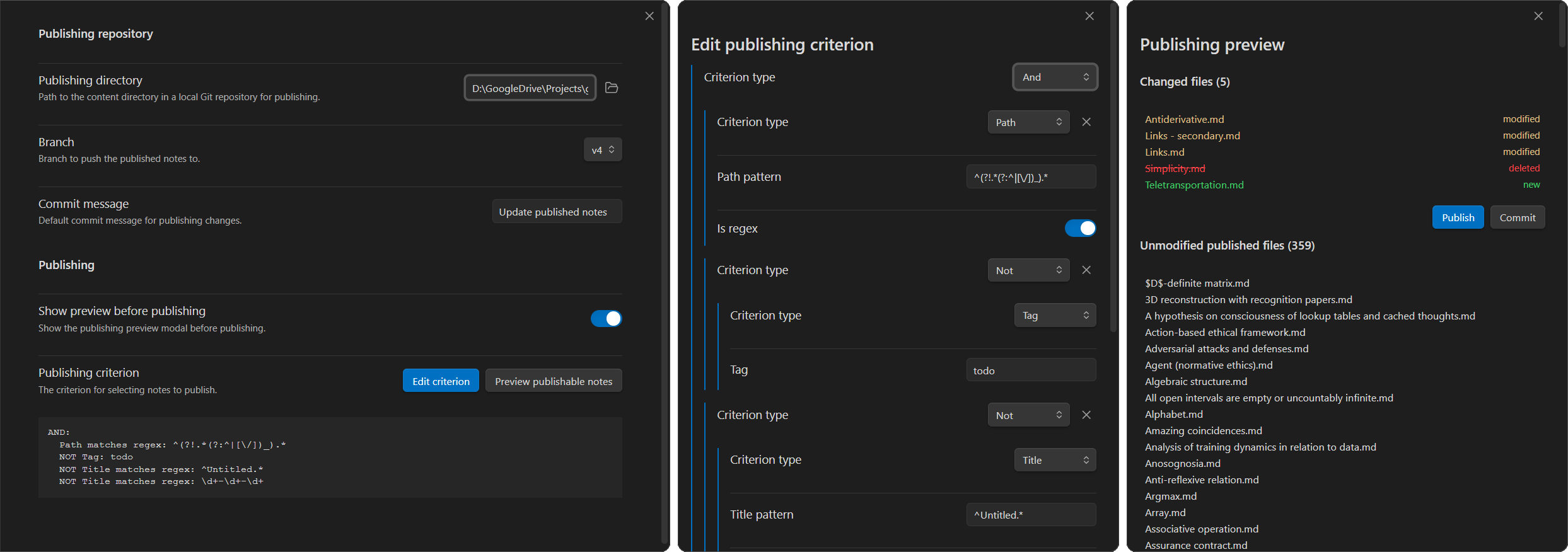
- Filtering of notes and attachemnts based on tags, frontmatter, path, or content, and path-based filtering of other files.
- Committing and pushing to a target Git repository.
- Review of changed files (added, modified, deleted) before publishing.
Requirements
- Obsidian v0.15.0+
- Git installed and configured locally.
- A local clone of target remote repository.
- For publishing as a website, the repository can contain a static site generator such as Quartz, which is able to process Obsidian Markdown files.
Installation
- Search for "Selective Publisher" in Obsidian's Community Plugins.
- Click "Install" and then "Enable".
Setup
- Clone your target repository (e.g., GitHub Pages) to a local folder.
- In the plugin settings:
- Set "Publishing directory" to the absolute local path of the repository or a directory within it. (If Quartz is used, this is the
contentdirectory.) - Optionally, change the "Publishing branch" (e.g.,
main). - Configure "Publishing criterion" (see below).
- Optionally, uncheck "Show preview before publishing" to skip the preview modal when publishing.
- Set "Publishing directory" to the absolute local path of the repository or a directory within it. (If Quartz is used, this is the
Usage
Publishing criterion
The plugin evaluates each markdown file against a tree combining criteria:
- Tag: Matches exact Obsidian tag or hierarchical subtags (e.g.,
publicmatches#public/blog). - Frontmatter: Matches a specific key and value in YAML frontmatter, with support for regex in the value field.
- Folder: Includes or excludes specific directories.
- Title: Matches the file basename (without extension). Supports substring or regex.
- Path: Matches the relative path from vault root. Supports substring or regex.
- Content: Matches body text based on a regex search.
Criteria can be combined with logical operators: AND, OR, and NOT.
Publishing
There are two ways to publish notes:
- Click the ribbon button with a paper plane icon. By default, this opens a preview modal before publishing.
- Run the command
Publish notes. This publishes the changes.
The preview modal displays the matching files and their status (new, modified, deleted, unmodified) relative to the target repository.
You can choose to publish (commit and push) or just commit (local only).
Commands
- Publish notes: Publish all matching notes. Shows preview first if enabled in settings.
- Preview publishable files: Preview files that match the criteria with their status (new, modified, deleted, unmodified).
- Ribbon button (paper plane icon): Quick shortcut to publish notes.
Other information
- Disclosures per Obsidian developer policies:
- Network use. The network is used for synchronizing with the remote Git repository when publishing. No data is sent to any other servers.
- Accessing files outside of Obsidian vaults. The plugin manages the content directory in the local repository and the
gitcommand.
- AI agents used in development: Claude 3.7 Sonnet – Opus 4.6, GPT-4o – GPT-5.2, Gemini 3 Pro and Flash
Related projects
Obsidian plugins:
- Enveloppe
- Publishes via the GitHub API rather than a local Git repository.
- Has more features and options, including processing of links and dataviews.
- Has less flexible filtering of files.
- Quartz Syncer
- Publishes through authentication to different Git providers.
- Has more features, including forntmatter processing and integration with other plugings such as Dataview.
- Has less flexible filtering of files.
- Digital Garden
Static site generators and other projects:
For plugin developers
Search results and similarity scores are powered by semantic analysis of your plugin's README. If your plugin isn't appearing for searches you'd expect, try updating your README to clearly describe your plugin's purpose, features, and use cases.