Tab Numbers
pendingby Jordan Duabe
Shows numbered badges (1-8) on tabs when holding Ctrl/Cmd for quick keyboard navigation.
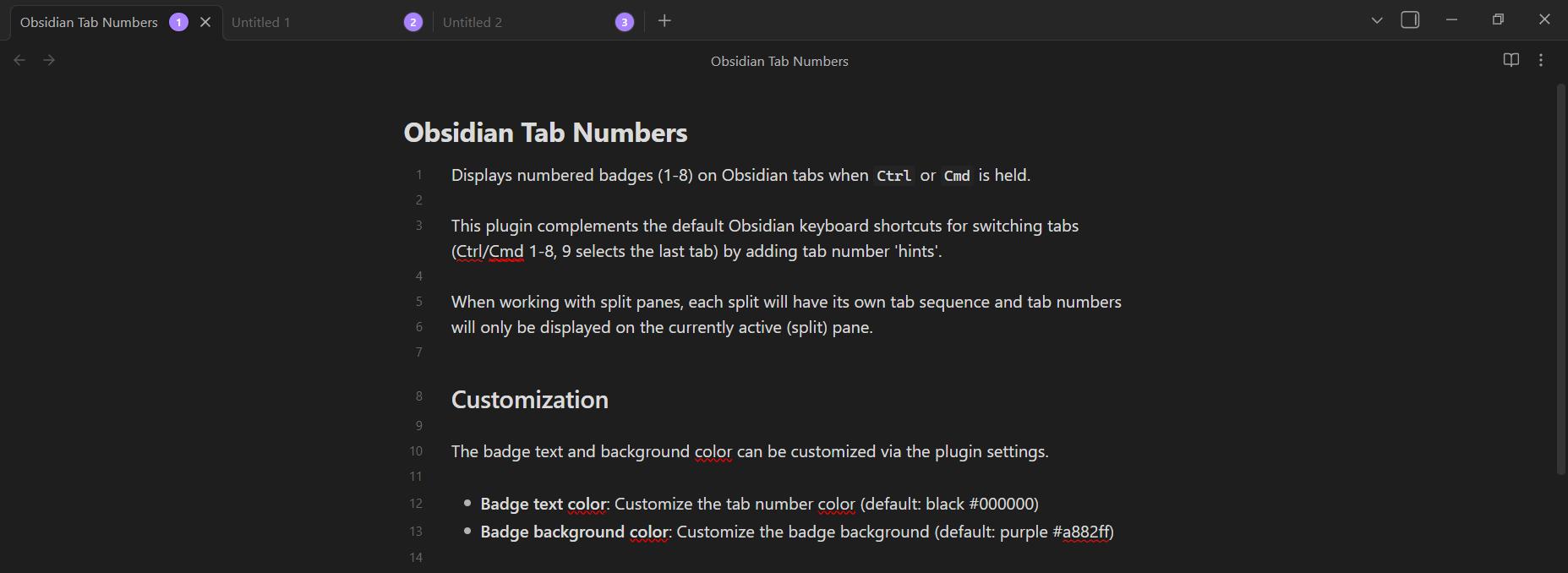
Displays numbered badges (1-8) on Obsidian tabs when Ctrl or Cmd is held. This plugin complements the default Obsidian keyboard shortcuts for switching tabs (Ctrl/Cmd 1-8, 9 selects the last tab) by adding tab number 'hints'. When working with split panes, each split will have its own tab sequence and tab numbers will only be displayed on the currently active (split) pane.
Screenshots
Customization
The badge text and background color can be customized via the plugin settings.
- Badge text color: Customize the tab number color (default: black #000000)
- Badge background color: Customize the badge background (default: purple #a882ff)
Installation
Manual installation is currently the only supported method.
-
Download the plugin files from the latest release on GitHub
- Download the
main.js,manifest.json, andstyles.cssfiles.
- Download the
-
Copy files to your vault's plugin directory:
- Copy
main.js,manifest.json, andstyles.cssto:/path/to/your/vault/.obsidian/plugins/tab-numbers/
- Copy
-
Reload Obsidian:
- Open Developer Console: Ctrl/Cmd + Shift + I
- Run:
app.commands.executeCommandById('app:reload') - Or restart Obsidian
-
Enable the plugin:
- Go to Settings → Community plugins
- Find "Tab Numbers" and enable the plugin
Development
Setup
# Install dependencies
pnpm install

# Start development build (watch mode)
pnpm run dev

# Production build
pnpm run build
Testing
To test the plugin during development:
-
Build the plugin:
pnpm run build -
Copy files to your test vault:
- Copy
main.js,manifest.json, andstyles.cssto:/path/to/your/vault/.obsidian/plugins/tab-numbers/
- Copy
-
Reload Obsidian:
- Open Developer Console: Ctrl/Cmd + Shift + I
- Run:
app.commands.executeCommandById('app:reload') - Or restart Obsidian
-
Enable the plugin:
- Go to Settings → Community plugins
- Find "Tab Numbers" and enable the plugin
For plugin developers
Search results and similarity scores are powered by semantic analysis of your plugin's README. If your plugin isn't appearing for searches you'd expect, try updating your README to clearly describe your plugin's purpose, features, and use cases.