CLI AI Chat
pendingby kngzzz
Chat with Claude Code CLI from a side pane. Features streaming responses, model selector, markdown rendering, and @ mention file autocomplete.
CLI AI Chat
Your AI coding assistant, right inside Obsidian.
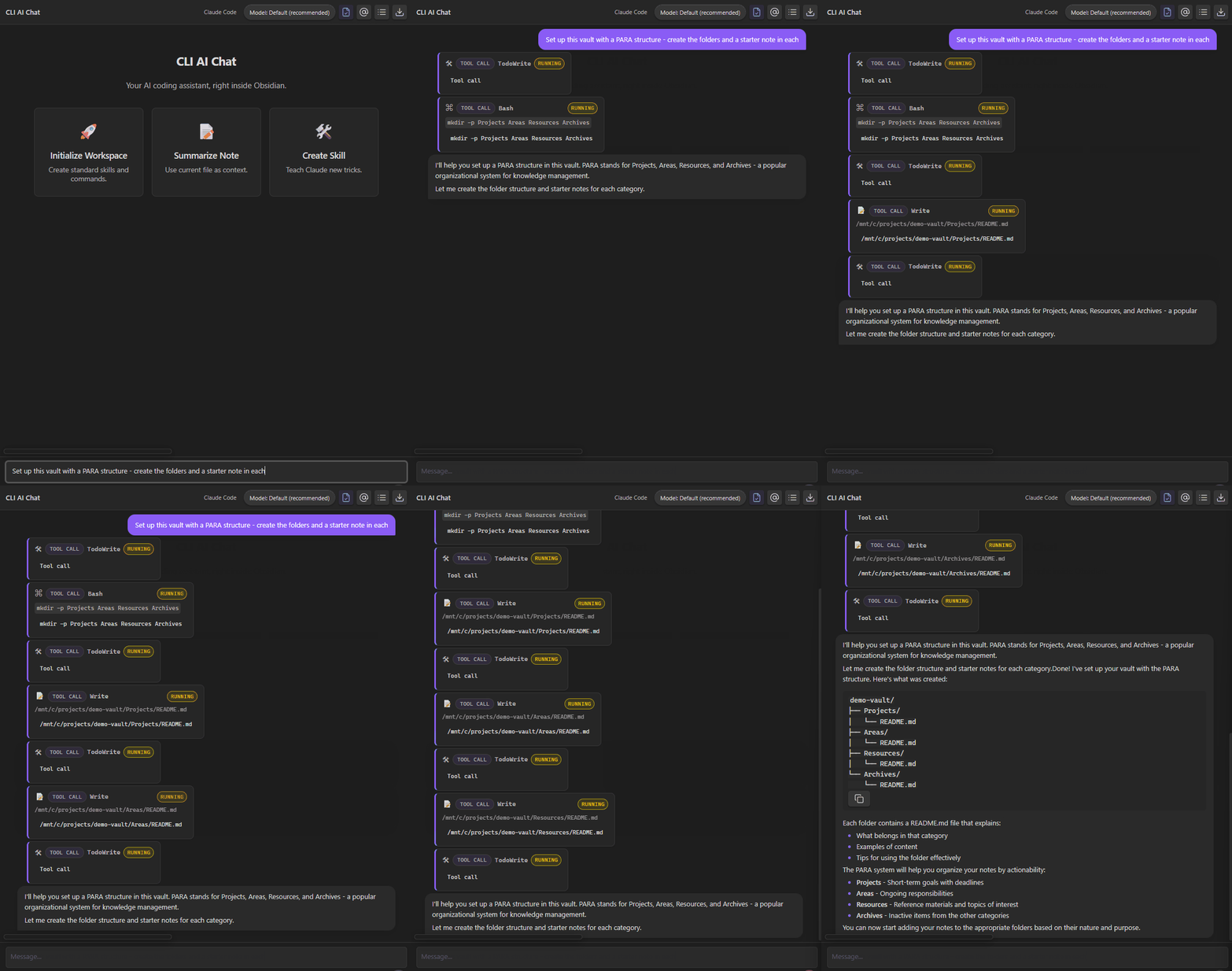
CLI AI Chat brings Claude Code's agentic workflow directly into your vault. Ask Claude to read your notes, create files, organize your vault, and build custom automations—all without leaving Obsidian.
Features
- @ Mentions - Reference any file with fuzzy search
- Tool Transparency - Watch Claude read, write, and edit in real-time
- Model Selector - Switch between Haiku, Sonnet, and Opus
- Slash Commands -
/clear,/export,/context,/help - Streaming Responses - Real-time markdown rendering
- WSL Support - Run CLI tools through Windows Subsystem for Linux
Installation
From Community Plugins
- Open Settings → Community Plugins
- Click Browse and search for "CLI AI Chat"
- Click Install, then Enable
- Configure your Claude Code binary path in plugin settings
Beta Installation (BRAT)
- Install BRAT from Community Plugins
- Open BRAT settings → Add Beta Plugin
- Enter
kngzzz/cli-ai-chat - Enable the plugin in Community Plugins settings
Requirements
- Claude Code CLI installed and authenticated
- Obsidian v1.4.0+ (desktop only)
Quick Start
- Click the bot icon in the left ribbon to open the chat panel
- Type a message and press Enter to send
- Use
@to mention files from your vault - Watch Claude work with your notes in real-time
Example Prompts
Summarize @daily/2025-11-26.md and suggest priorities
Set up this vault with a PARA structure
Create a weekly review template based on my existing notes
Configuration
Access settings via Settings → CLI AI Chat
| Setting | Description |
|---|---|
| Binary path | Path to Claude Code CLI (auto-detected if empty) |
| Execution mode | Native or WSL |
| Working directory | Vault folder or custom path |
| Tool display | Full or compact view |
| CLI timeout | Max execution time (default: 45s) |
Slash Commands
| Command | Action |
|---|---|
/context on|off | Toggle file context |
/export | Export chat to markdown |
/clear | Clear conversation |
/mention | Insert current note |
/help | Show commands |
Troubleshooting
Claude CLI not found
Verify Claude is installed and working:
claude --version
If this fails, install Claude Code CLI following the official instructions.
Common causes:
| Platform | Issue | Solution |
|---|---|---|
| Windows | npm global path not in PATH | Set full path: C:\Users\<you>\AppData\Roaming\npm\claude.cmd |
| Windows | Using nvm/fnm | Check npm config get prefix and use that path |
| macOS | Homebrew path missing | Add /opt/homebrew/bin to PATH or set full path |
| Linux | Local install not in PATH | Set path: ~/.local/bin/claude or /usr/local/bin/claude |
Finding the binary location:
# Windows (PowerShell)
Get-Command claude | Select-Object Source

# Windows (cmd)
where claude

# macOS/Linux
which claude
WSL mode issues (Windows)
WSL mode runs the Claude CLI inside Windows Subsystem for Linux. This is useful when Claude is installed in WSL but not on Windows.
Claude must be installed inside WSL, not just on Windows:
# Open WSL terminal and install
wsl
npm install -g @anthropic-ai/claude-code
claude --version
Check your default WSL distro:
wsl --list --verbose
The distro marked with * is the default. Claude must be installed in that distro.
PATH not working in WSL:
WSL runs commands non-interactively, so your .bashrc/.zshrc may not load. Ensure Claude is in a standard PATH location:
# Inside WSL, check where claude is installed
which claude

# If it's in ~/.local/bin, ensure that's in your PATH
# Add to ~/.profile (loads for non-interactive shells):
echo 'export PATH="$HOME/.local/bin:$PATH"' >> ~/.profile
Wrong binary name:
In settings, try just claude (not claude.cmd or full path). The plugin will search WSL's PATH.
Authentication errors
Claude CLI requires authentication before first use:
claude auth login
If you see "unauthorized" or "API key" errors, re-authenticate.
Timeout errors
For complex tasks (large file operations, many tool calls), increase CLI timeout in settings. Default is 45 seconds; try 120000ms (2 minutes) or higher.
Plugin can't find files in vault
- Ensure Working directory is set correctly in settings
- For WSL mode, paths auto-convert (
C:\vault→/mnt/c/vault) - Check that Claude has read permissions for your vault folder
Nothing happens when sending a message
- Open Developer Tools (
Ctrl+Shift+I/Cmd+Option+I) - Check the Console for errors
- Enable Debug logging in plugin settings for detailed logs
- Verify the CLI works manually:
claude -p "hello"
Tool calls fail in WSL
If Claude runs but tool calls (file reads, bash commands) fail:
- Ensure common tools are installed in WSL:
git,node,python, etc. - Check that your WSL PATH includes
/usr/binand/bin - Test manually:
wsl which git
License
MIT License
Links
Built for the Obsidian community.
For plugin developers
Search results and similarity scores are powered by semantic analysis of your plugin's README. If your plugin isn't appearing for searches you'd expect, try updating your README to clearly describe your plugin's purpose, features, and use cases.