Claude Code Copilot
pendingby J Medeiros
Integrate the Claude Code with a chat panel, text transforms, and inline /ai commands.
Obsidian Claude Copilot
A native Claude AI integration for Obsidian, powered by the Claude Code CLI. No API key needed — just install the CLI and start chatting.
Features
Chat Panel
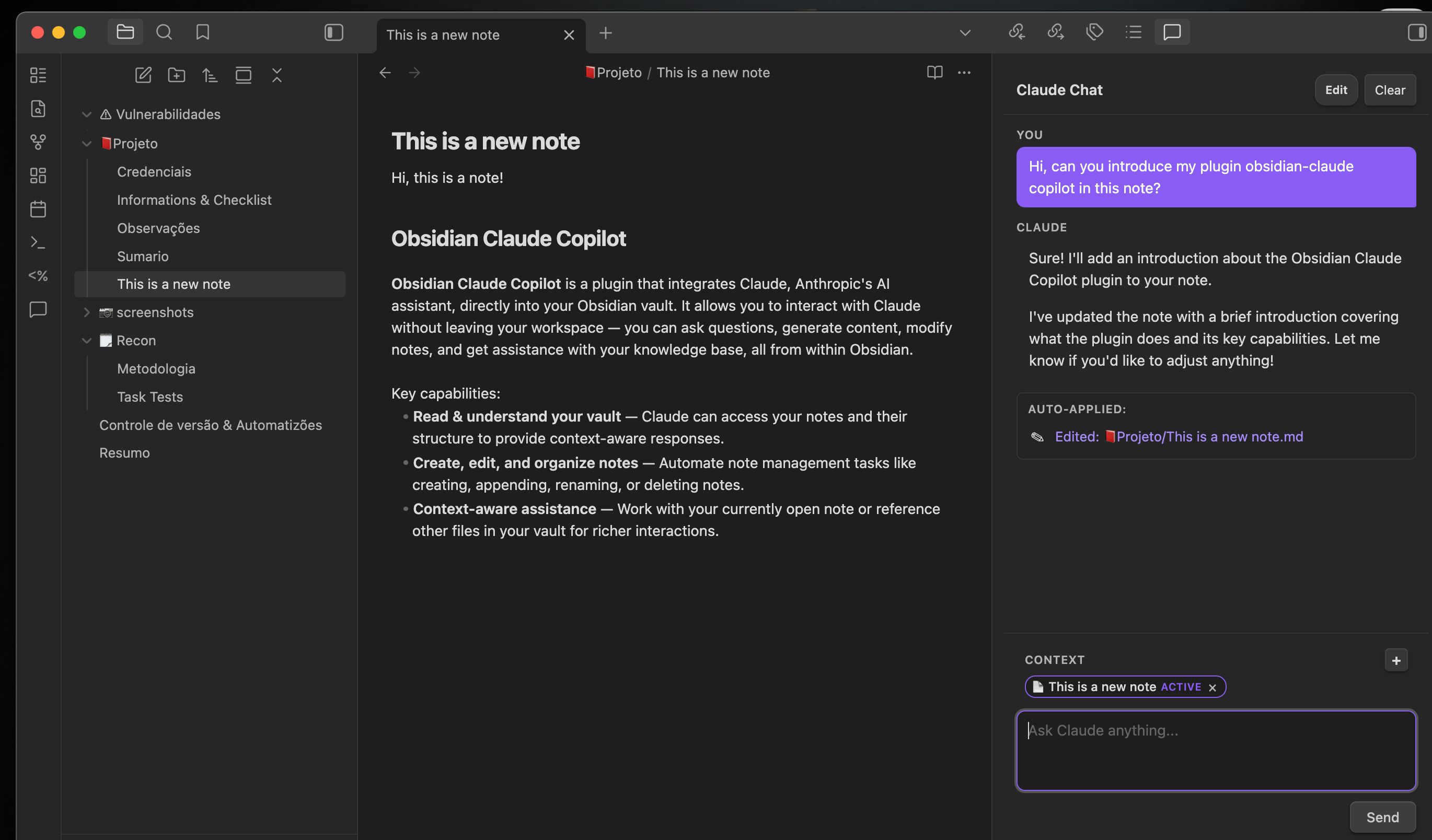
Open a side panel to have a full conversation with Claude. It automatically includes your current note as context and can read, create, edit, append, delete, and rename notes directly in your vault.
- Ask / Edit modes — toggle between asking questions and letting Claude auto-apply changes to your notes.
- Context chips — the active note is tracked automatically. Pin additional notes with the + button so Claude can reference multiple files at once.
- Vault awareness — Claude sees your entire file tree and can request to read any note it needs before acting.
Text Transforms (right-click menu)
Select text, right-click, and pick a transform:
- Improve Writing — better clarity and readability
- Fix Grammar — correct spelling and punctuation
- Make Shorter / Longer — condense or expand text
- Summarize — generate a concise summary
- Explain Simply — rewrite in plain language
- Continue Writing — keep going in the same style
Also available as command palette commands, plus Translate (10 languages) and Custom Prompt (free-form instruction).
Inline /ai Commands
Type /ai followed by a prompt directly in your note. A suggestion popup appears with quick actions (continue writing, summarize, generate outline) or lets you run any custom prompt. The result streams right into the editor.
Prerequisites
- Claude Code CLI installed and authenticated (
npm install -g @anthropic-ai/claude-code) - Obsidian v1.0.0+
Installation
- Copy the plugin folder (containing
main.js,manifest.json, andstyles.css) into your vault at:<your-vault>/.obsidian/plugins/obsidian-claude/ - Open Obsidian, go to Settings > Community plugins, disable Restricted mode.
- Enable Claude AI in the plugin list.
Settings
| Setting | Description |
|---|---|
| Claude CLI path | Path to the claude executable (default: claude from PATH) |
| Default model | Model to use via --model flag (leave empty for default) |
| Include note context | Send the active note content with every prompt |
| Context max characters | Limit how much note content is sent (default: 8000) |
| Test connection | Quick check that the CLI is reachable |
License
MIT
For plugin developers
Search results and similarity scores are powered by semantic analysis of your plugin's README. If your plugin isn't appearing for searches you'd expect, try updating your README to clearly describe your plugin's purpose, features, and use cases.