Explorer
pendingby Rotem Semah
A file explorer view with card and list views. Displays folder contents with sorting, pagination, and search.
Explorer Plugin
A file‑explorer view for Obsidian that displays folder contents directly inside the editor pane, allowing you to navigate notes without relying on the sidebar.
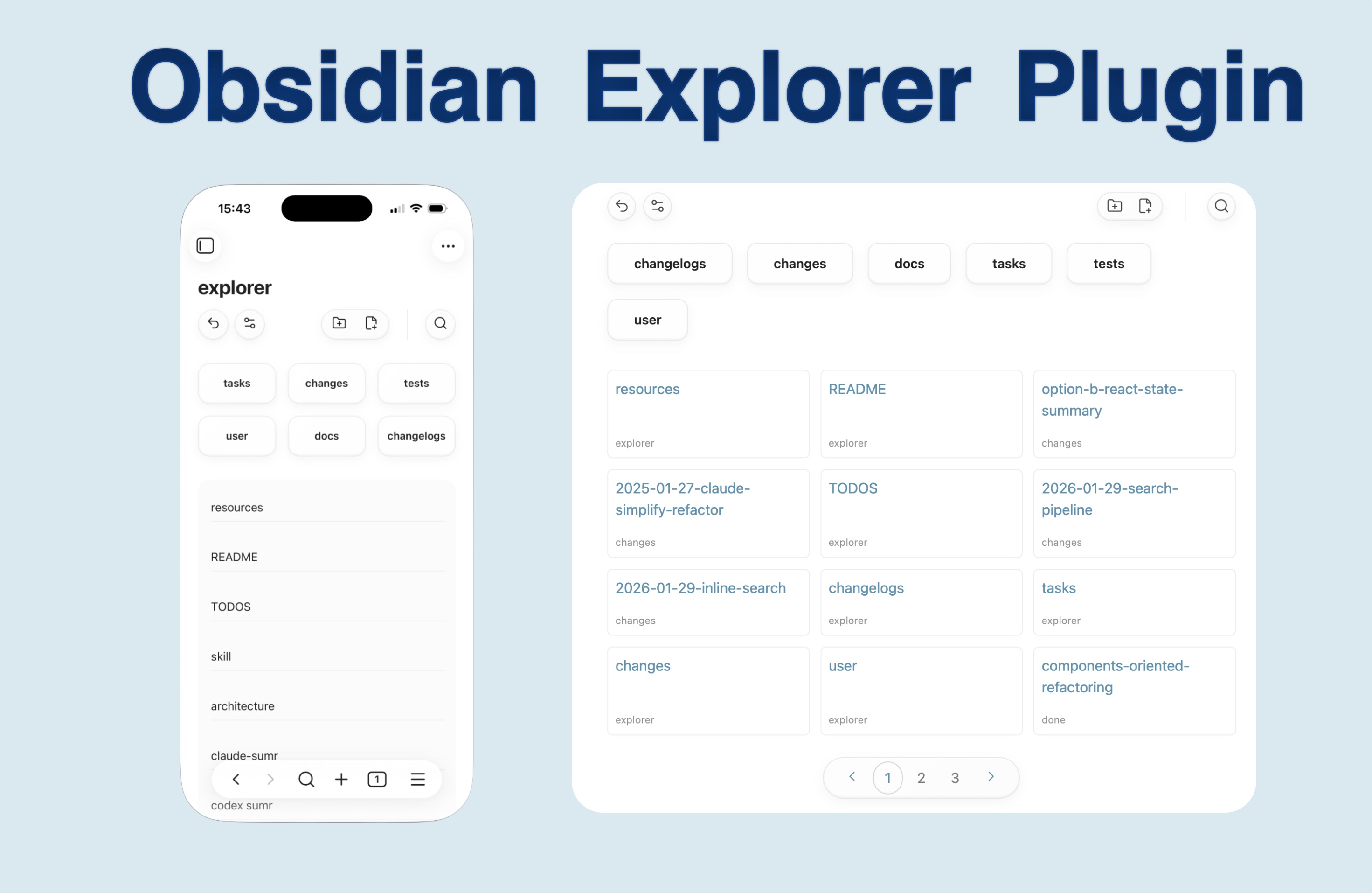
Features
- Card and list views for browsing folder contents
- Navigate folders directly from within notes
- Built-in support for folder notes
- Sorting by name, creation date, or modification time
- No coding required (Optional GUI-based configuration for explorer code blocks)
- Fast, scoped search within the current folder (no vault-wide queries)
- Pagination for large folders
- Strong mobile support
- Built-in RTL support (Hebrew and Arabic)
Usage
Add an explorer code block to any note:
```explorer

```
This will display the contents of the current folder with default settings.
Example
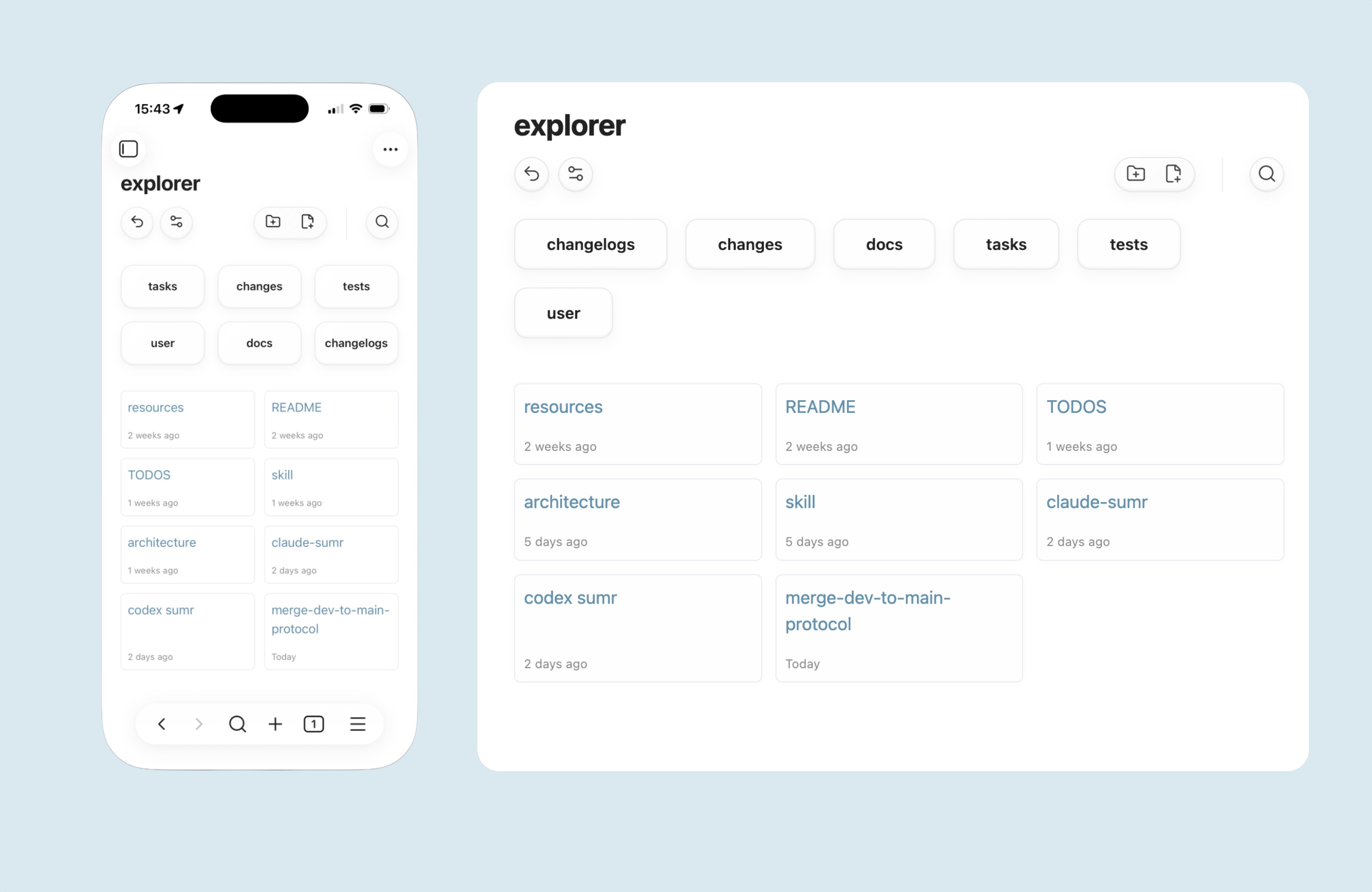
Card View
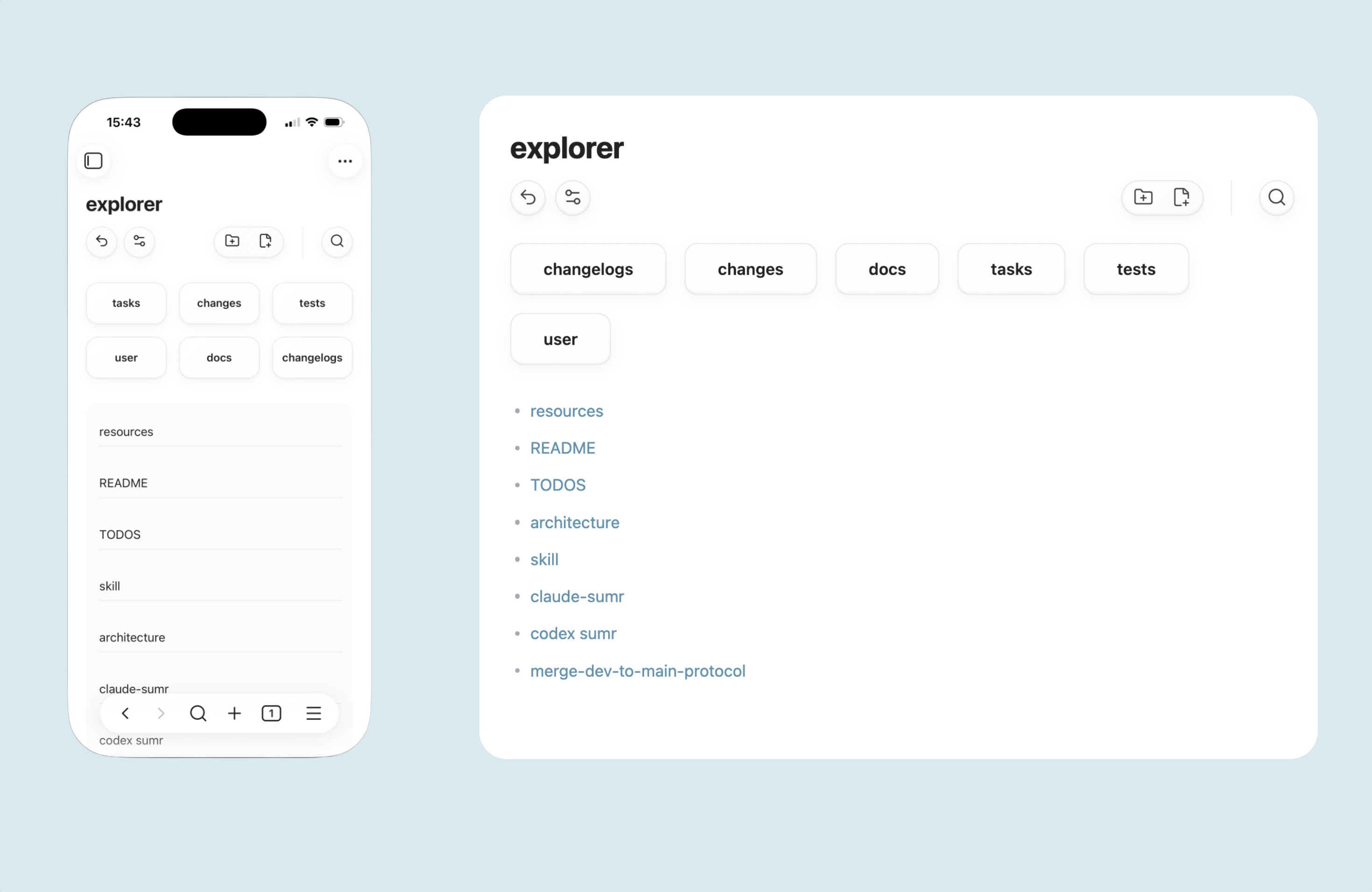
List View
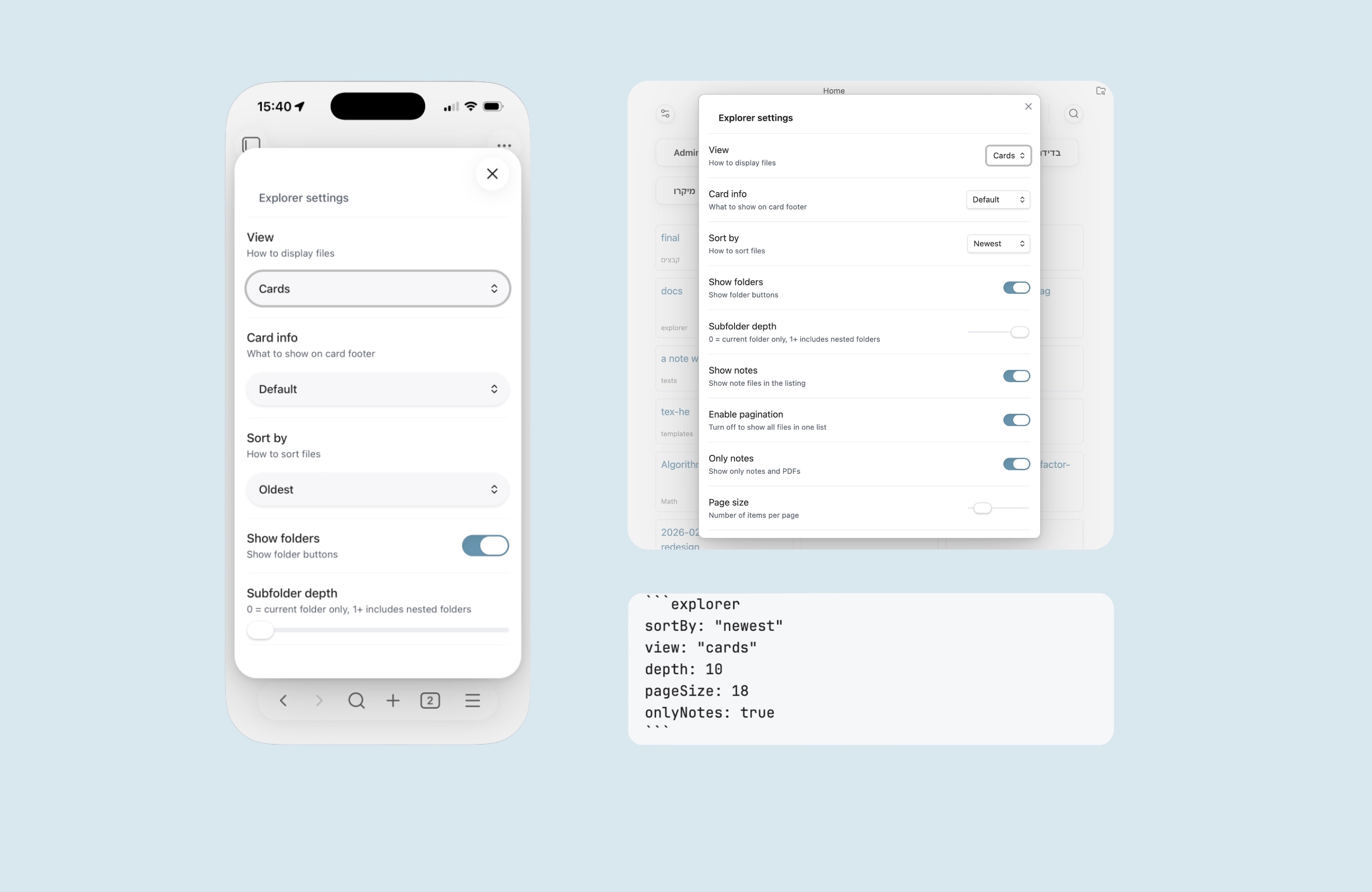
Settings
Dark Mode
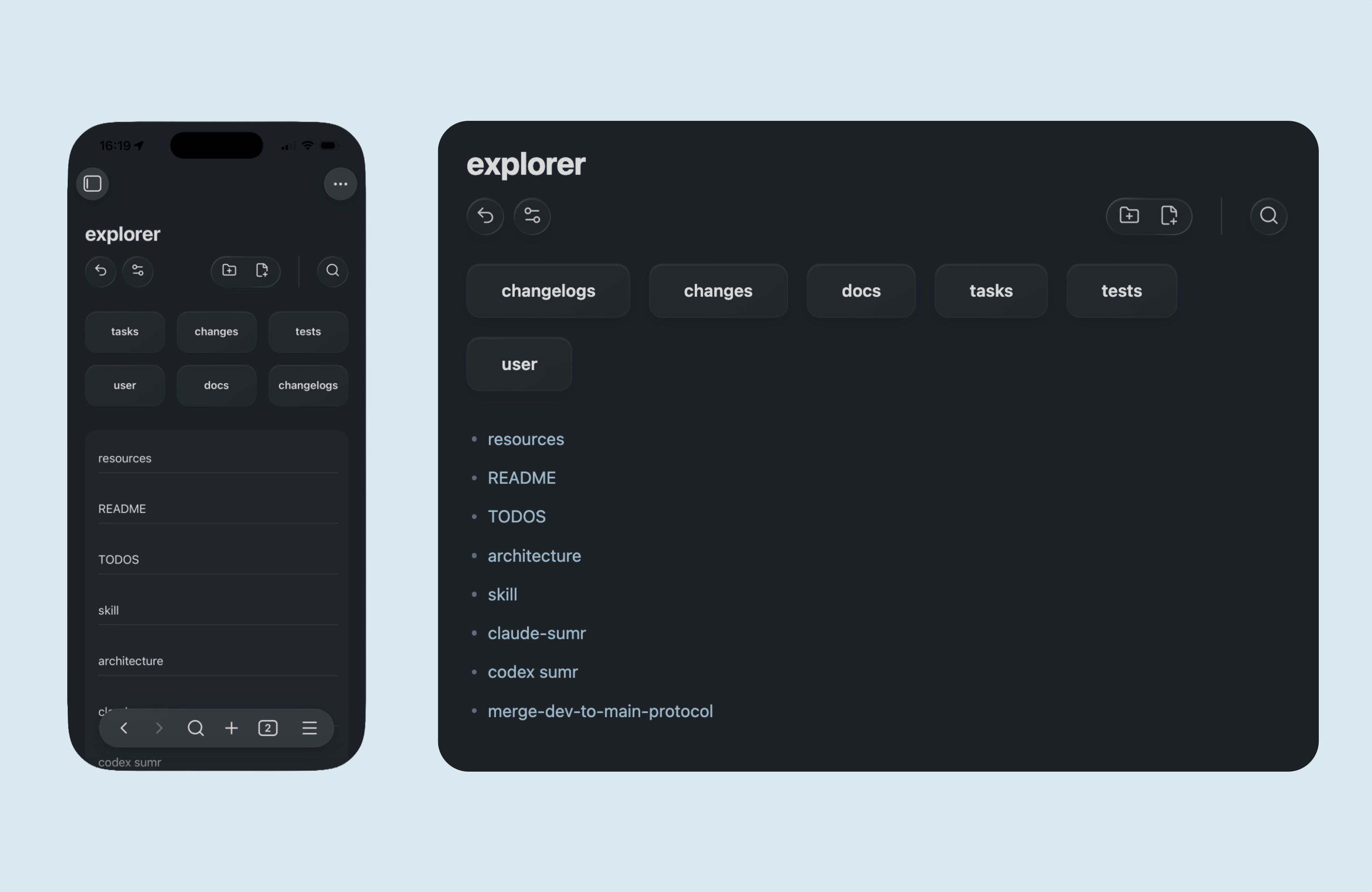
Configuration
While the plugin works best with the GUI settings pane, if you prefer - You can customize the view by adding settings to the code block:
```explorer
sortBy: "newest"
view: "cards"
depth: 2
pageSize: 12
```
Who This Plugin Is Designed For
Explorer is built for people who organize their notes primarily using traditional folders.
If your workflow is folder-centric, this plugin lets you:
- Navigate folders from inside a note, without relying on the sidebar
- Open a folder note and immediately browse its subfolders and files
- Move through your vault in a familiar, file-system-style way
The goal is fast, intuitive within-folder navigation, similar to how you’d browse files in Finder or Explorer, but embedded directly in your notes.
What This Plugin Does Not Try to Do
Explorer is not a general-purpose query engine. Explorer works best with traditional folder-based vaults structure, rather then flat ones.
It intentionally does not:
- Perform vault-wide queries
- Build complex tag- or metadata-based views
- Replace tools like Dataview or Obsidian Bases
- Optimize for flat, tag-driven, or database-style vault structures
If your vault is mostly flat, heavily tag-based, or relies on complex query logic, you’ll likely be better served by existing query tools.
Download
clone repo for mac or linux:
git clone https://github.com/manemajef/obsidian-explorer "/path/to/your/vault/.obsidian/plugins/obsidian-explorer"
for windows:
git clone https://github.com/manemajef/obsidian-explorer "C:\Path\To\Your\Vault\.obsidian\plugins\obsidian-explorer"
Activate plugins
- Open Obsidian → Settings → Community plugins
- Turn on “Explorer”
Settings
Per-block overrides (inside the explorer code block)
You can override these settings per block. Keys not listed here are ignored.
| Setting | Values |
|---|---|
sortBy | newest, oldest, edited, name |
view | cards, list |
depth | 0-10 |
pageSize | 6-100 |
onlyNotes | true, false |
showFolders | true, false |
cardExt | folder, ctime, mtime, desc, none, default |
showNotes | true, false |
View Modes
- Cards: Grid of cards showing file name, extension, and metadata
- List: Simple bulleted list of files
Folder Notes
- autumaticly creates a folder note if missing as
path/to/foldername/foldername.md - If foldernotes exist, it dosnt ovverride them
- Plays well with Obsidian Folder Note Plugin, but works without it as well
Search
The search bar supports special prefixes. Use the search icon in the top bar to toggle it.
- Normal text: Search by filename
#tag: Search by tags in frontmatter@name: Search only folder notes
Folder Notes
The plugin recognizes folder notes (files named foldername/foldername.md) and:
- Uses them for folder navigation
- Shows them in breadcrumbs
- Filters them correctly from file listings
Pinned Files
Files with pin: true or fav: true in frontmatter are shown at the top with a heart icon.
RTL Support
Automatically detects Hebrew/Arabic text and adjusts breadcrumb icons accordingly.
Development
Building
npm install
npm run build
Development Mode
npm run dev
License
MIT
For plugin developers
Search results and similarity scores are powered by semantic analysis of your plugin's README. If your plugin isn't appearing for searches you'd expect, try updating your README to clearly describe your plugin's purpose, features, and use cases.