File Tree Alternative
approvedby ozntel
An alternative file tree view with separate folder and file panes.
File Tree Alternative for Obsidian


An Evernote-style file explorer for Obsidian: folders on one side, your notes on the other, with previews, powerful search, pinning and multi-select. Works on desktop and mobile.
The default Obsidian explorer puts every folder and every file into one long tree. In a large vault, that quickly becomes hard to scan. File Tree Alternative splits the view in two: pick a folder and see its notes in a clean list, with a preview of what is inside each one.

✨ Top Features
- Two-pane layout: folders and notes side by side (or stacked), like Evernote or Apple Notes. Drag the divider to resize.
- Note previews: see the first lines of every note, its date, tags, aliases, a frontmatter property of your choice and the first image, right in the list.
- Powerful search: filter by name with AND, OR, NOT and fuzzy matching, search by tag, or search the whole vault.
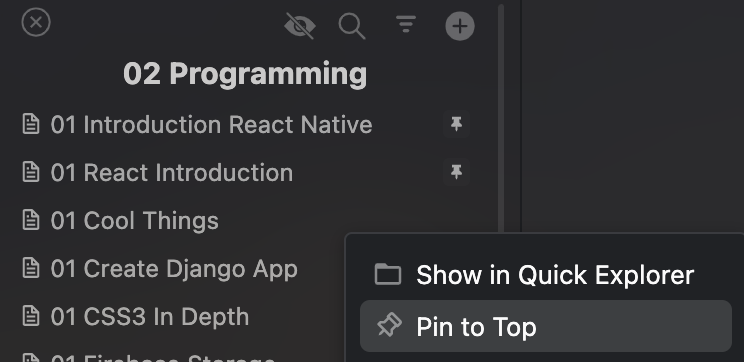
- Pin to top: keep your most important notes at the top of every list.
- Multi-select: select many notes at once to move, pin or delete them, with the mouse, the keyboard or by touch.
- Focus on a folder: double-click a folder to zoom into it and hide everything else.
- Made for mobile too: long-press menus, touch-friendly selection, resizable panes and an optional larger layout for easier tapping.
- Folder notes, note counts, custom icons, sorting and more, all configurable in the settings.
🚀 Getting Started
- Open Settings → Community plugins → Browse, search for File Tree Alternative and install it.
- Enable the plugin. The file tree opens in the left sidebar automatically.
- Choose a layout in the plugin settings under Evernote View:
- Vertical: folders on top, notes below (default)
- Horizontal: folders on the left, notes on the right
- Disabled: a single pane that switches between the folder view and the file list
If you close the view by accident, bring it back with the ribbon icon or the Open File Tree View command.
📝 File List & Note Previews
The file list shows the notes of the selected folder. By default, it also includes notes from all of its subfolders; turn this off in the settings or use the 👁 button above the list to switch.
Choose how the list looks with File List Style:
- Preview: every note shows its title, the first lines of text, the date and extra details. Notes that only contain frontmatter or an image stay compact.
- Compact: only the file names, for maximum density.
In Preview style, you can choose:
| Option | What it does |
|---|---|
| Preview Lines | Show 1, 2 or 3 lines of text per note |
| Preview Thumbnails | Show the first image of a note (or the image file itself) as a thumbnail |
| Preview Tags | Show the tags of a note |
| Preview Aliases | Show the aliases of a note (orange chips) |
| Preview Property | Show the value of any frontmatter property next to the date, e.g. status or author (blue chip) |
The date follows your sorting: it shows the creation date when you sort by Creation Time, and the last modified date otherwise. Previews update as soon as you edit a note.
More in the file list:
- Sorting: by name, file size, creation time or update time, in either direction.
- Pin to top: right-click a note and choose Pin to Top. Pinned notes stay at the top and are remembered between sessions.
- Drop files from your computer onto the list to add them to the current folder.
- Drag notes into the editor to insert a link, or onto a folder to move them.
- Preview on hover: hold Ctrl/Cmd while hovering a note to see a popup preview (enable Preview File on Hover in the settings).
- Reveal active file: jump to the folder of the note you are editing with the Reveal Active File command, or turn on the 🎯 button above the list in the settings.
🔍 Search
Click the 🔍 button above the file list (you can hide it with Search in File List in the settings). Search filters the notes of the current folder by name, and you can combine terms:
| You type | It finds |
|---|---|
meeting notes | Names containing both "meeting" and "notes" |
meeting | call | Names containing "meeting" or "call" (OR also works) |
meeting -draft | "meeting" but not "draft" |
~mtng | Fuzzy match: the letters in order, with gaps allowed |
"weekly review" | The exact phrase |
all: budget | "budget" in the whole vault, not only this folder |
tag: project | Notes with a tag that matches "project" (including YAML tags) |
Press Escape to close the search box.
☑️ Multi-Select
Select several notes and act on all of them at once.
- Desktop: Ctrl/Cmd + click to add or remove a note, Shift + click to select a range.
- Mobile (and desktop): long-press (or right-click) a note and choose Select, then tap notes to add or remove them.
While selecting, each note shows a checkbox, the header shows how many notes are selected with Select all and Done, and a bar at the bottom lets you Move, Pin/Unpin or Delete the selection. Press Escape or Done to finish.
📁 Folder Pane
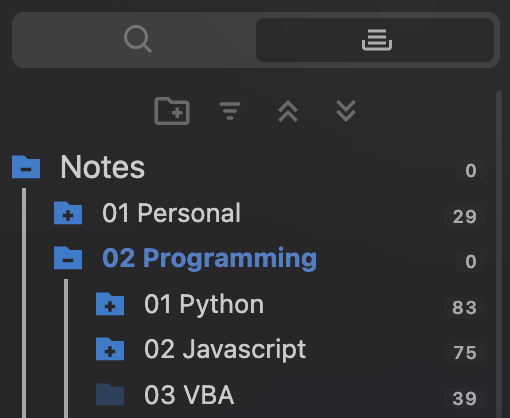
- Note counts next to every folder: count only notes or all files, or hide the counts.
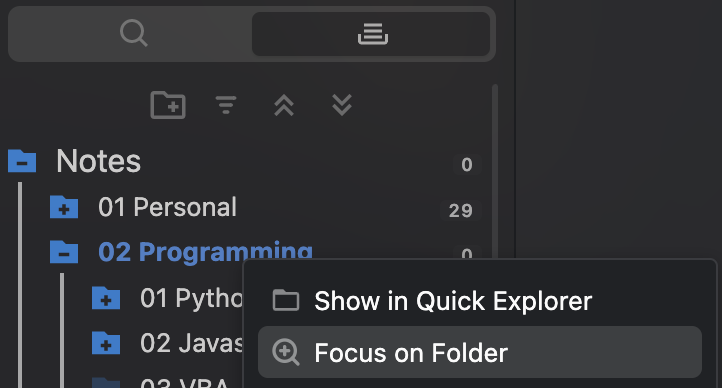
- Focus on a folder: double-click a folder (or use Focus on Folder in its menu) to show only that folder and its subfolders. Double-click it again to go up one level.
- Expand or collapse all folders with the buttons at the top.
- Sort folders by name or by number of items.
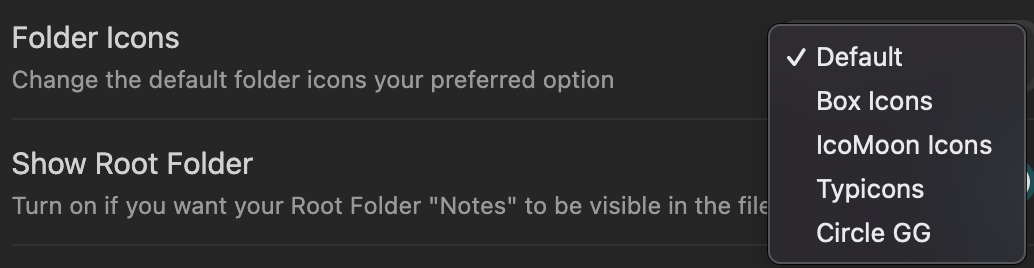
- Custom folder icons: choose from several icon sets in the settings.
- Drag and drop folders into other folders to move them.
- The plugin remembers which folders were open and which folder was focused, so everything looks the same next time you open your vault.
Right-click (or long-press) a folder for more: New File, New Folder, Rename, Move, Delete, Focus and Add to Excluded Folders.
Folder Notes
Turn on Folder Note to give every folder its own note (stored inside the folder with the same name). Shift + click a folder to open its note. Folders that have a note show a small arrow, and the folder note itself is hidden from the file list. Create or delete folder notes from the folder menu.
📱 Mobile
The plugin is designed to work well on phones and tablets:
- Long-press a note or folder to open its menu.
- Select in the note menu starts multi-select, so you can move, pin or delete several notes with your thumb.
- Opening a note closes the sidebar automatically, just like the built-in explorer.
- Drag the divider between the folder and note panes to resize them.
- Turn on Larger Touch Targets on Mobile for taller rows, bigger text and more space between buttons. Leave it off to fit more notes on the screen.
⚙️ More Options
- Hide files you don't need: exclude folders (all of their subfolders are excluded too) or file extensions such as
png, pdf, or hide your attachments folder. - New notes: optionally add a
createddate to the frontmatter and the file name as the first heading when you create a note with the ➕ button. - Deleted files can go to the Obsidian trash, the system trash or be deleted permanently.
- Show file names as full path, show or hide the root folder, file icons before names and a fixed header that stays visible while scrolling.
- Bookmarks integration: Shift + click a file or folder in Obsidian's Bookmarks to reveal it in the file tree.
Customize the Look
Install the Style Settings plugin to change font sizes and colors of the folder pane, file list, headers and active items without writing CSS.
⌨️ Shortcuts & Commands
| Action | How |
|---|---|
| Open a note in a new tab | Middle-click, or Open in a new tab in the menu |
| Open a note to the right | Open to right in the menu |
| Select multiple notes | Ctrl/Cmd + click, Shift + click, or Select in the menu |
| Focus on a folder / go up | Double-click the folder |
| Open a folder note | Shift + click the folder |
| Clear the selection | Escape |
Commands you can assign a hotkey to (Settings → Hotkeys):
- Open File Tree View
- Reveal Active File
- Create a New Note in the current folder
📺 Video

Antone Heyward also made a great walkthrough: Enhance The File Explorer File Tree Alternative Plugin.
📰 What's New
The plugin is updated regularly. See Release Updates for the changes in every version.
💬 Feedback & Contact
Found a bug or have an idea? Open an issue on GitHub, use the contact page on ozan.pl/contact, or email me@ozan.pl.
☕ Support
If the plugin makes your Obsidian life easier, you can support its development by buying me a coffee:

For plugin developers
Search results and similarity scores are powered by semantic analysis of your plugin's README. If your plugin isn't appearing for searches you'd expect, try updating your README to clearly describe your plugin's purpose, features, and use cases.