Inline Tag
pendingby Mehdi Bouhalassa
Reference tags with readable labels that open native tag search on click.
Inline Tag — Obsidian Plugin
Write tag references with display labels. Click to search.


Support
If this plugin saves you time, a coffee is always appreciated ☕


What it does
Obsidian tags are powerful, but there's no built-in way to reference a tag inline with a human-readable label. This plugin introduces a simple syntax that bridges tags and wikilinks:
[[#tag-name|Display Label]]
In Reading view, this renders as a clickable label. Clicking it opens Obsidian Search pre-loaded with tag:#tag-name, showing every note associated with that tag — including notes that reference it via this syntax.
 Write
Write [[#tag|Label]] anywhere in your note — #tag is the searchable target, Label is what gets displayed.
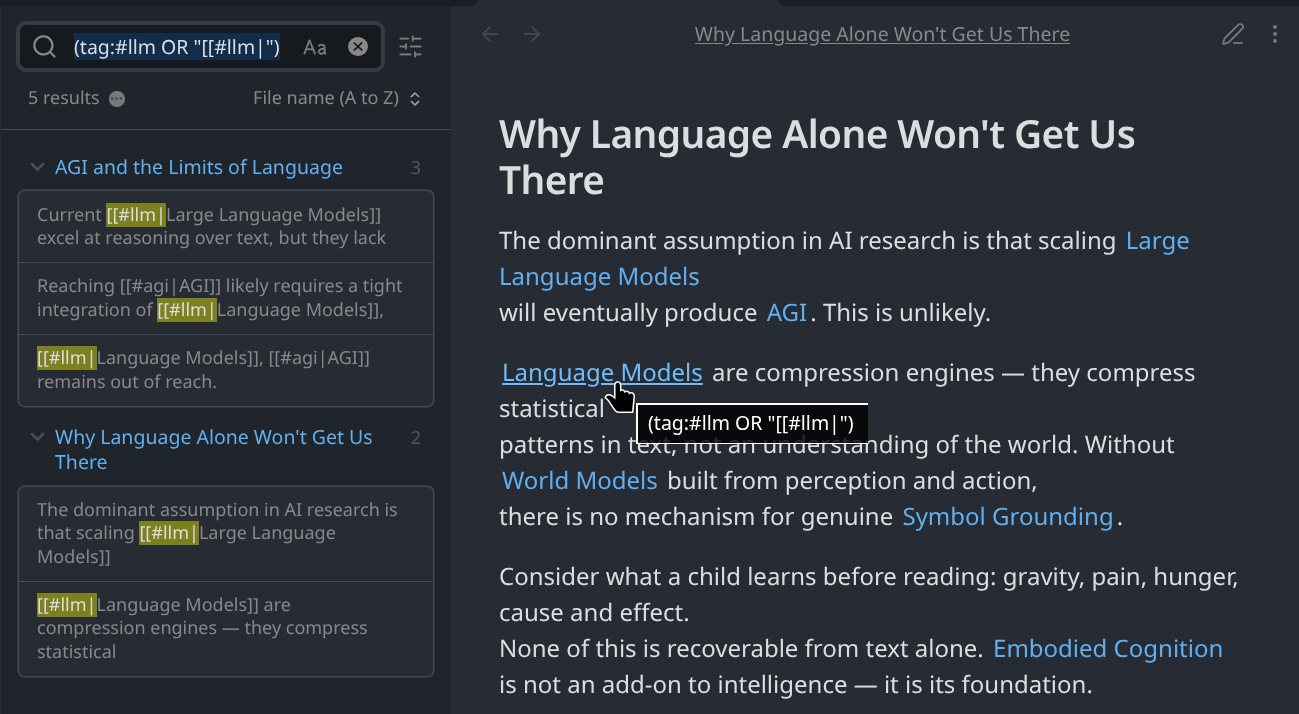 Tags render as clickable labels. Clicking one searches across all notes that share it — here returning 5 results across two notes.
Syntax
[[#TAG|LABEL]]
| Part | Rules |
|---|---|
TAG | Required. No spaces. Letters, digits, -, _, /, Unicode. |
LABEL | Required. Spaces and Unicode allowed. |
Valid
[[#backend|Backend]]
[[#work/dev|Web Development]]
[[#ui-ux|UI/UX]]
[[#project-alpha|Project Alpha]]
Invalid (left as raw text)
[[#tag with spaces|Label]]   ← space in tag
[[#tag]]                     ← missing label
[[tag|Label]]                ← missing leading #
[[#|Label]]                  ← empty tag
[[#tag|]]                    ← empty label
Installation
From Obsidian Community Plugins (recommended)
- Open Settings → Community plugins
- Disable Safe mode if prompted
- Click Browse and search for
Inline Tag - Install and enable
Manual
- Download the latest release from GitHub Releases
- Copy
main.js,manifest.json, andstyles.cssinto your vault's.obsidian/plugins/inline-tag/folder - Enable the plugin in Settings → Community plugins
Settings
| Setting | Default | Description |
|---|---|---|
| Live Preview decorations | On | Render tokens as styled labels in Live Preview; the cursor reveals raw syntax inside a token. Desktop only — not available on mobile. |
| Show canonical tag on hover | On | Tooltip shows tag:#name on hover |
| Style mode | Link | Link = styled like a wikilink · Tag pill = styled like a native tag |
| Debug logging | Off | Logs to DevTools console (Ctrl+Shift+I) |
How search works
Clicking a rendered label opens Obsidian Search with:
(tag:#tag-name OR "[[#tag-name|")
This finds:
- Notes with a native
#tag-nameObsidian tag - Notes that reference the tag using this plugin's syntax
Both usages are discoverable from a single click.
Inserting tags
Autocomplete while typing
Start a token with [[# and type a few characters — a suggestion list filtered from your vault's existing tags appears immediately. Select one to insert [[#tagname| with the cursor ready for the label.
Wrap selected text
Select any text, right-click, and choose Wrap as inline tag. A fuzzy-search modal lets you pick the tag; the selection becomes the label.
Known limitations
- Live Preview not available on mobile. Obsidian for Android and iOS does not use the CodeMirror 6 editor extension system, so the Live Preview decoration engine cannot run there. Tokens will render correctly in Reading view on all platforms.
- No hover preview of matching notes.
- No tag rename / refactor tooling.
Contributing
Issues and PRs are welcome on GitHub.
To build locally:
git clone https://github.com/MB-YUL/obsidian-inline-tag-plugin

cd obsidian-inline-tag-plugin
npm install
npm run dev      # watch mode
npm run build    # production build
Copy the output (main.js, manifest.json, styles.css) into your vault's plugin folder.
License
MIT © MB-YUL
For plugin developers
Search results and similarity scores are powered by semantic analysis of your plugin's README. If your plugin isn't appearing for searches you'd expect, try updating your README to clearly describe your plugin's purpose, features, and use cases.