Geminese
pendingby Guangxing Lyu
Embeds Gemini CLI as an AI collaborator in your vault. Your vault becomes Gemini's working directory, giving it full agentic capabilities: file read/write, search, bash commands, and multi-step workflows.
geminese
English | Chinese (Simplified) | Chinese (Traditional)
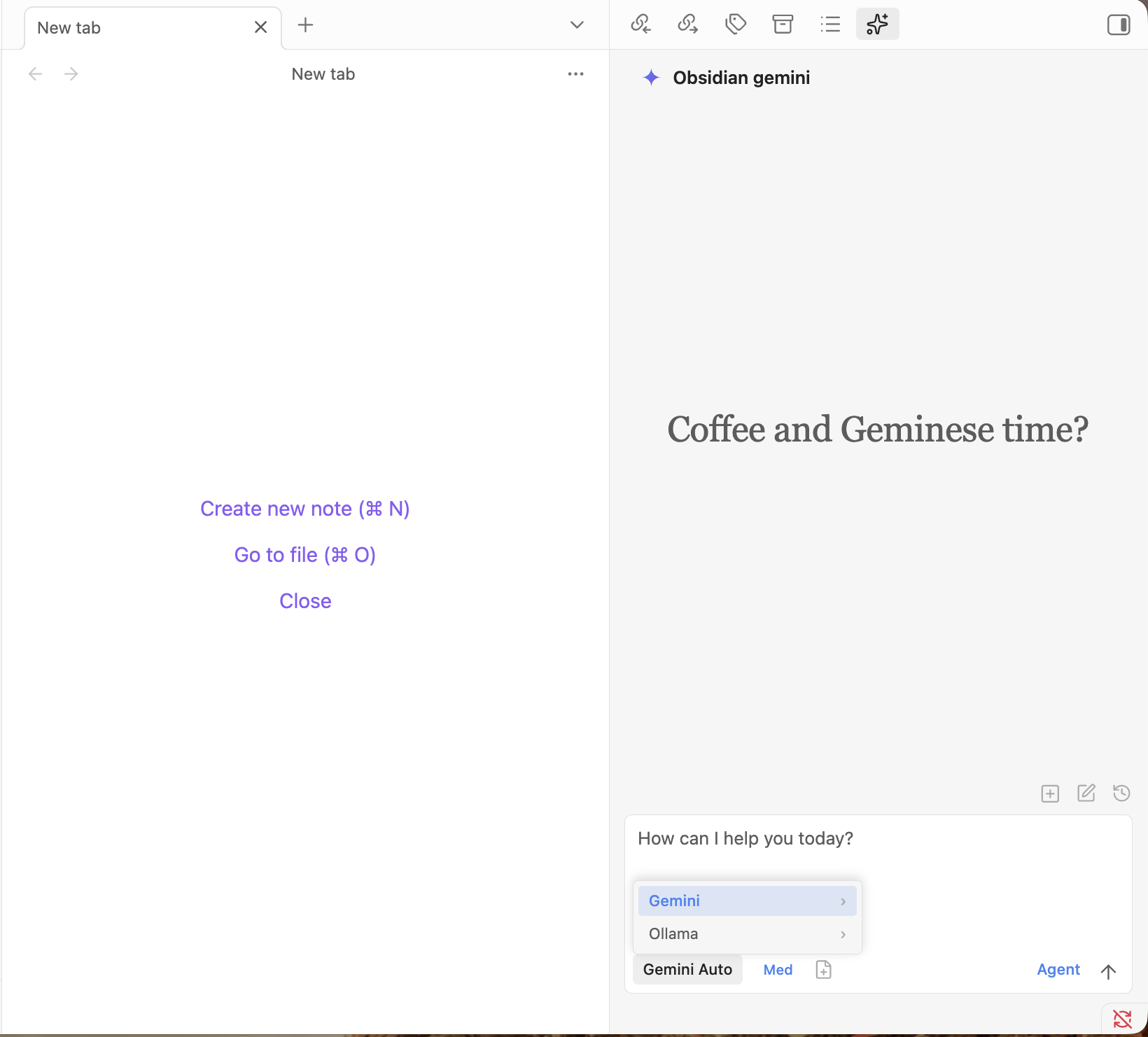
geminese brings both Gemini and Ollama into Obsidian. Use Gemini for native cloud workflows, or switch to a local Ollama model for private, vault-native planning and agentic work.
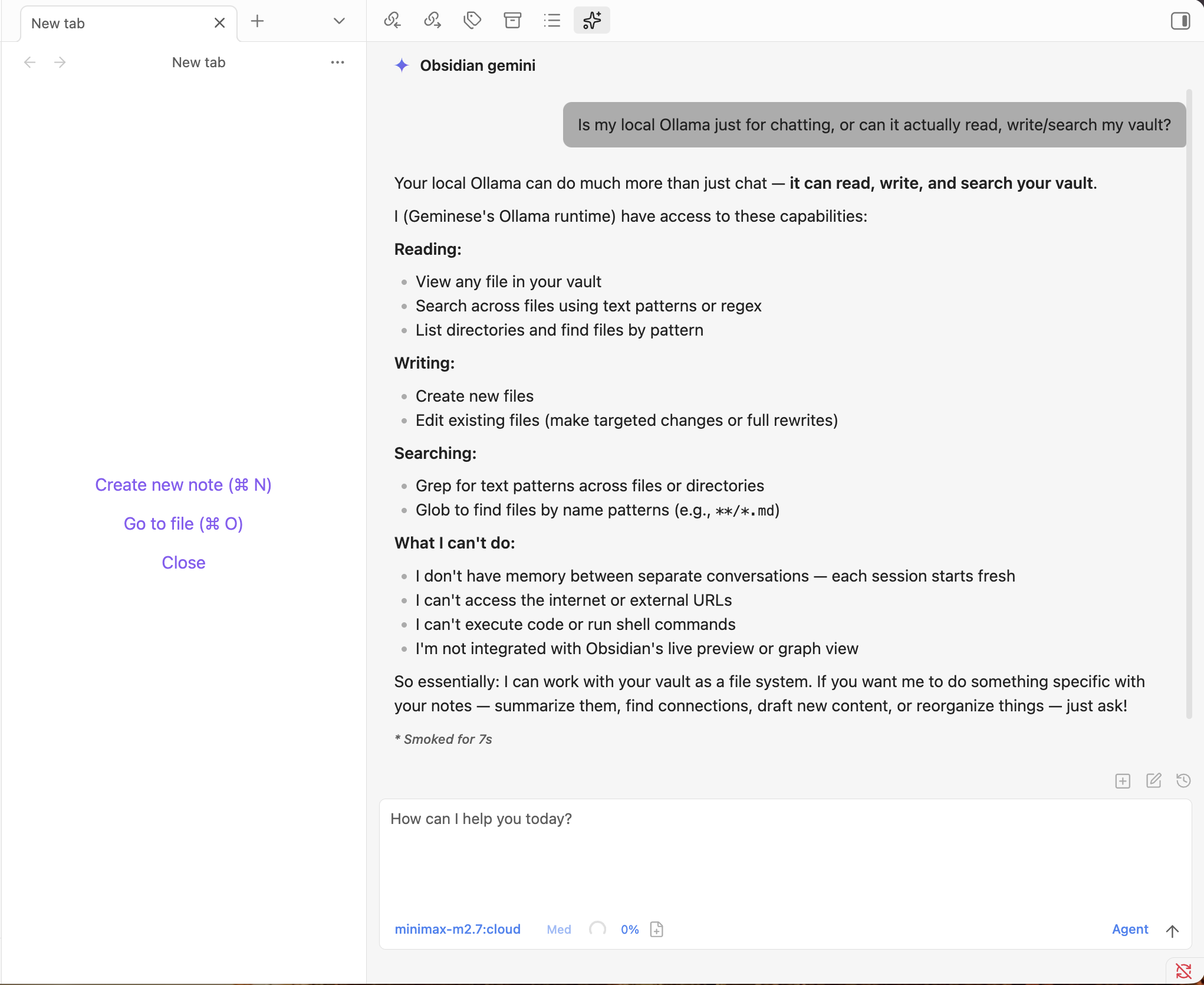
Local models matter here because they are not just chat backends. In geminese, an Ollama model can work with your vault as an agent: inspect files, search notes, draft edits, and help you plan changes before anything is written.
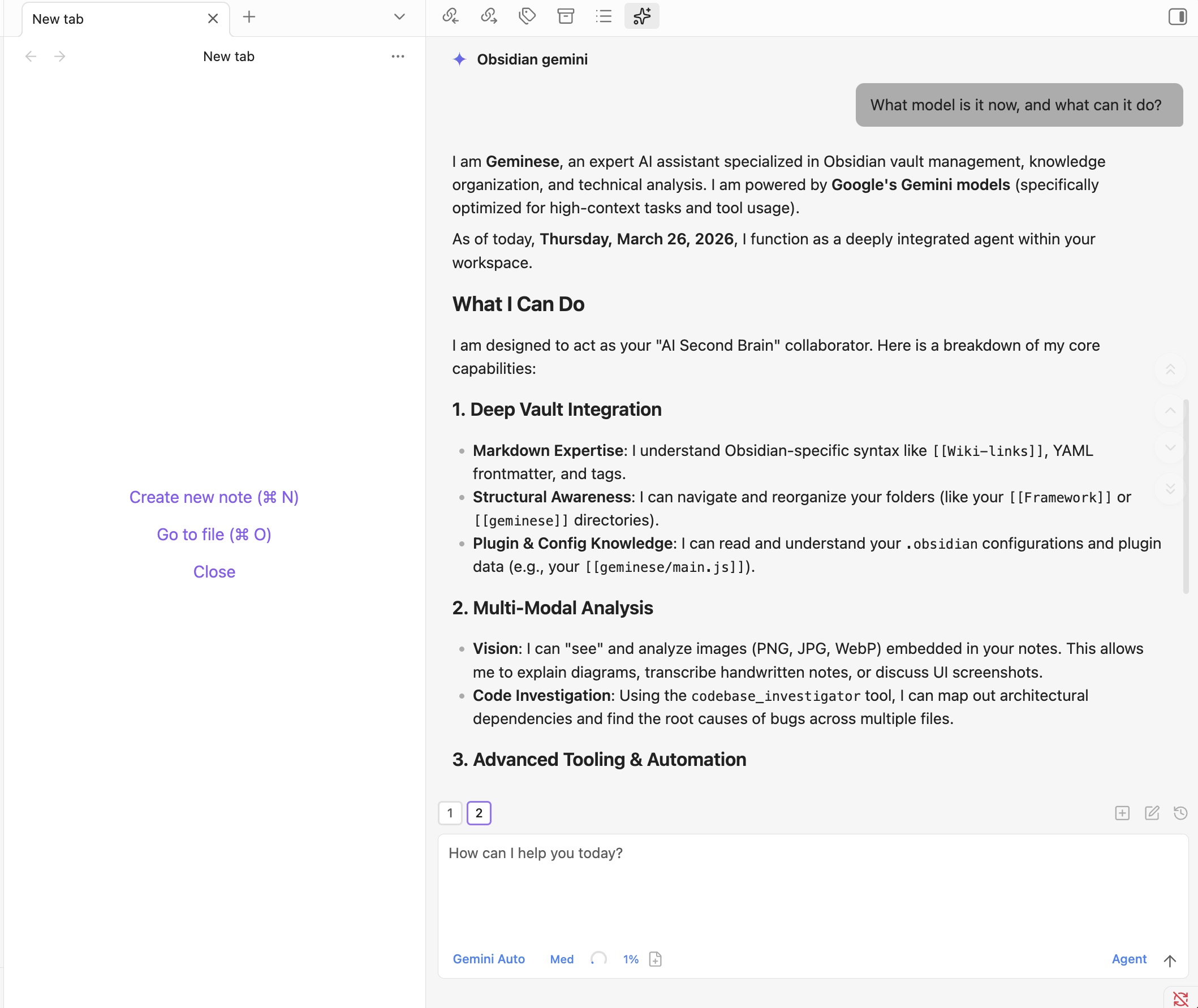
Gemini remains the full native path for users who want Gemini CLI integration, cloud models, and Gemini-specific features.
Features
- Dual Model Families: Switch between Gemini cloud models and locally running Ollama models directly in the chat toolbar.
- Full Agentic Capabilities: Work with your vault as a real agent — read, write, edit, and search files without leaving Obsidian.
- Local-First Workflows: Use Ollama for private, vault-native planning and agentic work through the local HTTP runtime.
- No API Key Required for Gemini: Gemini CLI authenticates with your Google account and works with the free tier (60 req/min, 1000 req/day).
- Context-Aware: Automatically attach the focused note, mention files with
@, exclude notes by tag, include editor selection, and access external directories for additional context. - Vision Support: Analyze images by sending them via drag-and-drop, paste, or file path.
- Inline Edit: Edit selected text or insert content at cursor position directly in notes with word-level diff preview.
- Instruction Mode (
#): Add refined custom instructions to your system prompt directly from the chat input when using Gemini. - Slash Commands: Create reusable prompt templates triggered by
/command, with argument placeholders and@filereferences. - MCP Support: Connect external tools and data sources via Model Context Protocol servers (stdio, SSE, HTTP) when using Gemini-native workflows.
- Model Selection: Choose Gemini Auto, Pro, Flash, Flash Lite, or any installed Ollama model discovered from your local runtime.
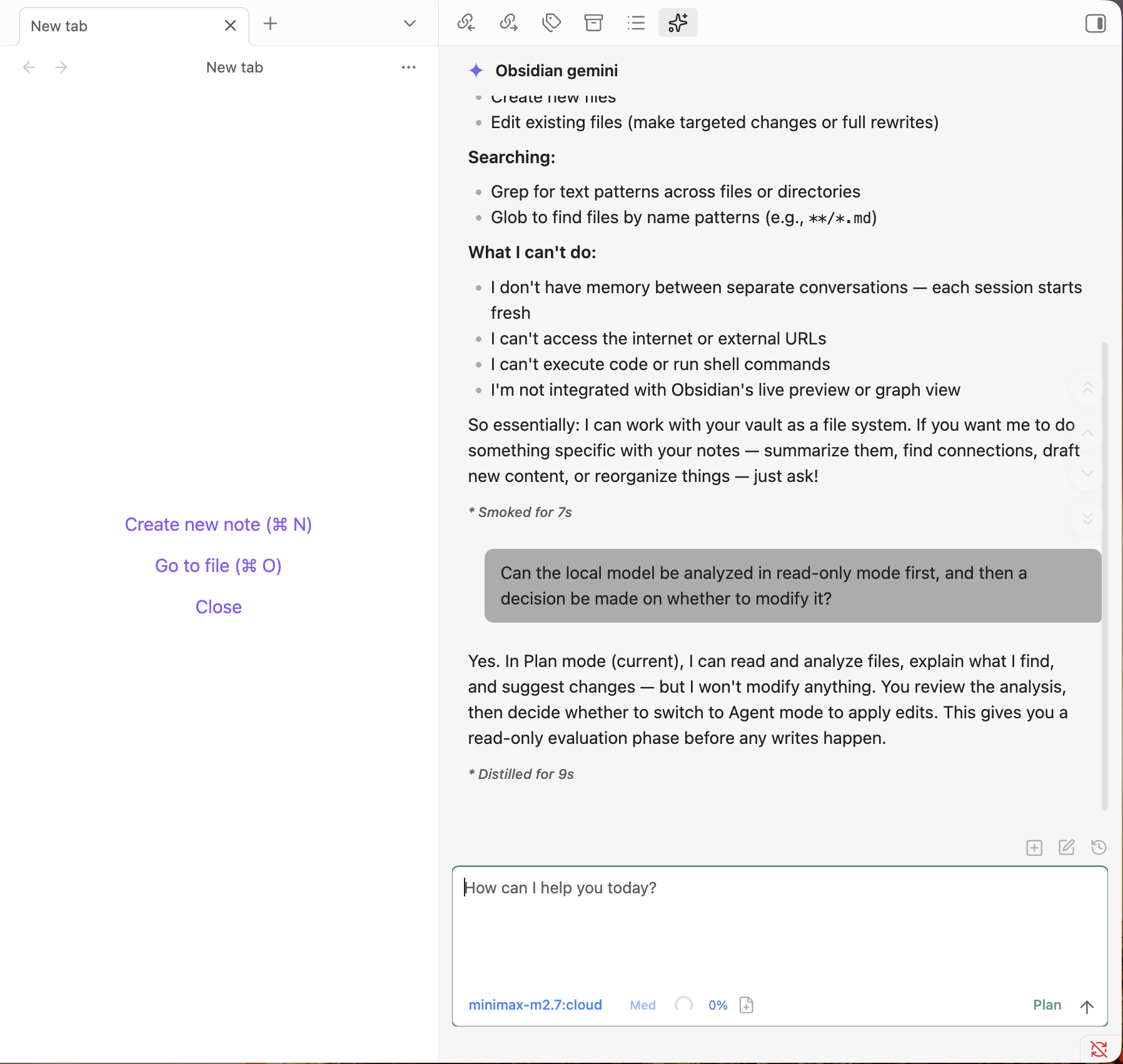
- Plan Mode: Toggle plan mode via Shift+Tab — Gemini or Ollama can explore and design before implementing.
- Security: Permission modes — Agent (execute tools and edit files) and Plan (read-only planning), plus command blocklist and vault-scoped access.
- 10 Languages: English, Chinese (Simplified/Traditional), Japanese, Korean, Spanish, German, French, Portuguese, Russian.
Plan mode makes local workflows safer: review first, decide second, edit only when you switch to Agent mode.
Requirements
- Obsidian v1.4.5+
- Desktop only (macOS, Linux, Windows)
- For Gemini models: Gemini CLI installed and a Google account (free tier works)
- For Ollama models: a local Ollama runtime with at least one installed model
Installation
Prerequisites
Option 1: Use Gemini
macOS & Linux
npm install -g @google/gemini-cli
Windows
- Install Node.js from nodejs.org. Make sure "Add to PATH" is checked during installation.
- Open Command Prompt or PowerShell and install the CLI:
npm install -g @google/gemini-cli - IMPORTANT: Fully restart Obsidian after installation to ensure it picks up the new environment variables.
Then authenticate (on Terminal):
gemini
Follow the prompts to sign in with your Google account.
Option 2: Use Ollama locally
Install and start Ollama on your machine, make sure the local HTTP API is available, and keep at least one model installed. If needed, you can change the Ollama endpoint later in Settings via Ollama base URL.
Install the Plugin
- Download
main.js,manifest.json, andstyles.cssfrom the latest release - Create a folder called
geminesein your vault's plugins folder:/path/to/vault/.obsidian/plugins/geminese/ - Copy the downloaded files into the folder
- Enable the plugin in Obsidian Settings → Community plugins
Skills
Supercharge geminese with Obsidian Skills — agent skills that teach Gemini and local vault workflows how to work with Obsidian Markdown, Bases, JSON Canvas, CLI, and more.
Install Skills
Just open gemini in Terminal and say:
Help me install the Obsidian Skills plugin from https://github.com/kepano/obsidian-skills
Gemini will clone the repo and set everything up for you.
If AI can do it, why should a human bother? Leave this kind of thing to the AI.
Available Skills
| Skill | Description |
|---|---|
| obsidian-markdown | Obsidian Flavored Markdown — wikilinks, embeds, callouts, properties |
| obsidian-bases | Obsidian Bases — views, filters, formulas, summaries |
| json-canvas | JSON Canvas — nodes, edges, groups, connections |
| obsidian-cli | Obsidian CLI — vault interaction, plugin/theme development |
| defuddle | Extract clean markdown from web pages, removing clutter to save tokens |
⭐ Support
- If you find this plugin helpful, please consider giving it a ⭐ on GitHub — it really helps!
Usage
Two modes:
- Click the bot icon in ribbon or use command palette to open chat
- Select text + hotkey for inline edit
Use Gemini or Ollama to read, write, edit, and search files in your vault.
Check you're connected: If you get a reply in the chat, you're connected. You can ask e.g. “What model are you?” to confirm. The model selector shows Gemini options and any available Ollama models; click it to switch. Permission mode (Plan / Agent): Plan is read-only planning, Agent allows tool execution and file editing.
Context
- File: Auto-attaches focused note; type
@to attach other files - Selection: Select text in editor, then chat — selection included automatically
- Images: Drag-drop, paste, or type path
- External contexts: Click folder icon in toolbar for access to directories outside vault
Features
- Inline Edit: Select text + hotkey to edit directly in notes
- Instruction Mode: Type
#to add refined instructions to system prompt - Slash Commands: Type
/for custom prompt templates - MCP: Add external tools via Settings → MCP Servers; use
@mcp-serverin chat to activate
Configuration
Settings
Customization
- User name: Your name for personalized greetings
- Excluded tags: Tags that prevent notes from auto-loading
- Media folder: Configure where vault stores attachments for embedded image support
- Custom system prompt: Additional instructions appended to the default system prompt
Safety
- Enable command blocklist: Block dangerous bash commands (default: on)
- Blocked commands: Patterns to block (supports regex, platform-specific)
- Allowed export paths: Paths outside the vault where files can be exported
Environment
- Custom variables: Environment variables (KEY=VALUE format)
- Environment snippets: Save and restore environment variable configurations
Advanced
- Gemini CLI path: Custom path to Gemini CLI (leave empty for auto-detection)
Safety and Permissions
| Scope | Access |
|---|---|
| Vault | Full read/write (symlink-safe via realpath) |
| Export paths | Write-only (e.g., ~/Desktop, ~/Downloads) |
| External contexts | Full read/write (session-only) |
- Agent mode: Default mode — execute tools and edit files (with safety interception and approval)
- Plan mode: Read-only — explores and designs a plan before implementing
Privacy & Data Use
- Sent to API: Your input, attached files, images, and tool call outputs go to Google's Gemini API via the CLI.
- Local storage: Settings and session metadata stored in
vault/.gemini/; session data managed by Gemini CLI. - No telemetry: No tracking beyond Google's Gemini API.
Troubleshooting
Gemini CLI not found
If you encounter Gemini CLI not found, the plugin can't auto-detect your installation.
Solution: Find your CLI path and set it in Settings → Advanced → Gemini CLI path.
| Platform | Command | Example Path |
|---|---|---|
| macOS/Linux | which gemini | /usr/local/bin/gemini |
| macOS (Homebrew) | which gemini | /opt/homebrew/bin/gemini |
| Windows | where.exe gemini | %APPDATA%\npm\node_modules\@google\gemini-cli\dist\index.js |
| npm global | npm root -g | {root}/@google/gemini-cli/dist/index.js |
Alternative: Add your Node.js bin directory to PATH in Settings → Environment → Custom variables.
Authentication Issues
Make sure you've authenticated with Gemini CLI first:
gemini
This will open a browser for Google account login. After signing in, the CLI (and plugin) can use your account.
Development
npm run dev     # Watch mode
npm run build   # Production build
npm run test    # Run tests
npm run lint    # Lint code
Architecture
Obsidian Plugin (UI)
      ↓
child_process.spawn("gemini", ["--output-format", "stream-json", ...])
      ↓
Gemini CLI → Google Account (no API key)
The plugin spawns the Gemini CLI as a subprocess for each query, passing --output-format stream-json to get structured JSONL output. Session continuity is maintained via --resume.
See ARCHITECTURE.md for detailed source structure and development notes.
Based on Claudian — converted from Claude Code CLI to Gemini CLI. Uses your Google account (no API key needed).
License
Licensed under the MIT License.
For plugin developers
Search results and similarity scores are powered by semantic analysis of your plugin's README. If your plugin isn't appearing for searches you'd expect, try updating your README to clearly describe your plugin's purpose, features, and use cases.