Monday.com Integration
pendingby MA Frampton
View Monday.com boards and items directly in your notes and sidebar.
Monday.com Integration
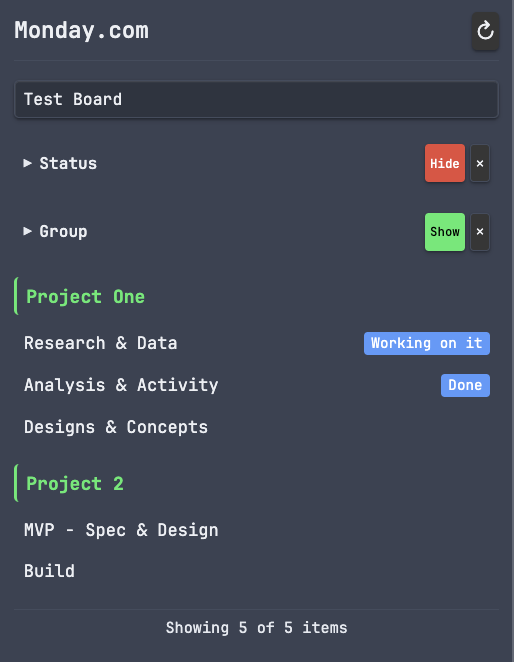
View your Monday.com boards and items directly within your notes and in a dedicated sidebar panel.
Features
- Embedded Dashboards - Insert
mondaycode blocks to display board items in your notes - Sidebar Panel - Browse all your boards and items in a dedicated view
- Team Summary Panel - View task counts per team member with status badges
- Click-to-Create Notes - Click any item to create a linked note with task metadata
- Duplicate Detection - Checks for existing notes before creating new ones
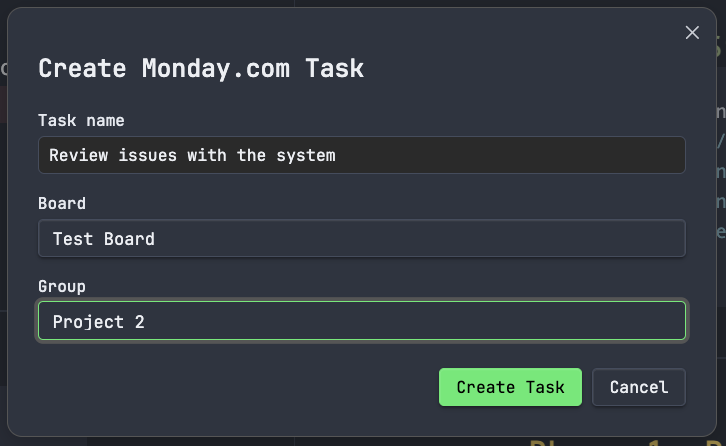
- Create Tasks - Create Monday.com items from selected text in your notes
- Change Status - Update item status via dropdown or context menu (including subtasks)
- Assign/Reassign - Assign or reassign people to tasks and subtasks
- Add Comments - Post comments to items directly from the sidebar
- Live Data - Fetch real-time data from Monday.com's API
- Customisable - Configure note folder, naming templates, and display options
Installation
Manual Installation
- Download the latest release from GitHub
- Extract to your vault's
.obsidian/plugins/monday-integration/folder - Enable the plugin in Obsidian Settings > Community Plugins
From Community Plugins (Coming Soon)
Search for "Monday.com Integration" in Settings > Community Plugins > Browse
Setup
-
Get your Monday.com API token:
- Go to Monday.com
- Click your profile picture > Developers
- Select "My Access Tokens"
- Copy your API token
-
Configure the plugin:
- Open Obsidian Settings > Monday.com Integration
- Paste your API token
- Click "Test" to verify the connection
- Click "Load boards" to fetch your boards
Usage
Embed a Dashboard
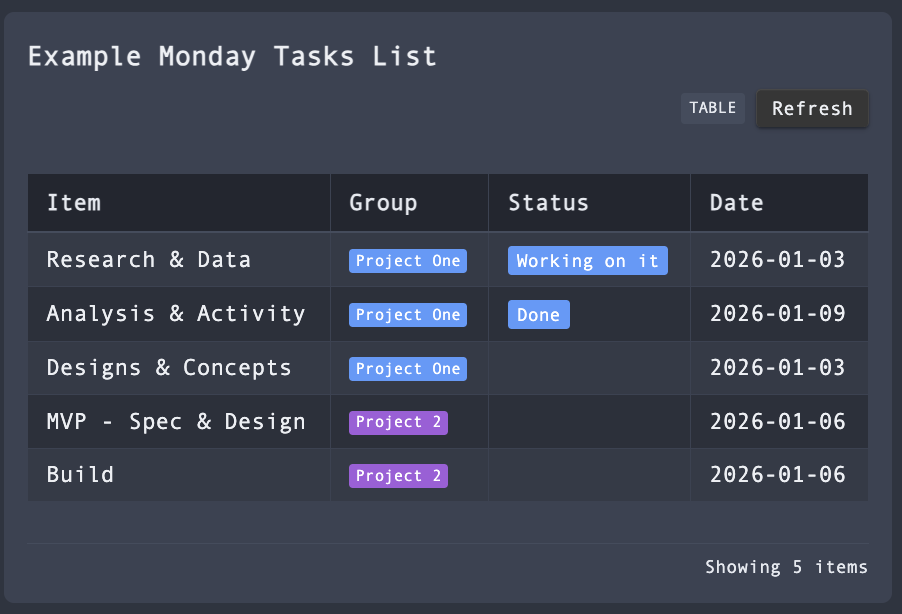
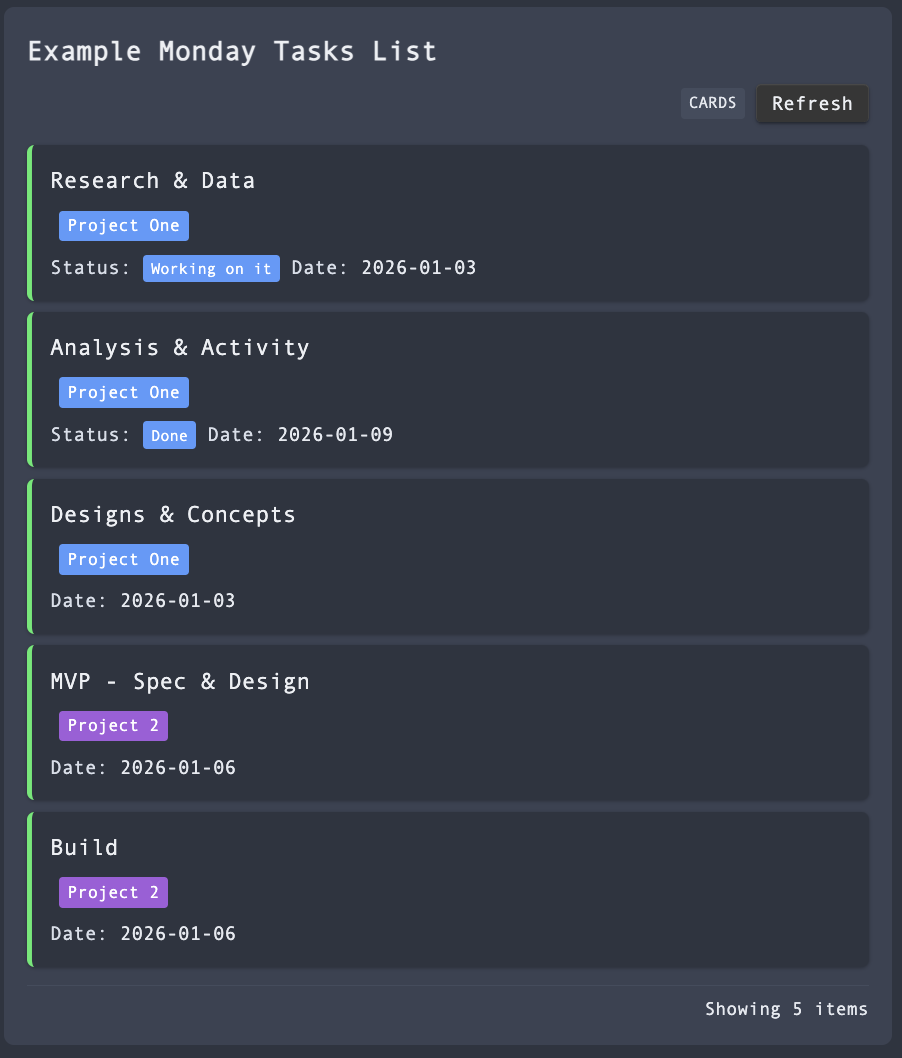
Add a code block to any note:
```monday
board: 1234567890
title: My Tasks
limit: 25
```
Options:
board- Board ID (required if no default set)title- Custom title (optional)limit- Maximum items to show (default: 25)columns- Comma-separated column IDs to display
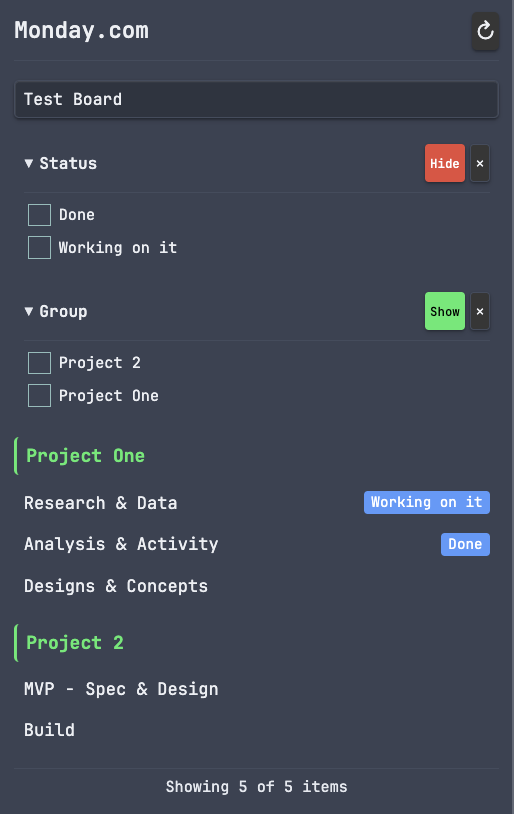
Sidebar Panel
Click the calendar-check icon in the left ribbon or use the command palette:
Monday.com Integration: Open sidebar
Team Summary Panel
View task counts per team member with colour-coded status badges:
- Orange - Working on it
- Green - Done
- Red - Overdue
Click the users icon in the left ribbon or use:
Monday.com Integration: Open team summary
Features:
- Click a team member to filter the main sidebar by that person
- Board selection syncs between both panels
- Split your sidebar horizontally to view both panels together
Create Notes from Items
Click any item in the sidebar to create a linked note with task metadata. The note includes:
---
title: "Task Name"
monday_id: "1234567890"
monday_board: "Project Board"
monday_board_id: "9876543210"
status: "Working on it"
group: "Sprint 1"
due_date: "2026-01-15"
assigned: "John Smith"
created: "2026-01-05"
tags:
  - monday
---
Duplicate Detection: If a note with the same name already exists, you'll be prompted to either open the existing note or create a new one with an incremented name.
Create Tasks
Create Monday.com tasks directly from selected text in your notes:
Context Menu Actions
Right-click on any task or subtask in the sidebar for additional options:
- Change Status - Update task status (works on both parent tasks and subtasks)
- Assign/Reassign - Assign people to the task or reassign to different team members
- Add Comment - Post a comment to the task
- Open in Monday.com - Open the task in your browser
Commands
- Insert board dashboard - Insert a code block at cursor
- Open sidebar - Open the Monday.com sidebar panel
- Open team summary - Open the team summary panel
- Refresh boards - Force refresh cached board data
- Create Monday.com task - Create a task from selected text
Configuration
Access settings via Settings → Monday.com Integration
| Setting | Description | Default |
|---|---|---|
| API Token | Your Monday.com API token | (required) |
| Default Board | Board to use when none specified | (none) |
| Note Folder | Folder where notes created from items are stored | Monday |
| Note Name Template | Template for naming created notes | {name} |
| Show Status Bar | Display sync status in the status bar | On |
| Show Status Dropdown | Show quick status dropdown on sidebar items | On |
| Auto-Refresh | How often to refresh data (minutes) | 5 |
Note Name Template Placeholders
| Placeholder | Description | Example |
|---|---|---|
{name} | Item name | Fix login bug |
{board} | Board name | Project Alpha |
{group} | Group name | Sprint 1 |
{id} | Monday.com item ID | 1234567890 |
Example templates:
{name}→ "Fix login bug.md"{board}/{name}→ "Project Alpha/Fix login bug.md"{group} - {name}→ "Sprint 1 - Fix login bug.md"
Finding Your Board ID
- Open your board in Monday.com
- Look at the URL:
https://yourworkspace.monday.com/boards/1234567890 - The number after
/boards/is your Board ID
Support
If this plugin helps you stay organised, consider supporting its development:

Security & Privacy
- Local storage only - Your API token is stored locally in your vault's plugin data folder (
data.json) - No encryption at rest - The token is stored in plain text (standard for Obsidian plugins)
- Direct API communication - Data is fetched directly from Monday.com's API
- No third-party servers - Your data is never sent anywhere except Monday.com
- Masked input - The token input field is masked in settings
- No logging - Your token is never logged or exposed
Recommendations:
- Use a Monday.com API token with minimal required permissions
- Do not sync your vault's
data.jsonfiles to public repositories - Consider adding
.obsidian/plugins/*/data.jsonto your.gitignore
Licence
MIT
For plugin developers
Search results and similarity scores are powered by semantic analysis of your plugin's README. If your plugin isn't appearing for searches you'd expect, try updating your README to clearly describe your plugin's purpose, features, and use cases.