Granola Meetings Simple Sync
pendingby Phil Freo
Sync your Granola meeting notes, summaries, and transcripts to your vault in a simple way (no API usage). Customizable by template. Supports auto-linking of attendee Person notes.
Obsidian Plugin: Granola Meetings Simple Sync
Sync your Granola meeting notes to Obsidian.
This plugin uses Granola's official MCP API to sync meeting notes, AI summaries, and transcripts into your vault. One-time OAuth setup, then fully automatic.
Features
- Official API: Uses Granola's MCP API with OAuth authentication
- Auto-sync: Automatically sync meetings at configurable intervals (1m to 12h)
- Template-based: Customize output format with your own template
- Smart deduplication: Tracks meetings by ID to avoid duplicates
- Preserve edits: Option to skip existing notes so your local changes aren't overwritten
- Attendee linking: Automatically link attendees to existing notes by email
- Transcripts: Optionally include full meeting transcripts
There are other (1, 2) Granola plugins for Obsidian, but I found their implementation lacking for my needs. They either had unnecessary complexity or didn't support features like bringing in private notes, linking to attendee Person notes, or customizing the note template/frontmatter. This plugin fits my workflow better.
Installation
Hopefully Obsidian community plugin directory inclusion will come soon. In the meantime:
Install via BRAT (recommended)
- Install the BRAT plugin from Obsidian's community plugins
- In BRAT settings, click Add Beta plugin
- Enter
philfreo/obsidian-granola-plugin - Enable the plugin in Settings → Community plugins
BRAT will automatically keep the plugin updated.
Manual Installation
- Download the zip from the latest release
- Extract to
<vault>/.obsidian/plugins/ - Enable the plugin in Settings → Community plugins
Setup
- Open plugin settings
- Click Connect to Granola — this opens your browser for OAuth authentication
- Authorize the plugin in your browser
- You'll be redirected back to Obsidian automatically
- Meetings will start syncing!
Settings
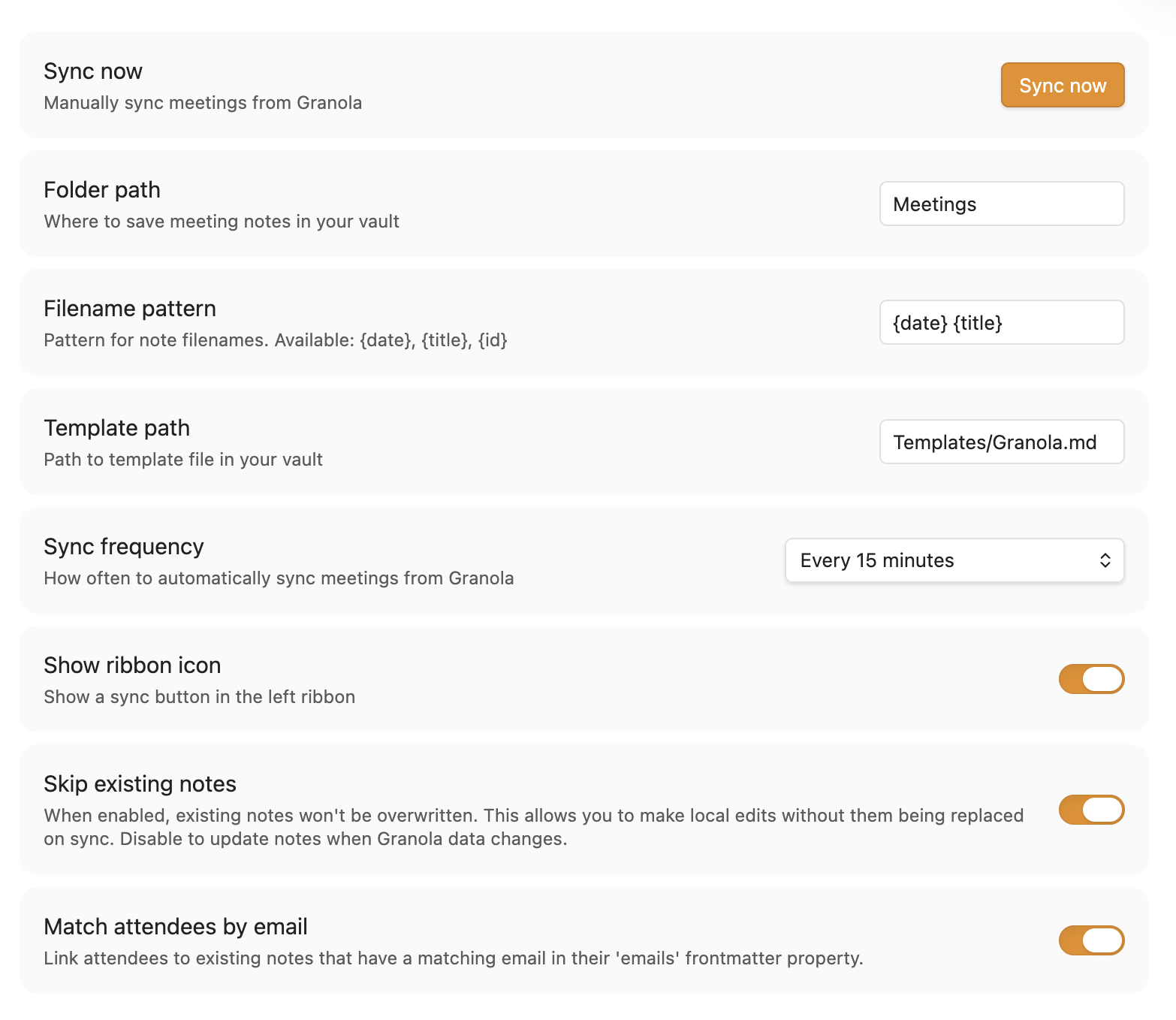
| Setting | Default | Description |
|---|---|---|
| Time range | Last 30 days | How far back to look for meetings |
| Sync frequency | Every 15 minutes | How often to sync. Options: Manual only, On startup, 1m, 15m, 30m, 60m, 12h |
| Sync transcripts | Off | Include full meeting transcripts (1 extra API call per meeting) |
| Folder path | Meetings | Where to save meeting notes |
| Filename pattern | {date} {title} | Pattern for filenames. Supports {date}, {title}, {id} |
| Template path | Templates/Granola.md | Path to your template file |
| Show ribbon icon | On | Show a sync button in the left sidebar |
| Skip existing notes | On | Don't overwrite notes you've edited |
| Match attendees by email | On | Link attendees to notes with matching email in frontmatter |
Usage
- Sync meetings: By default your meetings will be synced every 15 minutes. This setting is customizable, and you can also trigger a sync by clicking the ribbon icon, using the command palette ("Granola Meetings Simple Sync: Sync meetings"), or clicking "Sync now" in settings.
Template Variables
Create a template file to customize how your meeting notes look. Use these variables:
Core
{{granola_id}}- Unique meeting ID{{granola_title}}- Meeting title{{granola_date}}- Date (YYYY-MM-DD){{granola_url}}- Link to meeting on Granola web{{granola_start_time}}- Start time (e.g., "3:00 PM")
Content
{{granola_private_notes}}- Your notes from the meeting{{granola_enhanced_notes}}- AI-generated content (Summary, Action Items, etc.){{granola_transcript}}- Full transcript (requires "Sync transcripts" enabled)
Attendees
{{granola_attendees}}- Comma-separated names{{granola_attendees_linked}}- With Obsidian links:[[John]], [[Jane]]{{granola_attendees_list}}- YAML list format{{granola_attendees_linked_list}}- YAML list with links
Conditional Blocks
Use {{#variable}}...{{/variable}} to only render content when a variable is non-empty:
{{#granola_transcript}}
## Transcript

{{granola_transcript}}
{{/granola_transcript}}
Default Template
If no template exists at the configured path, the plugin creates this default:
---
granola_id: {{granola_id}}
granola_url: {{granola_url}}
title: "{{granola_title}}"
date: {{granola_date}}
attendees:
{{granola_attendees_linked_list}}
tags:
  - meeting
  - granola
---
{{#granola_private_notes}}## Notes

{{granola_private_notes}}
{{/granola_private_notes}}
{{#granola_enhanced_notes}}## Summary

{{granola_enhanced_notes}}
{{/granola_enhanced_notes}}
{{#granola_transcript}}

## Transcript

{{granola_transcript}}
{{/granola_transcript}}
Requirements
- Desktop only: This plugin requires Node.js APIs available only in Obsidian's desktop app
- Granola account: You'll be prompted to authenticate via OAuth on first use
Development
npm install
npm run dev       # Build (watch mode)
npm run build     # Build (production)
npm run package   # Package for release
Releasing
Per Obsidian's guidelines, tags should not use a v prefix (use 1.0.0, not v1.0.0).
License
MIT
For plugin developers
Search results and similarity scores are powered by semantic analysis of your plugin's README. If your plugin isn't appearing for searches you'd expect, try updating your README to clearly describe your plugin's purpose, features, and use cases.