Natural link
pendingby Timofey Koolin
Create links to notes using natural word forms. Finds matching notes regardless of word declension or order.
Читайте на русском.
Natural link
An Obsidian plugin that lets you create links to notes using natural word forms. Type a word in any form and the plugin will find matching notes regardless of word order.
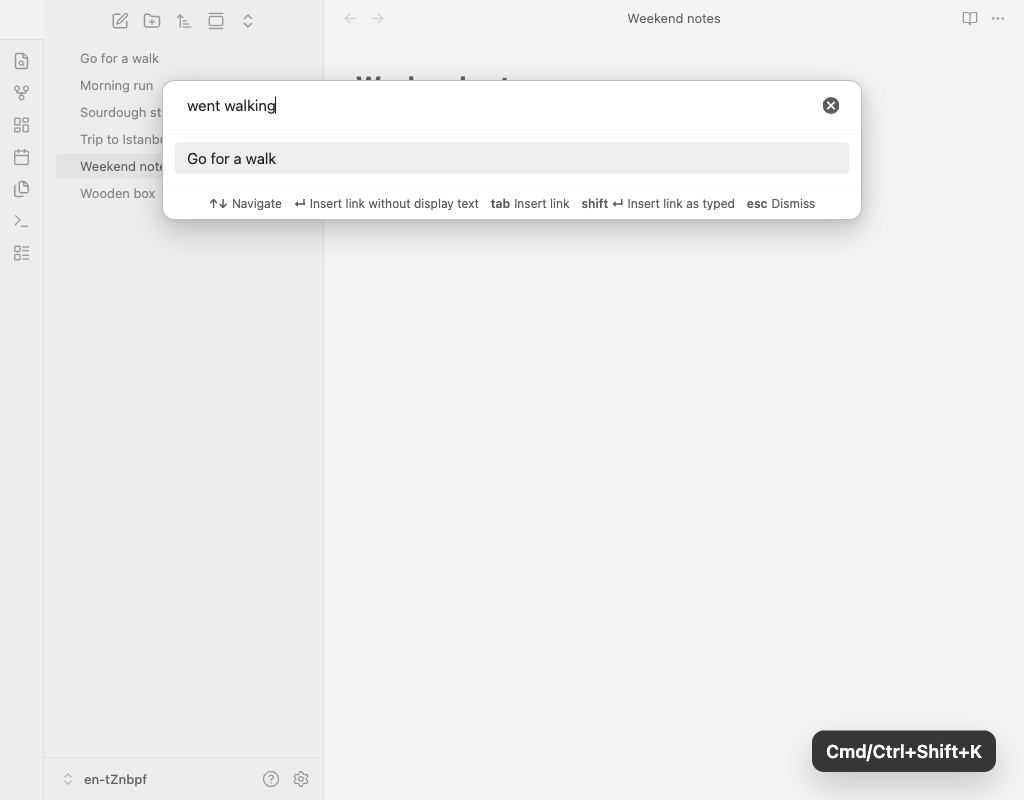
Optional feature: replaces the standard inline link suggestions with the plugin's morphological search (can be enabled in the plugin settings):
Features
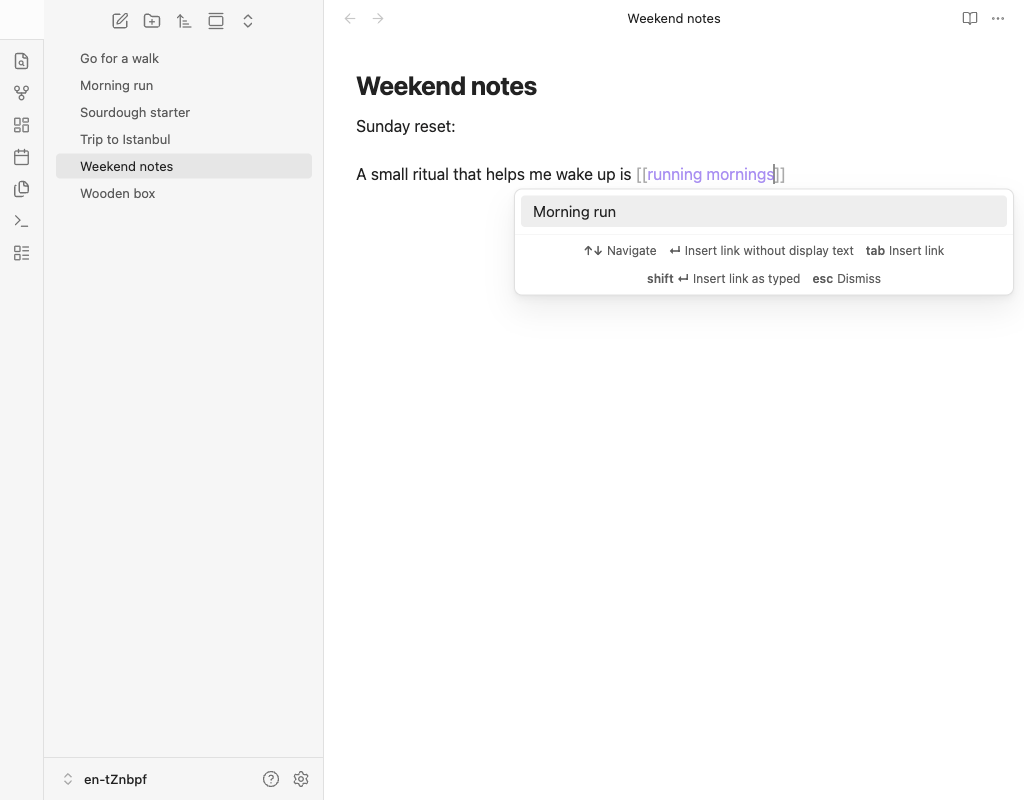
- Morphological search: Find notes by any word form. Searching for "wooden boxes" will match a note titled "Wooden box". Russian morphology is fully supported, including consonant alternations (
друг/дружить,ходить/хожу) and suppletive forms (люди/человек). English morphology includes Snowball stemming and irregular dictionary mappings such aschildren/child,went/go, andbetter/good. - Prefix matching: Results update as you type. Even incomplete words match — typing "wood" will find "Wooden box".
- Alias support: Searches across note titles, frontmatter aliases, and display texts from wikilinks. If any note in the vault links to another with explicit display text (
[[Note|custom text]]), that display text is automatically treated as an alias for the target note. - Word order independence: "box wooden" finds "Wooden box".
- Multi-language: Russian and English search work simultaneously. Russian morphological analysis is based on OpenCorpora dictionary data, English — on WordNet exception lists.
- Heading and block links: Use
#to link to a specific heading (note#heading) or^to link to a block (note^text). The plugin searches for the note first, then shows matching headings or text blocks with previews. Use|to set explicit display text (note|custom text). - Tab for display-preserving completion: Press Tab to accept the selected suggestion and insert a link with your typed text preserved (
[[Note|your text]],[[Note#Heading|your text]],[[Note#^blockId|your text]]). - Insert link as typed: Press Shift+Enter to insert a link with your exact input as both target and display text, bypassing search results.
- Preserved display text: Links are always created as
[[Note Title|your input]], so your original text is preserved even if the note is renamed. - Inline
[[suggest (opt-in): Replace Obsidian's native link autocomplete with the plugin's morphological search. Suggestions appear inline as you type[[, with hotkey hints shown at the bottom. Enable in Settings → Natural link → "Replace native [[ link suggest". - Localized UI: Interface available in English and Russian. Language follows your Obsidian settings.
Usage
- Run the Insert Natural link command (or start typing
[[if the inline suggest feature is enabled). - Type the word or phrase you want to link.
- Select a matching note:
- Enter inserts
[[Matched Note]]. - Tab inserts
[[Matched Note|your typed text]](also works for#headings and^blocks).
- Enter inserts
Tip: Press Shift+Enter at any time to insert a link using your exact input as-is.
Command palette commands:
- Insert natural link (recommended hotkey: Cmd/Ctrl+Shift+K) — opens the natural link dialog.
- Toggle "replace native [[ suggest with natural"
- Enable "replace native [[ suggest with natural"
- Disable "replace native [[ suggest with natural"
The inline suggest commands let you control [[ replacement without opening settings.
Demo
English demos
Modal search
Type a natural phrase, open the modal, and accept the best match with Tab to preserve the typed wording.
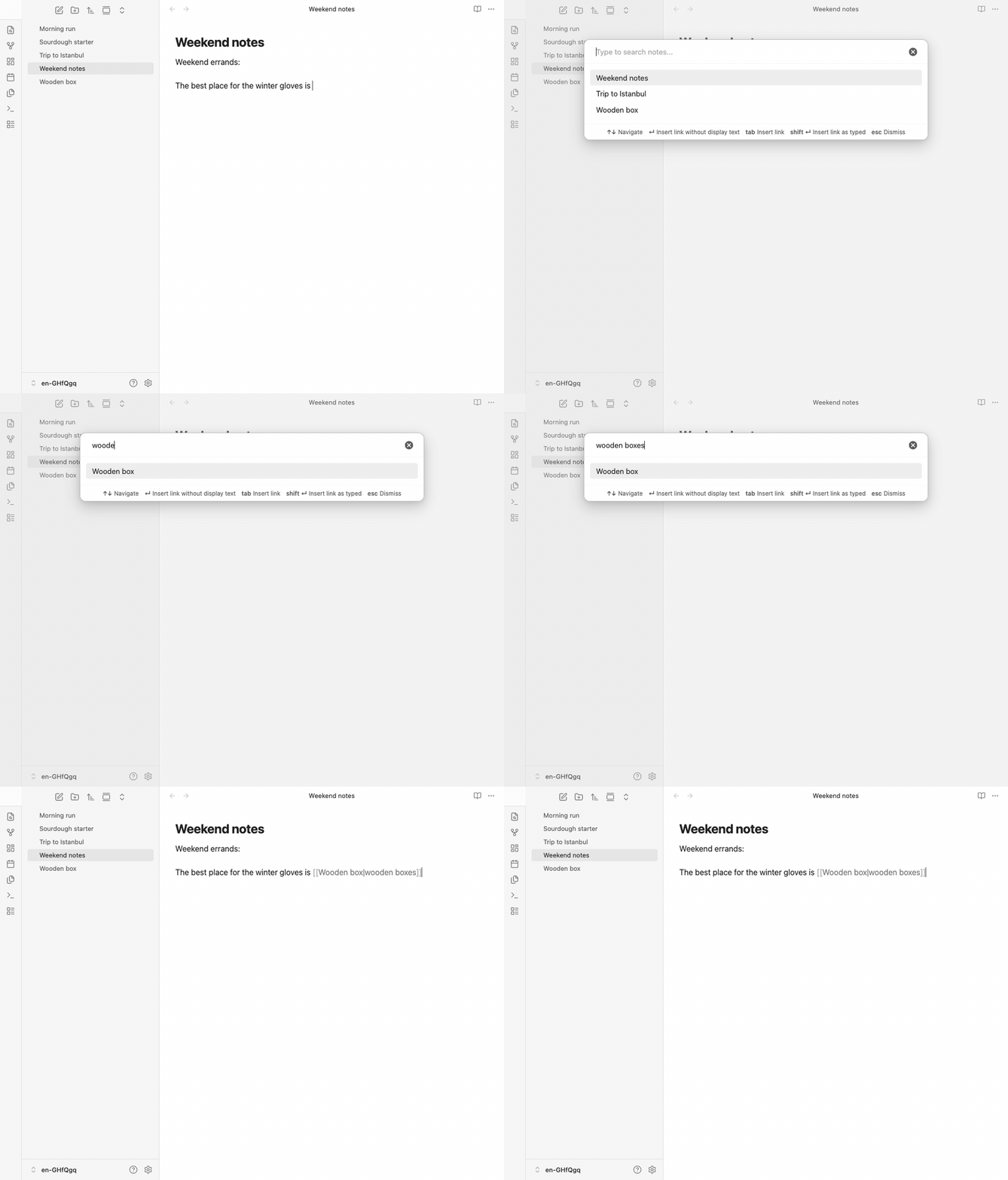
Suppletive form search
Type a completely different word form — "went walking" finds "Go for a walk" via the suppletive dictionary (went → go, walking → walk).

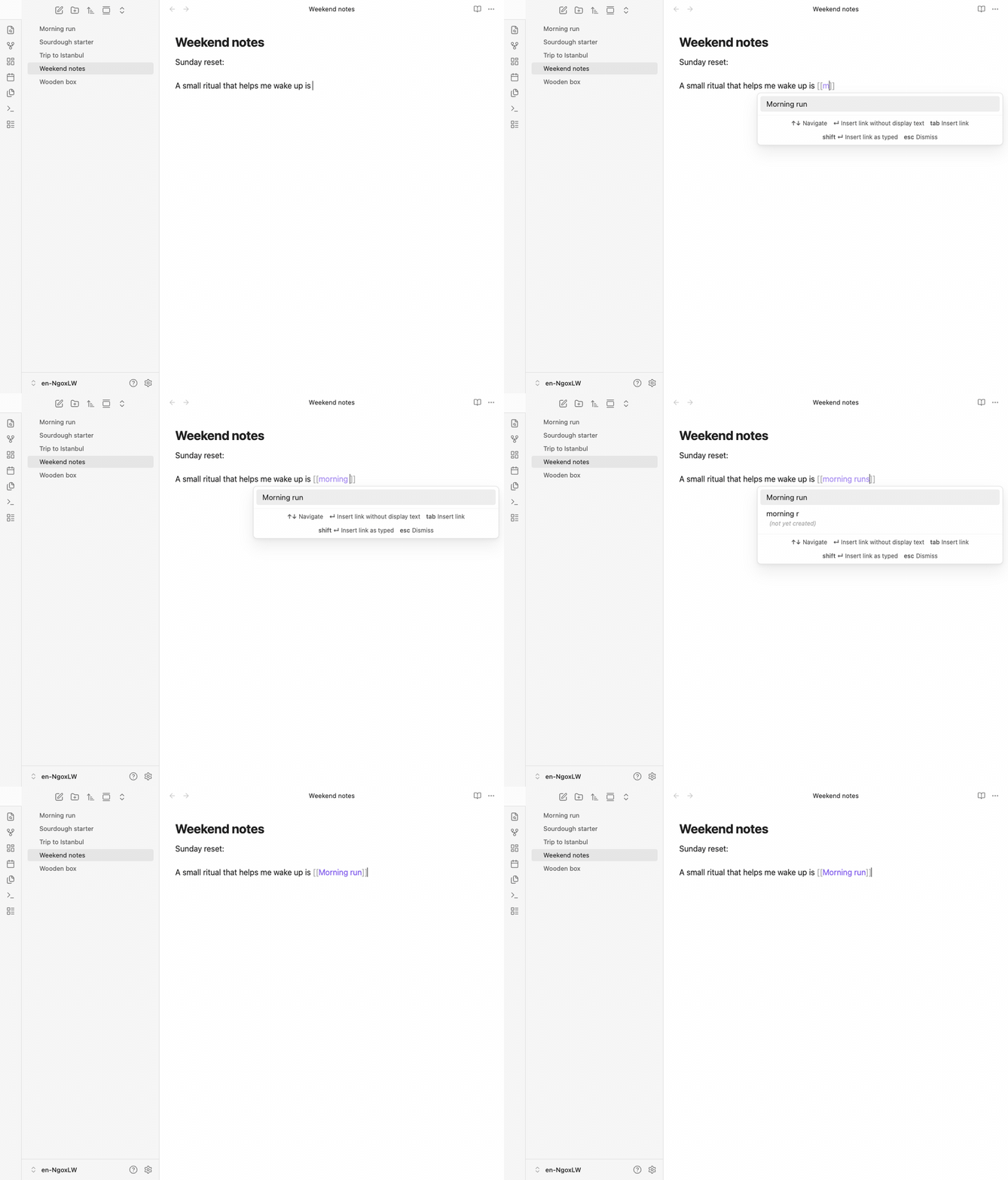
Inline [[ suggest
Start typing a wikilink directly in the editor and accept the suggestion with Enter.
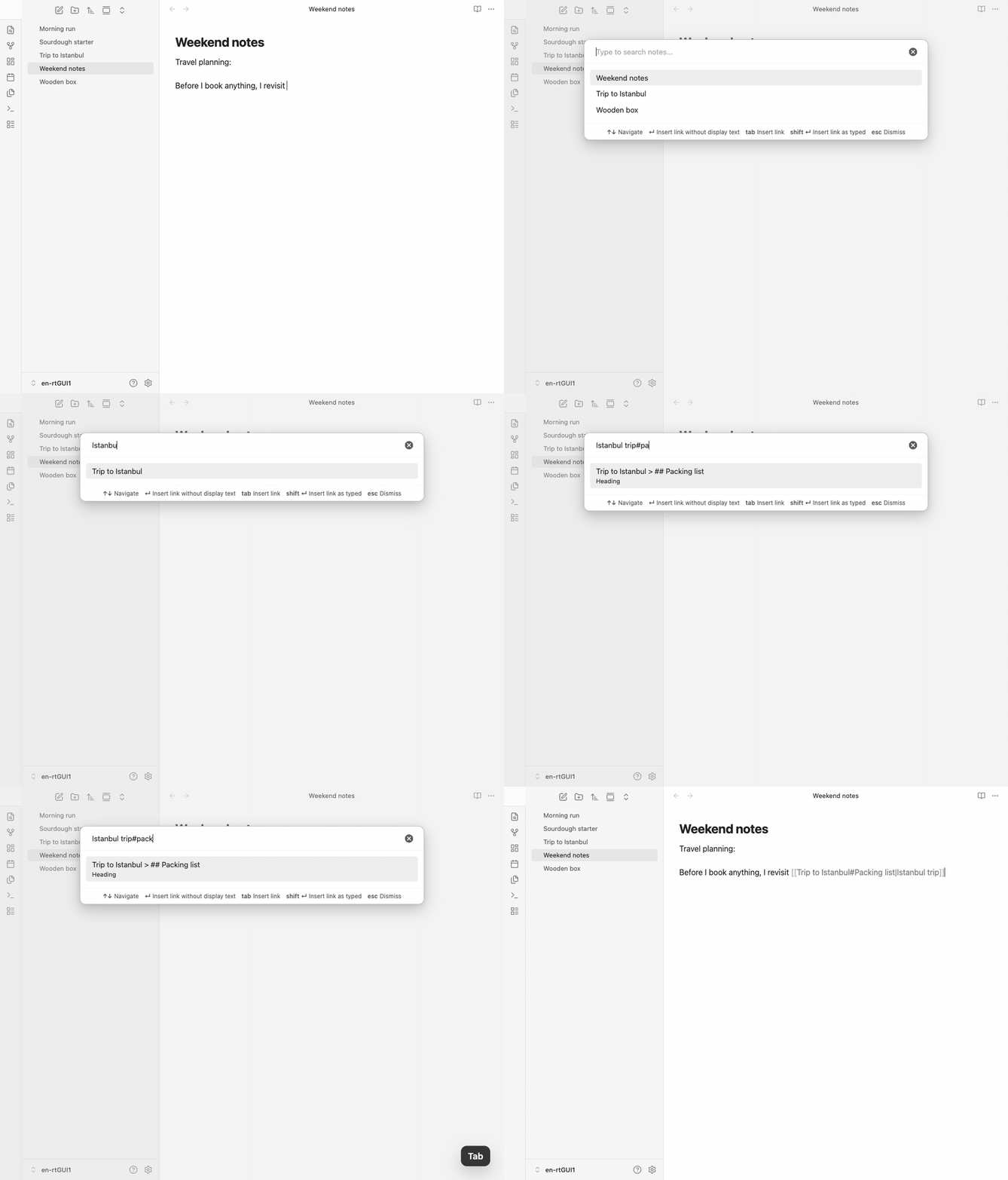
Heading link
Find a note first, then narrow it to a specific heading with #heading.
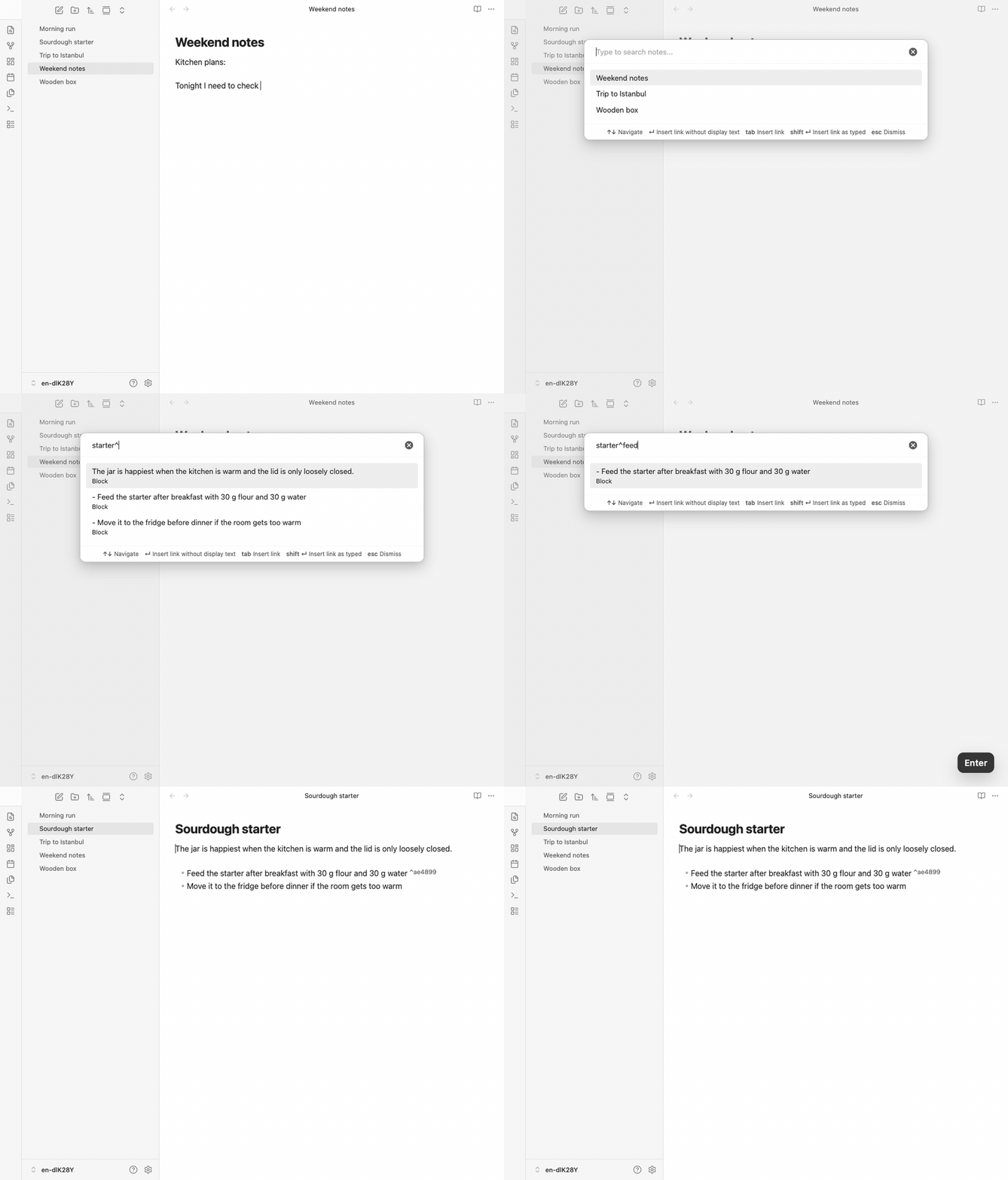
Block link
Search inside a note with ^block, insert the block link, and show the generated block ID in the target note.
Recommended hotkey
The plugin does not assign a hotkey by default. We recommend Cmd/Ctrl+Shift+K (next to Cmd+K which is "Insert link" in Obsidian). To set it up:
- Go to Settings → Hotkeys
- Search for "Natural link"
- Assign your preferred shortcut
You can also open the hotkey settings directly from the plugin's settings tab.
Examples
| You type | Note found | Link created |
|---|---|---|
| wooden boxes | Wooden box | [[Wooden box|wooden boxes]] |
| box wooden | Wooden box | [[Wooden box|box wooden]] |
| wood | Wooden box | [[Wooden box|wood]] |
Installation
From Obsidian Community Plugins
Status: The plugin has been submitted to the official community plugin list and is awaiting review. Once approved, it will be available directly from Obsidian.
- Open Settings → Community plugins → Browse.
- Search for Natural link.
- Click Install, then Enable.
Via BRAT (recommended while awaiting official listing)
BRAT (Beta Reviewers Auto-update Tester) lets you install plugins directly from GitHub and keeps them up to date automatically.
- Install the BRAT plugin from Obsidian Community Plugins if you haven't already.
- Open Settings → BRAT → Add Beta plugin.
- Enter the repository URL:
https://github.com/rekby/obsidian-natural-link - Click Add Plugin.
- Enable Natural link in Settings → Community plugins.
BRAT will automatically check for updates and keep the plugin current.
Manual installation
- Download
main.js,manifest.json, andstyles.cssfrom the latest release. - Create a folder
<Vault>/.obsidian/plugins/obsidian-natural-link/. - Copy the downloaded files into that folder.
- Reload Obsidian and enable Natural link in Settings → Community plugins.
Development
npm install          # Install dependencies
npm run dev          # Watch mode
npm run build        # Type check + production build
npm test             # Run tests
npm run test:watch   # Watch mode tests
npm run obsidian-tests # Build plugin and run real Obsidian UI tests
npm run demo:screenshots # Capture the static README PNG screenshots
npm run demo:capture # Capture localized demo frames in real Obsidian
npm run demo:render  # Render demo GIFs from captured frames via ffmpeg
npm run demo         # Refresh README PNG screenshots and localized demo GIFs
npm run lint         # Lint
npm run dict:ru:suffix # Extract Russian suffix rules from OpenCorpora
npm run dict:ru:build  # Rebuild Russian suppletive dictionary from OpenCorpora
npm run dict:en:build  # Rebuild English irregular forms dictionary from WordNet 3.1
npm run dict:build     # Run all dictionary build pipelines (suffix rules + dictionaries)
Dictionary sources
Morphological dictionaries are generated from open data at build time:
- Russian: OpenCorpora (license: CC BY-SA 3.0)
- English: WordNet
Run npm run dict:build to regenerate all dictionary files. Raw downloaded archives are kept in .cache/dictionaries/ and are not committed.
Known limitations
- No typo tolerance: Currently matches are exact on word roots. Fuzzy matching is planned.
License
For plugin developers
Search results and similarity scores are powered by semantic analysis of your plugin's README. If your plugin isn't appearing for searches you'd expect, try updating your README to clearly describe your plugin's purpose, features, and use cases.