Lodestone
pendingby Jacob Mikesell
Enables an AI Agent (Lode) that uses Agent Client Protocol (ACP), to communicate directly with your notes.
Obsidian ACP Client
Transform your Obsidian vault into a powerful AI coding workspace
An Obsidian plugin that brings AI coding agents directly into your vault through the Agent Client Protocol (ACP). Chat with AI agents that can read, write, and modify files while you maintain full control over permissions.


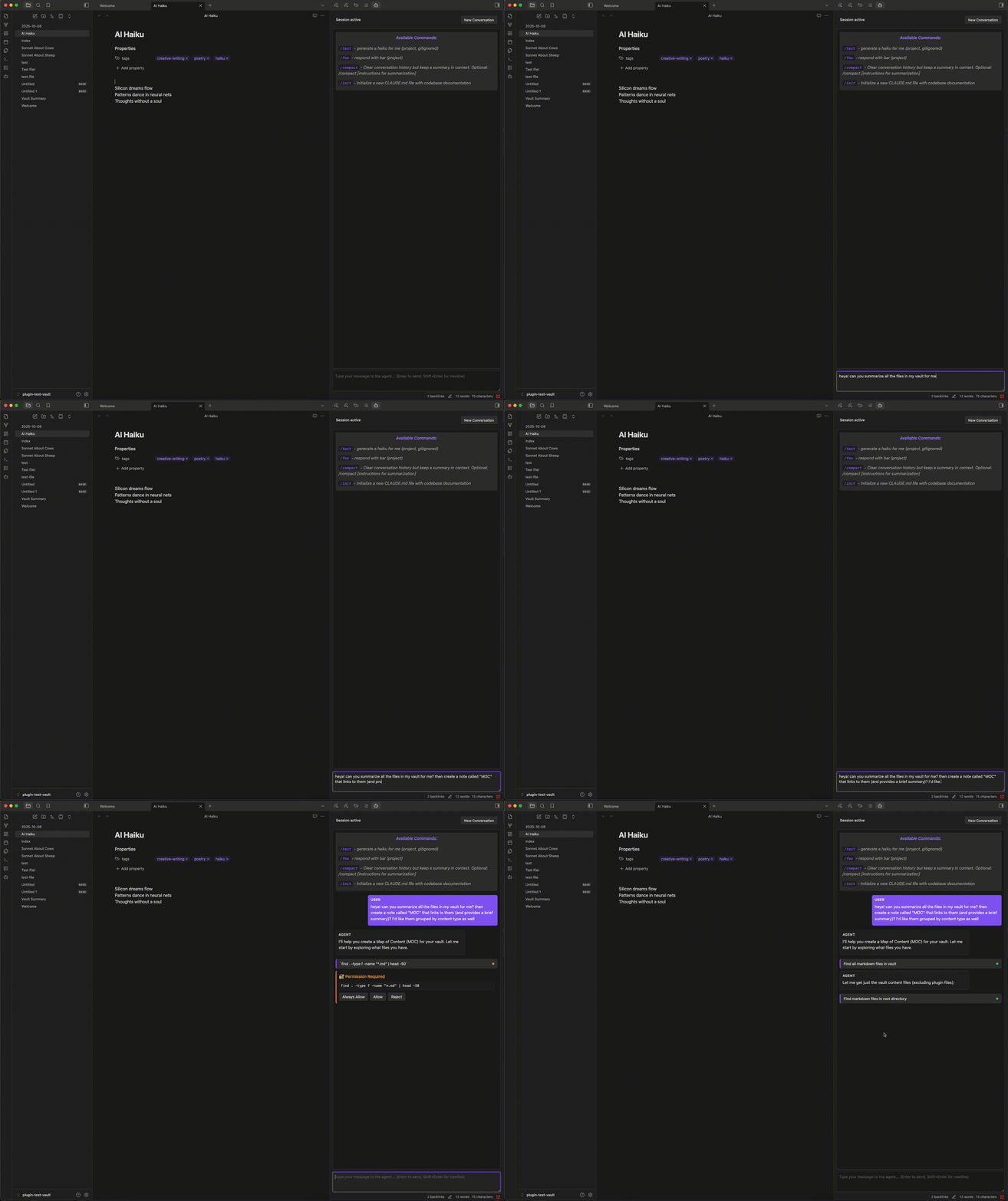
Why Use This Plugin?
- Work Where You Think: Keep your notes, documentation, and code in one place while collaborating with AI agents
- Full File System Access: Agents can read and modify files in your vault with granular permission control
- Terminal Integration: Execute commands and run scripts directly through agent conversations
- Protocol-Based: Uses the open Agent Client Protocol standard, compatible with multiple AI providers
Quick Start
Agent Compatibility
| Agent | Status | Setup |
|---|---|---|
| Claude Code | ✅ Tested | Setup instructions |
| Gemini CLI | ✅ Tested | Setup instructions |
| OpenCode | ✅ Tested | Setup instructions |
| Mistral | ✅ Tested | Setup instructions |
Core Features
🤖 Agent Communication
- Full Agent Client Protocol (ACP) implementation
- Real-time streaming responses
- Multi-turn conversation sessions
- Mode switching support (chat, code, etc.)
📁 File Operations
- Read and write files in your vault
- Automatic backlinks metadata injection
- Side-by-side diff view for edits before approval
- Support for hidden/dotfiles
💻 Terminal Support
- Execute shell commands through agent requests
- Real-time output streaming
- Process management (create, monitor, kill)
- Full environment variable support
🔗 Obsidian Integration
- Native vault file access
- Command palette integration
- Metadata-based automation [⚠️ ALPHA]
- MCP server for Obsidian commands [⚠️ ALPHA]
🎨 User Experience
- Inline chat interface with markdown rendering
- Smart autocomplete (
/for commands,@for files) - Real-time tool call visibility with status badges
- Multiple simultaneous agent sessions
- Auto-save conversation history
🔐 Security & Control
- Granular permission system with inline approval
- Auto-approve options for trusted operations
- Clear visibility of all agent actions
- Manual command review before execution
Agent Setup
Claude Code
Claude Code is Anthropic's official CLI agent with excellent ACP support.
Installation:
# Install and authenticate Claude Code
npm install -g @anthropics/claude-code
claude-code auth

# Install the ACP adapter
npm install -g @zed-industries/claude-code-acp
Configuration:
- Get the adapter path:
which claude-code-acp - In Obsidian Settings → ACP Client:
- Agent Command: Paste the full path from step 1
- Agent Arguments: Leave empty
Known Issues:
- Ensure you're authenticated before using the adapter
Gemini CLI
Note: Setup instructions coming soon! If you have this working, please contribute documentation.
Installation:
# Placeholder - user will provide details
Configuration:
- Agent Command: (path to executable)
- Agent Arguments: (if needed)
Known Issues:
- TBD
OpenCode
Note: Setup instructions coming soon! If you have this working, please contribute documentation.
Installation:
# Placeholder - user will provide details
Configuration:
- Agent Command: (path to executable)
- Agent Arguments: (if needed)
Known Issues:
- TBD
Mistral
Note: Setup instructions coming soon! If you have this working, please contribute documentation.
Installation:
# Placeholder - user will provide details
Configuration:
- Agent Command: (path to executable)
- Agent Arguments: (if needed)
Known Issues:
- TBD
Installation
From Community Plugins (Recommended)
Note: This plugin is not yet available in the Community Plugins store. Coming soon!
Manual Installation
- Download the latest release from GitHub Releases
- Extract
main.js,manifest.json, andstyles.css - Copy to your vault:
.obsidian/plugins/acp-client/ - Reload Obsidian
- Enable the plugin in Settings → Community Plugins
Development Installation
# Clone into your vault's plugin folder
cd /path/to/vault/.obsidian/plugins
git clone https://github.com/yourusername/obsidian-acp-client acp-client
cd acp-client

# Install and build
npm install
npm run build
Enable the plugin in Obsidian Settings → Community Plugins.
Configuration
Basic Settings
Agent Command (required)
- Path to your ACP-compatible agent executable
- Get the path using
which agent-name - Example:
/usr/local/bin/claude-code-acp
Agent Arguments (optional)
- Command-line arguments passed to the agent
- Enter as comma-separated values
- Example:
--model,claude-3-5-sonnet,--verbose
Permission Settings
Auto-approve Read Permissions
- Automatically approve file read requests
- Safe for most use cases
- Files remain read-only unless write is also approved
Auto-approve Write Permissions
- Automatically approve file write requests
- ⚠️ Use with caution-enables agents to modify files without confirmation
- Strongly recommend vault backups (use Obsidian Git)
View Settings
Default View Type
- Choose where the agent view opens
- Options: Right sidebar (default), Left sidebar, Main area tab, Split view
Conversation Tracking
Enable Conversation Tracking
- Auto-save all messages to markdown files after each agent turn
- Great for keeping a record of interactions
Conversation Tracking Folder
- Where to save conversation files
- Default:
conversations/
Alpha Features
⚠️ These features are experimental and may change
Metadata-Based Triggers [⚠️ ALPHA]
- Auto-activate agent when files have
acp-trigger: truein frontmatter - See Metadata-Based Triggers for details
MCP Server [⚠️ ALPHA]
- Expose Obsidian commands to agents via Model Context Protocol
- See MCP Server for details
Obsidian-Focused Prompt [⚠️ ALPHA]
- Inject Obsidian-specific context into agent prompts
- Helps agents understand vault-specific conventions
Key Features (Detailed)
Permission System
The plugin gives you complete control over what agents can access:
Inline Approval When an agent requests permission, you'll see an inline request in the chat:
- Clear description of what the agent wants to do
- Multiple action buttons (Approve, Deny, etc.)
- Request automatically dismissed after selection
Auto-Approval Modes Toggle auto-approval in settings or during a session:
- Read-only access is generally safe
- Write access should be used carefully
- Can be toggled mid-session via button in chat
Diff View
Before writing files, agents show you exactly what will change:
- Side-by-side comparison: Old content on left, new content on right
- Inline editing: Modify the proposed changes before approval
- Syntax highlighting: Code changes are easy to read
- Line-by-line diff: See exactly what's added, removed, or modified
Skip the diff view by enabling auto-approve write permissions in settings.
Autocomplete
Speed up your workflow with smart autocomplete:
Command Autocomplete (type /)
- Shows available agent slash commands
- Filtered automatically as you type
- Press Enter or Tab to select
File Autocomplete (type @)
- Search all files in your vault
- Fuzzy matching by filename
- Inserts wiki-link format:
[[filename]]
Navigation
- ↑/↓ arrow keys to navigate
- Enter or Tab to select
- Esc to cancel
Metadata-Based Triggers [⚠️ ALPHA]
Automatically activate agents when you edit specific files:
Setup: Add frontmatter to any note:
---
acp-trigger: true
acp-prompt: "Review this note and suggest improvements"
---
How it works:
- Edit and save a file with
acp-trigger: true - Optionally also set a custom prompt with
acp-prompt: "Tell a joke about this note" - Agent receives your custom prompt (or default prompt)
Configuration:
- Enable/disable in settings
- Adjust debounce delay (in milliseconds) to avoid triggering before you're done editing
Use cases:
- Auto-review documentation on save
- Validate code snippets in notes
- Generate summaries of meeting notes
MCP Server [⚠️ ALPHA]
Expose Obsidian commands to agents via Model Context Protocol:
What it does:
- Starts an HTTP server (default port 3100)
- Provides two MCP tools:
list_obsidian_commands: Get all available commandsexecute_obsidian_command: Run a command by ID
- Agents can discover and execute any Obsidian command
Configuration:
- Enable in settings
- Set custom port if 3100 is in use
- Server starts when plugin loads
Example usage: Agent can toggle spellcheck, create notes, run plugin commands, open files, etc.
Conversation Tracking
Automatically save your agent conversations:
How it works:
- After each agent turn, messages are saved to a markdown file
- Files are timestamped and organized by date
- Includes both your prompts and agent responses
- Tool calls and outputs are included
File format:
conversations/
├── 2024-01-15-conversation-1.md
├── 2024-01-15-conversation-2.md
└── 2024-01-16-conversation-1.md
Benefits:
- Searchable conversation history
- Reference past interactions
- Build a knowledge base from agent assistance
Usage
Opening the Agent View
Via Ribbon: Click the robot icon in the left ribbon
Via Command Palette:
- Press
Cmd/Ctrl + P - Type "Open Agent View"
- Press Enter
The agent will automatically connect when the view opens.
Sending Messages
- Type your message in the input field at the bottom
- Use
Shift + Enterfor line breaks - Press
Enterto send - Use autocomplete with
/(commands) or@(files)
Starting a New Conversation
Click the New Conversation button in the status bar to:
- Clear all messages
- Reset the session
- Start fresh with the agent
Managing Multiple Sessions
You can open multiple agent views simultaneously:
- Each view maintains its own conversation
- Views are numbered (Agent 1, Agent 2, etc.)
- Close views individually via the X button
Switching Modes
Some agents support multiple modes (chat, code, plan, etc.):
- Use the mode dropdown in the status bar
- Or use Command Palette → "Cycle Agent Mode"
- Current mode is shown in the status bar
⚠️ Security Warning
Always Review Commands Before Approval
AI agents can execute terminal commands on your system through this plugin. Commands run with the same permissions as Obsidian and can:
- Modify or delete files
- Install software
- Access your system
- Make network requests
Best practices:
- Carefully review all bash commands before approving
- Understand what each command does
- When in doubt, deny and execute manually
- Keep backups of your vault
- Start with read-only permissions
Recommended Plugins
Enhance your ACP Client experience:
Show Hidden Files (highly recommended)
- Makes dotfiles visible in Obsidian file explorer
- Essential for seeing
.env,.gitignore, config files, etc. - ACP Client can access hidden files regardless, but this helps you see them
Obsidian Git (highly recommended)
- Version control for your vault
- Critical backup when using auto-approve write permissions
- Easily rollback unwanted changes
Requirements
Platform Support
Desktop Only (Windows, macOS, Linux)
- Requires access to local executables
- Uses Node.js child processes
- Not available on mobile (iOS/Android)
Dependencies
- Node.js (if using npm-based agents)
- ACP-compatible agent installed separately
Troubleshooting
Agent Won't Connect
Check the agent command path:
# Verify the executable exists
which your-agent-command
ls -la /path/to/agent
Verify ACP support:
- Ensure your agent supports the Agent Client Protocol
- Check agent documentation for ACP compatibility
Check developer console:
- Press
Cmd/Ctrl + Shift + I - Look for error messages
- Check the Console tab
Common issues:
- Incorrect path to executable
- Agent not installed
- Missing authentication (Claude Code requires
claude-code auth) - Wrong arguments passed to agent
Permission Errors
File read/write fails:
- Check if auto-approve settings match your intent
- Verify file permissions in your OS
- Ensure Obsidian has access to the vault folder
Permission UI not appearing:
- Check if auto-approve is enabled (may be bypassing UI)
- Look for error messages in developer console
Terminal Commands Fail
Command not found:
- Verify the command exists in your PATH
- Try running the command manually in your terminal
Permission denied:
- Check file/folder permissions
- Some commands require sudo (not recommended through plugin)
Wrong working directory:
- By default, commands run in your vault root
- Agents can specify custom working directories
Agent-Specific Issues
Claude Code:
- Run
claude-code authif authentication fails - Ensure
@zed-industries/claude-code-acpis installed globally - Check for updates:
npm update -g @zed-industries/claude-code-acp
Other Agents:
- Check agent-specific documentation
- Verify ACP implementation version
- Look for known compatibility issues
Still Having Issues?
- Check GitHub Issues for similar problems
- Enable debug logging in developer console
- Create a new issue with:
- Your OS and Obsidian version
- Agent name and version
- Error messages from console
- Steps to reproduce
FAQ
Q: Can I use multiple agents at the same time? A: Yes! Open multiple agent views and configure each with a different agent command.
Q: Are my conversations private? A: Conversations are sent to the agent provider (e.g., Anthropic for Claude). Check your agent's privacy policy.
Q: Can agents access files outside my vault? A: Yes! Agents can run bash to do all sorts of things, be careful! By default the read tool limits to only files in the vault, but a clever/persistent agent will find a way.
Q: What happens if I close Obsidian during an agent session? A: The agent process is terminated. Conversations are not automatically resumed.
Q: Can I use this on mobile? A: No, this plugin requires desktop Obsidian due to Node.js process requirements.
Q: Does this work with the Obsidian API for plugins? A: Yes, agents with MCP server access can execute Obsidian commands, including those from other plugins.
Contributing
Contributions are welcome! Here's how you can help:
Agent Support:
- Test with different ACP-compatible agents
- Document setup instructions and known issues
- Submit compatibility reports
Code Contributions:
- Fork the repository
- Create a feature branch:
git checkout -b feature-name - Make your changes with clear commit messages
- Submit a pull request
Bug Reports:
- Use GitHub Issues
- Include reproduction steps
- Provide console logs
- Specify your environment
Documentation:
- Improve setup instructions
- Add troubleshooting tips
- Clarify confusing sections
Development
Building
# Development mode (watch for changes)
npm run dev

# Production build
npm run build

# Version bump (before releases)
npm run version
Project Structure
acp-client/
├── main.ts              # Plugin entry point, commands
├── acp-client.ts        # ACP protocol implementation
├── agent-view.ts        # Chat UI and message rendering
├── settings.ts          # Settings interface
├── settings-tab.ts      # Settings UI
├── styles.css           # Plugin styles
├── manifest.json        # Plugin metadata
├── package.json         # Dependencies
└── CLAUDE.md            # Developer documentation
Credits
Built with:
License
MIT
Agent Client Protocol: Learn more about ACP at agentclientprotocol.com
For plugin developers
Search results and similarity scores are powered by semantic analysis of your plugin's README. If your plugin isn't appearing for searches you'd expect, try updating your README to clearly describe your plugin's purpose, features, and use cases.