Agent CLI
unlistedby Halo
Integrate AI agents (Claude, Gemini, Codex) terminal into Obsidian sidebar
Agent CLI



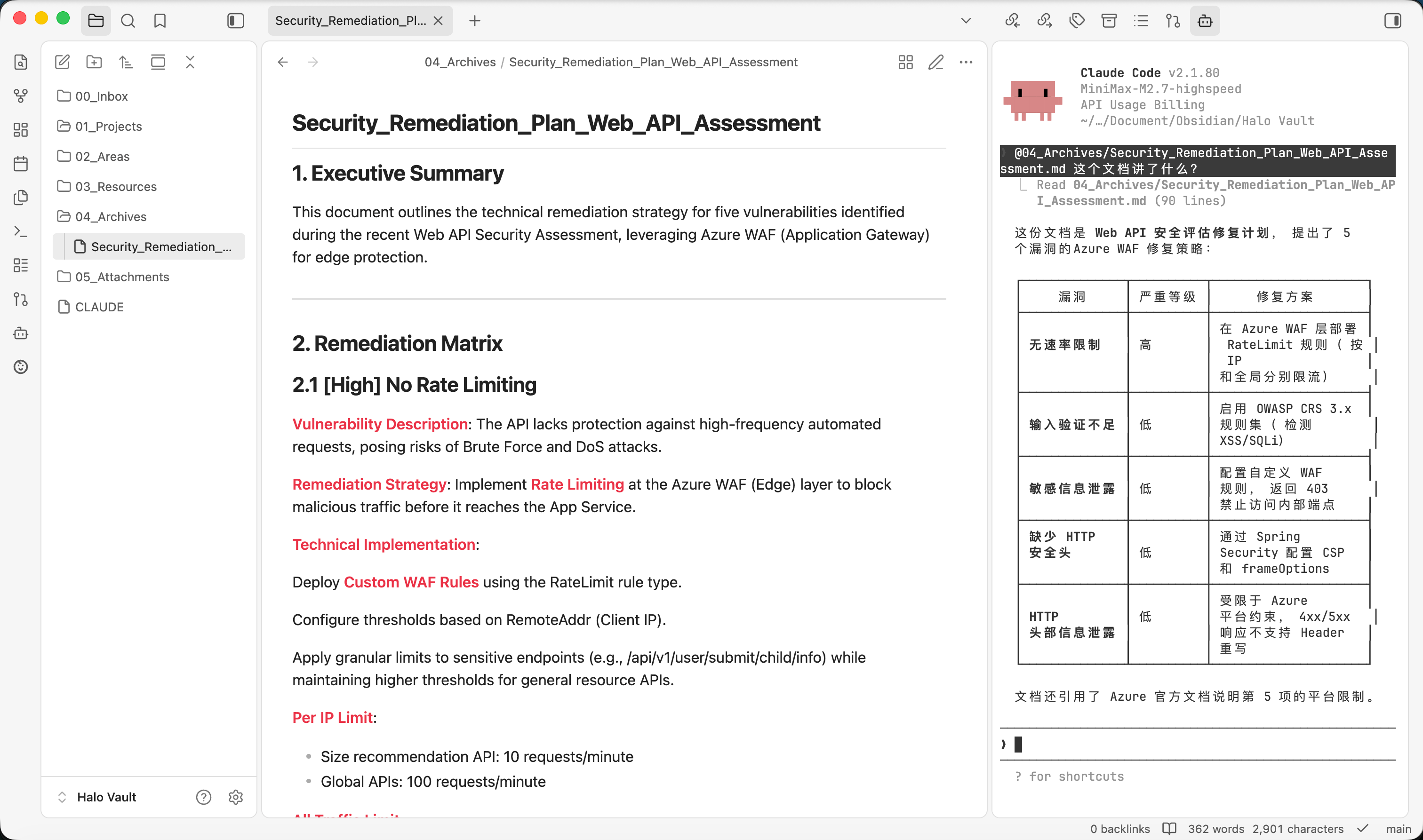
An Obsidian plugin that integrates AI agent terminals (Claude, Gemini, Codex, OpenCode) directly into your Obsidian sidebar.
Features
- Embedded Terminal - Run AI agent CLI directly in Obsidian's sidebar
- Multi-Agent Support - Support for Claude CLI, Gemini CLI, Codex CLI, and OpenCode CLI
- Theme Auto-Detection - Automatically matches Obsidian's dark/light theme
- Current File Context - Automatically send current file path to agent
- Customizable Terminal - Adjust font size and family to your preference
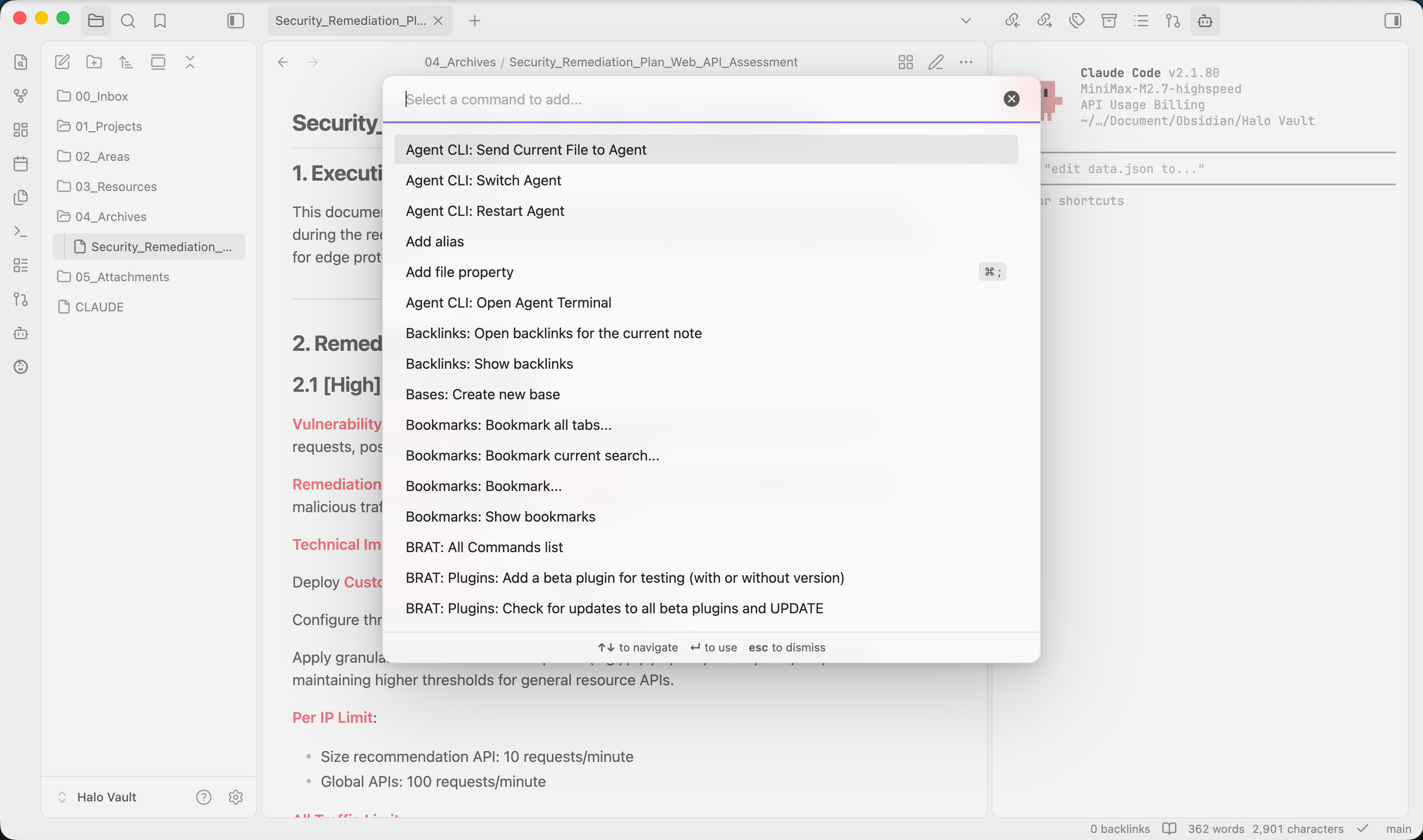
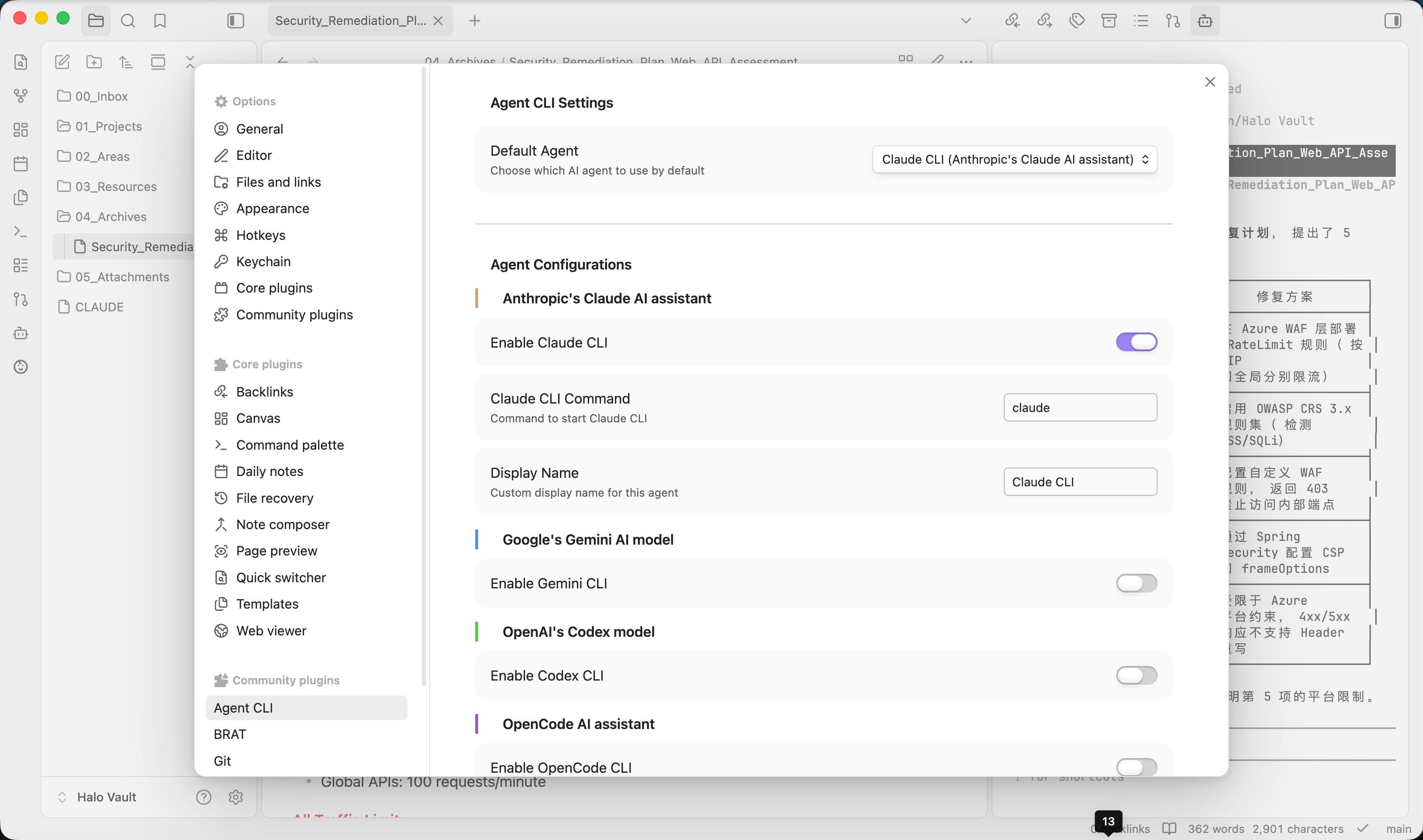
Screenshots
Implementation Principle
This plugin works by leveraging the following technologies:
- xterm.js - A terminal emulator component that renders the terminal UI in the browser
- Python PTY (Pseudo-Terminal) - Uses Python's
ptymodule to create a pseudo-terminal that spawns a shell process - Node.js Child Process - Communicates with the AI agent CLI through stdin/stdout streams
Core Architecture
graph TB
    subgraph Obsidian["Obsidian App"]
        subgraph Plugin["Agent CLI Plugin"]
            Terminal["xterm.js<br/>Terminal UI"]
            PTY["Python PTY<br/>Bridge"]
            Process["Node.js<br/>Child Process"]
        end
    end

    AgentCLI["AI Agent CLI<br/>Claude/Gemini/Codex/OpenCode"]

    User["User Input"] --> Terminal
    Terminal -->|write stdin| PTY
    PTY -->|exec| AgentCLI
    AgentCLI -->|stdout| PTY
    PTY -->|read| Process
    Process -->|render| Terminal
How It Works
- Terminal Rendering: The plugin uses xterm.js to render a terminal emulator within an Obsidian sidebar view
- PTY Creation: When the agent starts, Python creates a pseudo-terminal using
pty.fork()to emulate a real TTY - Shell Spawning: The plugin spawns a zsh shell within the PTY, which then executes the configured AI agent command
- I/O Stream Handling:
- Terminal input from xterm.js is written to the PTY's stdin
- Agent output from the PTY's stdout is rendered in xterm.js
- Theme Sync: The plugin detects Obsidian's theme (dark/light) and applies corresponding colors to xterm.js
Installation
Option 1: Direct Installation (Recommended for Development)
-
Build the plugin:
cd agent-cli npm run build -
Copy the plugin folder to your Obsidian plugins directory:
cp -r /path/to/agent-cli ~/.obsidian/plugins/agent-cli -
Open Obsidian, go to Settings → Community Plugins, and enable "Agent CLI"
Option 2: BRAT Installation
- Install the BRAT plugin
- Use BRAT to add this repository:
https://github.com/lmovse/agent-cli - Enable the plugin in Obsidian
Usage
Opening the Terminal
Click the robot icon in the right sidebar ribbon to open the Agent Terminal.
Commands
The following commands are available via the Obsidian command palette:
- Open Agent Terminal - Open the terminal view
- Switch Agent - Cycle between enabled agents
- Restart Agent - Restart the current agent
- Send Current File to Agent - Send current file path to the agent
Settings
Configure the plugin in Settings → Agent CLI:
- Default Agent - Choose which AI agent to use by default
- Agent Configuration - Enable/disable agents, customize commands and display names
- Font Size - Adjust terminal font size (10-24px)
- Font Family - Set terminal font family
- Auto-send Current File - Automatically send current file path when opening terminal
- Test Agent Connections - Verify that configured agents are accessible
Supported Agents
- Claude CLI - Anthropic's AI assistant
- Gemini CLI - Google's AI model
- Codex CLI - OpenAI's Codex model
- OpenCode CLI - OpenCode AI assistant
Requirements
- Obsidian v0.15.0 or later
- Desktop-only (requires system terminal access)
- At least one AI agent CLI installed and available in your PATH
License
MIT
For plugin developers
Search results and similarity scores are powered by semantic analysis of your plugin's README. If your plugin isn't appearing for searches you'd expect, try updating your README to clearly describe your plugin's purpose, features, and use cases.