Portals
approvedby samaraliwarsi
Pin folders and tags as customizable tabs with icons, colors, and folder notes for easier navigation. - This plugin has not been manually reviewed by Obsidian staff.
Portals for Obsidian





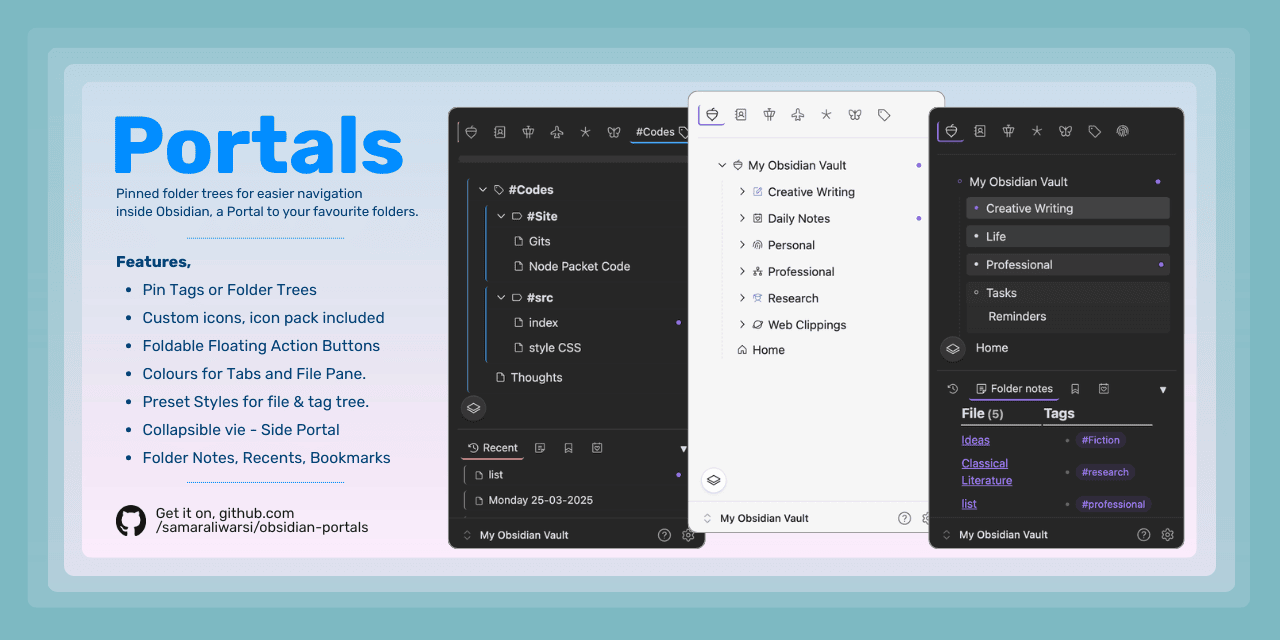
Portals enhances your Obsidian file navigation by letting you pin any folder or tag as a customizable tab, a Portal into your selected folder trees. Add icons to Tabs, background colors, gradients and rearrange them to suit your workflow.
✨ Features
- Pin folders & tags as tabs at the top of the file pane.
- Stacks – group multiple tabs into collapsible stacks.
- Custom icons & colors – Use Phosphor or Lucide; picker includes favourites. Use custom icons for tabs, folders, files, tag groups.
- File preview – Show content snippets below filenames; toggle per file or globally.
- Sections – Organise folders or tags into collapsible section breaks (by property or extension).
- Quick tab switcher – Assign numbers 1–10 to portals and switch instantly via hotkeys.
- Auto backups – Automatically save
data.jsonon Obsidian reload. - Six visual styles + compact tree view + bold folder names.
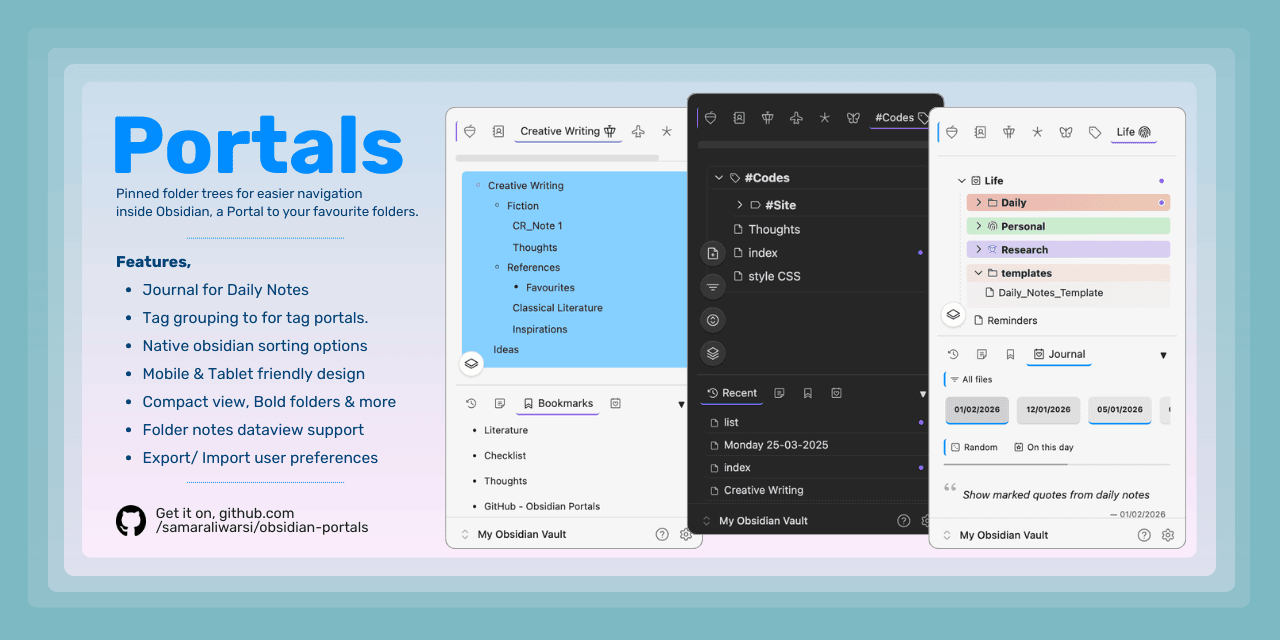
- Tag grouping & subtag support for tag portals.
- Multi‑select files, folders, and tags with
Alt+ClickorSwipe right. Use multi-select toolbar for actions. - Command palette support includes a many commands that can enhance workflow, specially when coupled with hotkeys.
- Foldable floating action buttons for note/ folder creation, tag grouping, sections, collapse and sort.
- Quick-add buttons for folders, tags to quickly create new items in target items.
- Custom display names for tabs, stacks.
- Side Portal - A modular, collapsible, resizable view containing, Bookmarks, Recent Files, Context notes, Hidden, Properties and Journal.
- Context Notes - an expansion to the older Folder notes feature. Context notes apply to folder as well as tags.
- Recents - Shows recent files list from across the vault.
- Bookmarks - Shows bookmarked files, folders or web links.
- Journal - A viewing and marking tool for Daily Notes with a quote display feature.
- Hidden - Place to show files, tags and folders hidden from the main view.
- Properties - A viewing tool for markdown files, based on their properties.
- Trash - A trash explorer for notes and folders based on Obsidian's
.trashfolder at vault root.
- Drag & drop reordering for portal tabs and stacks (desktop).
- Mobile friendly – Responsive design that works on small screens. Tested on Android (more platforms coming).
- Export/Import settings – Backup your tab configuration or transfer it to another vault using json files from
Settings.
For a full featured guide, checkout Portals guide
[!Note]
- Please back up your data file after preferences setup, color & icon choices. Copy the file
.obsidian/plugins/portals/data.jsonto a safe location. You can also export the same viaSettingsand later import it. Make sure to backup before any plugin updates.- For best results,
- On mobile: Works best with Baseline Theme as the theme renders vault on the top side. On other themes, turn off floating navigation in settings, i.e. Settings > Appearance > Floating Navigation.
- On desktop, you may need to turn off vault hiding if your theme hides the vault selector on the lower side.
- Auto backups – Enable in Utilities page to save your configuration automatically on Obsidian reload.
- Please note that certain portal modals may not work correctly on transparent themes.
⚙️ Installation
Using Community Plugins
- Enable community plugins: Go to Settings → Community plugins → Turn on community plugins
- Install Portals: Click "Browse" → Search for "Portals" → Install
Using BRAT (Beta Reviewers Auto-update Tester)
- Install the BRAT plugin from the Obsidian community plugins (if you haven’t already).
- Open BRAT settings and click Add Beta plugin.
- Enter the repository URL:
https://github.com/samaraliwarsi/obsidian-portals. - Click Add Plugin – BRAT will download and enable the latest release.
Manual installation
- Download the latest release from the releases page.
- Extract the files into your vault’s
.obsidian/plugins/portals/folder. - Enable the plugin in Obsidian settings.
🚀 Quick start
- First installation - use Ribbon menu or command palette to open Portals view.
- Add portal tabs using settings or command palette.
- Add existing portals to stacks using
Right-clickcontext menu on tabs. - Drag tabs left/right to reorder.
- Add Side Portals using settings, command palette .
- Side Portal can be turned off for mobile devices.
- Customise tags, stacks and folders.
For detailed walkthroughs and tips, read the Portals Guide.
⚙️ Settings Overview (split into pages)
- Explorer – Replace file explorer, compact tree, styles, background color, bold folders, extension badge, quick-add icons, file preview, file tooltips, enable sections.
- Portal tabs – Compact tabs, tab name display, tab icon position, show quick tab badge, tab colors, pin vault root, add/remove portals.
- Stacks – Hide stack names, stack icon position, show stack count, coloured stack icon, auto‑collapse stacks.
- Side Portal – Enable/disable, choose which tabs appear, disable on mobile.
- Context Notes – Enable, tag notes folder, show in file tree, highlight type, open from icon, show closest context note.
- Journal – Date format, journal folder, quote delimiter, quote indicator, default quote tab.
- Properties – Show current value, hide filtered count.
- Utilities – Plugin icon library (Phosphor/Lucide), export/import, auto backups (folder & max copies), clean up dead portals.
See the Portals Guide for every setting and its description.
🧑💻 Development
Clone the repository, install dependencies, and build:
git clone https://github.com/samaraliwarsi/obsidian-portals.git

cd obsidian-portals

npm install

npm run build
The built main.js and styles.css will be in the root folder. Copy them into your test vault’s .obsidian/plugins/portals/ directory.
📝 License
This project is licensed under the MIT License. See the LICENSE file for details.
For plugin developers
Search results and similarity scores are powered by semantic analysis of your plugin's README. If your plugin isn't appearing for searches you'd expect, try updating your README to clearly describe your plugin's purpose, features, and use cases.