Sectioned Sidebar
approvedby blank247d
Create custom sidebar sections backed by real folders and notes. - This plugin has not been manually reviewed by Obsidian staff.
Sectioned Sidebar — Custom Sidebar Navigation for Obsidian
Sectioned Sidebar is an Obsidian community plugin for organizing notes and folders into customizable sidebar sections. It provides a flexible, Notion-inspired navigation experience while keeping every item backed by real files and folders in your vault.
Install in Obsidian · Plugin directory · Latest release
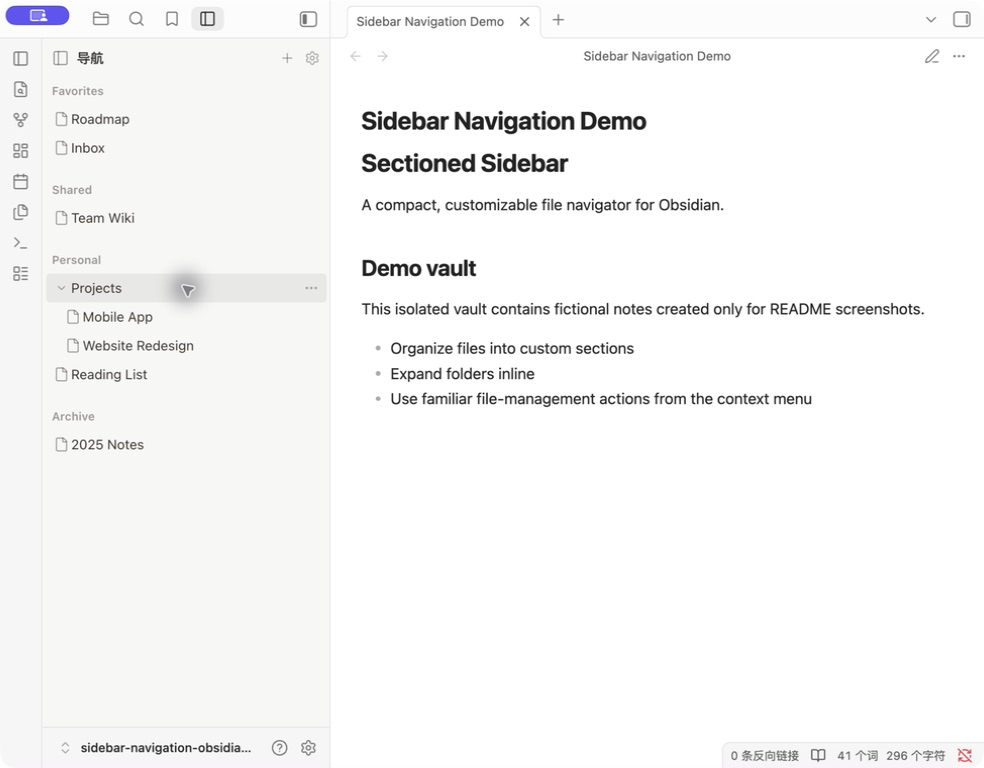
Interaction demo
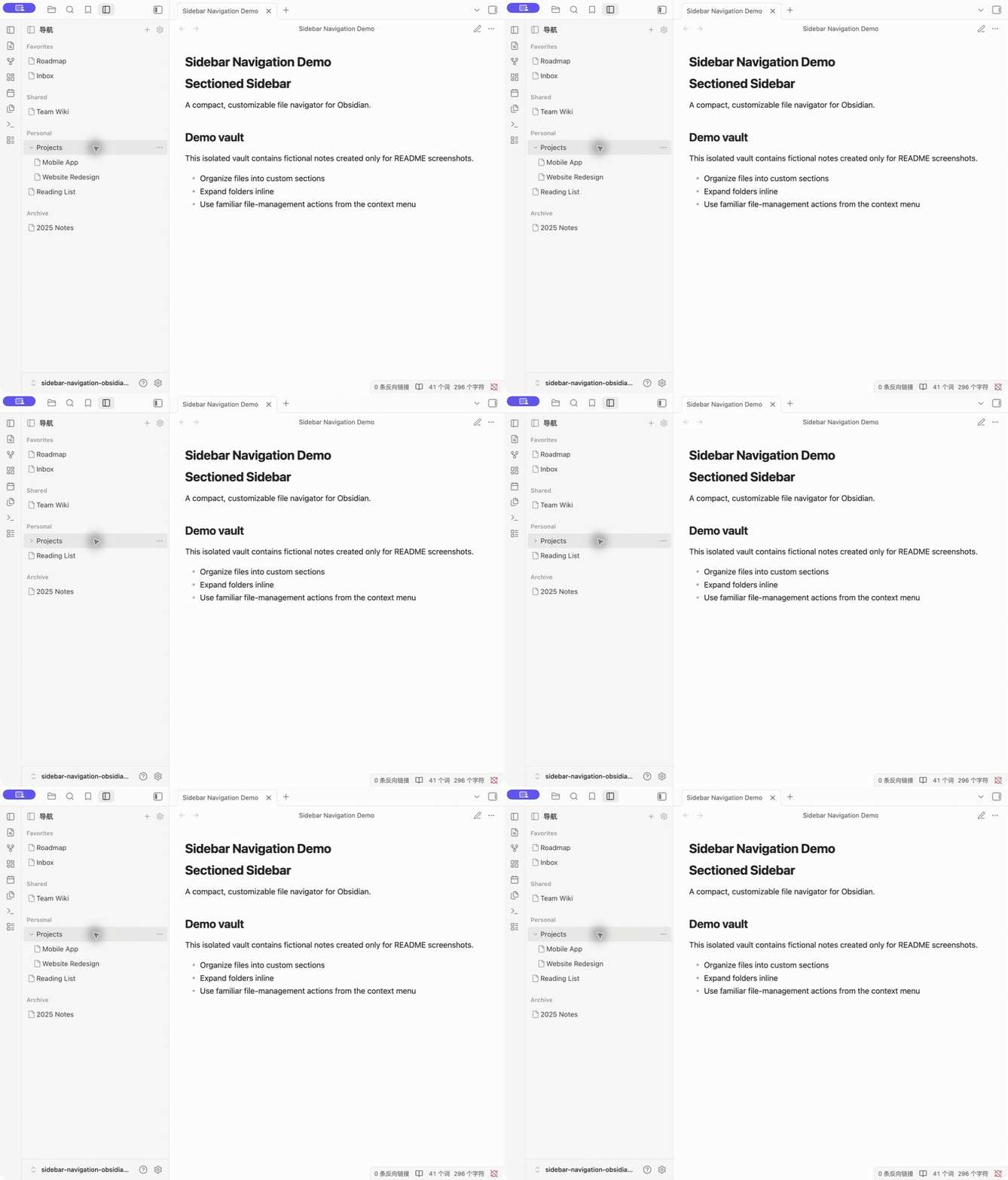
Captured from the real Obsidian interface in an isolated demo vault containing only fictional sections, folders, and notes. No personal vault content is shown.
Features
- Create, rename, reorder, collapse, and remove virtual sidebar sections.
- Follow Obsidian's interface language or switch the plugin manually between Simplified Chinese and English.
- Pin existing notes and folders without changing their real vault paths.
- Expand ordinary folders and browse their descendants in place.
- Show complete file names, including their extensions.
- Reuse Obsidian's file-menu extension system for familiar file and folder actions.
- Keep navigation-specific actions in a separate Navigation management submenu.
- Follow Obsidian rename events so pinned paths remain valid.
- Remove matching navigation references when a real note or folder is deleted.
Use cases
- Build an Obsidian custom sidebar for areas such as Favorites, Projects, Shared, Personal, or Archive.
- Surface frequently used notes and folders without changing their real vault locations.
- Create a compact, Notion-inspired workspace navigation while keeping Obsidian's file-based data model.
- Browse nested folder structures directly from a curated navigation view.
- Maintain separate navigation groupings for different workflows without duplicating notes.
Install
Community plugins (recommended)
- Open Sectioned Sidebar in Obsidian, or open Settings → Community plugins → Browse and search for
Sectioned Sidebar. - Select Install.
- Select Enable after installation finishes.
Manual installation
- Download
main.js,manifest.json, andstyles.cssfrom the latest release. - Create
.obsidian/plugins/sectioned-sidebar/inside your vault. - Copy the three downloaded files into that directory.
- Reload Obsidian, open Settings → Community plugins, and enable Sectioned Sidebar.
The plugin ID is sectioned-sidebar. If you tested an earlier pre-release build under .obsidian/plugins/notion-navigation/ or .obsidian/plugins/sidebar-navigation/, rename that folder to sectioned-sidebar while Obsidian is closed. Keep data.json in the renamed folder to preserve your navigation settings.
Under Settings → Sectioned Sidebar → Language, choose Follow Obsidian, 简体中文, or English. Changing the interface language does not rename existing custom sections.
Data model
Sections and pinned paths are stored in the plugin's data.json. Reordering, moving between sections, expanding, collapsing, or removing a navigation item changes only that configuration. Real files are modified only when you choose an explicit file-management action.
FAQ
Can I organize notes without moving files?
Yes. Sectioned Sidebar stores references to existing notes and folders. Pinning, reordering, or moving an item between virtual sections does not change its real vault path.
Can I create Notion-style sidebar sections in Obsidian?
Yes. Section names, order, contents, and collapsed state are customizable. The sections are virtual, while every pinned item remains backed by a real Obsidian file or folder.
Does Sectioned Sidebar replace Obsidian's native file explorer?
No. The custom navigation and native file explorer remain available in the same left-sidebar tab group, so you can switch between curated navigation and the complete vault tree.
What happens when I rename or delete a real file?
The plugin follows Obsidian rename events to update pinned paths. When Obsidian confirms that a real note or folder was deleted, matching navigation references are removed.
Which interface languages are supported?
Sectioned Sidebar supports Simplified Chinese and English and can follow Obsidian's interface language automatically.
Development
The plugin is distributed as plain JavaScript and CSS; no build step is required.
node --check main.js
Release provenance
GitHub Actions generates signed build-provenance attestations for main.js, manifest.json, and styles.css after each GitHub Release is published. Before signing, the workflow verifies that every downloaded release asset exactly matches the corresponding file in the release tag.
Verify a downloaded asset with GitHub CLI:
gh attestation verify main.js --repo blank247d/sectioned-sidebar
To backfill an existing release, run Attest release assets from the Actions tab and provide its tag.
Contributing
Bug reports, feature suggestions, documentation improvements, and code contributions are welcome. See CONTRIBUTING.md before opening an issue or pull request.
License
MIT © 2026 blank247d
For plugin developers
Search results and similarity scores are powered by semantic analysis of your plugin's README. If your plugin isn't appearing for searches you'd expect, try updating your README to clearly describe your plugin's purpose, features, and use cases.