PUML Viewer
approvedby andreykolygin
Renders PlantUML from .puml files and markdown code blocks. - This plugin has not been manually reviewed by Obsidian staff.
PUML Viewer for Obsidian
A plugin for Obsidian that renders PlantUML/Mermaid from diagram files and from markdown code blocks.
Features
- Custom diagram file view (
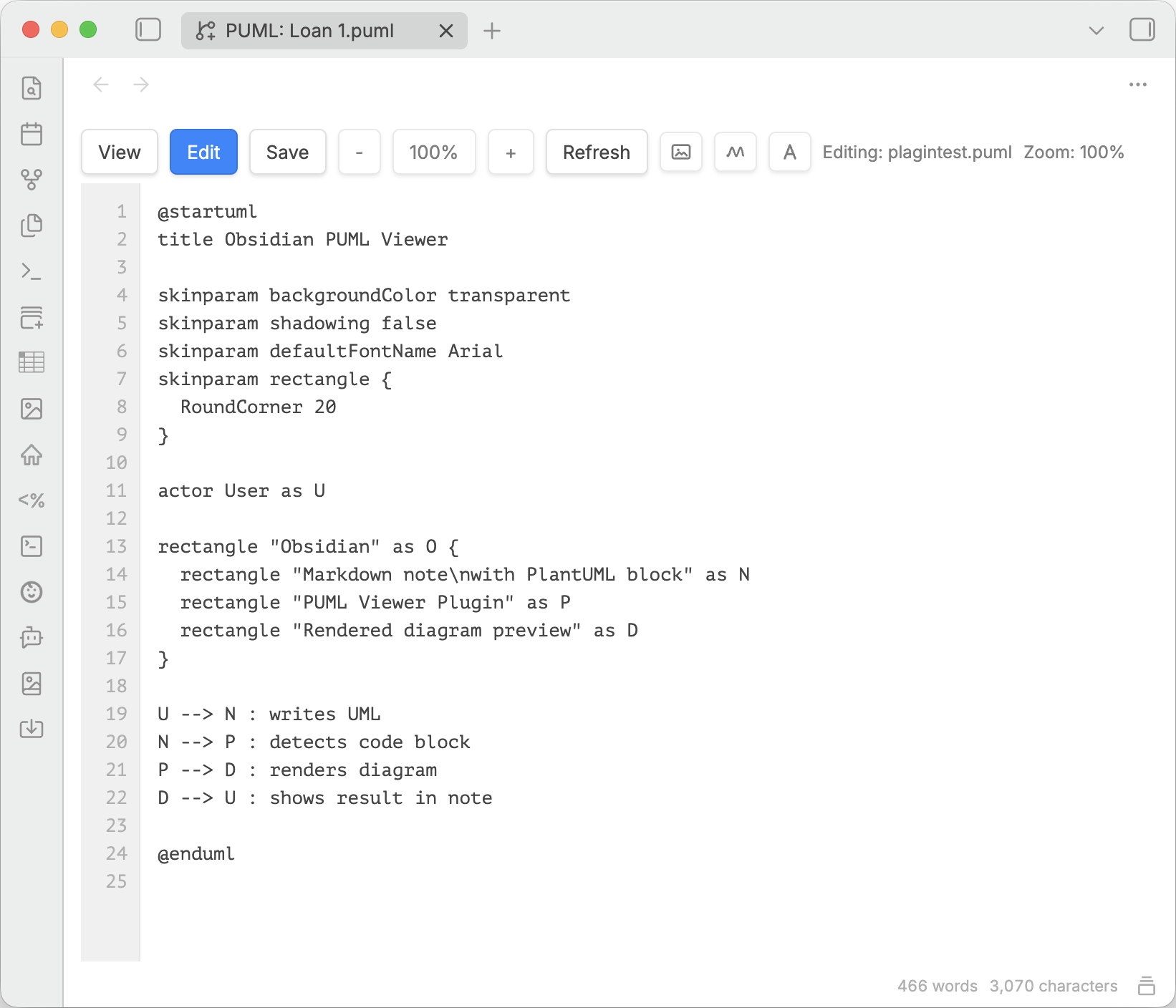
.puml,.mermaid,.mmd,.marmaid) with two modes:View(diagram)Edit(source code with line numbers)
- Diagram toolbar actions:
- refresh
- zoom in / reset / zoom out
- export buttons (SVG icons) to save as:
.png.svg.txt(ASCII Art)
- Drag-to-pan in diagram view when content is scrollable
- Auto-fit diagram to viewer width on render
- Auto-refresh on source file change
- Startup recovery: reopen and render previously opened diagram file after Obsidian restart
- Markdown embedded rendering for fenced blocks:
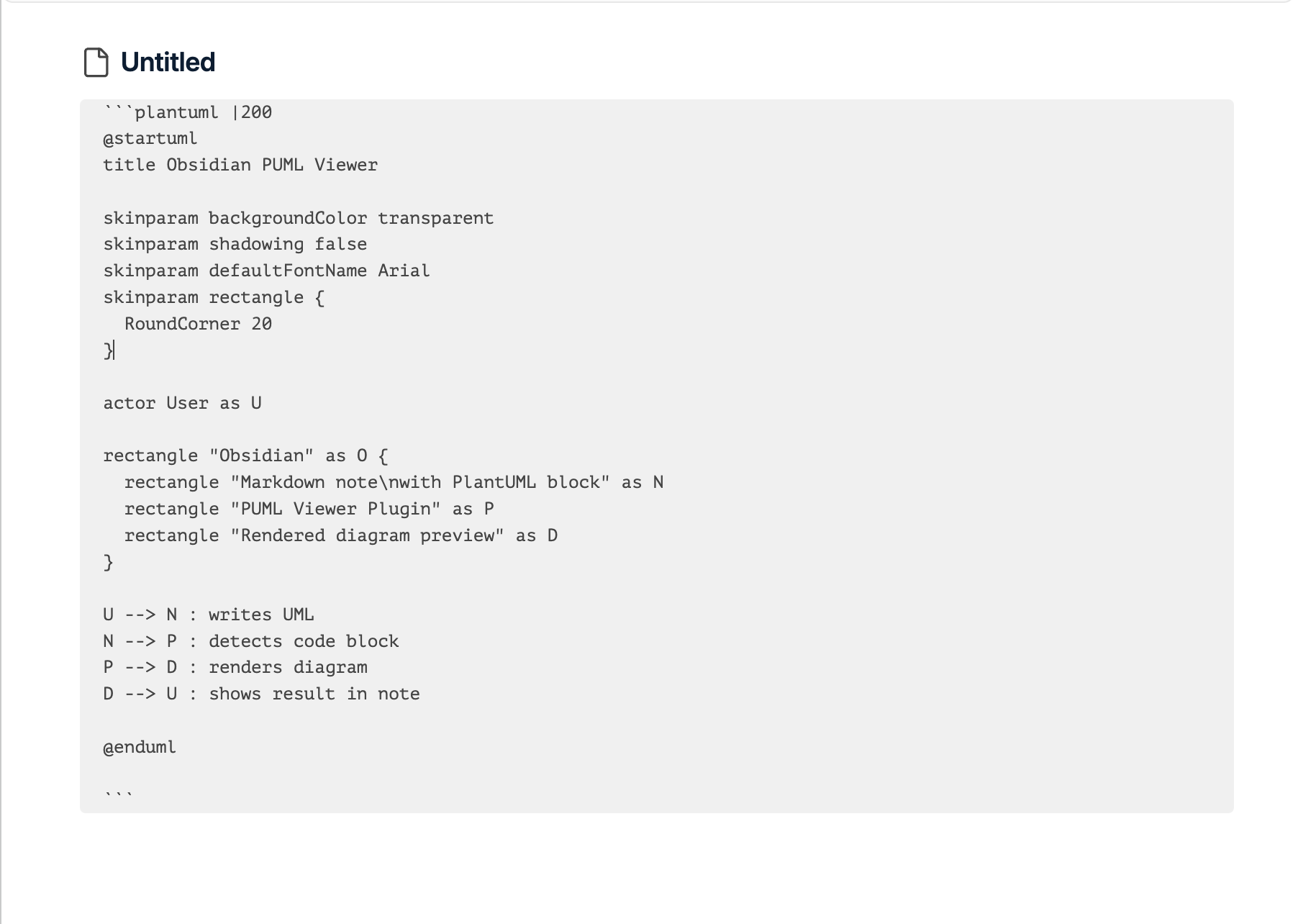
```plantuml```mermaid- switch between
View Codeand diagram Zoomoverlay with drag-to-pan and zoom controls- save diagram with format chooser (
Save as PNG/Save as SVG) - optional width hint in fence:
```plantuml |500 - width hint limits only diagram area; code view uses full available block width
- PlantUML code coloring in embedded
View Codemode - Works with:
- PlantUML server
- Kroki (
https://kroki.io) - Local server (for example
http://localhost:8000)
- Supports both
SVGandPNG
Build
npm install
npm run build
Install into Obsidian
Copy these files into:
<YourVault>/.obsidian/plugins/puml-viewer/
Files:
main.jsmanifest.jsonstyles.cssversions.json
Then enable the plugin in Settings → Community plugins.
Usage
Open diagram files
- Open a supported diagram file (
.puml,.mermaid,.mmd,.marmaid) and run command:Open current diagram file in viewer
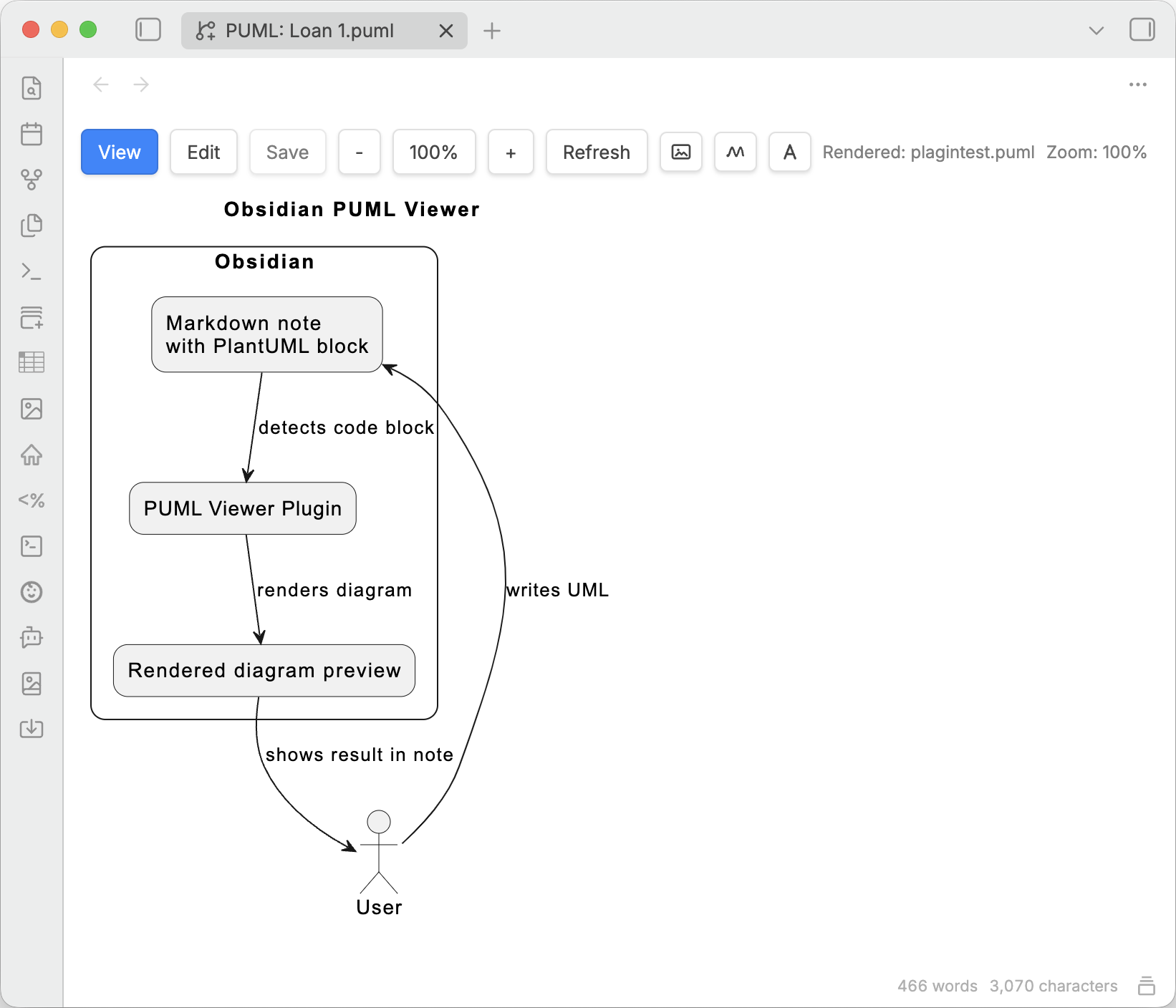
- Switch between
ViewandEditmodes in the toolbar.
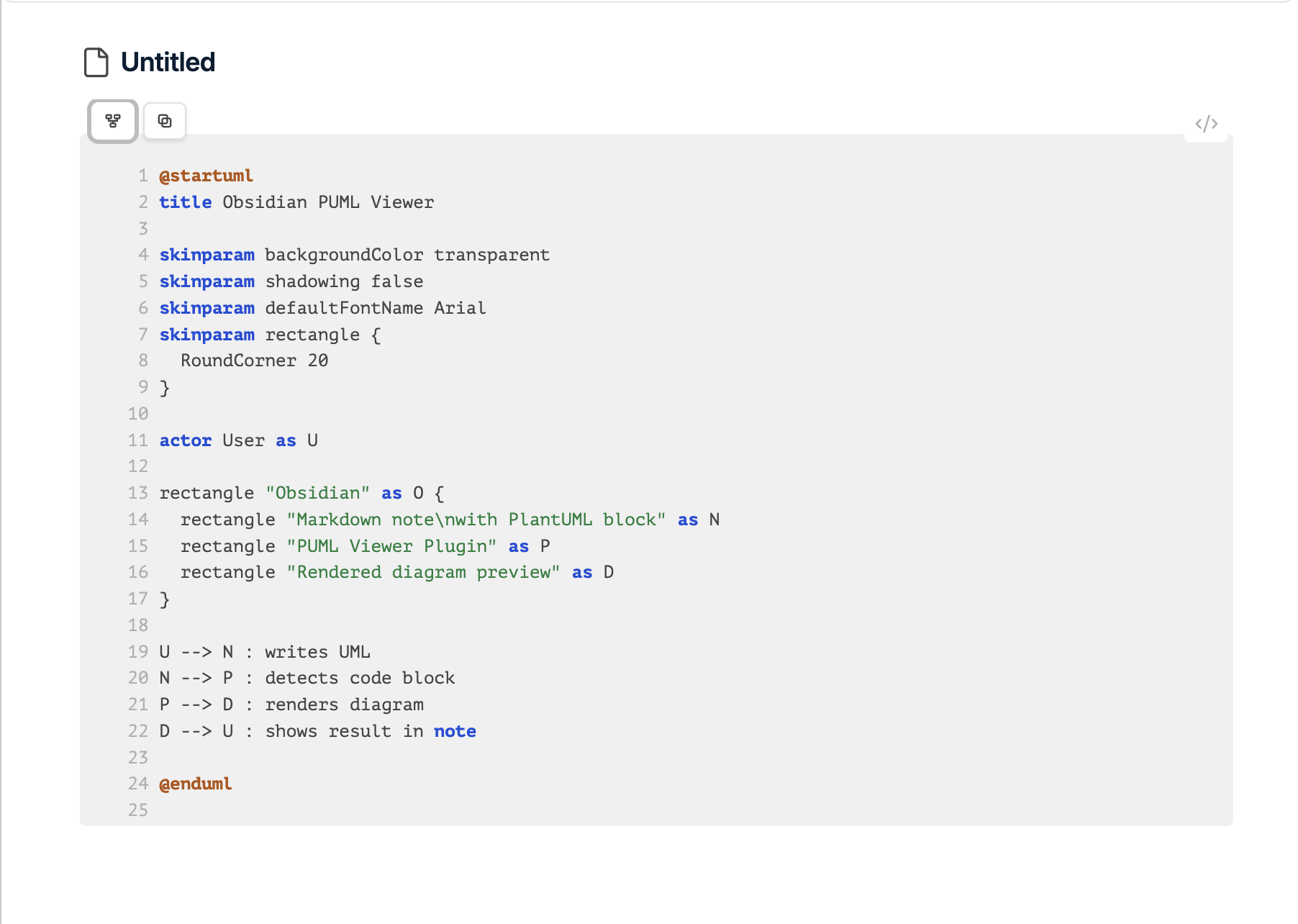
The dedicated viewer gives you a diagram-first workspace for standalone files, with quick switching back to the editable source when you need to adjust the markup.
Source editing stays in the same view, so you can iterate on PlantUML without leaving the file context.
Markdown blocks
Basic block:
```plantuml
@startuml
Bob -> Alice: hello
@enduml
```
Mermaid block:
```mermaid
flowchart LR
  A --> B
```
Block with width hint:
```plantuml |500
@startuml
Bob -> Alice: hello
@enduml
```
|500means max diagram block width in pixels.- In rendered block, use:
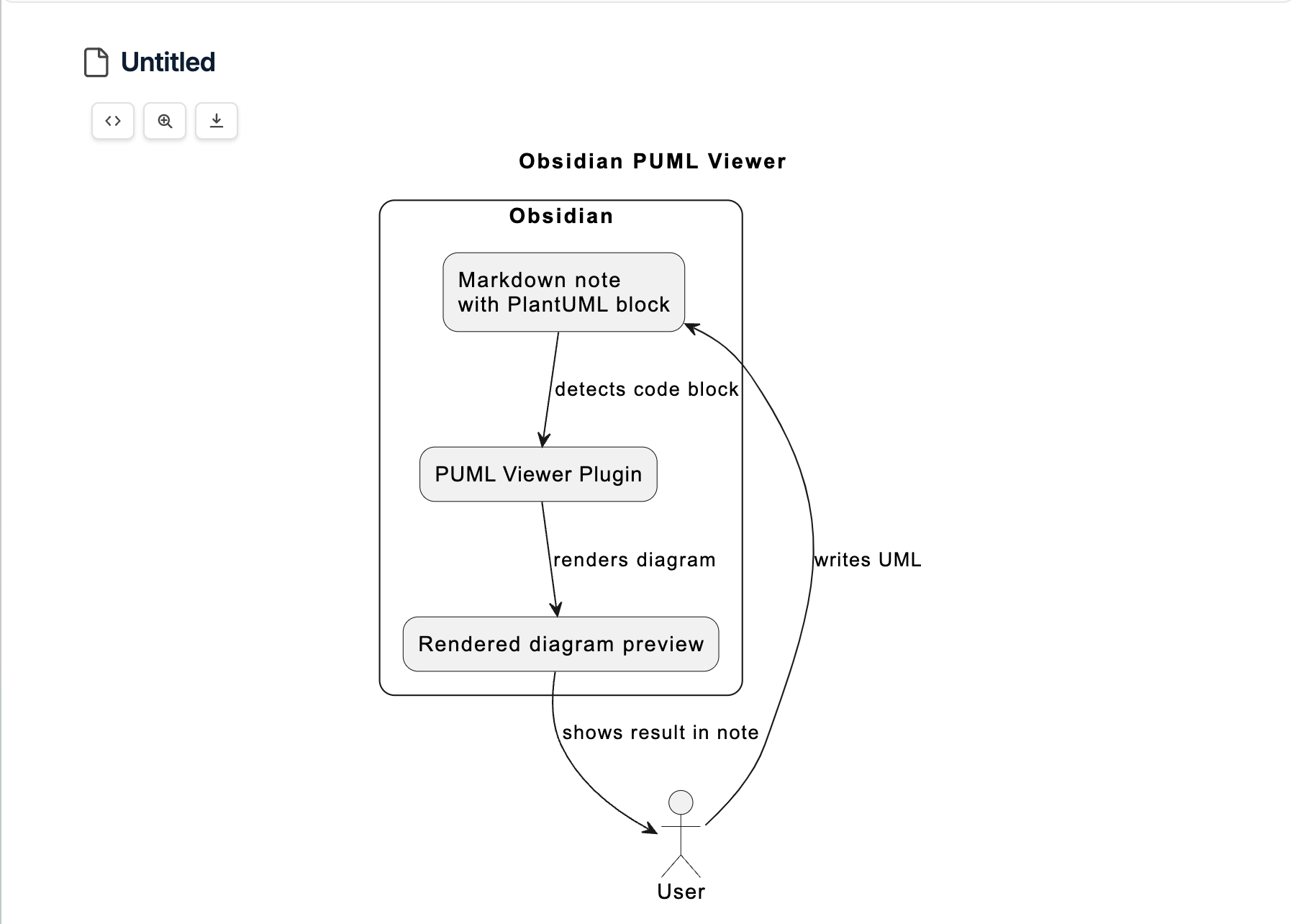
View Codeto toggle source/diagramZoomto open fullscreen overlay- save icon to choose
PNGorSVG
Rendered markdown blocks stay inside the note preview, which makes them usable for documentation, specs, and presentation notes without opening a separate file.
For larger diagrams, the fullscreen zoom overlay adds navigation controls and drag-to-pan, so dense schemes remain readable.
Export actions are available directly from the rendered block when you need to reuse the diagram outside Obsidian.
Settings
Server type:PlantUML/Kroki/Local- Separate URLs:
PlantUML URL(example:https://www.plantuml.com/plantuml)Kroki URL(example:https://kroki.io)Local URL(example:http://localhost:8000)
Kroki diagram type:PlantUML/Mermaid- Used as default for Kroki requests when diagram type is not explicitly implied by code block language.
Image format: default render format for viewer (SVGorPNG)Embedded block default view: show diagram or code firstEmbedded diagram alignment:left/center/right(defaultcenter)- Applied immediately in markdown preview without Obsidian restart
Disclosures
- Network usage: plugin sends diagram source to the configured render server
(
PlantUML,Kroki, orLocal) to generate SVG/PNG/TXT output. - Accounts / payments: not required.
- Telemetry / ads: none.
- External file access: none outside Obsidian vault APIs.
For plugin developers
Search results and similarity scores are powered by semantic analysis of your plugin's README. If your plugin isn't appearing for searches you'd expect, try updating your README to clearly describe your plugin's purpose, features, and use cases.